Approve or reject a request
How admins approve or reject requests, give a reason, pass a request to another admin, or take one over.
When someone sends you a request, it waits on your My approvals page with everything you need to decide: the amount, the details and any invoice or receipt.
Approve a request#
Click My approvals in the menu.
Find the request under Sent to you or Open to any admin. Click any attached file to check it.
Click Approve.
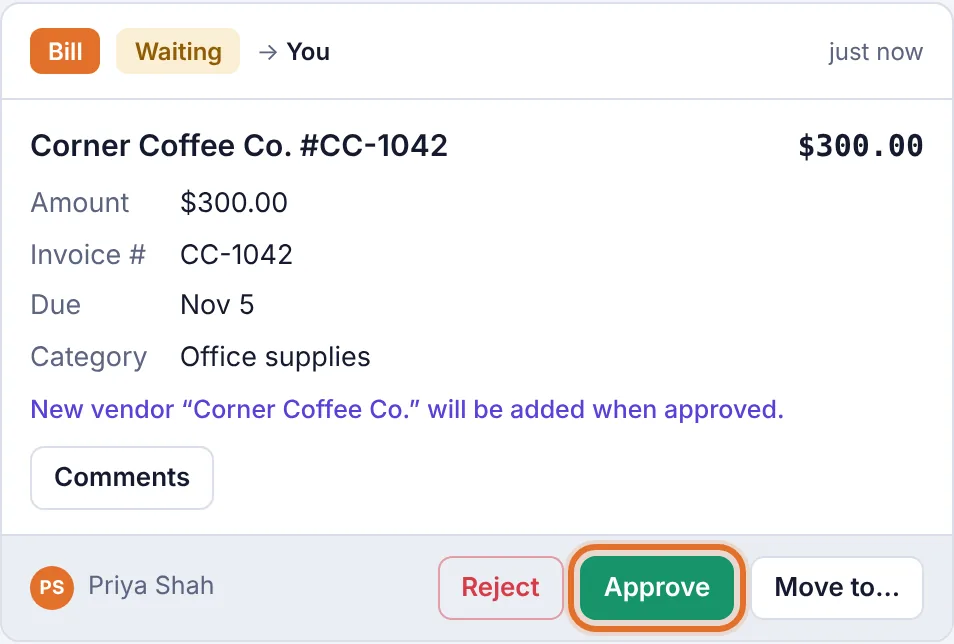
The Approve button on a request card
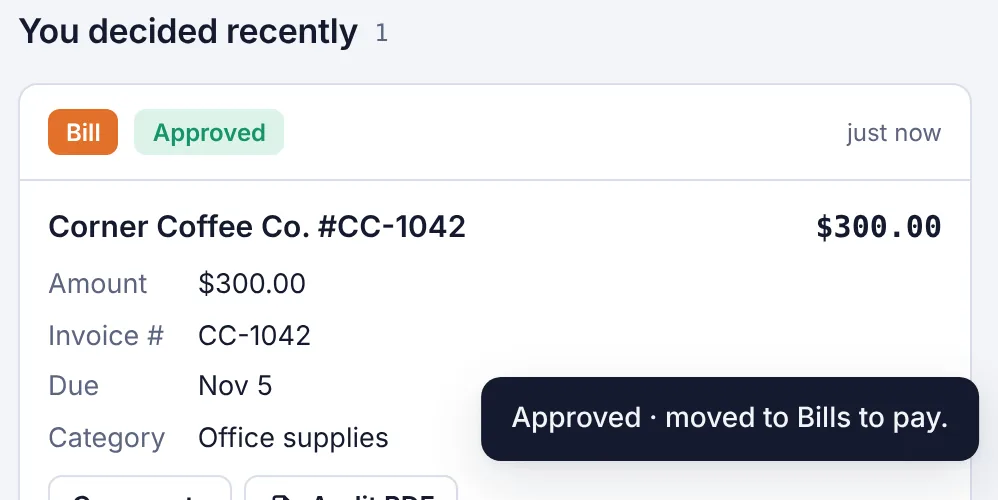
The request moves to You decided recently and a message tells you where it went, for example Approved · moved to Bills to pay. The person who sent it is told straight away.
Reject a request#
Click Reject on the request.
Type a reason in the box (optional). The person who sent it will see it, so tell them what to fix.
Click Reject again to confirm, or Cancel to go back.
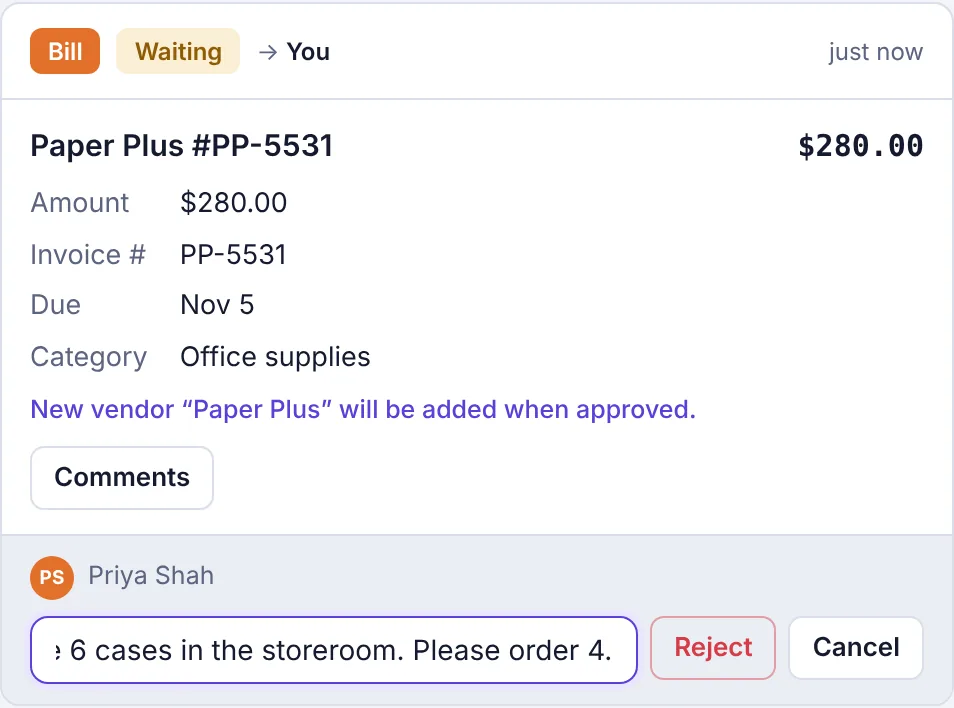
Typing a reason before rejecting
You'll see Request rejected. They'll see your reason. (If you left the box empty, the message ends They'll see “No reason given”., and that's what the sender is told.) Nothing is added to the board. The sender can change the request and send it again; it comes back to you as Resubmitted.
Requests that need two or more approvals#
Some requests need more than one approval because of an approval rule or because the sender picked several approvers. The card shows dots and how many approvals are done.
The first approver clicks Approve. They see a message like Approval 1 of 2 recorded. It now goes to Dana Brooks.
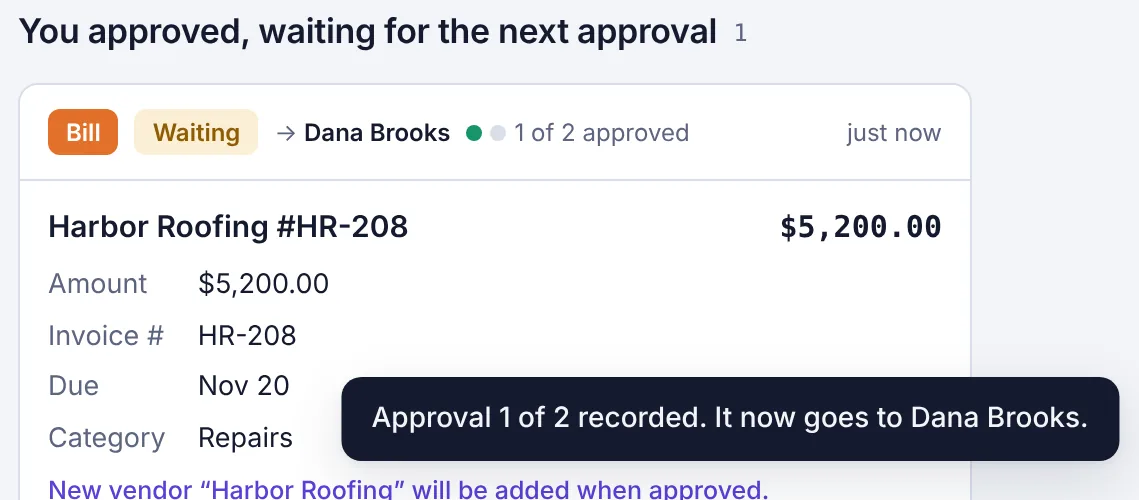
After the first approval, the request waits for the second one The next approver gets a notification (Second approval needed) and sees the request under Sent to you, with 1 of 2 approved.
Nothing is added to the board until the last approval. Anyone in the line can reject it, and that ends it.
The same person can never give two approvals on one request, and the person who sent it can't give any.
Pass a request to another admin#
If a request came to you but someone else should decide, move it.
Click Move to… on the request.
Pick an admin from the list.
Click Move.

Moving a request to another admin
They're told about it straight away. You can move a request that's waiting for you, one that's open to any admin, or one you're covering as a stand-in. The owner can move any waiting request.
Take over a request#
If a request is stuck with another admin, you can take it over and decide it yourself.
Click My approvals, then All requests.
Find the request and click Take over.
You'll see It's yours now. You can approve or reject it. Approve or reject it as usual.
The Take over button only shows when you're allowed to use it:
The owner sees it on any request that's waiting for another admin, at any time.
Other admins see it once the request has waited 3 days since it was last sent or changed. Before that, the button is hidden.
Any admin sees it right away on a request that isn't waiting for one specific person.
If the admin it was waiting for is no longer an admin (their role changed or they left), the request opens up to any admin, so anyone can decide it right away.
Taking over is recorded in the activity log. If someone is going away for a while, a stand-in is a better choice.
Approve from your phone or desktop notification#
If you've turned on phone and desktop notifications, new requests arrive with Approve and Reject buttons on the notification itself. See Approval notifications and emails.