Approval notifications and emails
What approvers and senders are told about requests, and how to approve or reject straight from a phone or desktop notification.
Plainstamp tells the right people about every request, so nothing sits waiting without anyone knowing.
What the approver is told#
When a request is sent (or sent again after a change), everyone who can approve it gets:
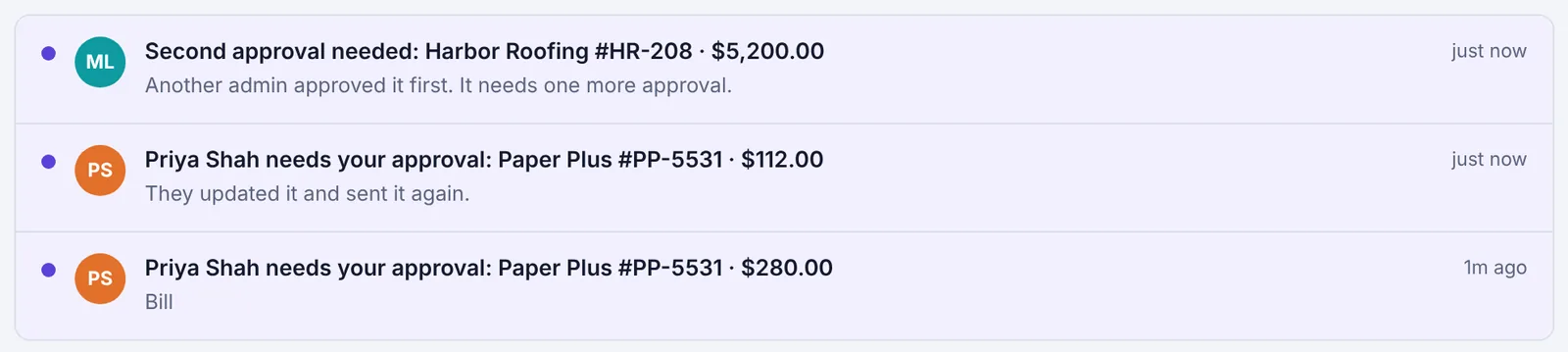
A notification on the Notifications page, for example Priya Shah needs your approval: Paper Plus #PP-5531 · $280.00. If it was changed and sent again, it says They updated it and sent it again. While it's unread, it has Reject and Approve buttons under it (see below).
An email with the request's details and a Review it button that opens the Approvals page. It says whether you're the approver they picked, or whether it went to all admins.
A phone or desktop notification, if you've turned those on, with Approve and Reject buttons.
Who counts as "everyone who can approve it":
If it was sent to a named admin: that admin, plus their stand-in if they're away.
If it was sent to Any admin: every owner and admin, except the person who sent it.
For a second (or later) approval: the next person in line, or every admin who hasn't approved it yet. The title says Second approval needed.
What the sender is told#
When the request is decided, the person who sent it gets a notification and an email:
Approved: Dana Brooks approved: … and "It's on the board now."
Rejected: Dana Brooks didn't approve: … with Reason: …, and a button to edit and send it again. If the admin didn't write a reason, it says Reason: No reason given.
If a task was approved for someone else, that person also gets New task for you: ….
Approve or reject from the Notifications page#
An unread approval notification on the Notifications page has Reject and Approve buttons under it.
Click Approve to approve it, just like on the Approvals page.
Click Reject, type a reason in the box (optional; the sender sees it), then click Reject again, or Cancel to go back. With no reason, the sender is told "No reason given".
Either way the notification is marked as read. If the request was changed or decided since the notification was sent, you'll see a message instead; click the notification to open Approvals and look again.
Approve or reject from a phone notification#
With phone and desktop notifications turned on, a new request shows Approve and Reject right on the notification. Tap one and Plainstamp does it without opening the app, then shows a short Approved or Rejected notification to confirm.
Open Settings, then the Notifications tab.
Make sure Phone and desktop notifications is on.
Under Phone and desktop notifications, click Turn on for this device and allow notifications when your browser asks. Do this on each phone or computer you want them on.
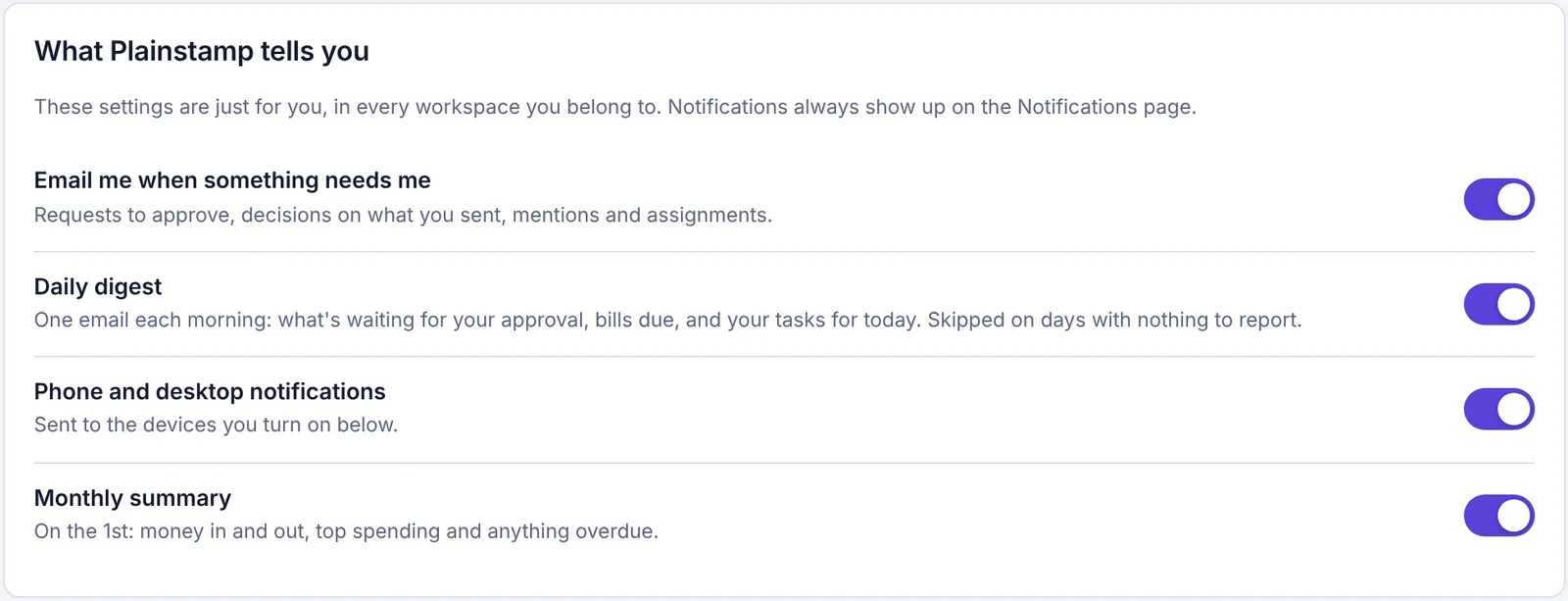
Your notification choices in Settings › Notifications
Good to know:
Reject on a phone or desktop notification can't take a typed reason, so the sender is told "No reason given". To give a reason, tap the notification to open the request and reject it there, or use Reject on the Notifications page.
The buttons only work for you, on a device where you're signed in to Plainstamp.
They stop working after 3 days, or if the request was changed since the notification was sent. Tapping them then opens Plainstamp so you can look again.
Some phones and browsers hide notification buttons. Tap the notification to open the request instead.
Morning email and reminders#
The Morning email (on by default, and once called the Daily digest) lists what's waiting for your approval at 7am, along with your tasks and bills due. It's skipped on days with nothing to report.
Admins can set up reminder rules under Settings › Reminders to nudge the approver, the sender or all admins when a request has been waiting a certain number of days.
Not getting emails?#
Check Settings › Notifications and make sure Email me when something needs me is on. An admin can also manage notifications for employees and workers under Your team's notifications on the same page. Requests always show on the Notifications page and on My approvals, whatever your settings.