Send something for approval
How employees and workers send a bill, transaction, vendor or task for approval, pick who approves it, and attach files.
If you're an employee or a worker, what you add goes to an admin before it lands on the board. You fill in the same form as everyone else; the only extra step is choosing who should approve it.
Send a bill, transaction or vendor#
Click the purple New button at the top right of the page (for example, on Bills to pay).
Pick what you're adding at the top of the form: Transaction, Bill to pay, Vendor or Mileage.
Fill in the form. Fields marked with * are required.
Add the invoice or receipt. Drop it on Drop an invoice or receipt to have the form fill itself in, or click Add file under Attachments.
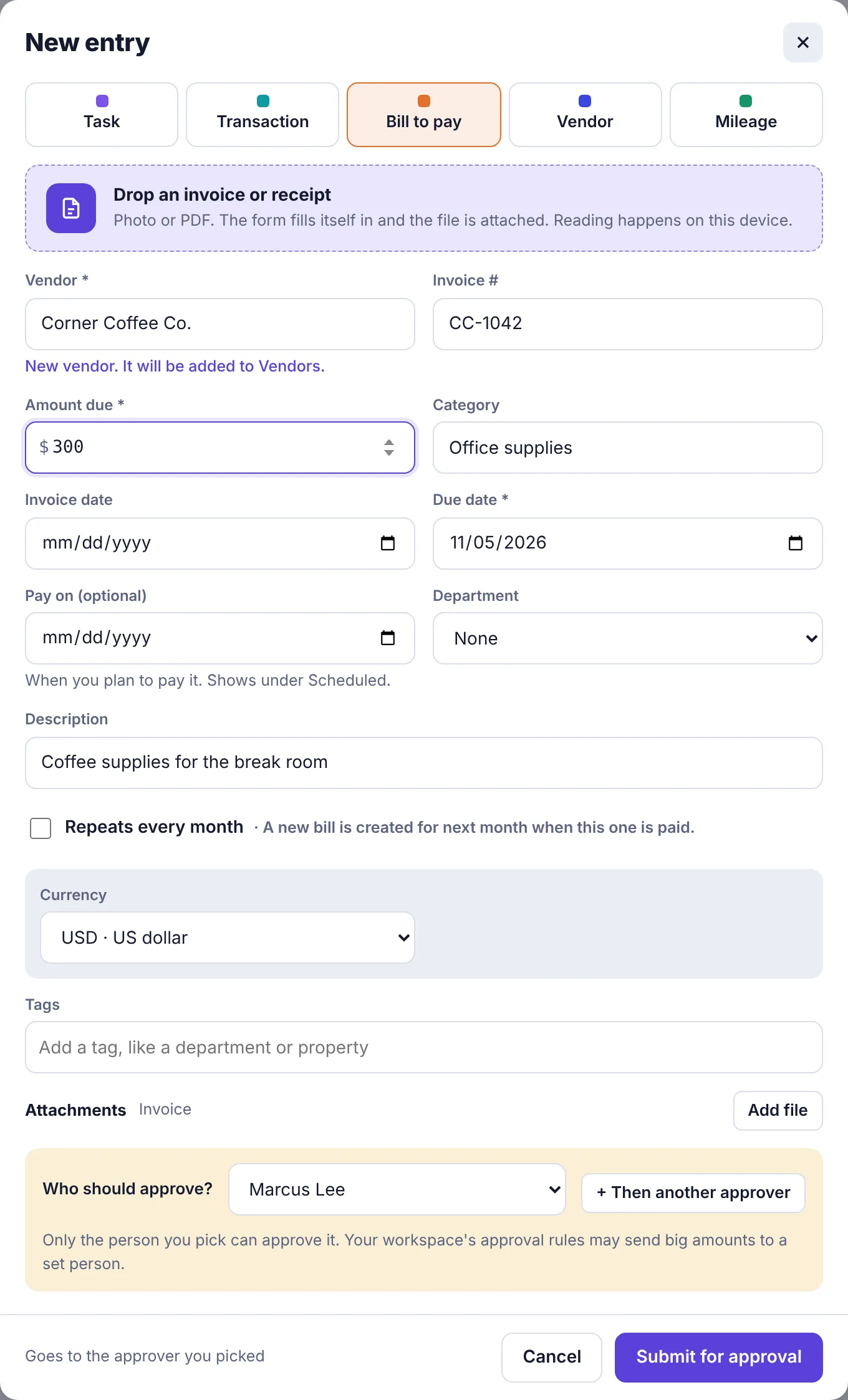
A bill filled in and ready to send, with Marcus Lee picked as the approver In Who should approve?, pick the admin you want, or leave it on Any admin.

The Who should approve? box Click Submit for approval.

The Submit for approval button at the bottom of the form
A message tells you who it went to, for example Sent to Marcus Lee for approval.
Send a task (workers and employees)#
Click New. Workers only see the task form.
Type the task in Task and fill in anything else you know: Details, Assigned to, Due date, Priority.
Add photos or documents under Attachments with Add file.
Choose Who should approve? and click Submit for approval.
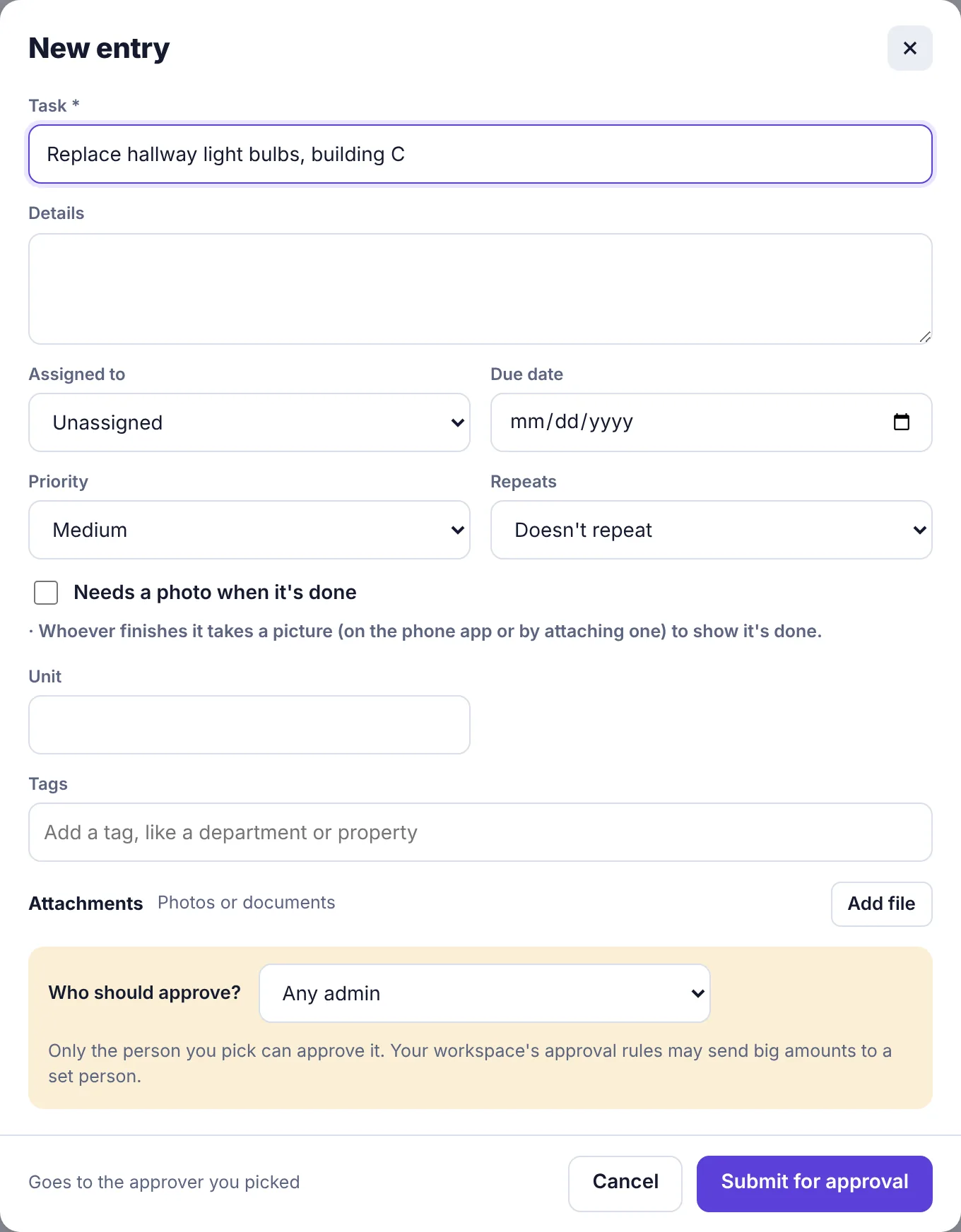
If you assign the task to someone else, they're told about it only once it's approved.
Choosing who approves#
Any admin sends it to every owner and admin. Whoever gets to it first decides. This is usually the fastest.
A named admin means only that person can approve it (or whoever is standing in for them while they're away).
Several people, in order (Business plan): after you pick the first approver, click + Then another approver to add more. Each one approves in turn and passes it to the next. You can have up to 8.
Your workspace's settings can change where it goes:
An approval rule for bigger amounts can send it to a set person, or ask for two or more approvals. The rule wins over the person you picked.
If you left it on Any admin and you're in a department with a manager (Business plan), it goes to that manager.
What you see while you wait#
Open My requests in the menu. Your request sits under Waiting with the name of the person it's waiting for, how long ago you sent it, and the details the approver sees.
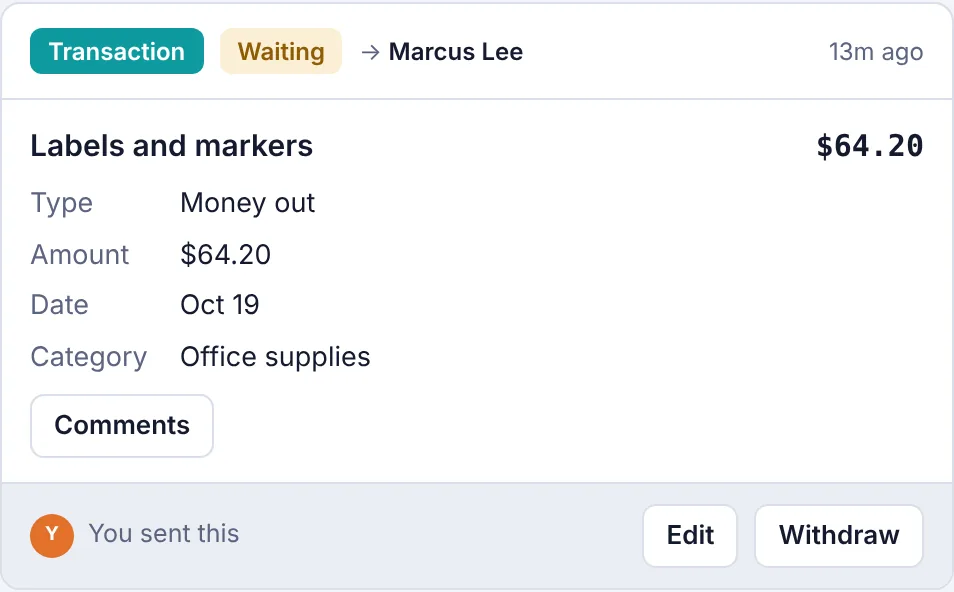
While it's waiting you can:
Click Comments to talk to the approver about it.
Click Edit to change it. It's sent again as a new version.
Click Withdraw to take it back.
See Change, resubmit or withdraw a request. When it's decided, you get a notification and an email.
Admins: ask another admin to check something#
Admins don't need approval, but sometimes you want a second opinion.
Click New and fill in the form.
Tick Needs approval at the bottom of the form.

The Needs approval checkbox on an admin's form Pick Who should approve? (you can't pick yourself) and click Submit for approval.
It shows up under You sent on your Approvals page.