Two-step approvals and approval chains
Make big requests need two approvals, or a set line of up to 8 people who approve in order.
For bigger amounts one approval may not be enough. Plainstamp can ask for a second approval, or for a line of people who each approve in turn.
Set up a two-step rule#
Go to Settings › Approval rules.
Fill in Starting at and For, and pick who approves first in Approved by.
Tick Needs a second approval.
In Second approval by, pick a person, or leave Any other admin so anyone except the first approver can give it.
Click Add rule.
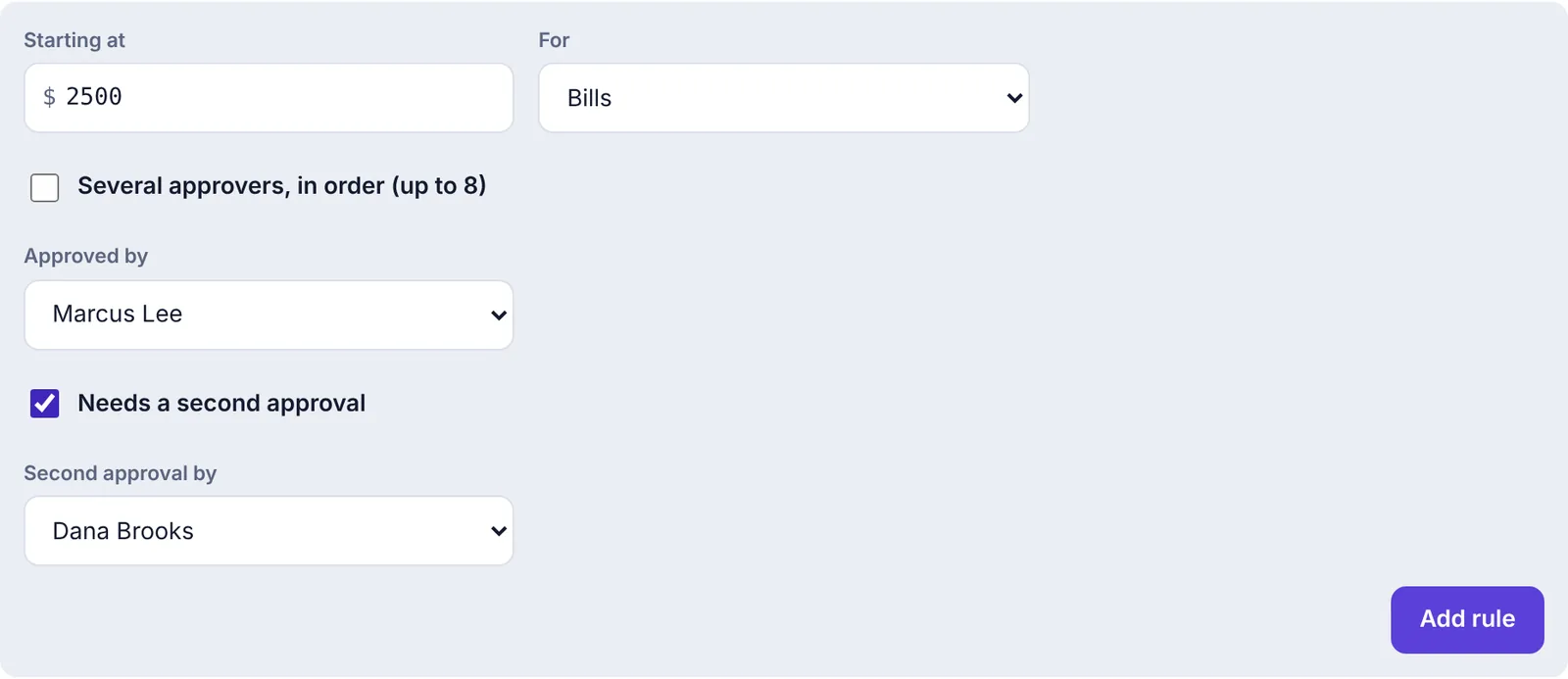
The first and second approver have to be different people. If you pick the same person for both, you'll see Pick two different people for the two approvals, or leave one as any admin.
Set up an approval chain (Business)#
A chain is a line of approvers in a fixed order.
Go to Settings › Approval rules.
Fill in Starting at and For.
Tick Several approvers, in order (up to 8).
Pick an admin for 1., 2. and so on. Click + Another approver to add a line, or × to remove one.
Click Add rule. You need at least two approvers.
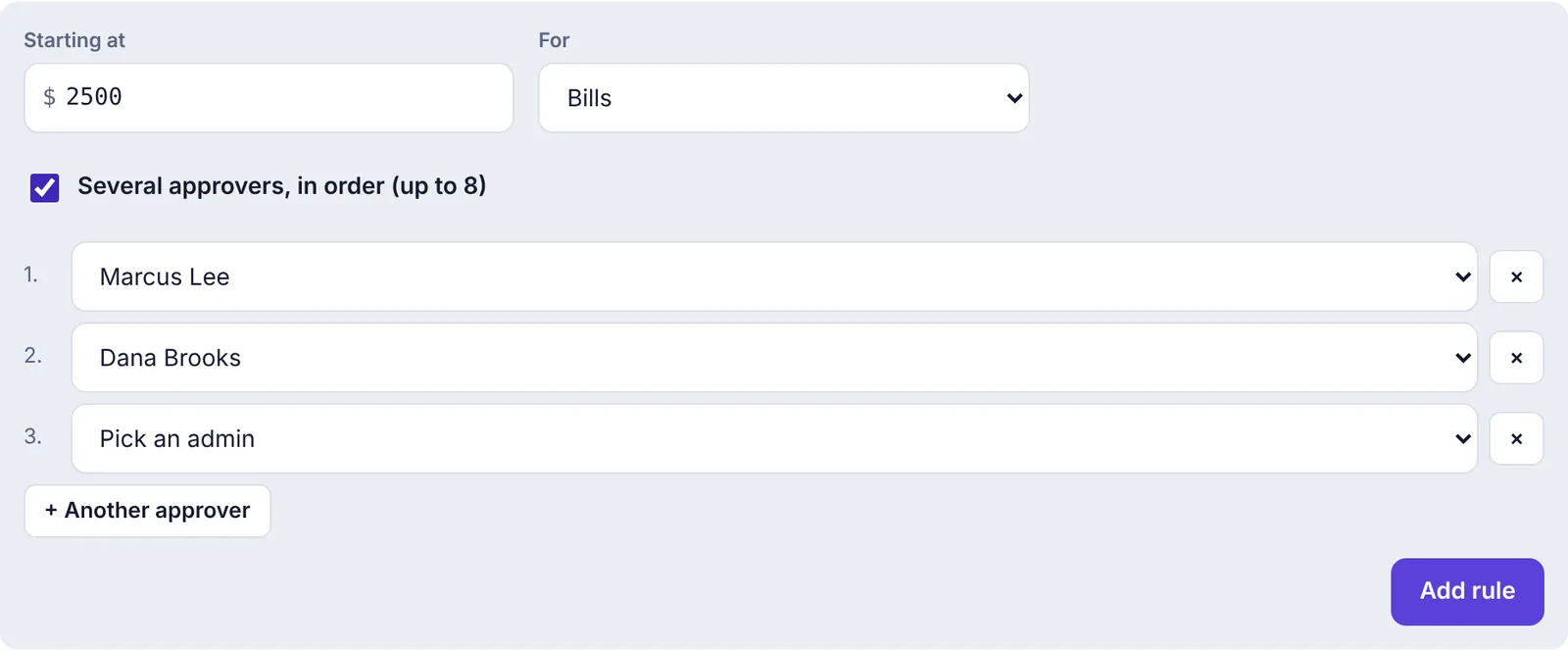
The rule shows the line in order, for example Marcus Lee → Dana Brooks, in this order, with a badge saying how many approvals it needs.
Let the sender choose a chain (Business)#
On the Business plan, the person sending a request can line up approvers themselves. In Who should approve? they pick the first admin, then click + Then another approver for each person after that. If an approval rule covers the request, the rule's approvers are used instead.
How a multi-step request moves#
The request goes to the first approver. The card shows dots and how many approvals it needs.
When they click Approve, it moves to the next person, who gets a Second approval needed notification. The first approver sees it under You approved, waiting for the next approval.
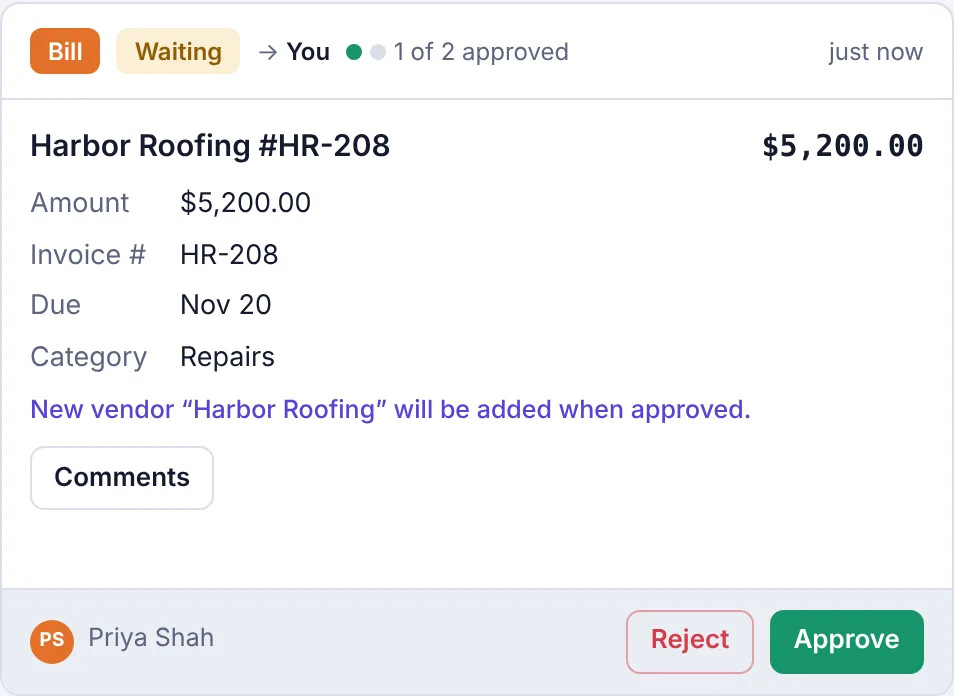
The request waiting for its second approval, 1 of 2 approved After the last approval, the request is applied (the bill is added, the payment recorded, and so on).
Anyone in the line can reject it. That ends it, and the sender can change it and send it again. When they click Edit & resubmit, the form keeps the approvers they lined up, in the same order, and they can change them before clicking Resubmit. It starts again from the first approver.
Rules that keep it fair:
Nobody can approve their own request, and nobody can approve the same request twice.
If the next person in line is the sender, has already approved, or is no longer an admin, the step opens to any other admin instead (the card shows Another admin).
If the sender changes the request while it's waiting, the approvals start again from the first step.
If your plan changes#
Steps beyond what your plan includes are dropped for new requests: on the Small plan every request needs one approval, the Team plan allows up to two, and the Business plan up to eight.