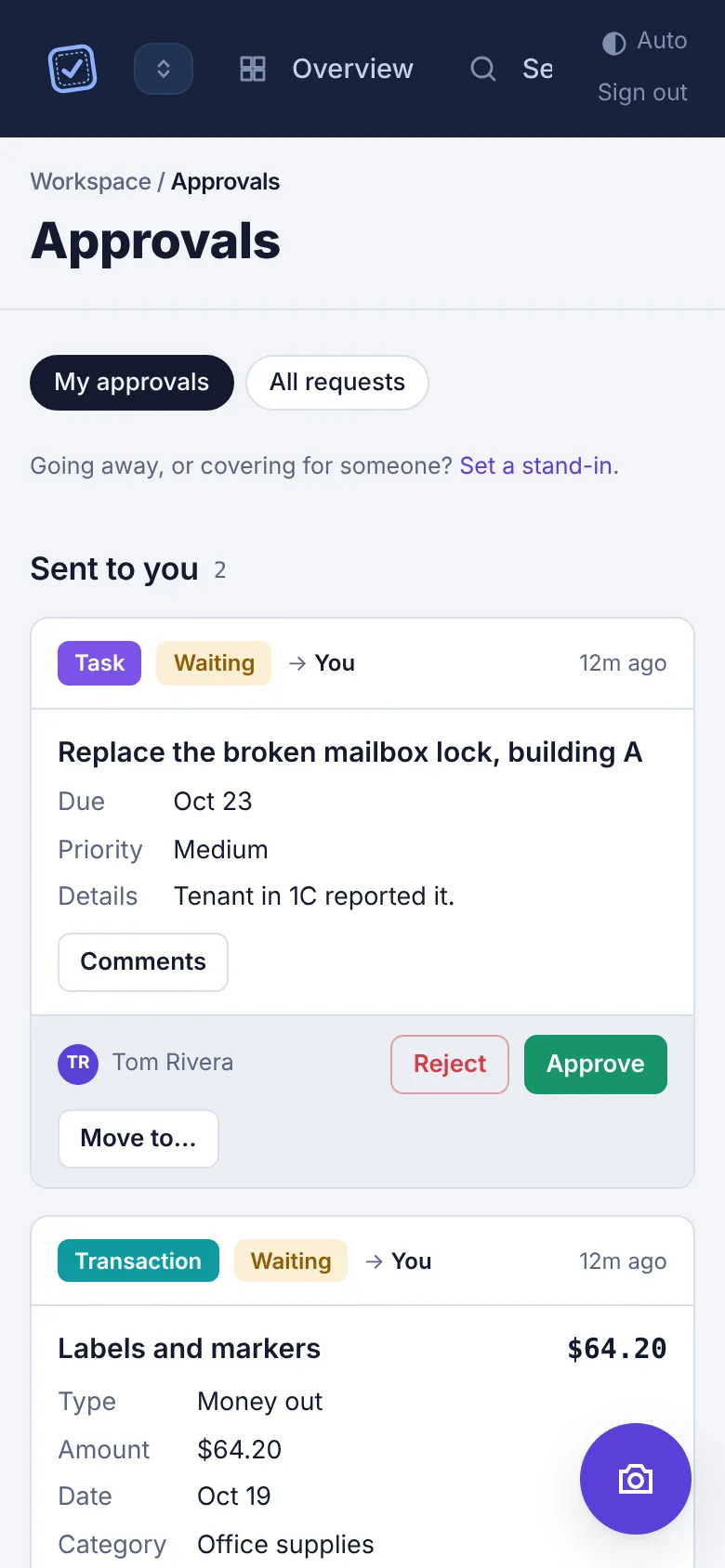
The My approvals and My requests page
What each section of the approvals page shows, what's on a request card, and how versions work.
Every request lives on one page. Admins open it from My approvals in the menu; everyone else sees it as My requests. The orange number next to it counts what's waiting.
What admins see#
The page is called Approvals and has two views at the top: My approvals and All requests.
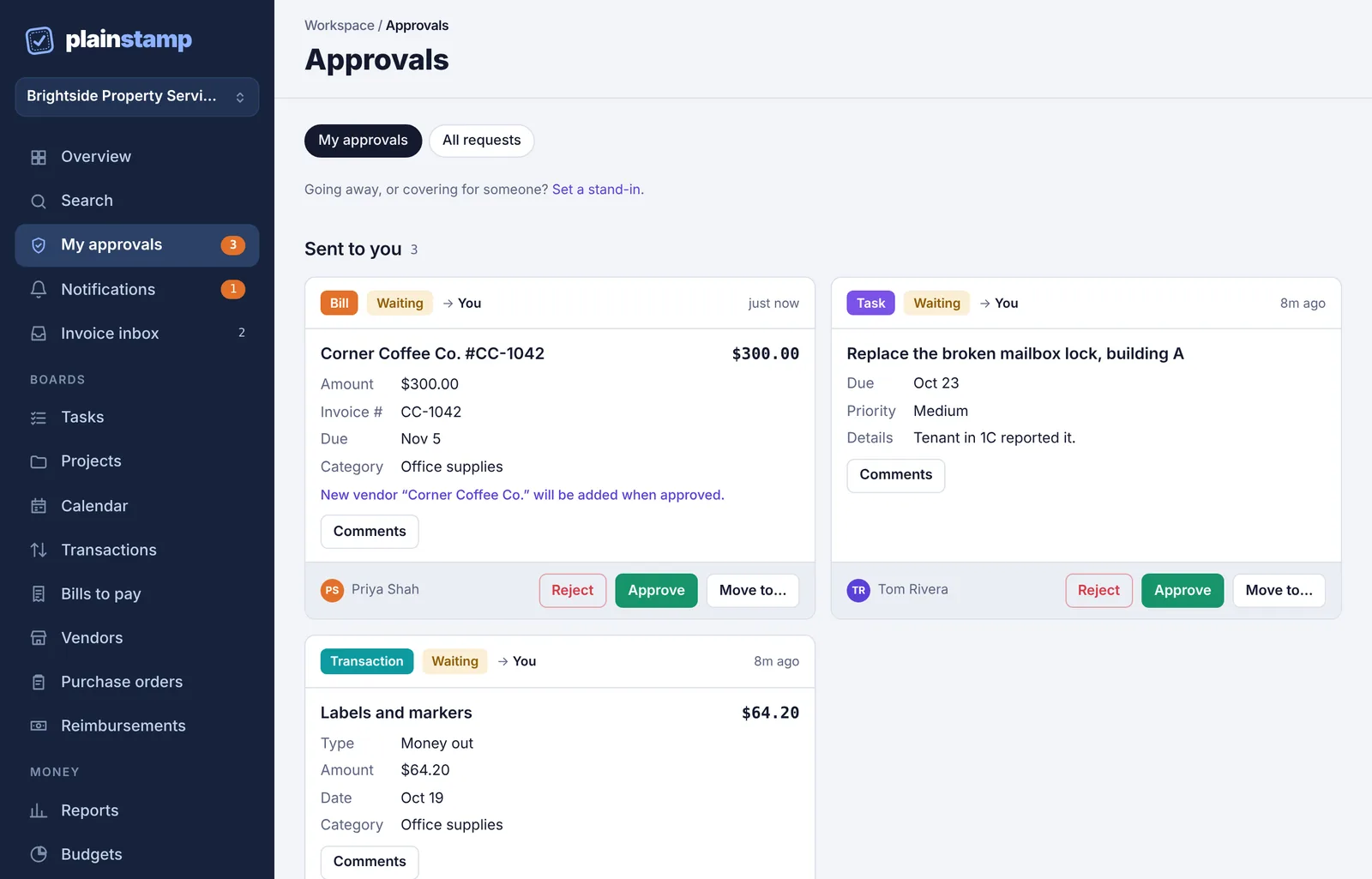
My approvals shows what needs you, in these sections (empty ones are hidden):
Sent to you: requests where you're the chosen approver. If nothing is waiting, it says Nothing is waiting on you right now.
Sent to someone you're standing in for: shows up only while you're covering for an admin who's away. See Stand-ins when someone is away.
Open to any admin: requests sent to Any admin. Whoever gets there first decides.
You approved, waiting for the next approval: requests that need more than one approval, where you've given yours.
You sent: requests you sent yourself with Needs approval.
You decided recently: your last few decisions.
All requests shows the whole team's requests: everything Waiting, and what was Approved and Rejected in the last 60 days, with who asked and who decided.
What employees and workers see#
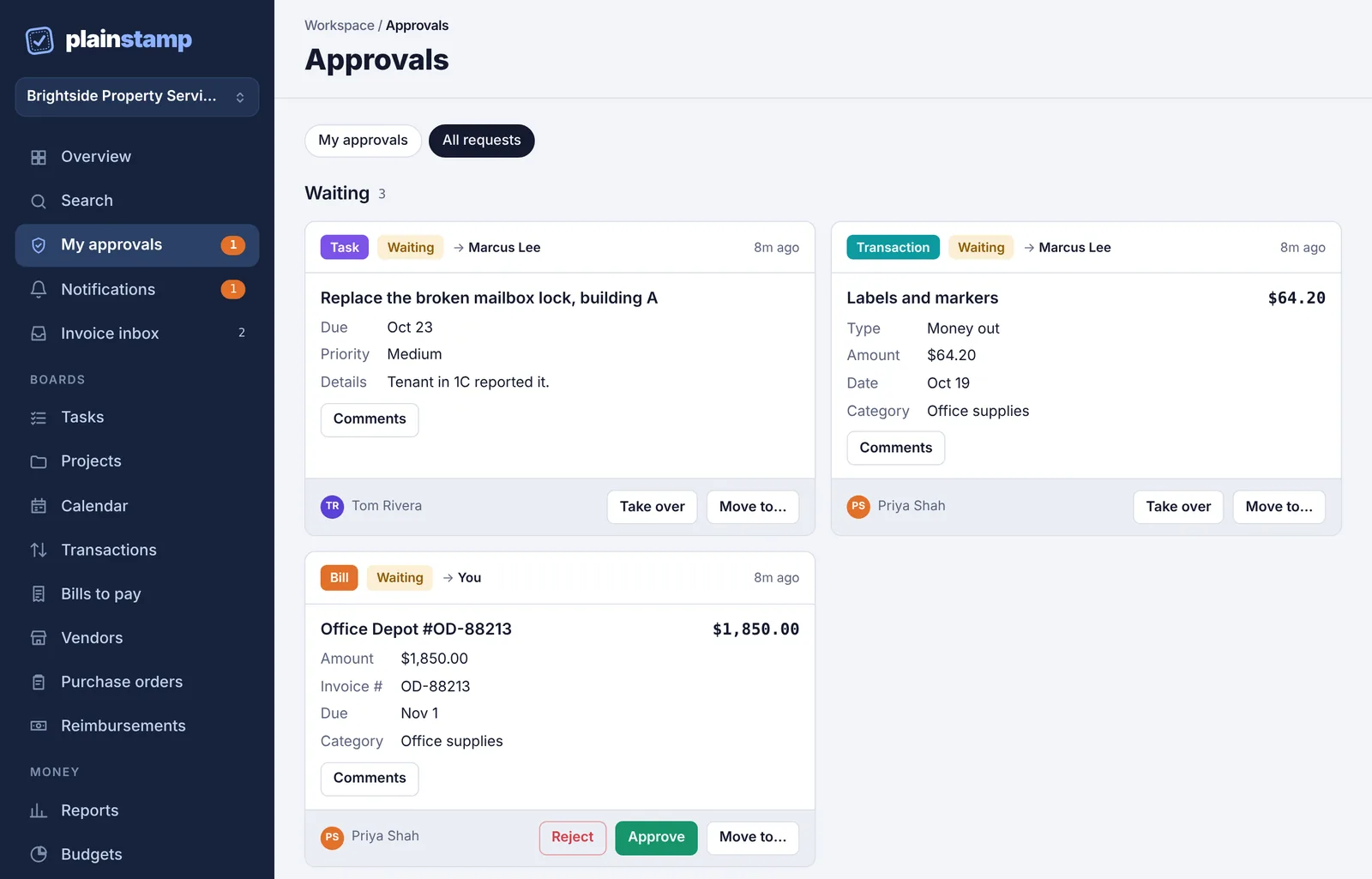
The page is called My requests and only shows what you sent:
Rejected, needs your attention: with the reason and an Edit & resubmit button.
Waiting: still with an approver.
Approved: your recent approved requests.
What's on a request card#
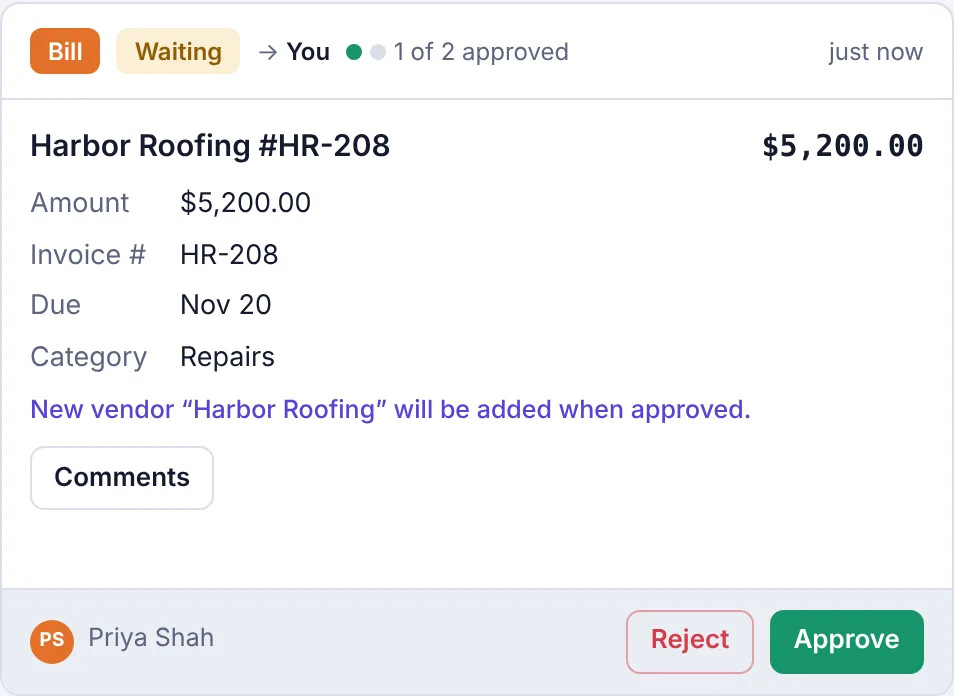
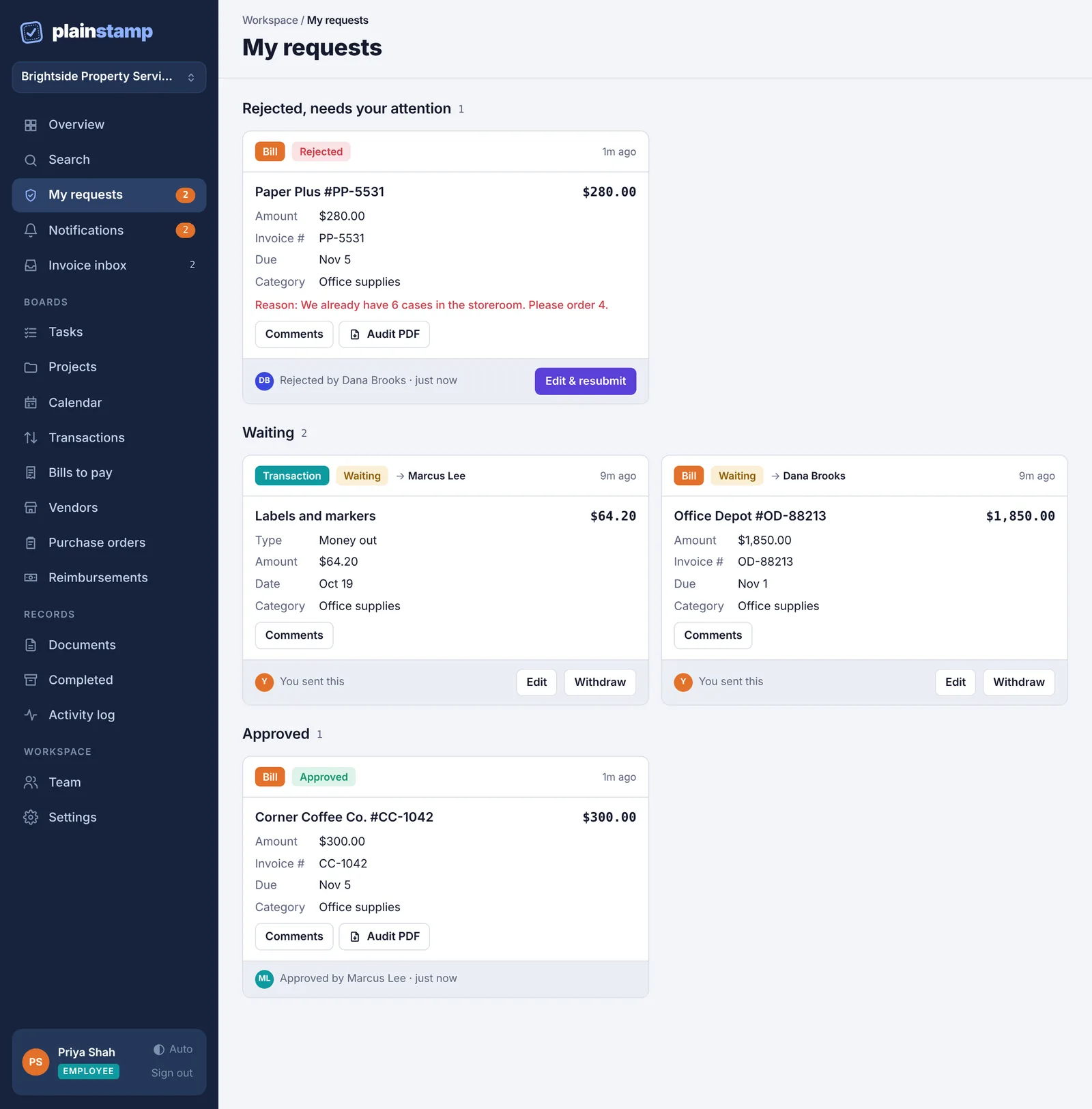
Kind: Task, Transaction, Bill, Vendor, Payment, Reconcile or Change.
Status: Waiting, Approved or Rejected.
Who it's waiting for: after the arrow. You, a name, Any admin, or Another admin when the next approval can come from anyone except the people who already approved.
Steps: requests that need more than one approval show dots and 1 of 2 approved. Hover over them to see the order of approvers.
When it was sent, the title and amount, and the details the approver needs: amount, invoice number, due date, category, and for other currencies the exchange rate and the amount in your main currency.
Pay back: Yes when someone paid with their own money and wants it back.
Files attached to it. Click one to open it.
New vendor "…" will be added when approved when the vendor isn't in Vendors yet.
Resubmitted when the sender changed it and sent it again.
Reason: in red on a rejected request.
Comments opens a conversation about the request. Type @ to mention someone.
Audit PDF on decided requests downloads a record of who asked, who decided and when.
The buttons along the bottom depend on who you are:
| You are | Buttons you may see |
|---|---|
| The approver (or standing in) | Reject, Approve, Move to… |
| Another admin | Take over (the owner always; other admins after 3 days), and Move to… if you're the owner |
| The person who sent it | Edit, Withdraw, or Edit & resubmit once rejected |
Versions: why a request can change under you#
A waiting request can be edited by the person who sent it. Each edit makes a new version and the card shows Resubmitted. When you approve, Plainstamp checks you're approving the version you're looking at. If it changed after you opened the page, you'll see This request was changed since you opened it. Refresh the page and look again. Refresh, check the new details, and decide again.
On a phone#
The page works the same on a phone. The buttons wrap under each card.