Find files on Documents and finished items on Completed
Use the Documents page to find any receipt, invoice or vendor file, and the Completed page to see reconciled transactions and paid bills.
Two pages help you find things after the fact: Documents for files, and Completed for transactions and bills that are done.
The Documents page#
Every file attached to a task, bill, transaction, vendor or waiting request collects on Documents, newest first. You don't need to remember where something was filed.
In the menu, under Records, click Documents.
Narrow the list with the buttons at the top:
All files
Photos
PDFs
Waiting for approval: files attached to requests that haven't been approved yet.
Or type part of a file name in Search file names and press Enter.

Each file shows a preview, its name, what it belongs to (for example a Bill label and the vendor's name, which you can click to go to that board), who uploaded it, its size and when.
Click the preview to open the file.
The Completed page#
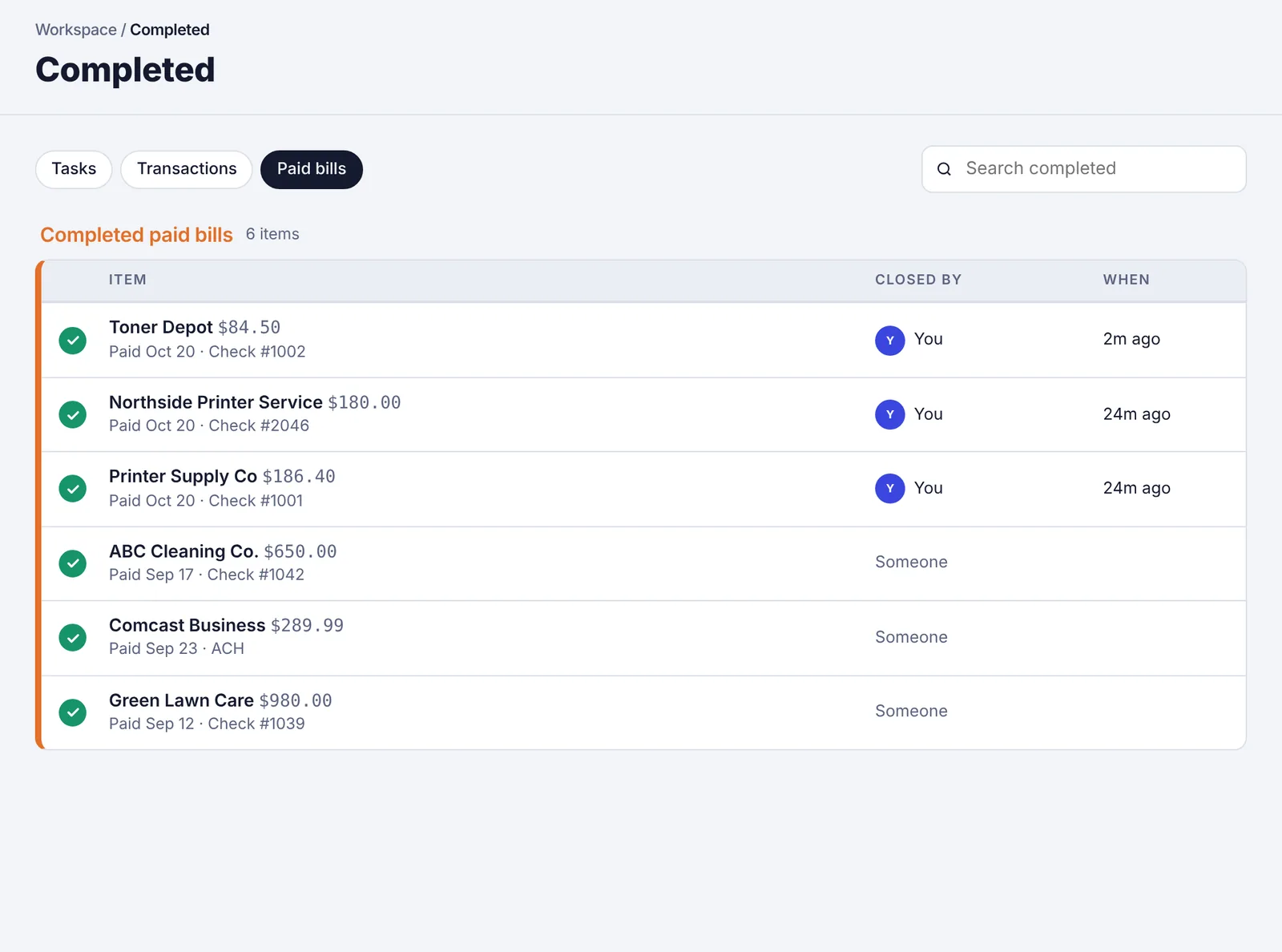
When you reconcile a transaction or pay a bill in full, it leaves its board and lands on Completed, with who closed it and when. The most recent items are at the top.
In the menu, under Records, click Completed.
Pick a tab: Tasks, Transactions or Paid bills.
Use Search completed to find one by name, description, invoice number or check number.
Click a transaction or bill to open it and see all its details, payments, files and comments.
Reopen something#
Click the green tick next to an item to send it back to its board.
Transactions go back to Transactions as open.
Paid bills go back to Bills to pay with all their payments cleared. See See a bill's payments, remove a payment or reopen a bill.