Add money in or money out
Record a payment you made or money you received on the Transactions board, with its category, method, tags and receipt.
The Transactions board is your running record of money that left or came into the business: a supply run, a card charge, a client's payment. Each transaction can carry its receipt, so the books stay complete.
Add a transaction#
In the menu on the left, click Transactions.
Click New transaction at the top right.
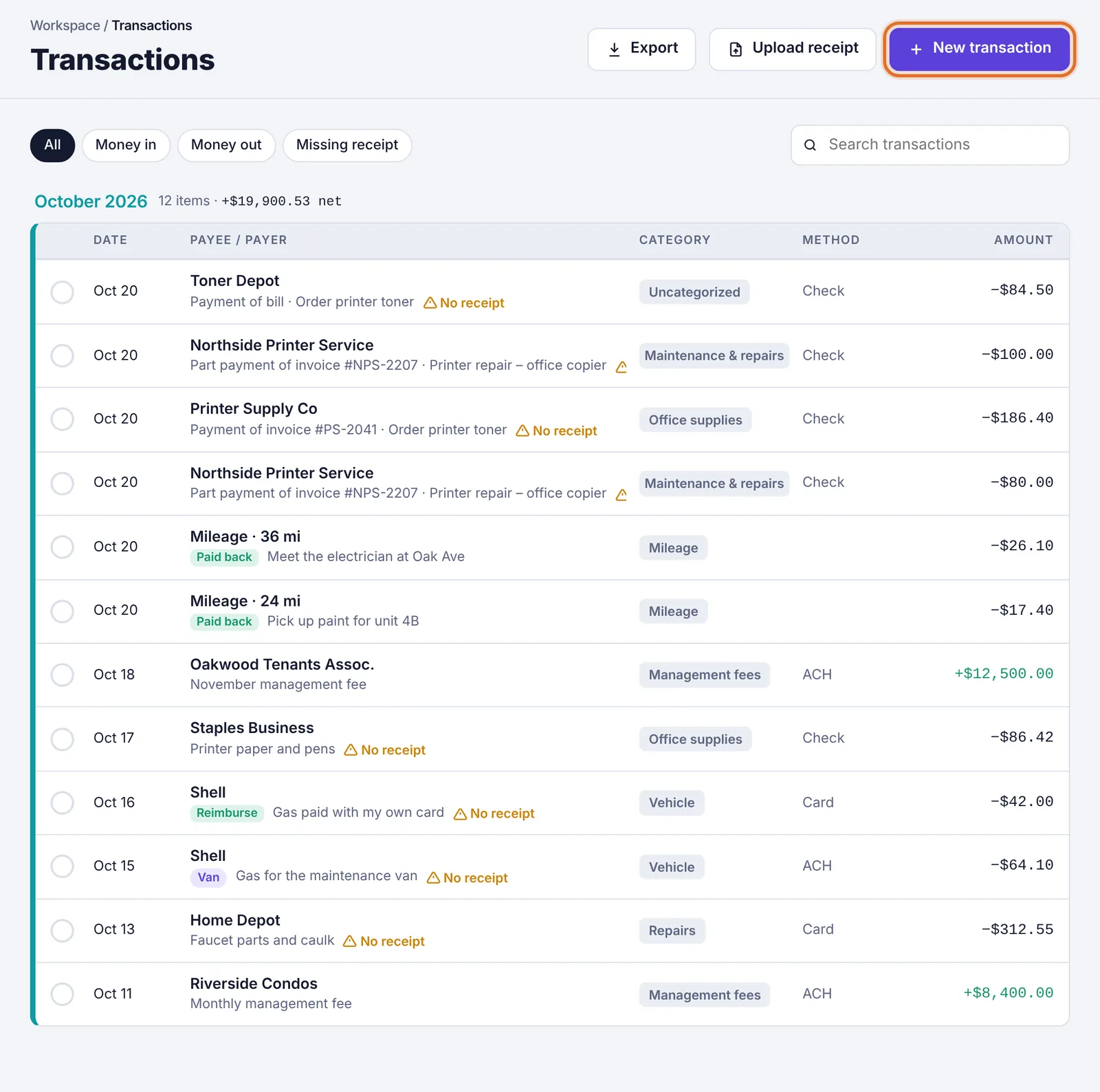
The Transactions board, with the Export, Upload receipt and New transaction buttons at the top right Under Type, pick Money out (you paid someone) or Money in (someone paid you).
Check the Date. It starts as today.
Type the Amount.
In Payee / payer, start typing a name and pick it from the list. If the name is new, Plainstamp says New vendor. It will be added to Vendors. and creates the vendor for you when you save.
Fill in the rest if it helps (all optional):
Category: choose one from the list or type your own (for example Rent, Supplies, Food & catering). If the vendor has a default category, it's filled in for you.
Description: what it was for.
Method: Check, ACH / wire, Credit card, Zelle, Cash or Other.
Check # / reference: a check number or confirmation code.
Department: if your workspace uses departments, pick the one this belongs to.
Tags: short labels like a property, a job or a person. Type one and press Enter. You can add up to 10.
Under Attachments, click Add file to attach the receipt (a photo, PDF, Word, Excel or CSV file up to 20 MB).
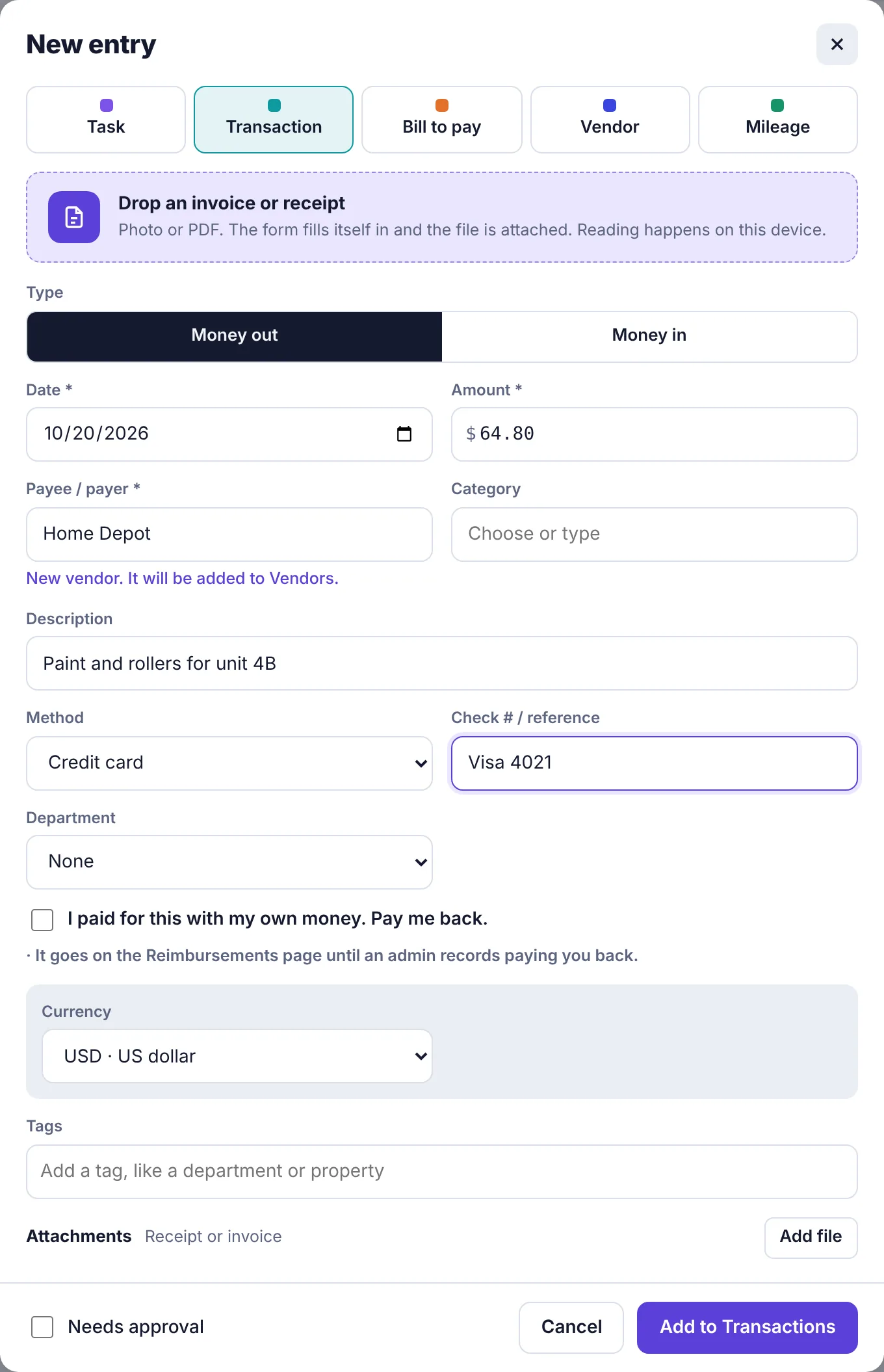
The New entry form filled in for a money-out transaction Click Add to Transactions.
The transaction appears on the board under its month. Each month shows how many items it has and the net (money in minus money out).
If you're an employee#
When an employee adds a transaction, the button at the bottom says Submit for approval and a Who should approve? box appears. Pick a person, or leave it on Any admin. The transaction lands on the board once it's approved.
If your workspace gives you a monthly spending limit and a money-out amount fits inside what's left of it, the bottom of the form says Within your spending allowance (with how much is left this month) and the button says Add to Transactions: it's added straight away, no approval needed.

Money in (someone paid the business) never uses up your spending allowance, so it always goes to an approver.
Expenses you paid for with your own money (the I paid for this with my own money. Pay me back. box) always go for approval. See Get paid back for expenses and mileage.
Find a transaction#
At the top of the board:
All, Money in, Money out narrow the list.
Missing receipt shows money-out transactions with no file attached (mileage trips are left out).
Search transactions looks through payee names, descriptions, categories, references and tags.
Money in shows in green with a + in front of the amount; money out has a −. Rows with no receipt show a small orange No receipt flag. A Reimburse label means someone is owed for it, and a Bank label means it came from the bank feed.
Export to a spreadsheet#
Owners, admins and accountants on the Team or Business plan see an Export button at the top of the board. It downloads your transactions as a spreadsheet. See Export your data.
Plainstamp warns you about duplicates#
While you type, Plainstamp checks whether you already have a transaction from the same payee with the same amount within 10 days of the same date (or something waiting for approval that looks the same). If so, a yellow warning shows above the buttons. It's only a warning: you can still save if it really is a second purchase.
What's next#
Mark transactions as reconciled once they match your bank statement.