Add and manage vendors
Keep each vendor's contact details, payment terms and default category, mark contractors for 1099s, and see what you've paid them.
Vendors are the companies and people you pay. Plainstamp adds a vendor automatically the first time you record a bill or transaction for a new name (it shows an Added automatically label), so you rarely start from nothing. Fill in their details once, and every bill for them gets the right terms and category.
Add a vendor#
In the menu, click Vendors.
Click New vendor.
Fill in the form:
Vendor name (required), Contact person, Email, Phone, Address.
Payment terms: Due on receipt, Net 15, Net 30 or Net 60. Used to work out due dates on their bills.
Default category: filled in automatically on their bills and transactions.
Notes, Tags, and under Attachments, files like a contract or price list.
If they're an individual contractor you'll send a 1099 to, tick Gets a 1099 (a contractor, not a company) and fill in Legal name (as on their W-9) and Last 4 of tax ID.
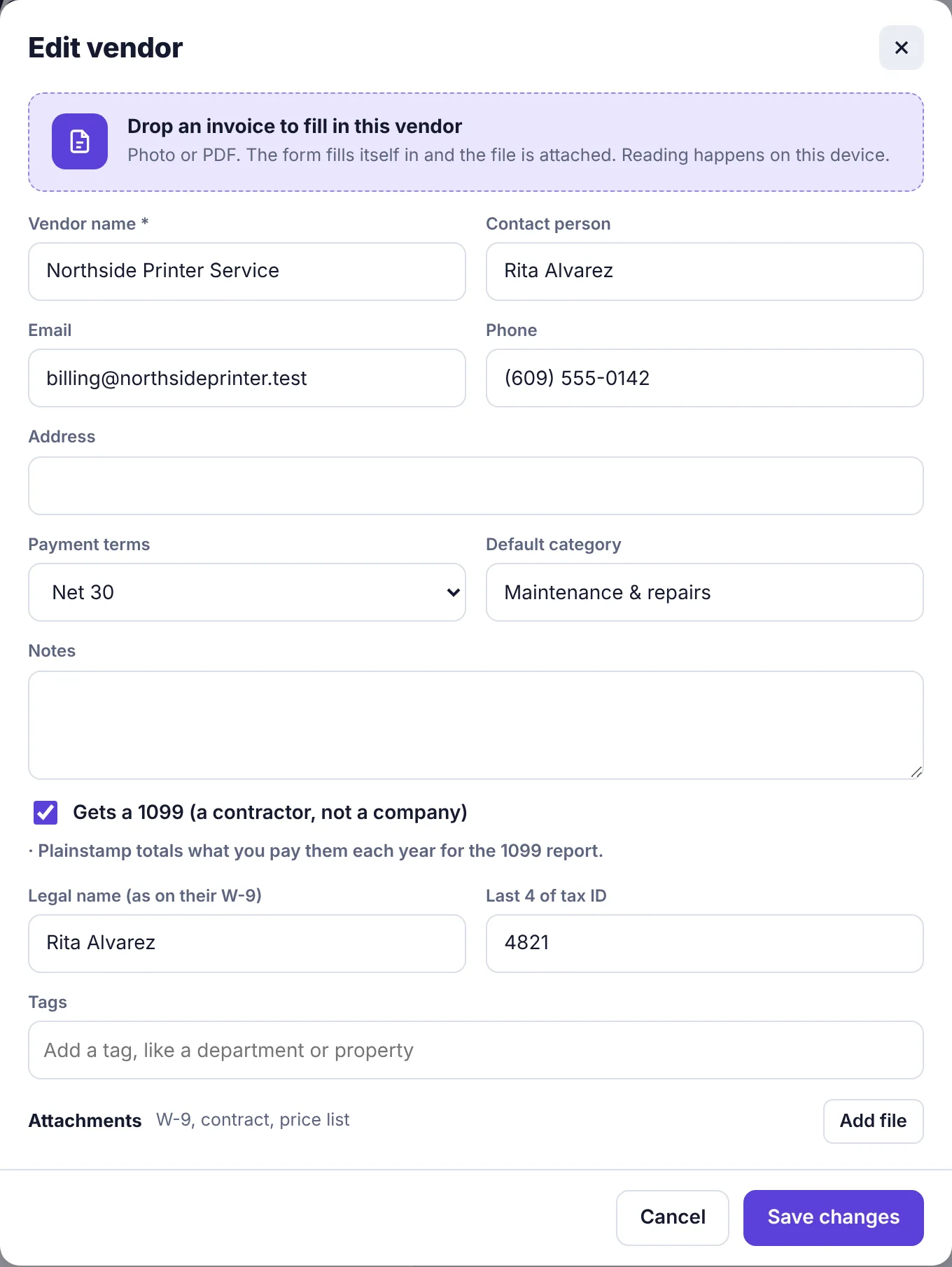
The vendor form with Gets a 1099 ticked, legal name and last 4 of tax ID filled in Click Add to Vendors.
The Vendors page#
Each vendor is a card with their Open bills (what you still owe) and what you've Paid this year.
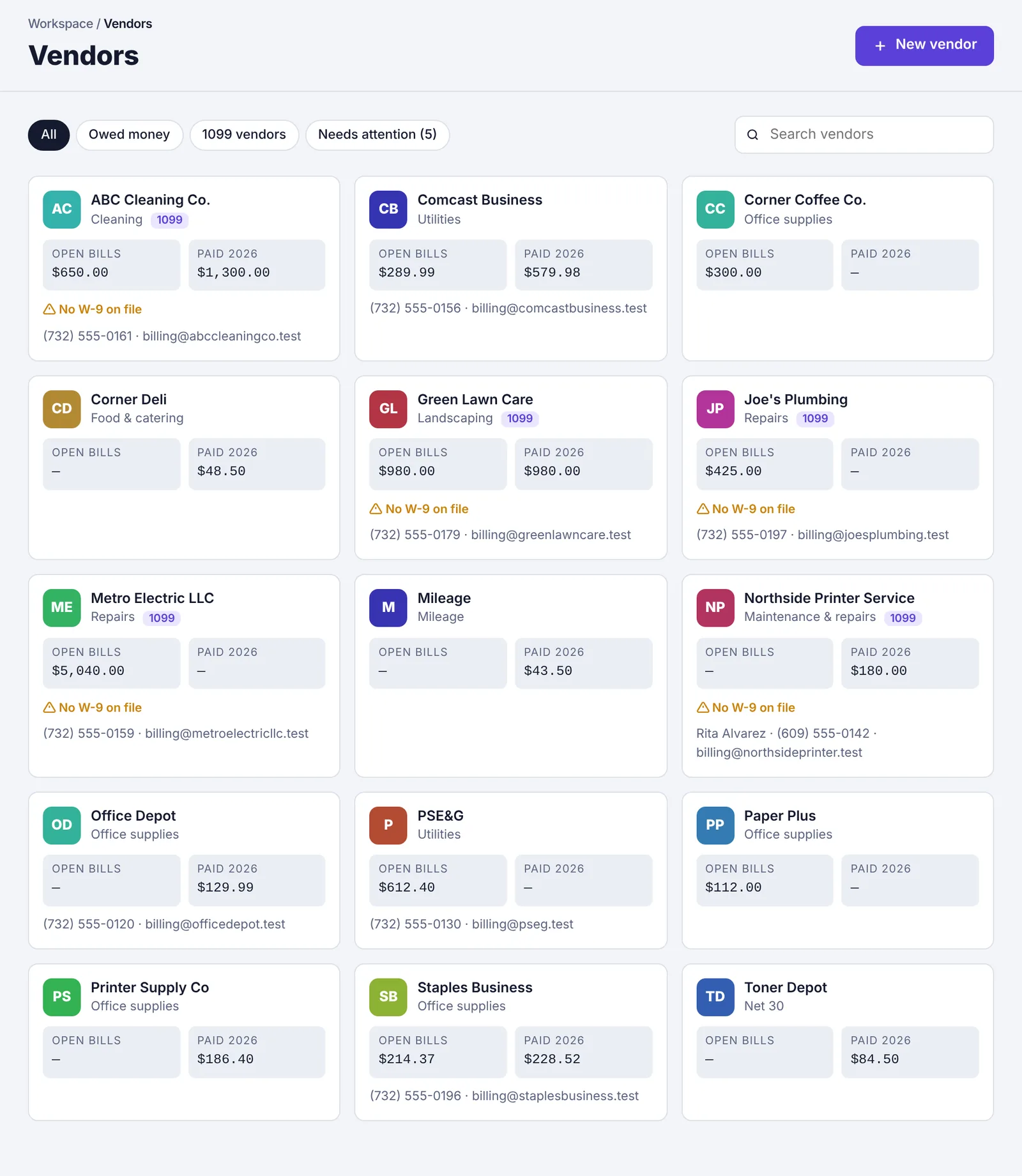
The filters at the top:
Owed money: vendors with unpaid bills.
1099 vendors: vendors marked as getting a 1099.
Needs attention: a 1099 vendor with no W-9 on file, or a document that expires within 30 days (or already has).
A vendor's page#
Click a vendor's card to open it. You'll see:
Their details, terms, category, and for 1099 vendors the legal name and the last 4 of the tax ID (or Legal name missing / tax ID missing).
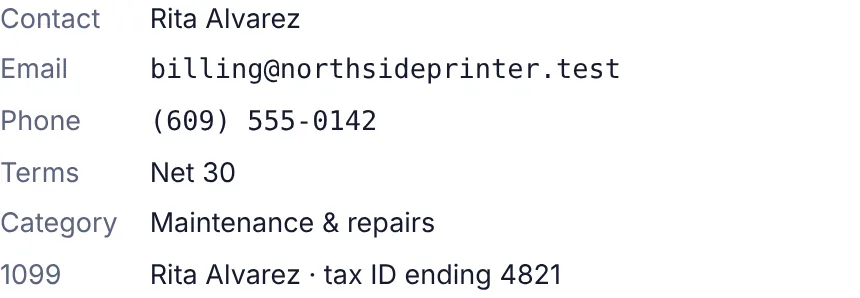
A vendor's details: contact, terms, category and 1099 information Spending: Paid this year and last year, Open bills, and Days to pay (on average, how many days pass between the invoice date and when you pay). The bar chart compares each month this year (solid) with last year (light). Hover a month to see the amounts.
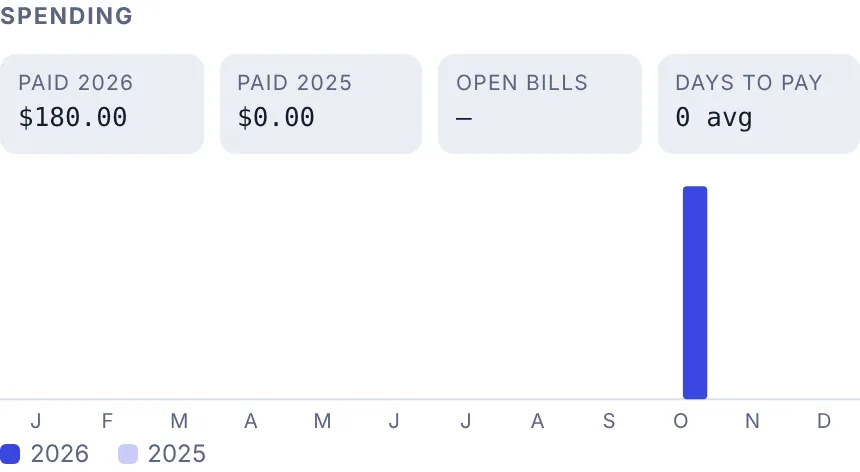
The Spending section of a vendor's page Documents: their W-9, insurance and other papers. See Keep a vendor's W-9, insurance and other documents.
Vendor portal (owners and admins): see Send a vendor their portal link.
Bills and transactions: their 12 most recent. Click one to open it. Unpaid bills open on Bills to pay and open transactions on Transactions; paid bills and reconciled transactions open on the Completed page.
Comments and History.
Edit or delete a vendor#
Open the vendor and click Edit (employees see Request a change). Change the details and click Save changes.
Owners and admins can click Delete, then Confirm delete. Bills and transactions already recorded for the vendor stay where they are.
Print a vendor statement#
A statement lists everything a vendor billed you and everything you paid them in a period, with what's still owed. Useful when a vendor says they haven't been paid.
Open the vendor and click Statement.
Set From and To (the last 12 months by default) and click Show.
Click Print or save as PDF.
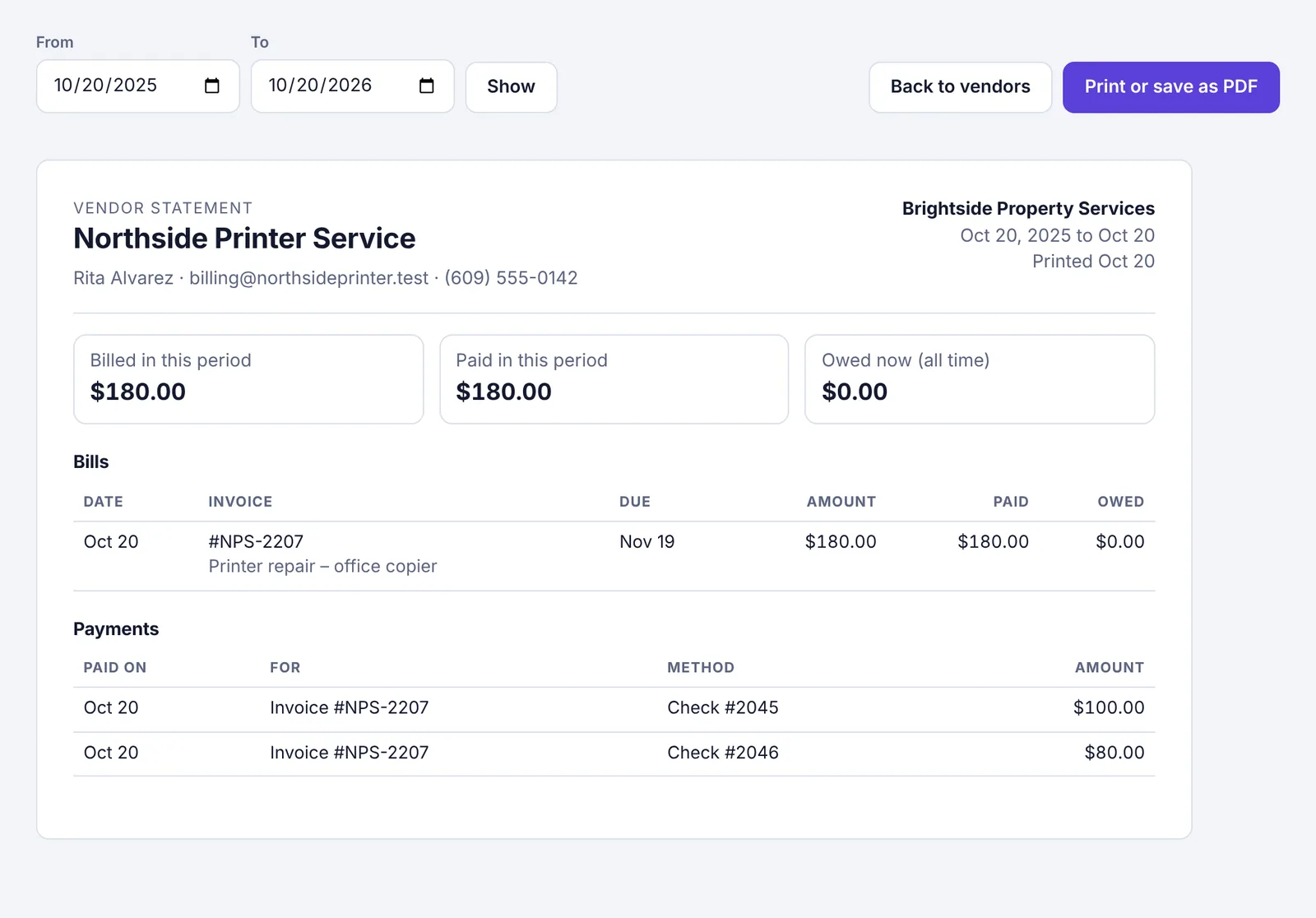
The three boxes at the top show Billed in this period, Paid in this period and Owed now (all time). Part payments are listed one by one, marked (part) while the bill still has a balance.
1099s#
On the Small plan and up, Plainstamp totals what you paid each 1099 vendor in the year for the 1099 report. The report itself is covered in Track 1099 contractors and W-9s.