Add a bill to pay
Put a vendor's invoice on the Bills to pay board with its due date, set when you plan to pay it, and make monthly bills repeat on their own.
Bills to pay holds every invoice you still owe, sorted by when it's due. Nothing slips, and when you pay a bill, it moves to Completed with the check number.
Add a bill#
In the menu, click Bills to pay.
Click New bill. (Or click Upload invoice to have Plainstamp read the invoice for you; see Snap a receipt and let Plainstamp fill in the form.)
Fill in the form:
Vendor (required): start typing and pick from the list. A new name is added to Vendors when you save.
Invoice #: the vendor's invoice number. Plainstamp uses it to warn you about duplicates.
Amount due (required).
Category: picked up from the vendor's default category if it has one.
Invoice date and Due date (required). Once the bill has a vendor that's in Plainstamp and an invoice date, the due date is filled in from the vendor's payment terms, whichever you enter first. Change the vendor or the invoice date and the due date follows. If you type a due date yourself, it's kept.
Pay on (optional): the day you plan to pay. See Schedule a payment below.
Purchase order: link the bill to an open PO (Team plan and up). See Use purchase orders.
Department: if your workspace uses departments, pick the one this bill belongs to.
Repeats every month: tick it for bills that come every month. See Make a bill repeat every month below.
Description, Tags and the invoice file under Attachments.
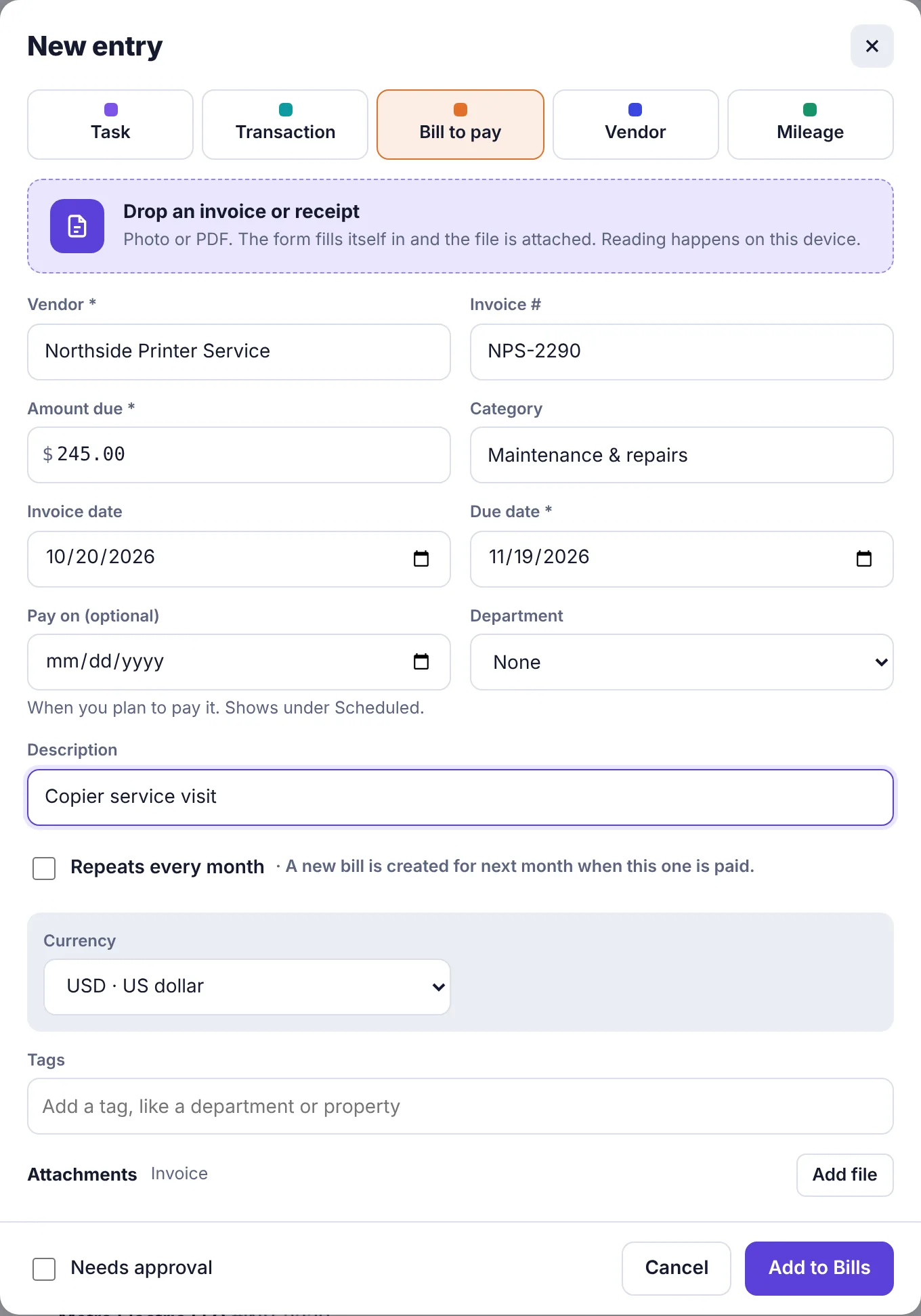
The New entry form set to Bill to pay Click Add to Bills.
How the board is sorted#
Bills are grouped into Overdue, Due in the next 7 days and Later. Each group shows how many bills it has and the total still owed. A part-paid bill shows only what's left (with "of" the full amount under it).
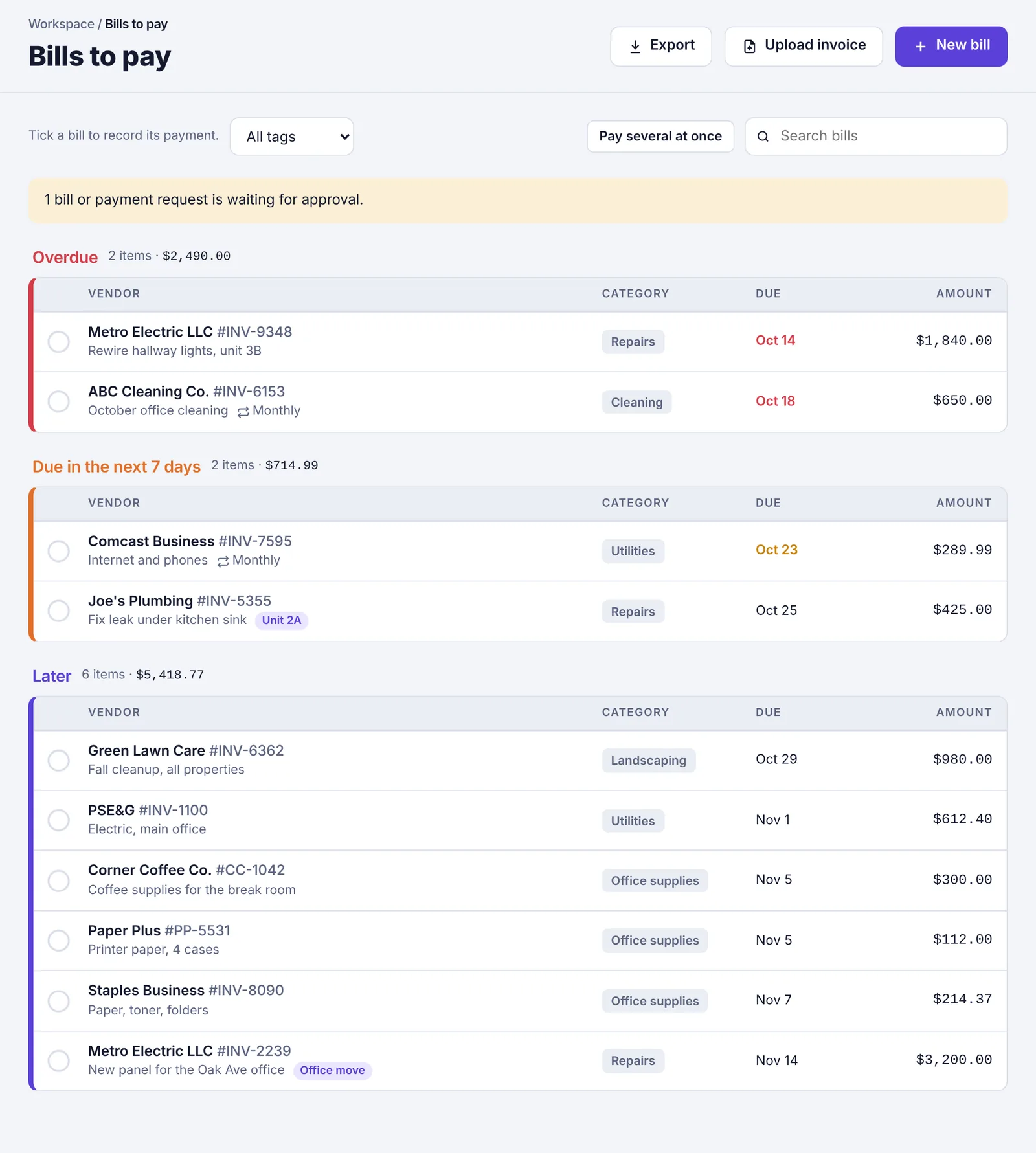
Other things you may see on a row:
Monthly: the bill repeats each month.
Pay on Nov 3: it's scheduled.
A PO number, like PO-2041.
15% higher than usual (or more): this bill is well above the vendor's average over their last few bills. Worth a second look before you pay.
A paper-clip with a number: how many files are attached.
Use the tag menu and Search bills at the top to narrow the list. Owners, admins and accountants on the Team or Business plan also see Export, which downloads your bills as a spreadsheet (see Export your data).
Payment terms and due dates#
Each vendor has Payment terms: Due on receipt, Net 15, Net 30 or Net 60. When a bill has a vendor and an Invoice date, Plainstamp counts that many days forward for the Due date (an invoice dated Oct 1 from a Net 30 vendor is due Oct 31). This happens on the New bill form, when Plainstamp reads an uploaded invoice, and when you click Make it a bill in the invoice inbox.
The due date keeps up while you fill in the form: pick a different vendor or change the invoice date and it's worked out again. Type your own due date and Plainstamp leaves it alone from then on. To set a vendor's terms, see Add and manage vendors.
Schedule a payment#
Fill in Pay on (optional) with the date you plan to pay. A Scheduled filter appears at the top of the board, listing scheduled bills in the order you plan to pay them.
Make a bill repeat every month#
For rent, internet, cleaning and other bills that come every month, tick Repeats every month when you add the bill. When you pay it in full, Plainstamp puts next month's bill on the board for you: same vendor, amount, category and description, due one month later. You'll see Paid. Next month's bill is on the board.
If the amount changes month to month, edit the new bill when the real invoice arrives.
Duplicate and price warnings#
While you type, Plainstamp checks your other bills from the same vendor. If the invoice number matches, or the amount matches one dated within 10 days, a warning appears:

It also warns when the amount is 15% or more above the vendor's usual, or when a bill would take its purchase order over the approved amount. Warnings never stop you saving; they're there so nobody pays the same bill twice.