Edit, delete or attach files to a transaction or bill
Change a transaction or bill, add or remove its receipt, comment on it, download its audit PDF, or delete it.
Click any transaction or bill to open it in a panel on the right. Everything about it is there: the details, its files, comments and history, and the buttons to change it.
Edit a transaction or bill#
Open Transactions or Bills to pay and click the item.
Click Edit at the bottom of the panel.
Change what you need in the form.
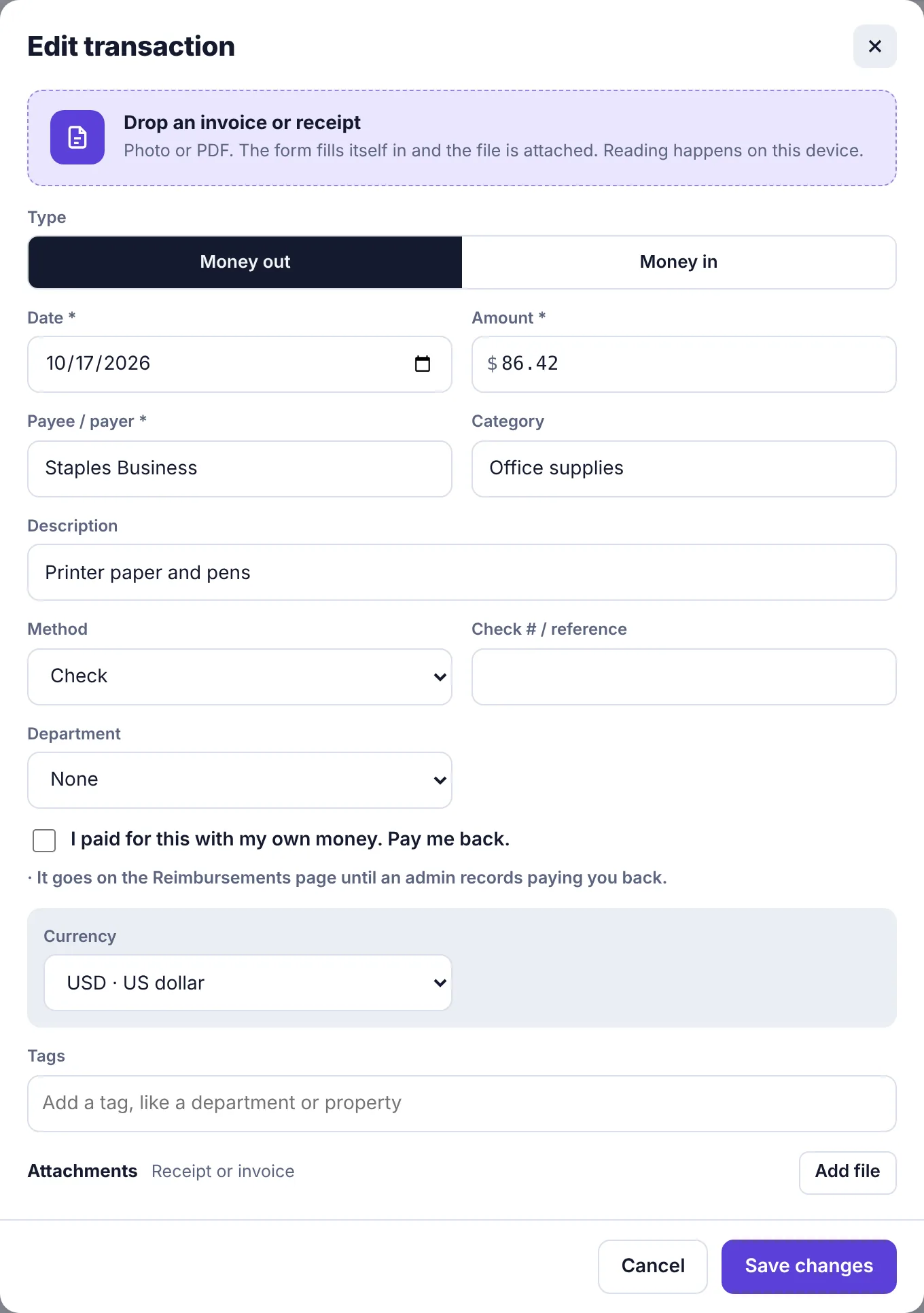
The Edit transaction form Click Save changes.
Attach a receipt or other file#
Open the item.
Under Files, click Add file.
Pick one or more files: photos, PDFs, Word, Excel, CSV or text files, each up to 20 MB.
A transaction with money going out and no file shows No receipt yet. Attach it so the books stay complete. Once a file is attached, the orange No receipt flag on the board goes away and a paper-clip count shows instead.
Employees can attach files to existing items without approval, since a file doesn't change any amounts.
Remove a file#
Click the × next to the file, then click Remove to confirm. Owners and admins can remove any file; other people can remove files they added themselves.
Comment on an item#
Use the Comments box in the panel to ask a question or leave a note. Type @ and a name to mention someone; they get a notification.
Download the audit PDF#
Audit PDF downloads one PDF with the item's details, approvals, history, comments and attached files. Handy for an auditor or your accountant.
Delete a transaction or bill#
Open the item.
Click Delete at the bottom right.
Click Confirm delete.
Deleting can't be undone. The deletion is written to the Activity log, so there's a record of who removed what. If you deleted a bill payment's transaction by mistake, see See a bill's payments, remove a payment or reopen a bill.
Custom fields#
On the Team plan and up, admins can add their own fields to transactions, bills and vendors (for example Job number or Approved by board). They appear in the form under the regular fields and show in the item's panel. Some may be marked required, so the form won't save until they're filled in. To set them up, see Custom fields.
History#
At the bottom of the panel, History shows who added the item (or requested it, and who approved it) and who reconciled it or recorded its payment.