Add custom fields
Add your own fields, like a property, job number or unit, to tasks, transactions, bills and vendors.
Custom fields let you record the things your business tracks that Plainstamp doesn't ask for by default: a property or unit, a job number, a store, a cost code. They show in the form when someone adds an entry, on the entry itself, and in its audit PDF.
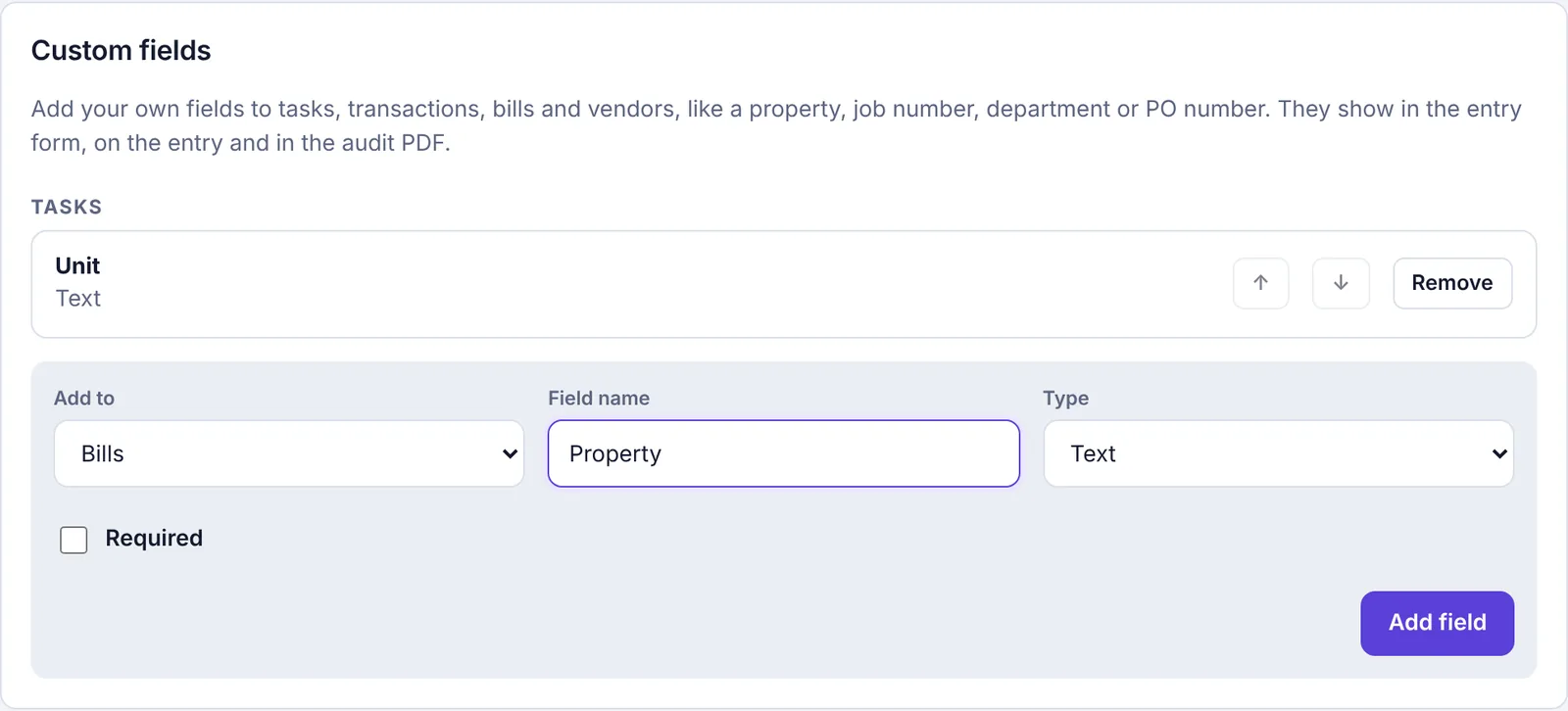
Add a field#
Go to Settings and click the Custom fields tab.
In Add to, pick where the field goes: Tasks, Transactions, Bills or Vendors.
Type a Field name, like "Property".
Pick a Type:
Text: any words or numbers.
Number: numbers only.
Date: a date picker.
Pick from a list: a list of choices. Type them in Choices (separated by commas), like
Main office, Warehouse, Store 2. You need at least two.Yes / no: a tick box.
Tick Required if the form shouldn't save without it. (Yes / no fields can't be required.)
Click Add field.
You'll see "Added field name." and the field is listed under its kind of entry. Required fields show a * after the name.
Change the order#
Fields show in the form in the order listed. Use the ↑ and ↓ buttons next to a field to move it.
Remove a field#
Click Remove next to the field. It disappears from forms straight away. Values already entered stay in each entry's audit history.
There's no edit button: to rename a field or change its choices, add a new one and remove the old one.
Limits#
Up to 20 custom fields for each kind of entry (tasks, transactions, bills, vendors).
Custom field or department?#
If you want to split spending by team or location and have requests go to that team's manager, budgets per team and a report filter, use Departments (Business plan). A custom field is better for simple labels like a unit number or job code.