Set up reminder rules
Remind people automatically before tasks and bills are due, when they're late, or when a request has waited too long for approval.
Reminder rules send your own reminders on top of the morning email. For example: two days before a task is due, remind whoever it's for; when a bill is a week overdue, tell the admins; when a request has waited three days, nudge the person who approves it.
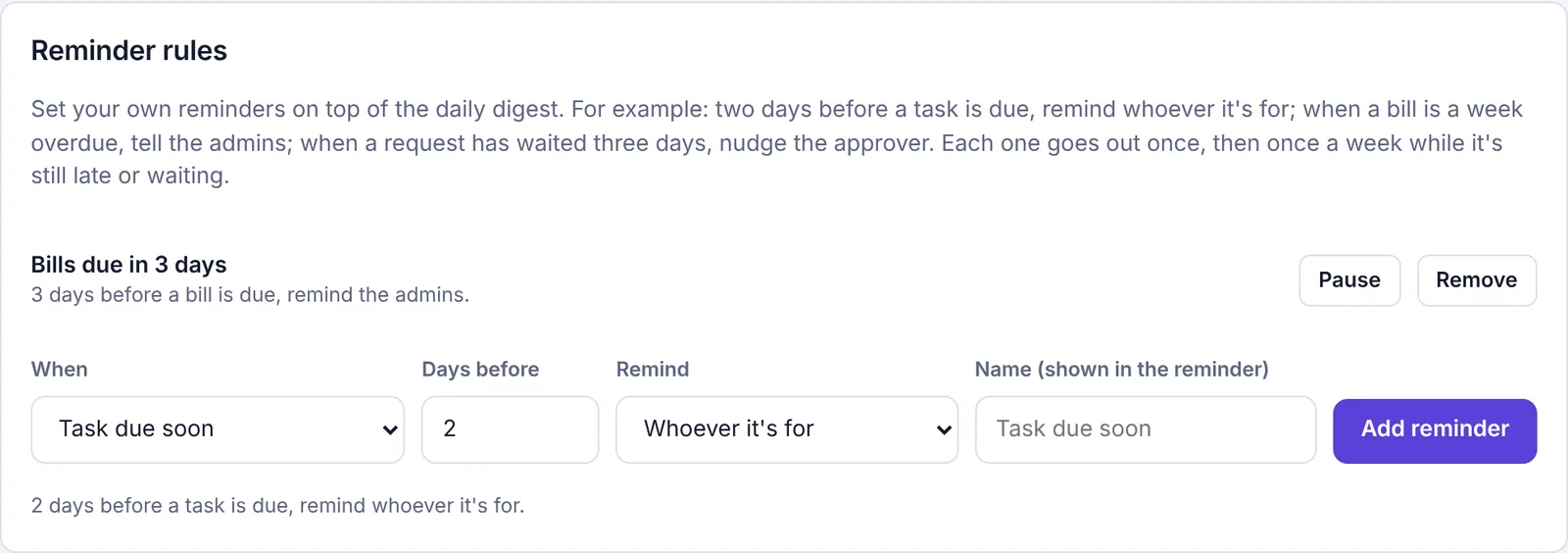
Add a reminder#
Go to Settings and click the Reminders tab.
In When, pick what to watch:
Task due soon or Task overdue
Bill due soon or Bill overdue
Request still waiting
Enter the number of days (0 to 90). The label changes to match: Days before, Days late or Days waiting.
In Remind, pick who gets it. The choices depend on what you picked:
When Who you can remind A task Whoever it's for, Whoever added it, The admins A bill Whoever added it, The admins A request The approver, Whoever added it, The admins Optionally type a Name (shown in the reminder), like "Rent check". If you leave it empty, the name is what you picked in When.
Read the sentence under the form to check it says what you mean, for example "2 days before a task is due, remind whoever it's for."
Click Add reminder.
You'll see "Reminder added. It runs every morning."
How reminders are sent#
Reminders are checked every morning.
Each reminder arrives as a notification in Plainstamp (the bell and the Notifications page), and on people's phones if they've turned phone notifications on.
Due soon reminders go out once for each task or bill.
Overdue and still waiting reminders go out once, then once a week while the task or bill is still late or the request is still waiting.
With 0 days, "due soon" means on the day it's due, and "overdue" means as soon as it's late.
Bill reminders only go to people who can see bills, never to workers. Nobody who's turned off gets reminders.
A request reminder sent to The approver goes to all admins if nobody in particular was picked to approve it.
Pause, turn on or remove a reminder#
Each reminder is listed at the top with a sentence describing it.
Click Pause to stop it for now. It shows "Paused." and looks faded.
Click Turn on to start it again.
Click Remove to delete it.
Ideas to start with#
| Name | When | Days | Remind |
|---|---|---|---|
| Due in 2 days | Task due soon | 2 | Whoever it's for |
| Bill due this week | Bill due soon | 5 | The admins |
| Bill a week late | Bill overdue | 7 | The admins |
| Still waiting for approval | Request still waiting | 3 | The approver |