Set notifications for your team
Admins can choose how employees, workers, accountants and view-only people get emails, new-task emails and phone notifications, and the morning email and phone notification, and lock those choices.
Each person normally chooses their own notifications. As an admin, you can also decide for the people on your team: for example, make sure every worker gets a phone notification for each new task and a morning list of the day's tasks, or stop morning emails for view-only people. You can lock your choice so they can't change it.
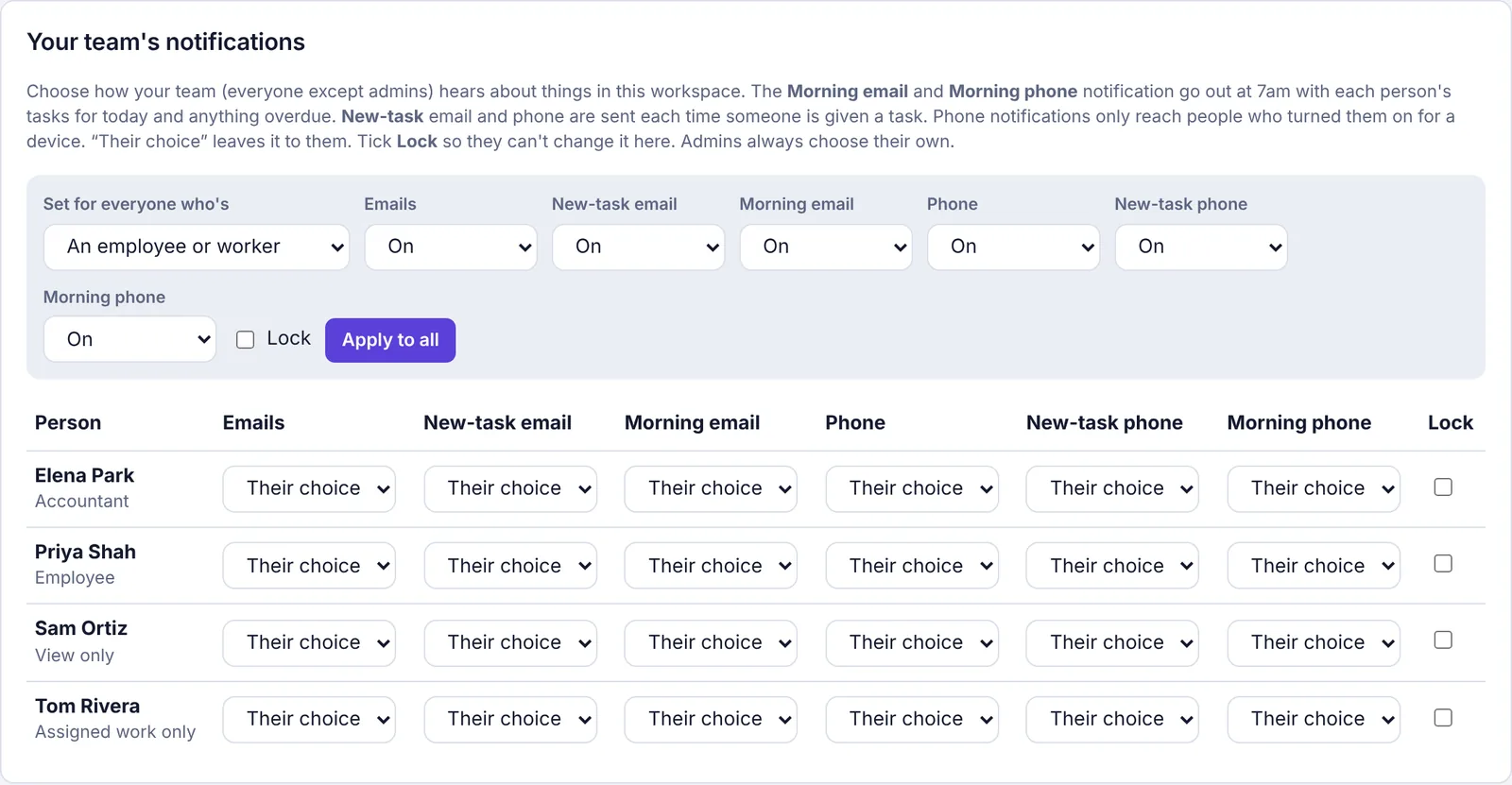
The six settings you control#
| Column | What it is |
|---|---|
| Emails | Emails when something needs them: requests to approve, decisions on what they sent, mentions and tasks given to them. |
| New-task email | An email each time someone gives them a task. Only sent while Emails is on for them. |
| Morning email | One email at 7am with their tasks for today, anything overdue, what's waiting for their approval and bills due. Skipped on days with nothing to report. (This used to be called the Daily digest.) |
| Phone | Notifications on the phones and computers they've turned on. |
| New-task phone | A phone notification each time someone gives them a task. Only sent while Phone is on for them. |
| Morning phone | At 7am, a phone notification with their tasks for today and anything overdue. Only on days they have something due or overdue. Only sent while Phone is on for them. |
7am means 7am in your workspace's time zone, which an owner or admin sets in Settings › General › Time zone. See Change your workspace settings.
Each one can be:
Their choice: they decide in their own settings (this is the default).
On: they get it.
Off: they don't.
Notifications always show on the Notifications page in Plainstamp, whatever you choose here. The monthly summary isn't part of this; each person turns that on or off themselves.
Set it for one person#
Go to Settings and click the Notifications tab.
Scroll down to Your team's notifications. Everyone who isn't an admin and is turned on is listed with their role.
In that person's row, change any column to Their choice, On or Off. It saves as soon as you pick ("Saved for name.").
To stop them changing it, tick Lock in their row. Lock covers all six settings in that row.
Set it for everyone with a role#
In the grey box at the top of Your team's notifications, pick who it's for in Set for everyone who's:
An employee or worker
An employee
Assigned work only (workers)
Anyone who isn't an admin
Choose a setting for each of Emails, New-task email, Morning email, Phone, New-task phone and Morning phone. They start on On.
Tick Lock if they shouldn't be able to change it.
Click Apply to all. You'll see how many people it was set for, for example "Set for 2 people."
Apply to all sets all six columns at once, so check each one before you click. This sets everyone who has that role right now. People who join later start on Their choice, so apply it again after you add people.
Common setups#
Workers get each new task on their phone, and a list of the day's work every morning
In Set for everyone who's, pick Assigned work only.
Set Phone, New-task phone and Morning phone to On.
Set the email columns the way you want them, or to Their choice.
Tick Lock, then click Apply to all.
Ask each worker to turn on notifications on their phone (see the tip below).
Fewer emails for the office, but still hear about new tasks
Pick An employee.
Set New-task email to Off and New-task phone to On. Leave Emails on so approval emails still arrive.
Click Apply to all.
A morning email for everyone, no matter what
Pick Anyone who isn't an admin.
Set Morning email to On and the other columns to Their choice.
Tick Lock, then click Apply to all.
What the person sees#
On their own Settings › Notifications page, a note at the top says what you set, for example "In Brightside Property Services, your admin set: Morning email off, Phone notifications on, New-task phone notifications on."
Not locked: the note adds "You can still change them below." If they change it, their choice wins.
Locked: the note says "They've locked these, so they can't be changed here." If they try, they see "Your admin set this for workspace, so it can't be changed here."
What you set only applies in your workspace. If they belong to other workspaces, those aren't affected.
Want a report on what got done?#
To get one email at the end of the day about what each person finished and what's still not done, see Get an end-of-day report on your team.