Seats and plan limits
How many people each plan includes, who uses a seat, how free accountant seats work, and what to do when you're full.
Each plan includes a number of seats: places for people in your workspace. The Team page shows how many you've used.
People included in each plan#
| Plan | People included | Free accountant seats |
|---|---|---|
| Starter (free) | 3 | 1 |
| Small | 6 | 2 |
| Team | 20 | 2 |
| Business | Unlimited | 2 |
Who uses a seat#
Uses a seat: the owner, admins, employees, workers and view-only people who are turned on.
Holds a seat while waiting: invites that haven't been used or cancelled and haven't expired (except accountant invites).
Doesn't use a seat: accountants (up to 1 on Starter, 2 on paid plans), people you've turned off, and expired or cancelled invites.
Free accountant seats#
The free Starter plan includes 1 accountant free. Small, Team and Business include 2 accountants free. Accountants never count toward your people limit. Accountants whose account is on and accountant invites waiting to be used count toward these seats. Turned-off accountants don't, but you need a free accountant seat to turn one back on. If they're all taken you'll see "All the free accountant seats on your plan are taken or invited (1 on Starter, 2 on paid plans). Cancel an unused accountant invite, or change someone's role." Cancel an unused accountant invite, or change one accountant's role.
If you move down to Starter with 2 accountants already in the workspace, both stay. You just can't add another until you're below the limit.
There's no way to add a third accountant, even on Business. If you need more people to see your books, add them as View only (they use a seat and can't see Reports) or Admin.
Reading the seat bar#
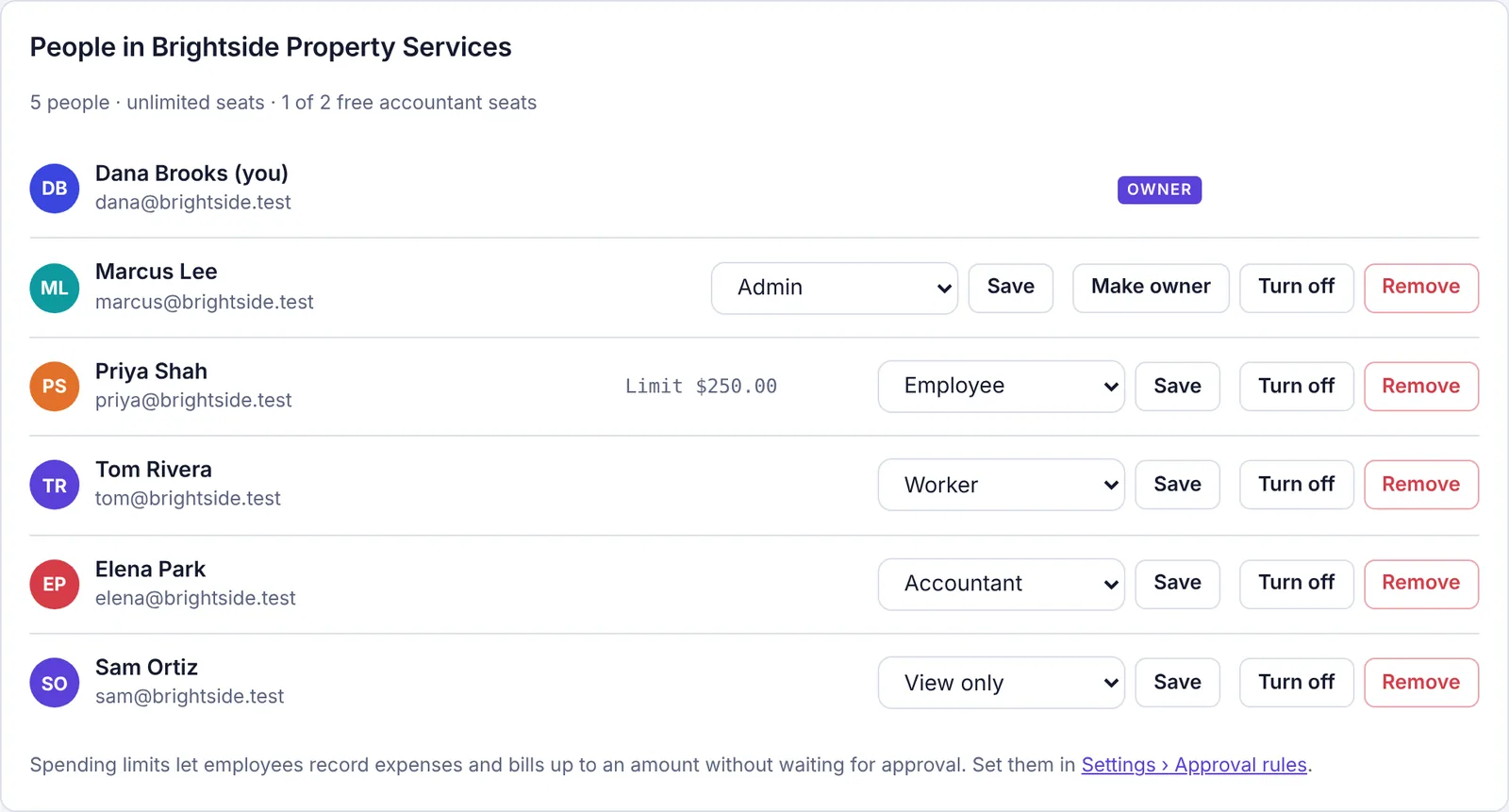
Under People in your workspace name on the Team page, admins see a line like:
"4 of 6 seats used (1 waiting to join) · 1 of 2 free accountant seats" (on Starter it ends "of 1 free accountant seat"), with a bar that turns orange near the limit and red when full. The accountant count includes accountant invites waiting to be accepted, and leaves out turned-off accountants.
On Business: "12 people · unlimited seats".
When you're full, owners and admins also see a Get more seats button that opens Plan & billing.
When you're full#
You'll notice because:
Create invite link says "Your plan's people limit is reached (pending invites count too)."
Changing an accountant to another role says "No free seat on your plan for another team member."
Turn back on says "No free seat on your plan to turn them back on." (For an accountant, it says "All the free accountant seats on your plan are in use, so this accountant can't be turned back on. Turn another accountant off, change their role, or cancel an unused accountant invite first." when all your free accountant seats are taken.)
Someone opening an invite sees "This workspace has reached the number of people on its plan."
To make room, do one of these:
Cancel invites nobody is going to use (Team page, Waiting to join, Cancel invite).
Turn off people who no longer need access. Their name stays on their work and they don't use a seat.
Make your outside bookkeeper an Accountant if they're on another role. That frees a seat.
Upgrade. Only the owner can change the plan, on Plan & billing.