Choose or change your plan
Start a paid plan, move to a bigger or smaller one, or switch between monthly and yearly billing.
You change your plan on the Plan & billing page. Payments are handled by Stripe, a secure payment company, so Plainstamp never sees your card number.
Start a paid plan#
In the menu on the left, click Plan & billing.
At the top of the plans, pick Monthly or Yearly · 2 months free.
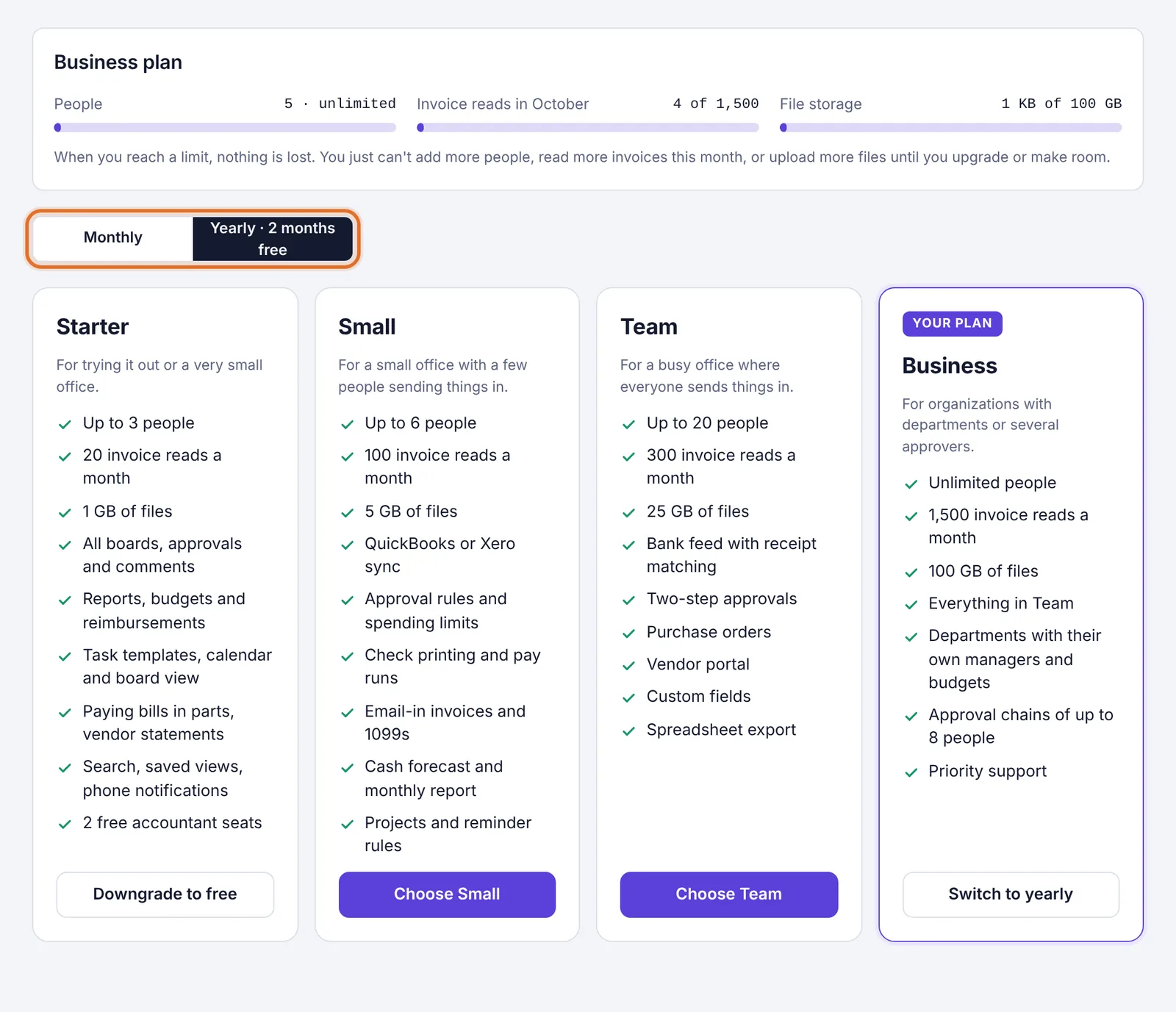
The Monthly / Yearly switch above the plans Under the plan you want, click Choose Small, Choose Team or Choose Business.
Stripe's secure payment page opens. Enter your card details and confirm. If you have a promotion code, you can enter it there.
You come back to Plainstamp and see "Thanks! Your payment went through." Your new plan is active as soon as Stripe confirms it, usually within a few seconds.
Move to a bigger or smaller plan#
If you're already paying, changing plans doesn't ask for your card again.
Go to Plan & billing.
Make sure Monthly or Yearly is set to how you want to pay.
Click Choose under the new plan.
You see "Your plan was changed. The difference is prorated on your next invoice."
"Prorated" means you only pay for what you use: moving up part-way through the month adds the difference for the days left, and moving down gives you credit for the days left.
The new plan's features and limits apply right away.
Moving to a smaller plan with too many people#
A smaller plan has to fit the people already in your workspace. If it doesn't, you see a message such as "Small includes 6 people and this workspace has 9." You can either:
turn off some accounts on the Team page first (accountants don't count toward the limit), or
pick a bigger plan.
Switch between monthly and yearly#
Go to Plan & billing.
Click Monthly or Yearly · 2 months free at the top of the plans.
Under your current plan (marked Your plan), click Switch to yearly or Switch to monthly.
The change is prorated on your next invoice, the same as changing plans.
Go back to the free Starter plan#
Click Downgrade to free under Starter. This opens Stripe's billing page, where you cancel your paid plan. See Cancel your paid plan for what happens next.
What the buttons mean#
| Button | What it does |
|---|---|
| Current plan | The plan and billing period you're on now. Nothing to do. On a free plan from Plainstamp it shows under both Monthly and Yearly. |
| Keep my plan | Shows instead of Current plan after you cancel, until the plan ends. Click it to undo the cancellation. See Cancel your paid plan. |
| Choose Small / Team / Business | Start that plan, or switch to it. |
| Switch to yearly / monthly | Keep the same plan, change how often you pay. |
| Downgrade to free | Cancel your paid plan (opens Stripe). |
| Cards, invoices and cancelling | Opens Stripe's billing page. See Update your card and get invoices. |