Lost your phone? Getting back in with two-step sign-in
What to do when you can't get a two-step sign-in code, and how to move two-step sign-in to a new phone.
If you use two-step sign-in, you need the code from your authenticator app to sign in. Here's what to do if you can't get it, and how to switch to a new phone without getting locked out.
Getting a new phone? Do this first#
While you still have your old phone:
On your computer, sign in to Plainstamp and go to Settings > Sign-in & security.
Next to Authenticator app, click Remove, type a current code from the old phone and click Remove two-step sign-in.
Click Set up two-step sign-in and scan the QR code with the authenticator app on your new phone. Type its code and click Turn on two-step sign-in.
Many authenticator apps (for example 1Password, Authy, or Google Authenticator with a backup turned on) can also move your codes to a new phone for you. If yours did, nothing changes in Plainstamp.
Lost your phone, or it stopped working?#
Check whether your authenticator app is also on another device you have, such as a tablet or a password manager on your computer. If it is, use the code from there.
If not, email support@plainstamp.com from the email address you sign in with. Say that you lost your phone and need two-step sign-in reset. (The two-step sign-in page shows the same advice under Continue: "Lost your phone? Email support@plainstamp.com from your account's email address and we'll help you get back in.")
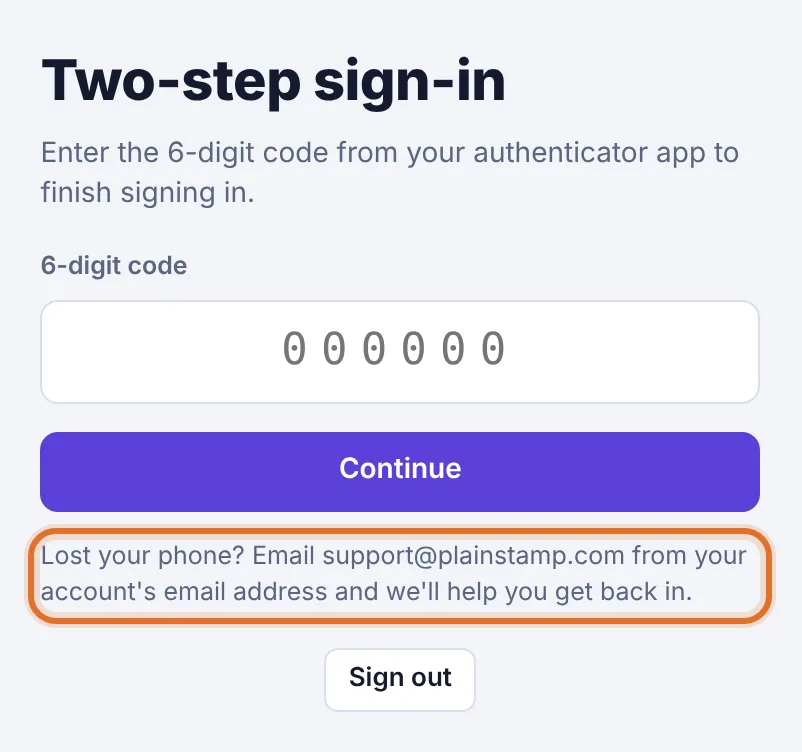
The Lost your phone? note under Continue on the Two-step sign-in page Plainstamp support confirms it's really you before resetting anything, for example by calling you on a phone number already on file. This keeps someone else from taking over your account.
Once it's reset, sign in with your password and set up two-step sign-in again on your new phone.
Phone stolen?#
Once you're back in, go to Settings > Sign-in & security and click Sign out of all devices. This signs your account out everywhere, including the lost phone, and turns off notifications on all your devices. See Sign out, or sign out on every device.
If you think someone knows your password, change it too. See Change or reset your password.