Choose which emails and notifications you get
Turn emails, new-task emails, the morning email, phone notifications and the monthly summary on or off, and what admins can set for their team.
Plainstamp always puts notifications on your Notifications page. On top of that, you choose whether it also emails you, sends a morning round-up, and shows notifications on your phone or computer.
Change your notification settings#
In the menu on the left, click Settings.
Click the Notifications tab.
Under What Plainstamp tells you, turn each switch on or off. Each change saves straight away.
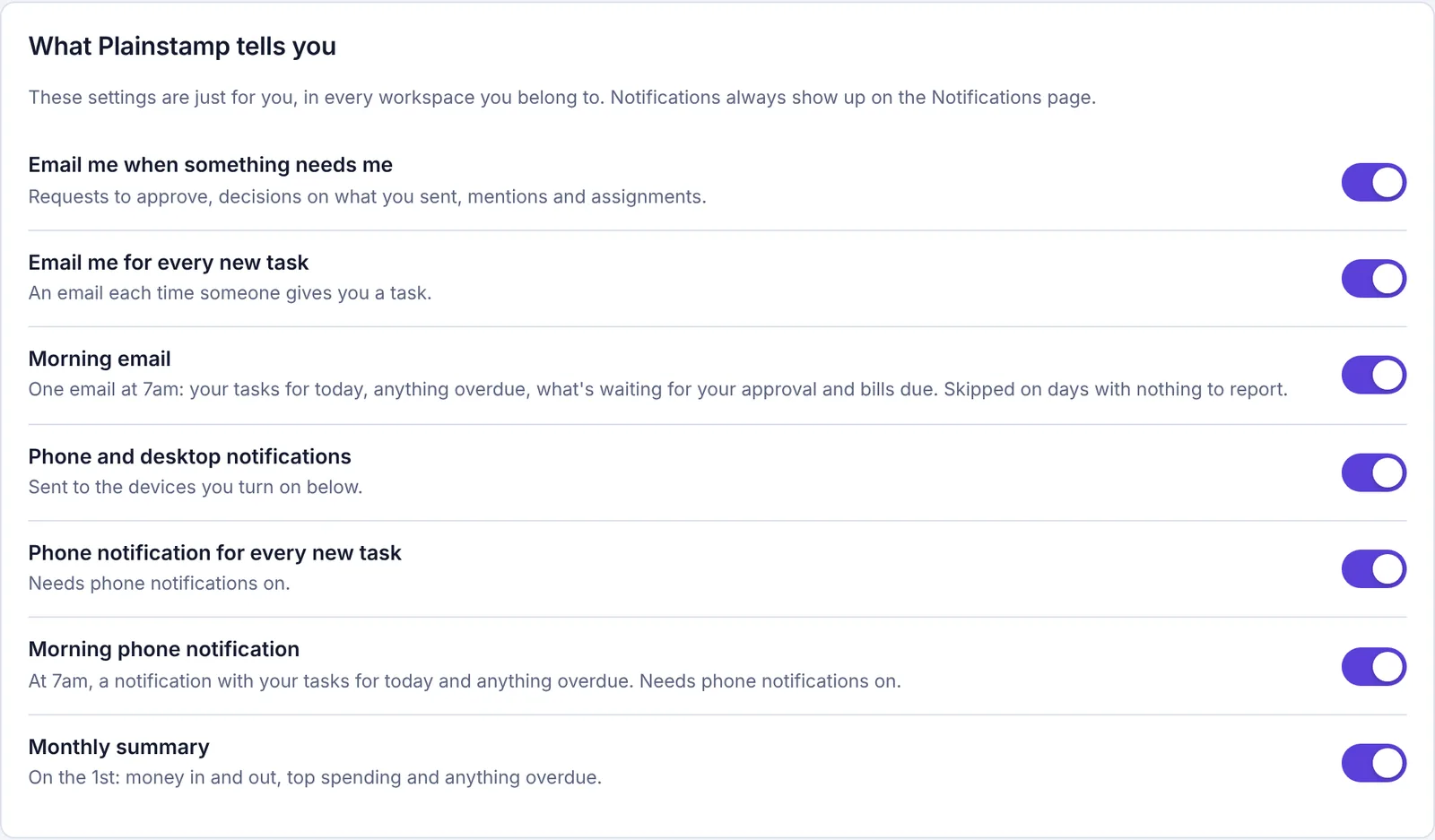
The What Plainstamp tells you settings: emails, new-task emails, morning email, phone notifications and the monthly summary
These settings are just for you, and they apply in every workspace you belong to.
What each switch does#
| Switch | What you get |
|---|---|
| Email me when something needs me | An email when there's a request for you to approve, a decision on something you sent, a mention or an assignment. |
| Email me for every new task | An email each time someone gives you a task. |
| Morning email | One email at 7am: your tasks for today, anything overdue, what's waiting for your approval and bills due. It's skipped on days with nothing to report. |
| Phone and desktop notifications | Notifications on the phones and computers you've turned on. See Turn on phone and desktop notifications. |
| Phone notification for every new task | A phone or desktop notification each time someone gives you a task. Needs Phone and desktop notifications on. |
| Morning phone notification | At 7am, a notification with your tasks for today and anything overdue. Needs Phone and desktop notifications on. |
| Monthly summary | On the 1st: money in and out last month, top spending and anything overdue. Owners, admins and accountants only. |
All of them start switched on. Turning them all off doesn't hide anything. You'll still see every notification on the Notifications page when you open Plainstamp.
How the switches work together#
New-task emails also need Email me when something needs me on. If that one is off, you get no emails about new tasks either.
Phone notification for every new task and Morning phone notification only work while Phone and desktop notifications is on, and only reach devices you've turned on.
Want to hear about new tasks only on your phone? Turn Email me for every new task off and leave Phone notification for every new task on. You'll still get emails for approvals and mentions.
The morning email#
The morning email comes at 7am in your workspace's time zone (an owner or admin sets it in Settings › General › Time zone), one email for each workspace you're in. It only comes when there's something to tell you, so a quiet day means no email. If an approver is away and you're standing in for them, their waiting approvals are included in yours.
The morning phone notification#
This is a short notification at 7am (in your workspace's time zone), for example "Today in Brightside Property Services: 3 tasks, 1 overdue", with the first few task names. Tap it to open Tasks. It only comes on days when you have a task due today or overdue. It's separate from the morning email, so you can have either one, both or neither.
The monthly summary email#
The monthly summary goes out on the 1st of each month with last month's money in and out, top spending and anything overdue, plus a link to that month's reports.
Who gets it: owners, admins and accountants. Other roles don't see this switch.
Plan: it comes with the Small plan and up.
The workspace has to have it on too. An admin turns it on or off for the whole workspace under Settings > General > Money, with the box "Email a summary of last month on the 1st (to owners, admins and accountants who want it)". Your own switch then decides whether you get it. On the Starter plan that box can't be ticked, and it ends with " · comes with the Small plan and up".
When your admin has set them for you#
Admins can choose notifications for employees, workers, viewers and accountants in their workspace. If they've done that for you, you see a note such as "In Brightside Property Services, your admin set: Morning email off, New-task phone notifications on."
If they didn't lock it, the note adds "You can still change them below."
If they locked it, you see "They've locked these, so they can't be changed here." Ask an admin if you need it changed.
For admins: set notifications for your team#
Owners and admins see a Your team's notifications section lower down the same page. It has a column for each kind: Emails, New-task email, Morning email, Phone, New-task phone and Morning phone, plus Lock.
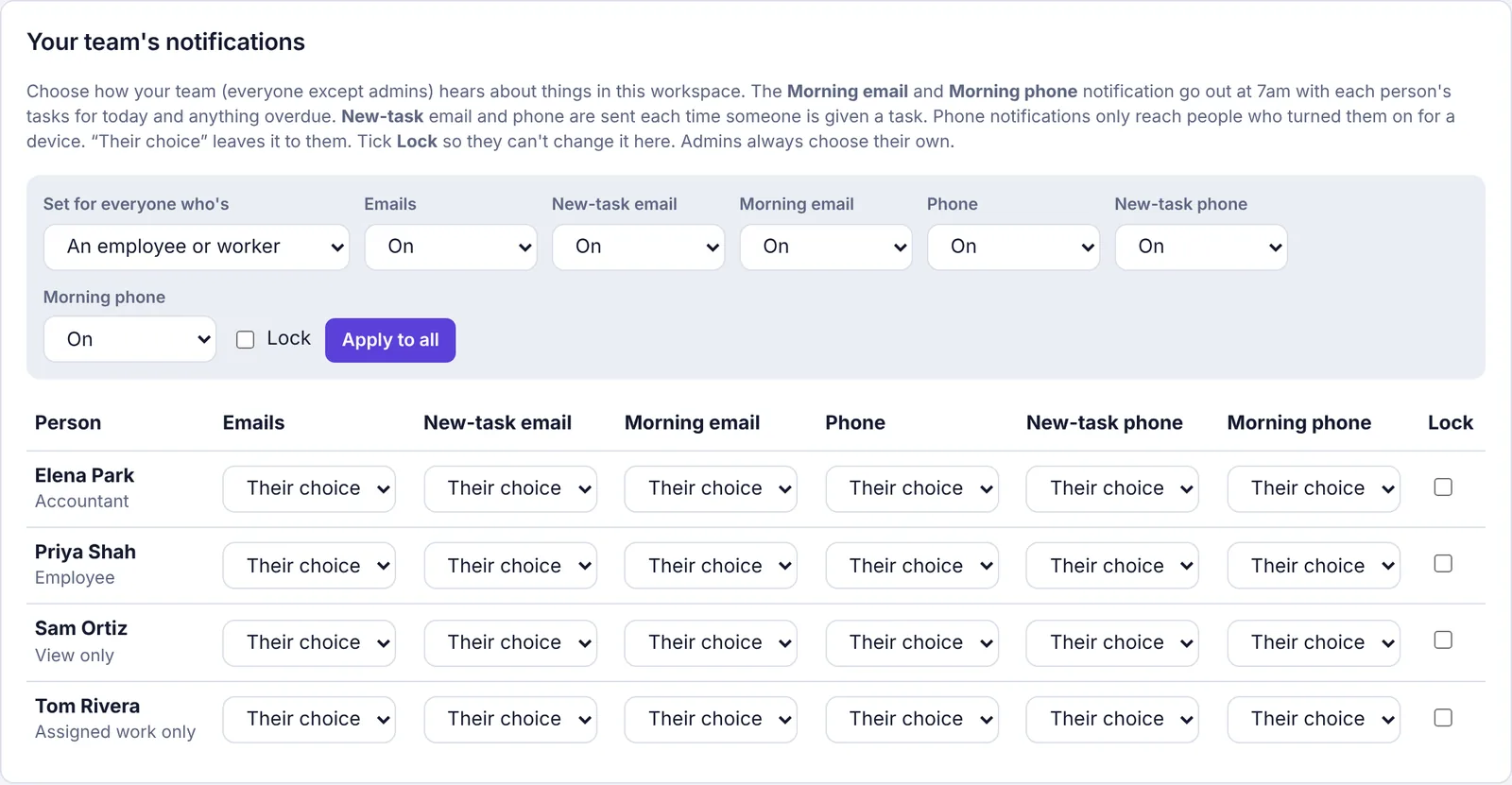
To set them for one person:
Find the person in the table.
In each column, pick On, Off or Their choice ("Their choice" leaves it to them).
Tick Lock if they shouldn't be able to change it. Each change saves straight away.
To set them for a group at once:
Under Set for everyone who's, pick a group, for example An employee or worker or Anyone who isn't an admin.
Choose a setting for each kind, and tick Lock if you want.
Click Apply to all.
These choices only apply in your workspace. Admins always choose their own. For the full walk-through, see Set notifications for your team.
Your tasks in your calendar#
Below What Plainstamp tells you is Your tasks in your calendar. Turn it on to see your tasks in Google Calendar, Apple Calendar, Outlook or Samsung Calendar, through a private link that keeps itself up to date. Each person turns on their own, for each workspace. It comes with the Small plan and up. See See your tasks in your calendar.
Owners and admins also see an End-of-day report section at the bottom of the page. See Get an end-of-day report on your team.