See your tasks in your calendar
Turn on your private calendar link so your tasks show up in Google Calendar, Apple Calendar, Outlook or Samsung Calendar, and keep themselves up to date.
Plainstamp can put your tasks in the calendar app you already use: Google Calendar, Apple Calendar on your iPhone, iPad or Mac, Outlook, or Samsung Calendar. Each task shows on its due date, and when tasks change in Plainstamp your calendar catches up on its own.
It works through a private calendar link that only you have. You turn it on once, add it to your calendar app, and you're done.
Turn on your calendar link#
In the menu on the left, click Settings.
Click the Notifications tab.
Scroll to Your tasks in your calendar.
If you're an owner or admin, under Which tasks pick Just tasks given to me or Every task in the workspace. (Everyone else gets the tasks given to them, so there's no choice to make.)
Click Turn on. You'll see "Calendar link is on."
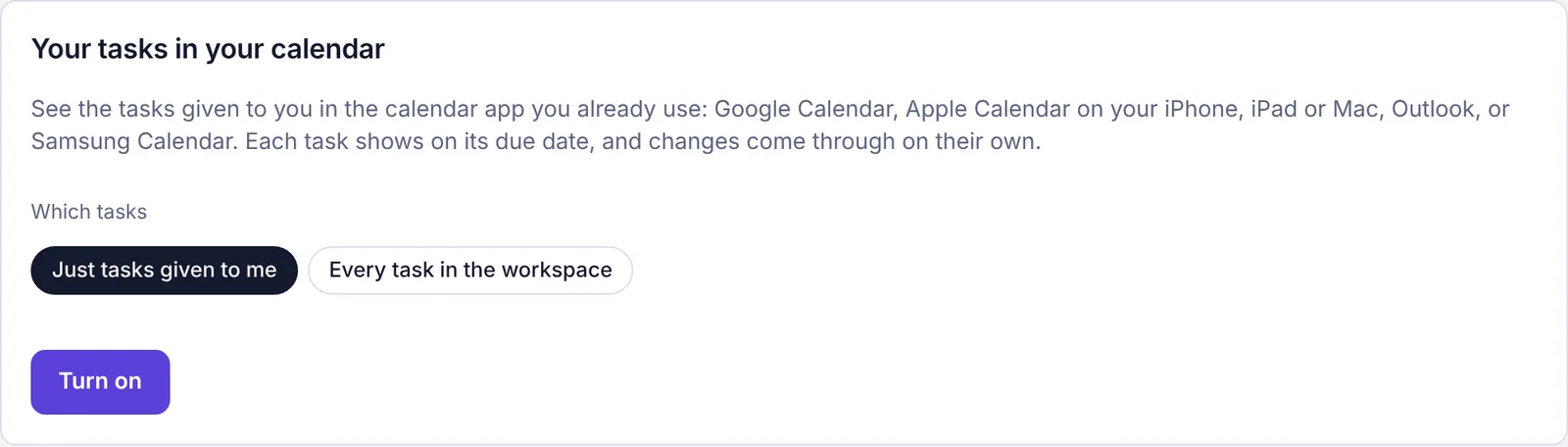
The Your tasks in your calendar section before it's turned on, with the Which tasks choice and the Turn on button
The section now shows a button for each calendar app, and your private link.
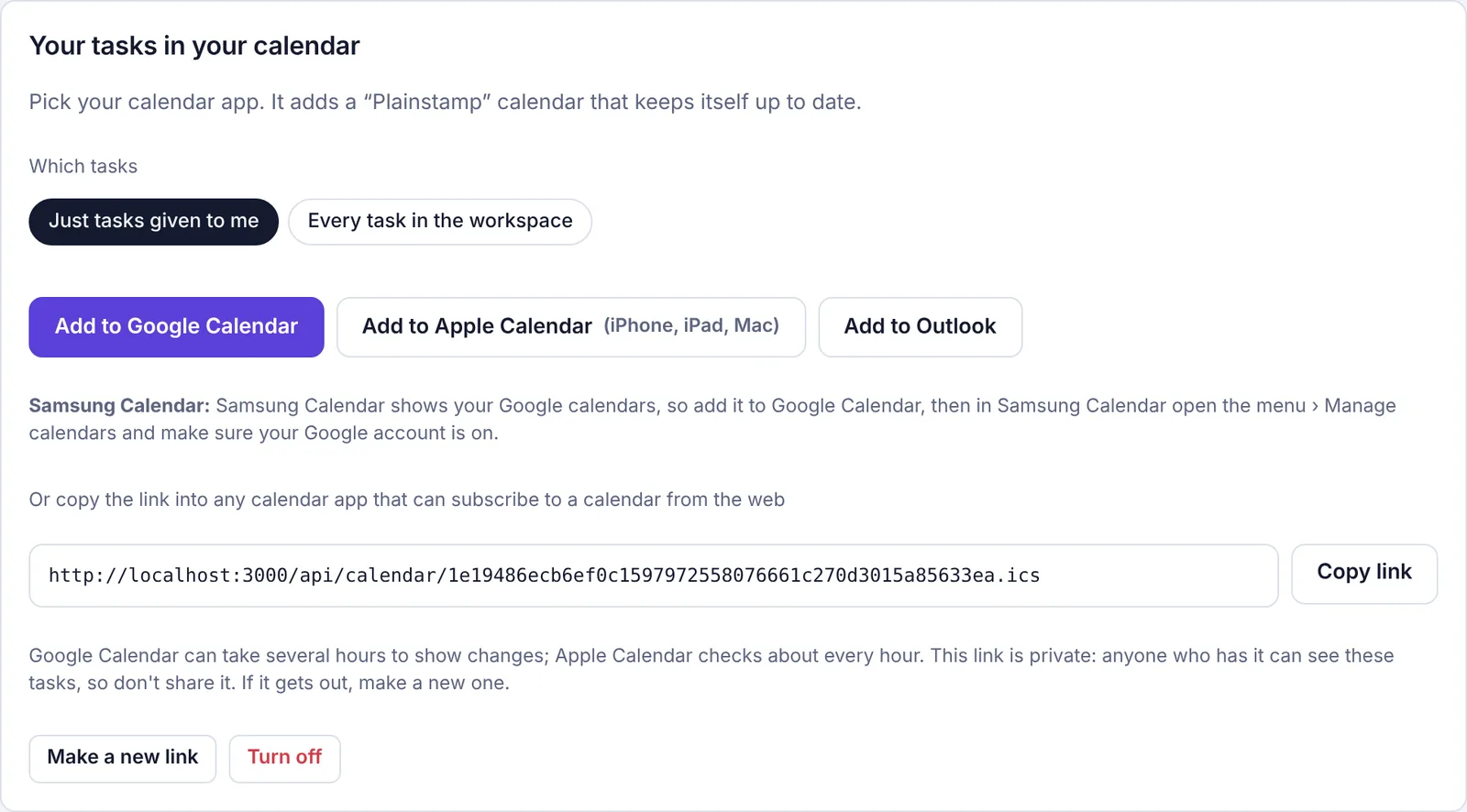
Your link is for this workspace only. If you're in more than one workspace, turn it on in each one you want in your calendar. Each one shows up as its own calendar.
Next, add it to your calendar app. Pick the one you use below.
Add it to Google Calendar#
Do this on a computer. Google's phone app can't add a calendar from a link, so on a phone the button won't finish the job. You only need to do it once: after that, the calendar shows up in the Google Calendar app on your phone too.
On a computer, sign in to Plainstamp and go to Settings › Notifications › Your tasks in your calendar.
Click Add to Google Calendar. Google Calendar opens in a new tab.
Make sure you're signed in to the Google account you use on your phone, then click Add when Google asks if you want to add the calendar.
The new calendar appears on the left under Other calendars.
If the button doesn't work for you, do it by hand:
In Plainstamp, click Copy link.
On a computer, open calendar.google.com.
On the left, next to Other calendars, click +, then From URL.
Paste the link and click Add calendar.
On an Android phone, if the calendar doesn't show in the Google Calendar app after a while, open the app's menu, tap Settings, tap the Plainstamp calendar and make sure Sync is on.
Add it to Apple Calendar (iPhone, iPad or Mac)#
On your iPhone, iPad or Mac, sign in to Plainstamp and go to Settings › Notifications › Your tasks in your calendar.
Tap Add to Apple Calendar (iPhone, iPad, Mac). The Calendar app opens and asks if you want to subscribe.
Tap Subscribe, then follow the prompts to add it (on a Mac, click Subscribe, then OK). On a Mac, if you see Auto-refresh, choose Every hour so changes come through quickly.
The tasks now show in Calendar. To hide or remove the calendar later on an iPhone or iPad, open Calendar, tap Calendars at the bottom, tap the ⓘ next to the Plainstamp calendar, then tap Unsubscribe or Delete Calendar. You can also find it in the Settings app, under Calendar › Accounts › Subscribed Calendars (on newer iPhones it's Apps › Calendar › Calendar Accounts › Subscribed Calendars).
Add it to Samsung Calendar#
Samsung Calendar shows the calendars from your Google account, so the Plainstamp calendar comes in through Google.
First, add it to Google Calendar on a computer, using the same Google account that's on your Samsung phone.
On the phone, open Samsung Calendar and tap the menu (the three lines).
Tap Manage calendars and make sure your Google account, and the Plainstamp calendar under it, are turned on.
If it still doesn't show, open the phone's Settings › Accounts and backup › Manage accounts, tap your Google account, tap Sync account, and make sure Calendar is on. Because the calendar comes through Google, it updates as often as Google does.
Add it to Outlook#
Outlook.com (a personal Microsoft account):
Click Add to Outlook. Outlook opens in a new tab with the calendar ready to add.
Sign in if asked, then click Import (or Add) to add it.
Outlook for work or school, or the Outlook app on your computer:
In Plainstamp, click Copy link.
In Outlook on the web, open the calendar, click Add calendar, then Subscribe from web, paste the link and add it. In the Outlook app on a Windows computer, click Add Calendar, then From Internet, and paste the link.
Any other calendar app#
Most calendar apps can subscribe to a calendar from the web. Click Copy link and paste it wherever your app asks for a calendar address or URL (it may be called subscribe, add by URL, internet calendar or iCal).
How fast changes show up#
Your calendar app doesn't get changes the instant they happen. It checks your link every so often, and you see the changes the next time it checks:
| Calendar app | How often it usually checks |
|---|---|
| Apple Calendar | About every hour |
| Google Calendar (and Samsung Calendar through Google) | Every several hours, sometimes most of a day |
| Outlook | Every few hours |
So if you mark a task done or change a due date, give your calendar a while to catch up. This is normal and there's nothing to fix. Plainstamp itself is always up to date. If it's been much longer, see My calendar isn't showing my tasks or changes.
What's in your calendar#
Open tasks with a due date. Each one is an all-day event on its due date, using your workspace's time zone.
From 60 days ago onward. Overdue tasks stay on your calendar for 60 days after their due date. Tasks due up to about a year ahead are included.
Just yours, or every task. With Just tasks given to me, you see tasks given to you. With Every task in the workspace (owners and admins), you see every open task with a due date, and each one shows who it's for after its name, for example "Fix lobby light · Tom", or "Nobody yet" when it isn't given to anyone.
The details. Open an event to see the task's priority, its notes, and a link back to the task in Plainstamp.
What's not included:
Tasks marked done. They drop off your calendar the next time it checks, even if you finish them early.
Tasks without a due date.
Bills, approvals and anything else that isn't a task.
The calendar is one-way. Changing or deleting an event in your calendar app doesn't change the task in Plainstamp. Make changes in Plainstamp and they come through to your calendar.
Keep your link private#
Anyone who has your link can see the tasks in it, without signing in. So don't share it, post it or paste it into an email.
If it gets out, make a new one:
Go to Settings › Notifications › Your tasks in your calendar.
Click Make a new link, then OK to confirm. You'll see "New link made. Add it to your calendar again."
The old link stops working straight away. Remove the old Plainstamp calendar from your calendar app and add the new one using the steps above.
Turn it off#
Go to Settings › Notifications › Your tasks in your calendar.
Click Turn off. You'll see "Calendar link is off."
Your link stops working, and the tasks disappear from your calendar app the next time it checks. You can then remove the empty Plainstamp calendar from your app. If you turn it on again later, you get a new link, so you'll need to add it to your calendar again.
Who can use it#
| Just tasks given to me | Every task in the workspace | |
|---|---|---|
| Owner, Admin | Yes | Yes |
| Employee, Worker, Accountant, Viewer | Yes | No |
Each person turns on their own link. Nobody can turn it on for someone else, and nobody else can see your link.
If an owner or admin becomes another role, their calendar goes back to just the tasks given to them.
If someone is turned off or removed from the workspace, their link stops showing any tasks.
Plans#
Calendar sync comes with the Small plan and up. On the Starter plan, the section shows "Calendar sync comes with the Small plan and up." Owners and admins see a See the Small plan button; everyone else sees "Ask the workspace owner about upgrading." See Plans: what each one includes.
If a workspace moves back to Starter, or is paused, the calendar links stop showing tasks until it's back on a paid plan.