Add a task
Create a task, give it to someone and set a due date, priority, repeat, project, tags and more.
A task is one piece of work: "Replace the hallway bulbs", "Send the October statements". Give it to a person and a due date so nothing slips.
Add a task#
Go to Tasks and click New task at the top right. (You can also use the New button on most pages and pick Task.)
Type what needs doing in Task. This is the only field you must fill in.
Fill in any of the other fields you need (they're explained below).
Click Add to Tasks.
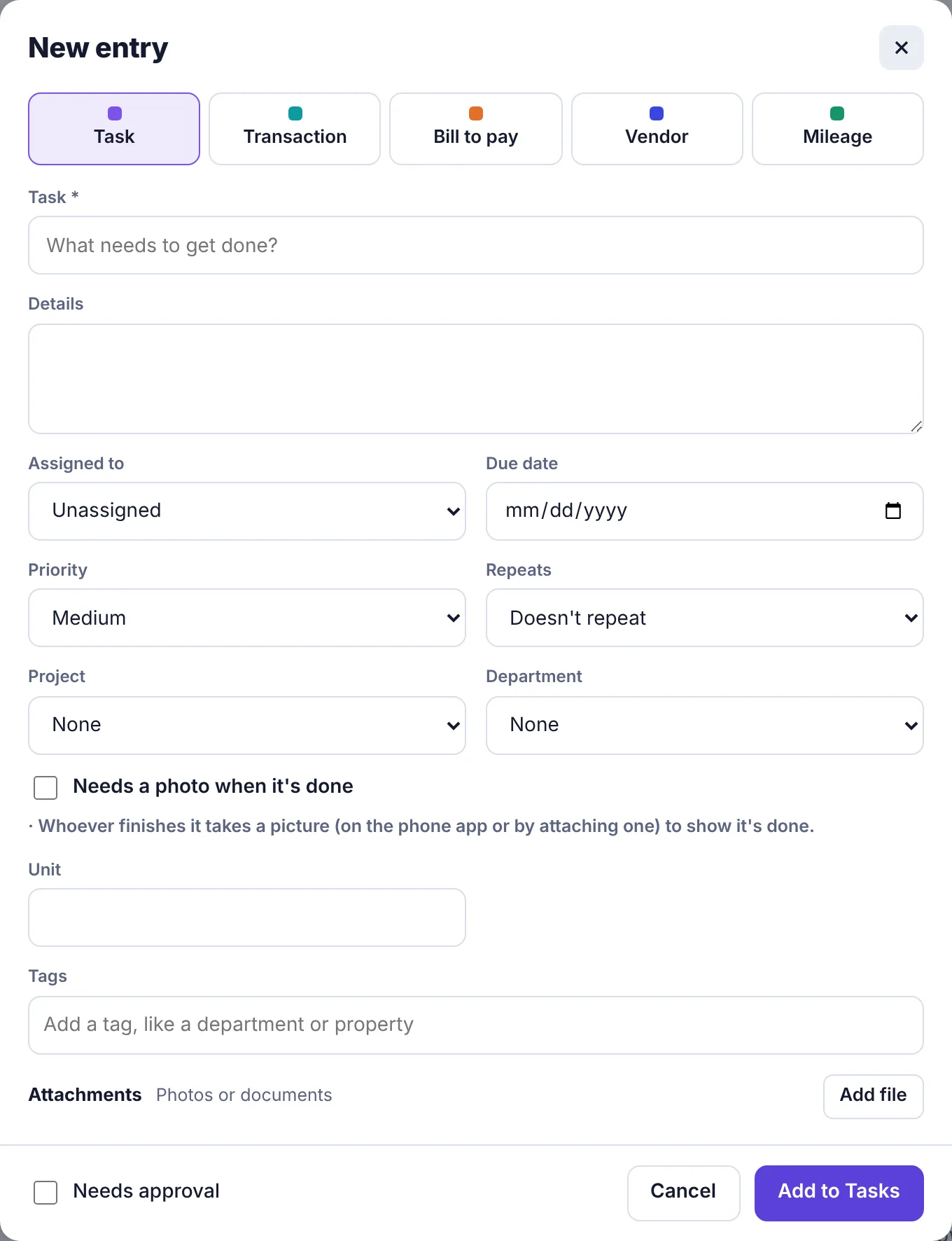
The task appears on the Tasks page right away. If you gave it to someone else, they get a notification, an email and (if they've turned it on) a phone notification saying you gave them a task.
What each field does#
| Field | What it's for |
|---|---|
| Task | A short name for the job. Required. |
| Details | Anything the person needs to know: where, how, what to watch out for. |
| Assigned to | The person who will do it. Leave it on Unassigned if you'll decide later. You can pick owners, admins, employees and workers. |
| Due date | When it should be done. Tasks without a date go in the No due date group. |
| Priority | Low, Medium (the default), High or Urgent. |
| Repeats | Makes it a repeating task: Every day, Every week, Every 2 weeks, Every month, Every 3 months or Every year. See Repeating tasks. |
| Project | Puts the task in a project. Shows only when your workspace has projects. See Projects. |
| Department | Files the task under a department. Shows only when your workspace has departments. |
| Needs a photo when it's done | Whoever finishes it must add a photo first. See Tasks that need a photo. |
| Your own fields | Any custom fields your office set up for tasks (in the demo above, Unit). A field marked with * must be filled in. |
| Tags | Short labels like a property, a room or a client. Type one and press Enter. Use them to filter the list later. |
| Attachments | Click Add file to attach photos or documents (up to 20 MB each). |
Ask for approval on purpose#
Owners and admins see a Needs approval box at the bottom of the form. Tick it if you want another admin to sign off before the task goes on the board. The button changes to Submit for approval and you can pick Who should approve?.
Add a task to a project#
On a project's page, click Add a task. The form opens with that project already picked.
Add tasks in bulk#
If you add the same group of tasks again and again (onboarding someone new, closing the month), make a task template and add them all at once.
Departments and tasks#
On the Business plan, each task can belong to a department. Pick it in Department when you add or edit the task. Departments are set up by an admin in Settings; see Departments.