Task templates
Save a set of tasks you add again and again, then add them all at once with due dates counted from a start date.
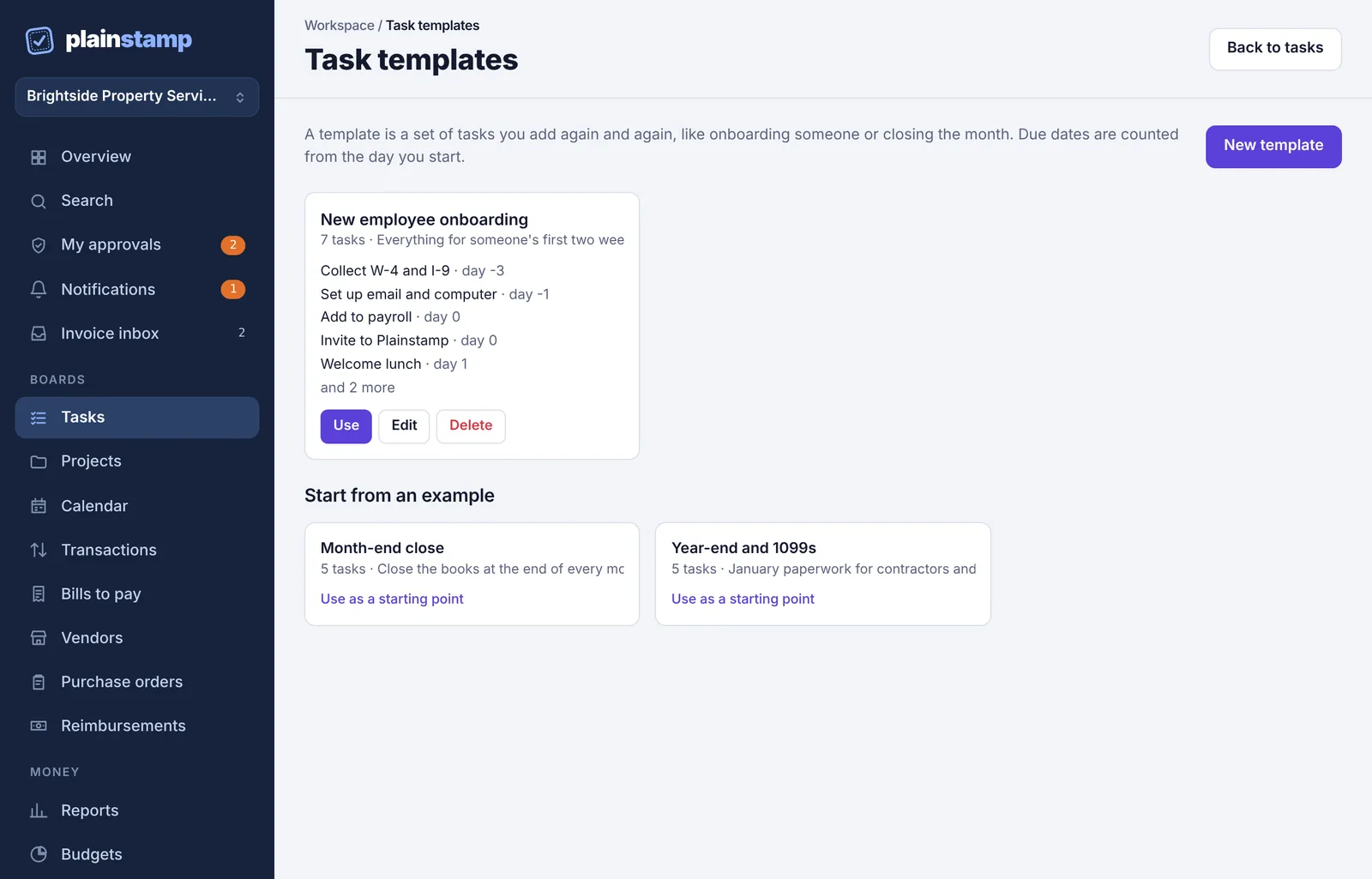
Onboarding a new hire, closing the month, getting a unit ready for a new tenant: the same tasks every time. Save them once as a template, then add the whole set in one click.
Open templates#
Go to Tasks.
Click Templates at the top right.
Make a template#
Click New template, or click one of the examples under Start from an example (New employee onboarding, Month-end close, Year-end and 1099s) to start from it.
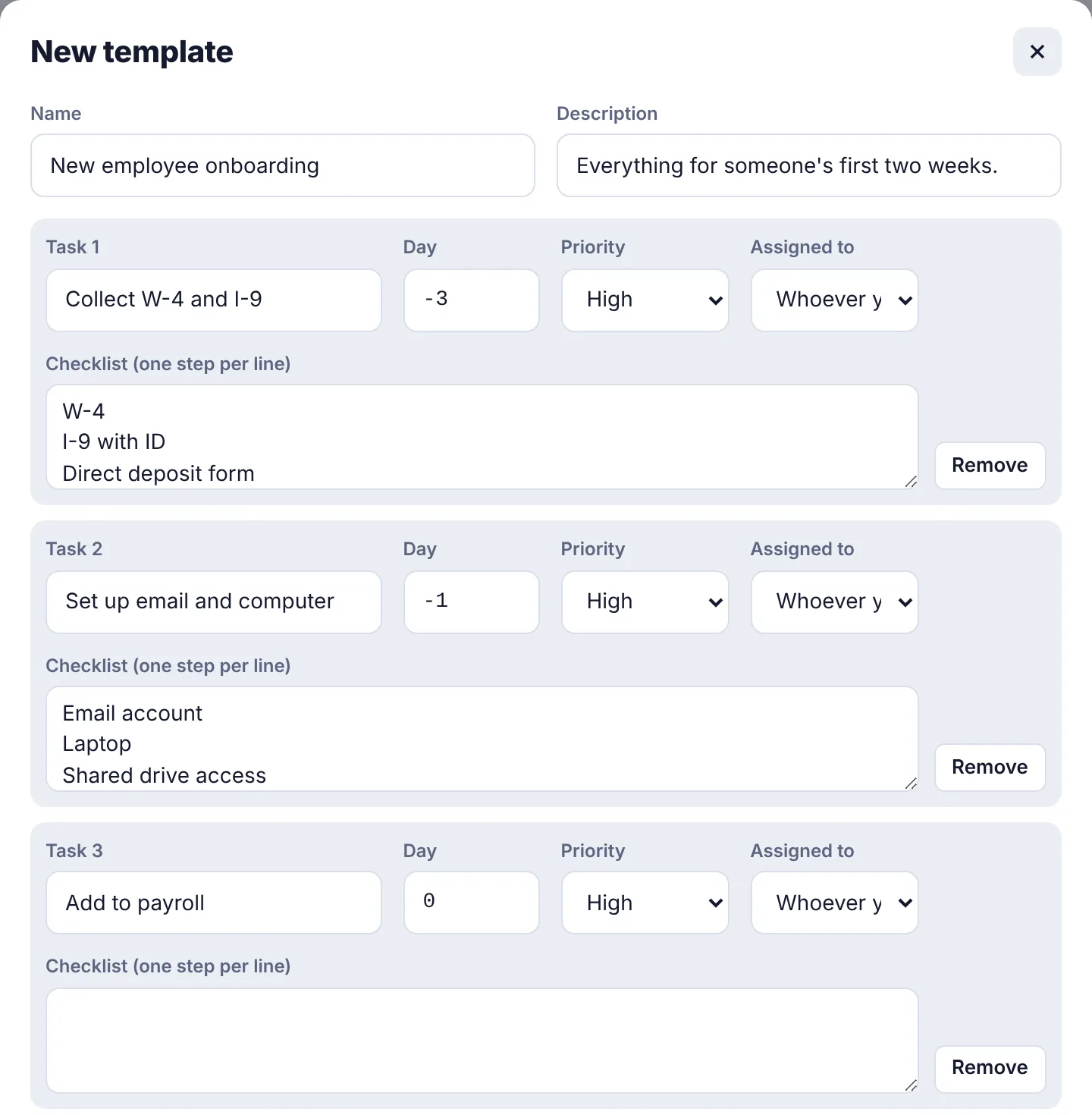
Give it a Name and, if you like, a Description.
For each task, fill in:
Task 1, Task 2…: the task name.
Day: when it's due, in days after the start date. 0 is the start date itself, 5 is five days later, -3 is three days before.
Priority.
Assigned to: a set person, or Whoever you pick to choose when you use the template.
Checklist (one step per line): optional steps for that task.
Click Add a task for more rows, or Remove to drop one.
Click Save template.
A template can hold up to 100 tasks, each with up to 30 checklist steps.
Use a template#
On the Templates page, click Use on the template.
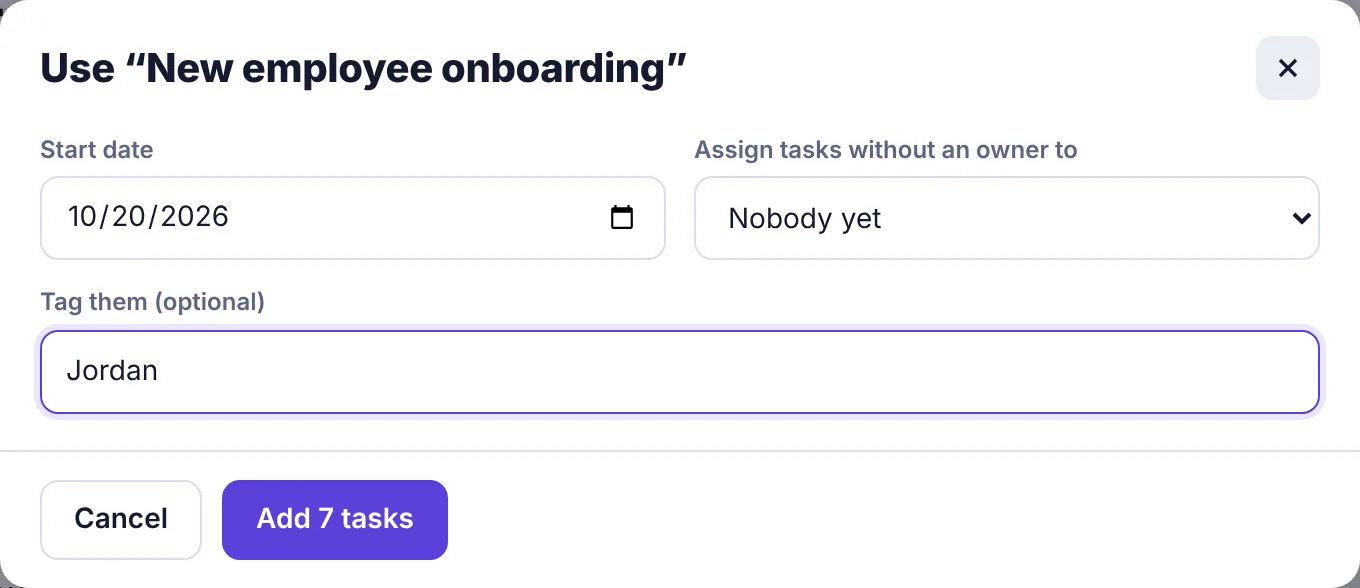
Set the Start date. Each task's due date is counted from it.
In Assign tasks without an owner to, pick who gets the tasks set to "Whoever you pick", or leave Nobody yet.
Optionally, type a tag in Tag them (optional), like the new person's name or the month, so you can filter for this batch later.
Click Add 7 tasks (the number matches your template). Employees click Send 7 tasks for approval instead.
For owners and admins, the tasks go straight on the Tasks page, each with its checklist. Everyone who was given tasks gets one notification about them.
For employees, it works like adding the tasks yourself: each task goes to an admin for approval as its own request, and you're taken to My requests. The message says who they went to, for example Sent 7 tasks from “New employee onboarding” to any admin for approval. Admins get one notification for the whole set and approve or reject each task on the Approvals page. An approved task lands on the board with its checklist, and the person it's for is told.
Change or delete a template#
Click Edit or Delete on the template. Changing a template doesn't change tasks you already added from it.
Who can do this#
| Make templates | Edit or delete | Use (add the tasks) | |
|---|---|---|---|
| Owner, Admin | Yes | Any template | Yes |
| Employee | Yes | Their own | Yes, each task goes for approval first |
| Worker, Accountant, View only | No | No | No |