Break a task into steps with a checklist
Add a checklist to a task, tick steps off as you go, and see progress on the board.
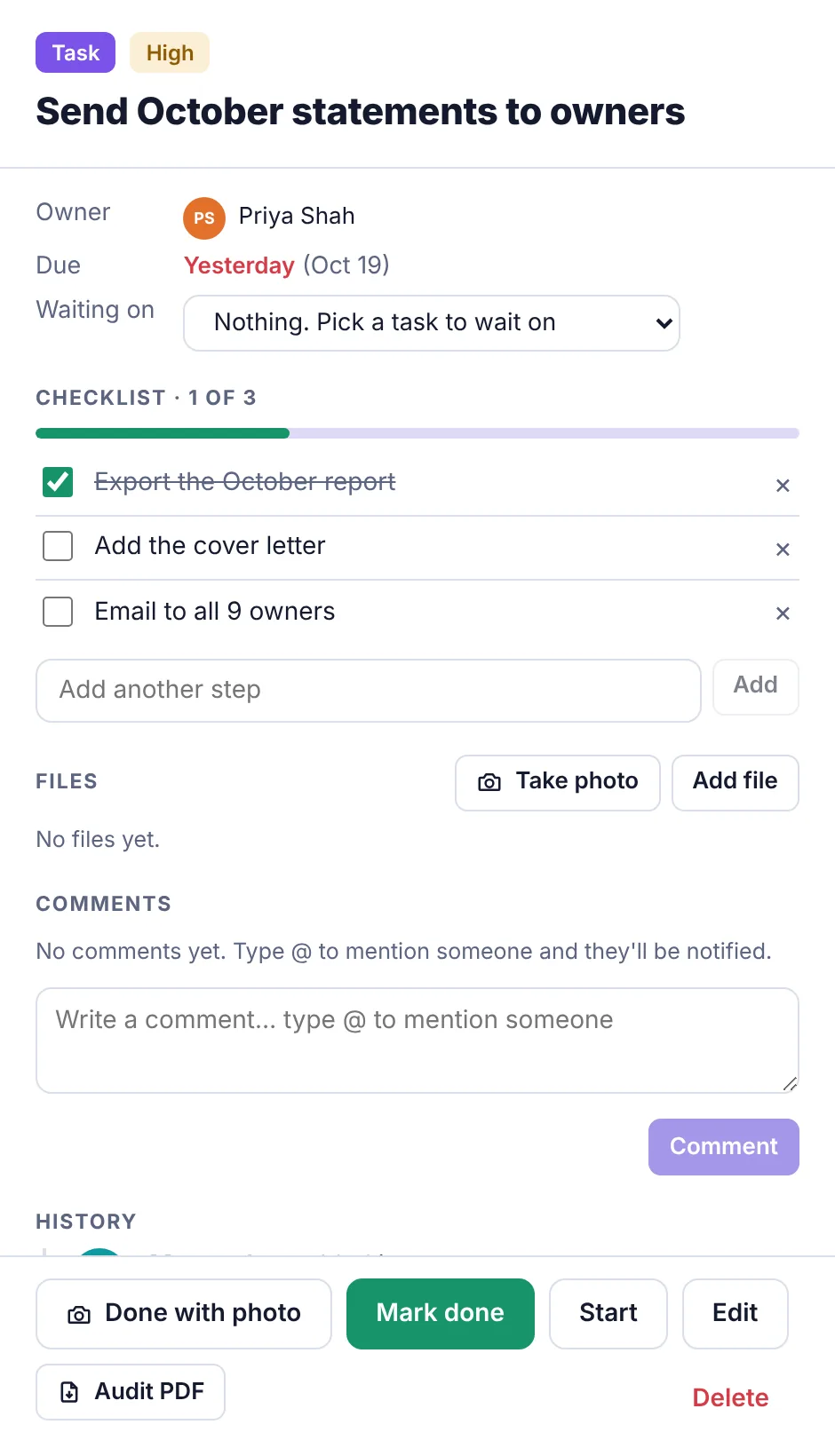
Big jobs are easier with steps. A checklist lives inside a task and shows how far along it is, like ✓ 1/3 on the Tasks page.
Add steps#
Open the task.
Under Checklist, type the first step in the box ("Break it into steps…").
Press Enter or click Add.
Keep going: the box now says "Add another step".
Steps are added in order, up to 300 characters each.
Tick steps off#
Click the box next to a step. The progress bar and the count (Checklist · 1 of 3) update for everyone.
Ticking off all the steps doesn't finish the task. When the work is done, tick off the task itself with Mark done.
Remove a step#
Click the × at the right of the step.
Who can do what#
| Add or remove steps | Tick steps | |
|---|---|---|
| Owner, Admin, Employee | Yes | Yes |
| Worker | No | Yes, on their own tasks |
| Accountant, View only | No | No |
Checklists in templates and repeating tasks#
In a task template, type a checklist for each task (one step per line). Each task you add from the template gets its steps.
When you finish a repeating task, the next one gets the same steps, all unticked.