Send a task for approval
Why tasks from employees and workers go to an admin first, and what happens after you submit one.
When an employee or a worker adds a task, it doesn't go on the board straight away. It goes to an admin as a request, so the office decides what work gets handed out.
Send a task for approval#
Click New task.
Fill in the task as usual: name, Assigned to, Due date and anything else. (See Add a task for every field.)
In Who should approve?, leave Any admin or pick one admin.
Click Submit for approval.
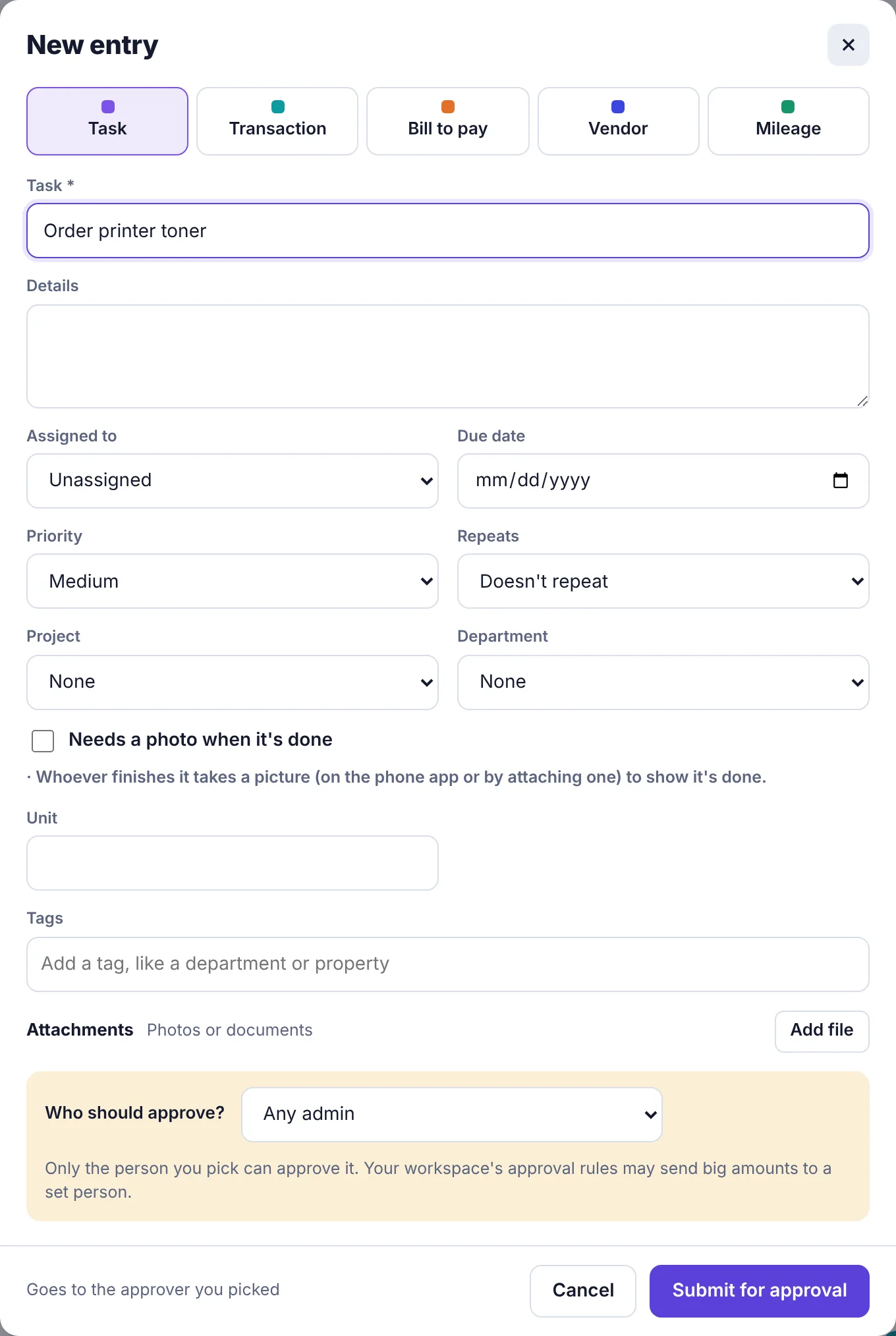
You'll see a message saying who it was sent to. The request now waits in My requests in the menu.
What happens next#
Approved: the task goes on the Tasks board as if an admin had added it. The person it's for gets a notification. You're shown as the person who asked for it, in the task's History.
Sent back: you'll be told why. Open it in My requests to change it and send it again.
Waiting: while it waits, a note at the top of the Tasks page says "1 task request is waiting for approval."
For the admin's side, see Approve or reject a request.
After it's approved#
Once a task is on the board, employees can work on it, edit it and tick it off without asking again. Only the first add needs approval. Repeating tasks also don't need approval again each time the next one is added.
Workers can't edit tasks once they're approved; see What workers see and do with tasks.