Edit or delete a task
Change a task's details, hand it to someone else, or remove it, and who is allowed to do each.
Plans change. Open any task to change its details, give it to someone else, or delete it.
Edit a task#
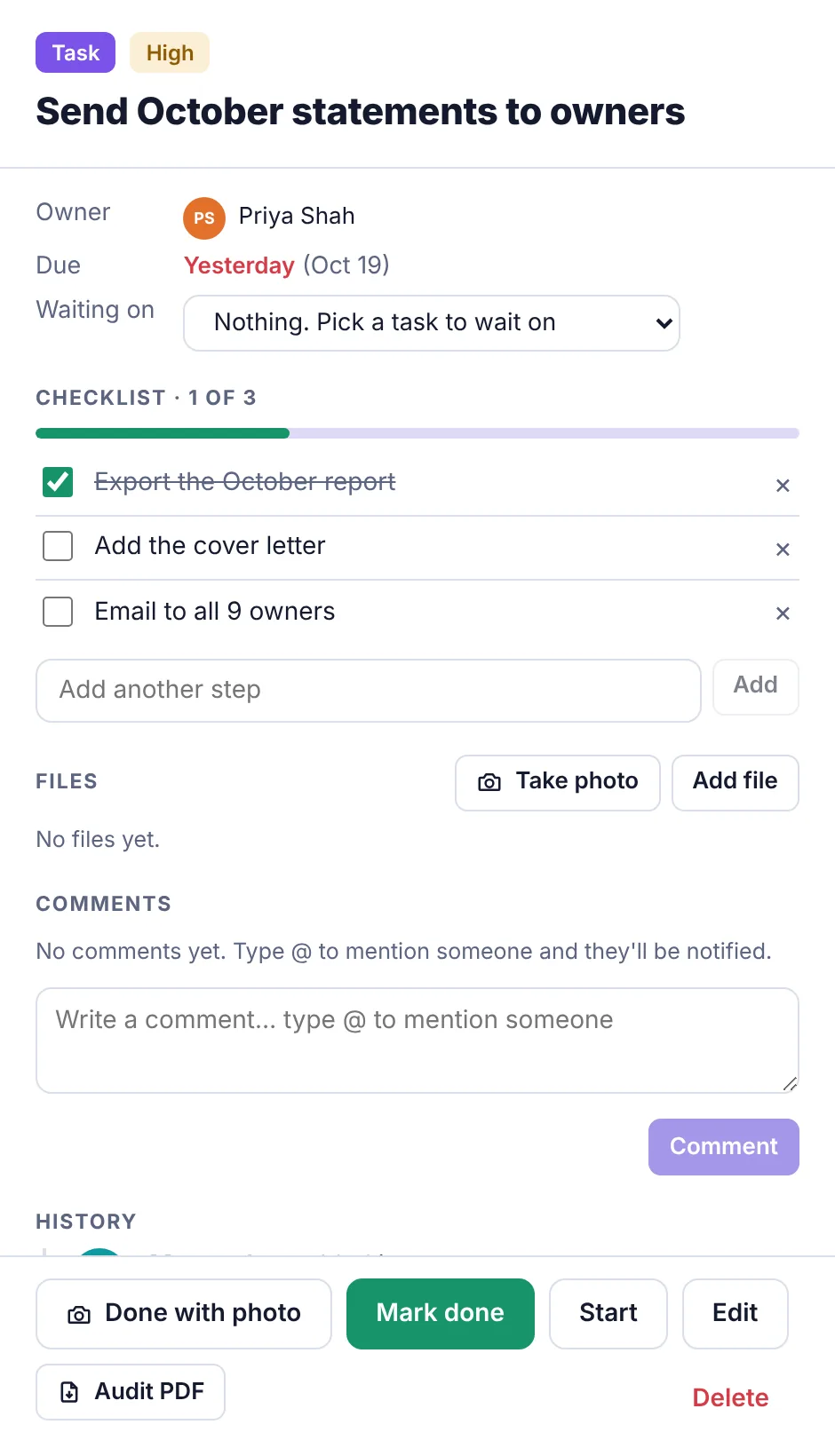
On the Tasks page, click the task to open it.
Click Edit at the bottom.
Change what you need: the name, Details, Assigned to, Due date, Priority, Repeats, project, tags and so on. You can also add files here.
Click Save changes.
If you give the task to a new person, they get a notification and an email.
Delete a task#
Open the task.
Click Delete at the bottom right.
Click Confirm delete.
The task is removed for everyone. The deletion is recorded in the Activity log.
Download a record of a task#
Click Audit PDF in an open task to download one PDF with the task's details, approvals, history, comments and attached files, for your records.