See tasks on the calendar
The Calendar page shows task due dates, bills, payments and expiring documents by month.
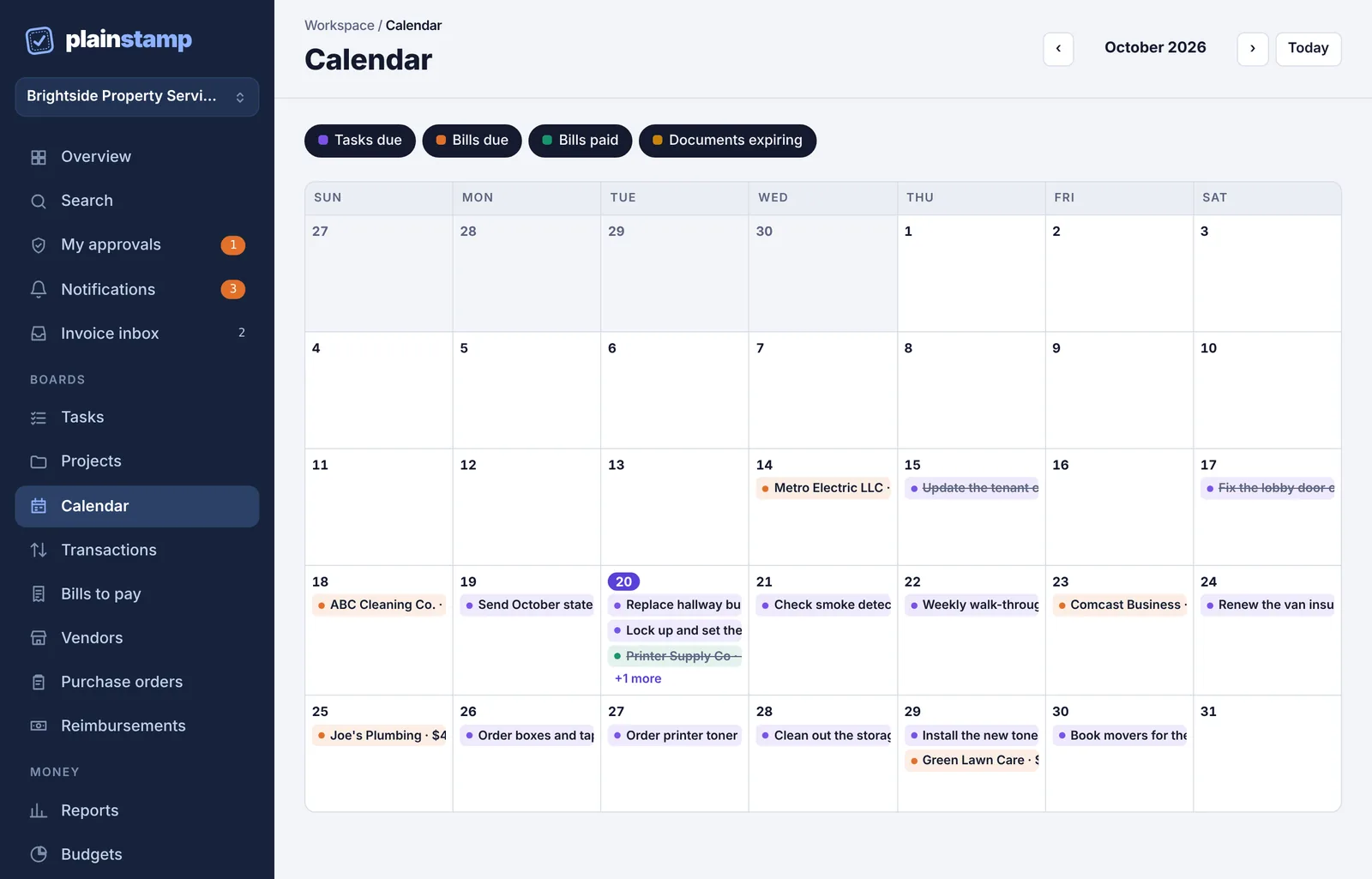
The Calendar shows a month at a glance: when tasks are due, when bills are due and paid, and when vendor documents expire.
Open the calendar#
In the menu, click Calendar. You can also click Calendar at the top of the Tasks page.
Move between months#
Click ‹ and › next to the month name to go back or forward.
Click Today to come back to this month.
Today's date is highlighted.
What shows on the calendar#
| Color | What it is | Who sees it |
|---|---|---|
| Purple | A task's due date | Everyone, for the tasks they can see |
| Orange | An unpaid bill's due date | People who can see bills |
| Green | A bill that was paid that day | Owners, admins and accountants |
| Amber | A vendor document expiring, like an insurance certificate | People who can see vendors |
Finished tasks stay on their due date but are crossed out.
Show only some things#
The buttons above the calendar switch each kind on and off: Tasks due, Bills due, Bills paid and Documents expiring. Click one to hide or show that kind. Dark buttons are showing; light ones are hidden. You only see the buttons for things you're allowed to see.
Open an item#
Click a task to open it on the Tasks page. A finished task opens the Completed page instead.
Click a bill to open it on Bills to pay.
Each day shows up to three items. Click +2 more (or click the day) to see the whole day in a list, with who each task is for.
Below the calendar, the same month is listed day by day, which is easier to read on a phone.
Workers#
Workers see only their own tasks on the calendar.