Comment on a task, mention someone and attach files
Talk about a task in its comments, @mention people so they're notified, and add photos or documents.
Keep the conversation about a job with the job. Every task has Comments and Files, so nobody has to dig through email later.
Leave a comment#
Open the task.
Type in the box under Comments.
Click Comment (or press Ctrl+Enter, or ⌘+Enter on a Mac).
The person the task is for, the person who added it and anyone who commented before get a quiet notification.
Mention someone#
In the comment box, type @ and the start of their name.
Pick them from the list that pops up (or use the arrow keys and Enter).
Finish your comment and click Comment.
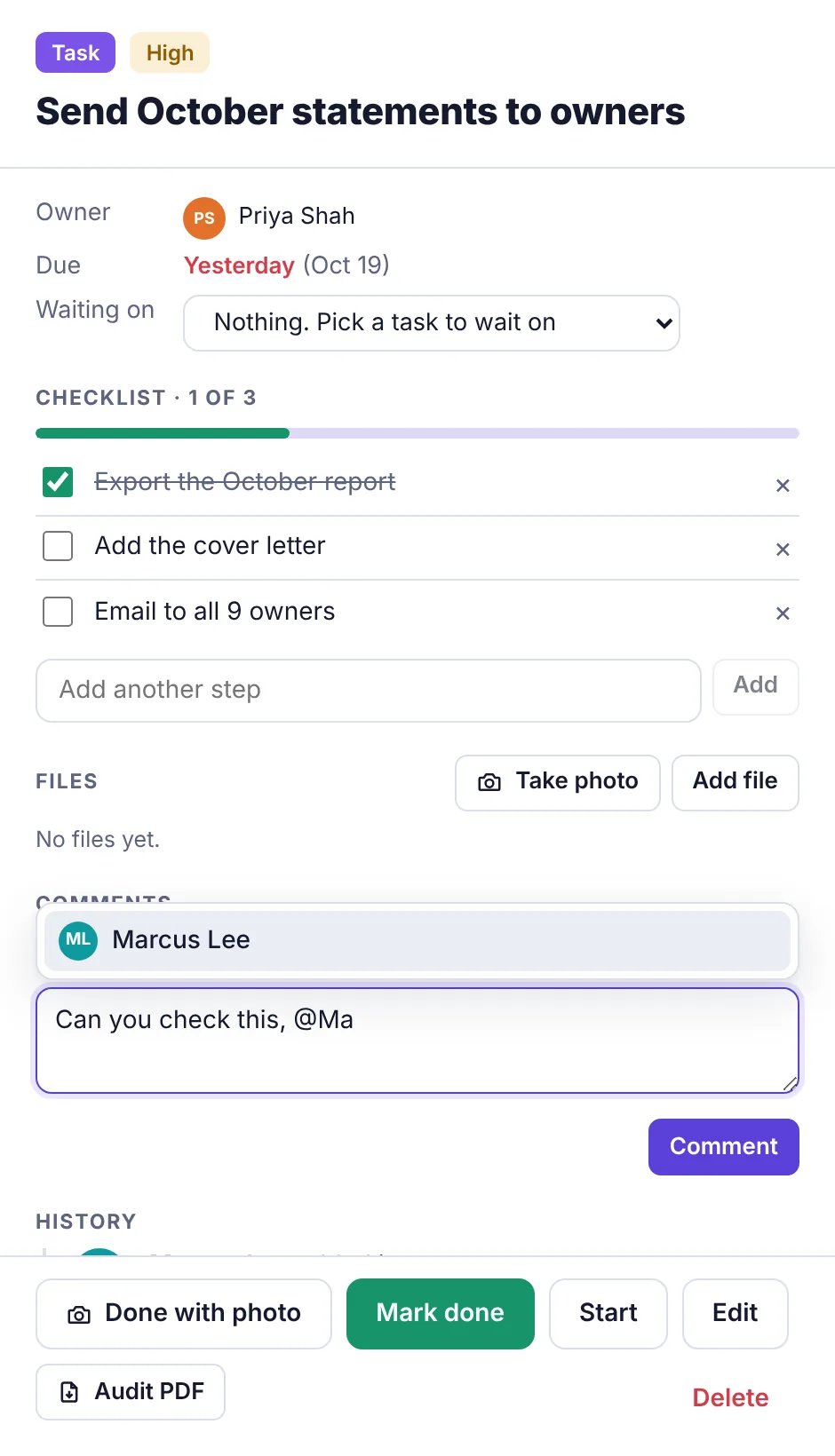
People you mention get a notification, an email and a phone notification (if they've turned those on). Mentioned names show in bold.
Delete a comment#
Click Delete next to it. You can delete your own comments; admins can delete anyone's.
Attach files and photos#
Open the task.
Under Files, click Add file to pick photos or documents, or Take photo to use the camera (on a phone).
Files can be up to 20 MB each. Click a file's name to open it. To remove one, click the × next to it, then Remove. You can remove files you added; admins can remove any.
You can also attach files while adding or editing a task, with Add file under Attachments.
Who can comment and attach#
| Role | Comment | Attach files |
|---|---|---|
| Owner, Admin, Employee | Yes | Yes |
| Worker | Yes, on their tasks | Yes, on their tasks |
| Accountant | Yes | No |
| View only | No | No |
History#
At the bottom of every task, History shows who added it (or asked for it and who approved it) and who completed it. For everything that happened, check the Activity log.