Find your way around the Tasks page
The list and board views, the filters, saved views and how tasks are grouped by due date.
The Tasks page is where your office keeps track of who is doing what, and by when. You can see it as a list grouped by due date, or as a board with three columns.
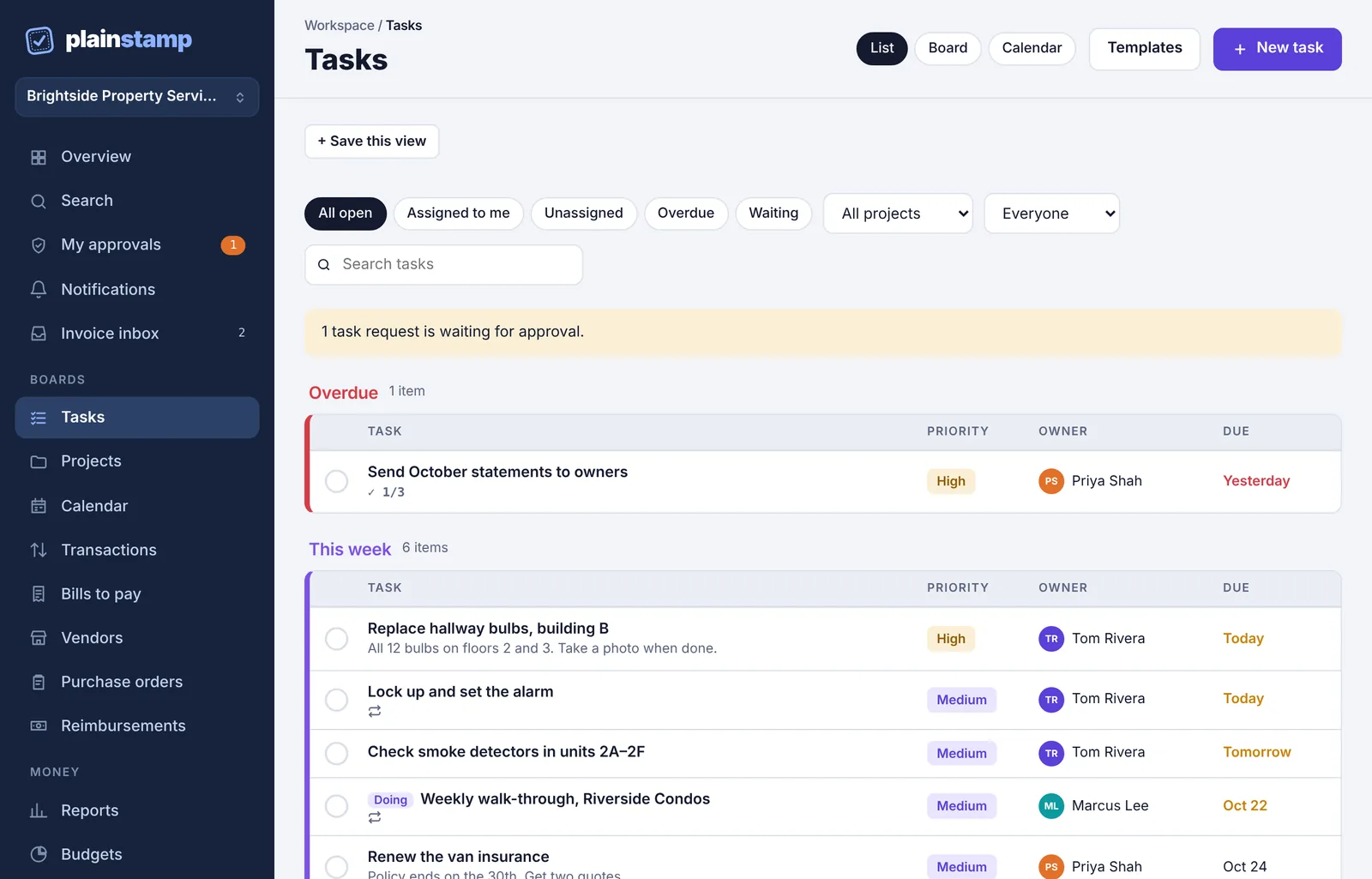
Open the Tasks page#
In the menu on the left, under Boards, click Tasks.
Use the buttons at the top right to switch views: List, Board or Calendar (the Calendar is its own page).
The List view#
The list shows every open task, sorted by due date and grouped so the urgent ones come first:
| Group | What's in it |
|---|---|
| Overdue | The due date has passed |
| This week | Due today or in the next 7 days |
| Coming up | Due more than a week from now |
| No due date | Tasks without a date |
Each row shows the task name, its Priority, its Owner (the person it's assigned to) and when it's Due. Under the name you may see:
a repeat icon, if it's a repeating task;
a tick count like ✓ 1/3, if it has a checklist;
its tags and the first part of its details;
a Doing label, if someone has started it, or a Waiting label, if it's waiting on another task.
Click a row to open the task. Click the circle at the left of a row to mark it done.
If people have asked for tasks that still need approving, a yellow note at the top says how many, for example "1 task request is waiting for approval."
The Board view#
The board shows the same tasks as cards in three columns:
To do: open tasks nobody has started.
Doing: tasks someone has started.
Done (last 2 weeks): tasks finished in the last two weeks. Older ones are on the Completed page.
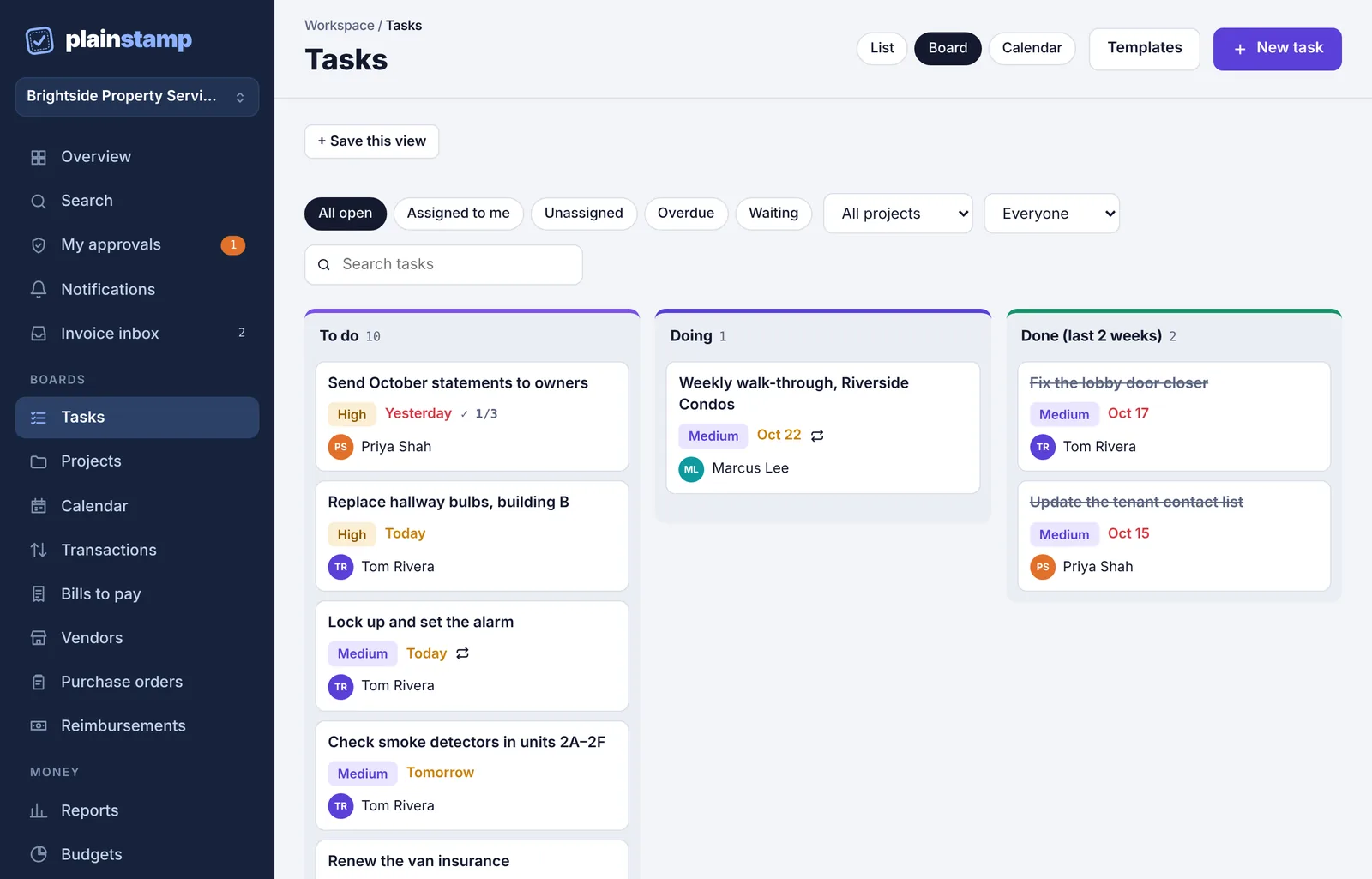
To move a task, drag its card to another column:
Drag a card from To do to Doing when you start it.
Drag it to Done (last 2 weeks) when it's finished. This is the same as ticking it off.
Dragging a card out of Done back to To do or Doing reopens it.
You can also click Start inside a task to move it to Doing.
Filter the tasks#
The row of buttons above the tasks narrows what you see. The filters work the same way in List and Board view.

All open: every open task you can see.
Assigned to me: only tasks given to you.
Unassigned: tasks nobody owns yet.
Overdue: tasks past their due date.
Waiting: tasks that can't be finished yet because they wait on another task.
All projects: pick a project to see only its tasks, or No project. This menu shows once your workspace has projects.
Everyone: pick a person to see only their tasks.
All tags: pick a tag. This menu shows once tasks have tags.
Search tasks: type a word to search task names, details and tags.
Save a view you use often#
If you check the same filters every day (say, overdue tasks for one project), save them as a view.
Set the filters, search and List or Board the way you want.
Click + Save this view.
Type a name, such as "Overdue for the team", and click Save.
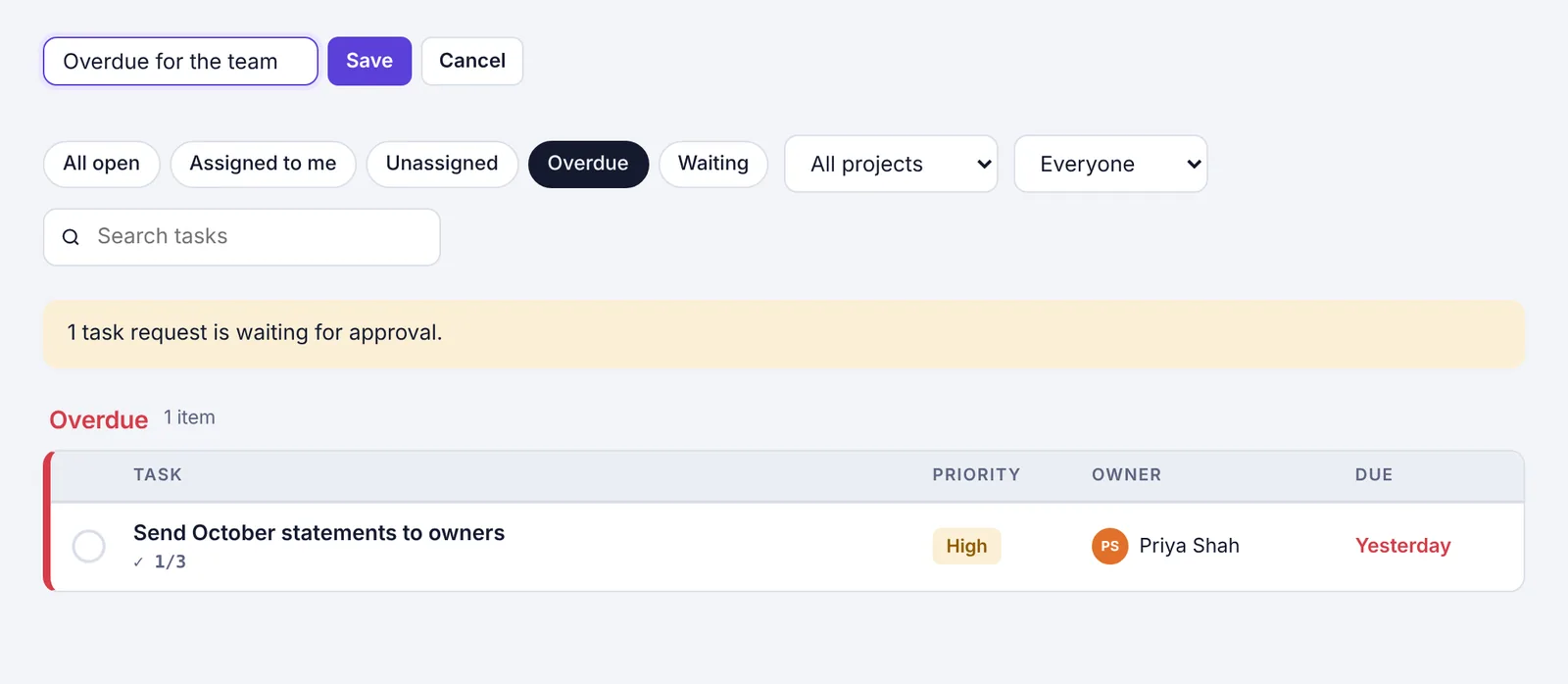
Your saved views appear as buttons above the filters. Click one to jump back to it. To remove one, click the × next to its name.
Who sees which tasks#
Owners, admins, employees, accountants and view-only members see all tasks, except tasks in private projects they aren't part of.
Workers see only tasks assigned to them and tasks they asked for.
Only people who can add work (owners, admins, employees and workers) can tick off or move tasks. See Roles: who can do what.