Make a task wait on another task
Link tasks so one can't be finished until another is done, and find tasks that are waiting.
Some work has to happen in order: you can't install the new toner until it's been ordered. Make the second task wait on the first, and it can't be ticked off until the first one is done.
Make a task wait on another#
Open the task that has to wait (for example, "Install the new toner").
Next to Waiting on, open the menu "Nothing. Pick a task to wait on".
Pick the task it waits for (for example, "Order printer toner").
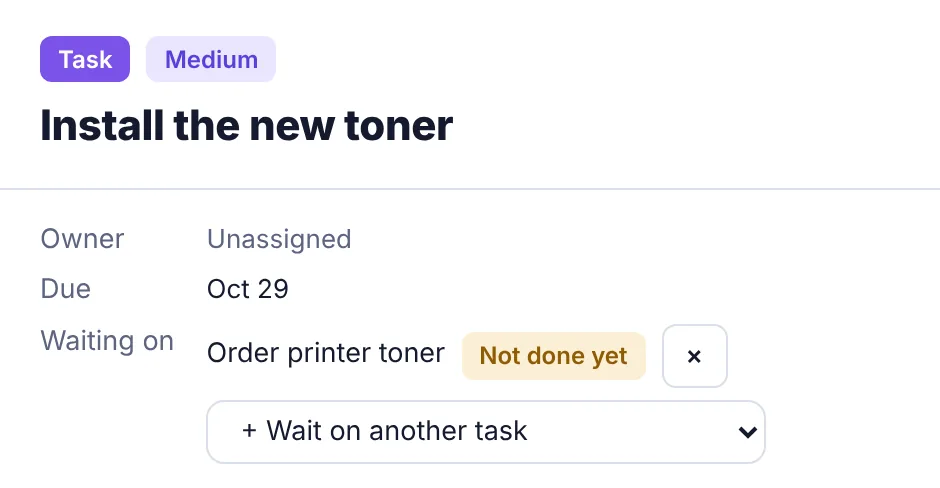
The other task now shows under Waiting on with Not done yet, and changes to Done once it's finished. To add more, use + Wait on another task. A task can wait on up to 20 others.
What "waiting" does#
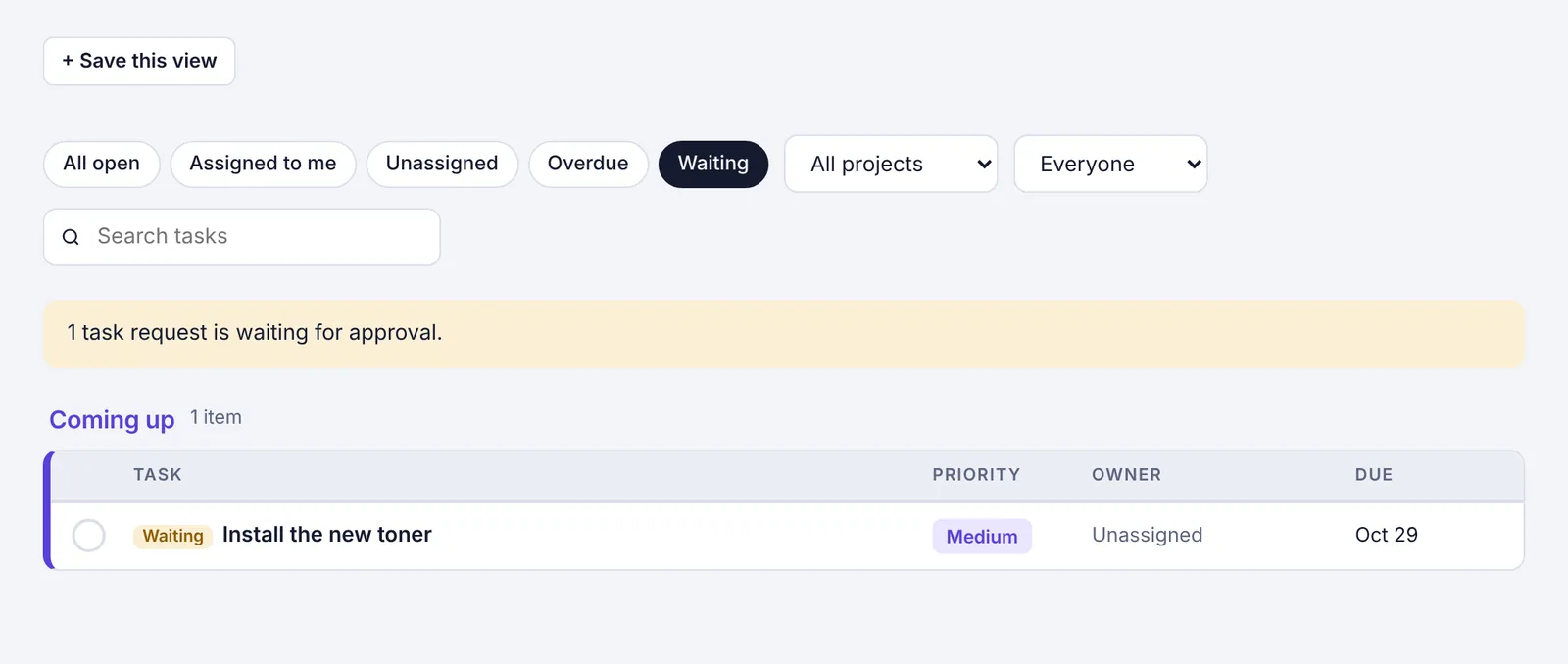
The task shows a yellow Waiting label in the list and on the board.
Trying to tick it off shows "This task is waiting on another one. Finish that first."
As soon as every task it waits on is done, the label goes and it can be finished as normal.
Find waiting tasks#
On the Tasks page, click the Waiting filter.
Stop waiting#
Open the task and click the × next to the task it waits on.
Things to know#
You can only pick open tasks you can see.
Two tasks can't wait on each other (directly or through a chain). If you try, you'll see "Those tasks would be waiting on each other."