Tasks that need a photo
Ask for photo proof when a task is done, and finish a photo task from your phone with Done with photo.
Some jobs are easier to check with a picture: a cleaned unit, a fixed door, a full supply shelf. Tick Needs a photo when it's done on a task, and it can't be ticked off until someone adds a photo.
Ask for a photo#
Add or edit the task. See Add a task.
Tick Needs a photo when it's done.
Click Add to Tasks (or Save changes).
The task now shows Photo: Needed when it's done, and the person it's assigned to is told to take a photo when it's done.
Finish a photo task on your phone#
Open the task (from My tasks or Tasks).
Tap Done with photo. On a phone, the camera opens.
Take the picture and confirm it.
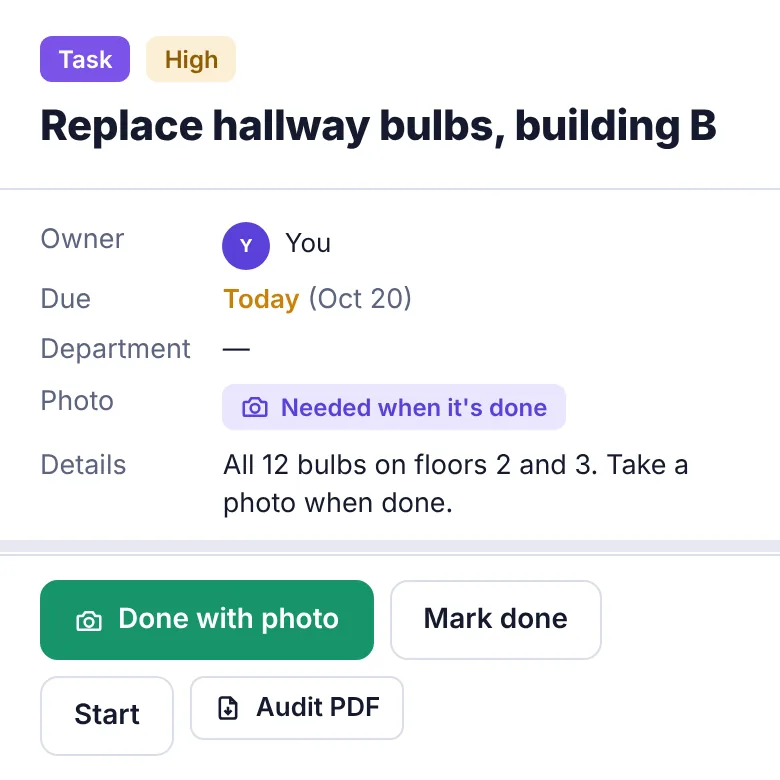
Plainstamp makes the photo smaller so it uploads quickly, attaches it to the task and marks the task done, all in one go.
On a computer, Done with photo opens a window to pick an image file instead.
Other ways to add the photo#
Any image attached to the task counts:
In the task, under Files, tap Take photo (opens the camera on a phone) or Add file.
Then tap Mark done.
PDFs and other documents don't count. It has to be an image.
What if I just tick the circle?#
On a task that needs a photo, clicking the circle in the list opens the task and reminds you: "This one needs a photo. Tap Done with photo." If you try Mark done without a photo, you'll see "This task needs a photo first. Tap Done with photo."
Switch the photo off#
Edit the task and untick Needs a photo when it's done.
Repeating photo tasks#
If a repeating task needs a photo, the next one needs a photo too. See Repeating tasks.