Projects
Group related tasks into a project, track progress, keep a project private, and archive or delete it.
A project groups tasks that belong together, like an office move or a year-end audit, so you can see how far along it is and who's doing what.
See your projects#
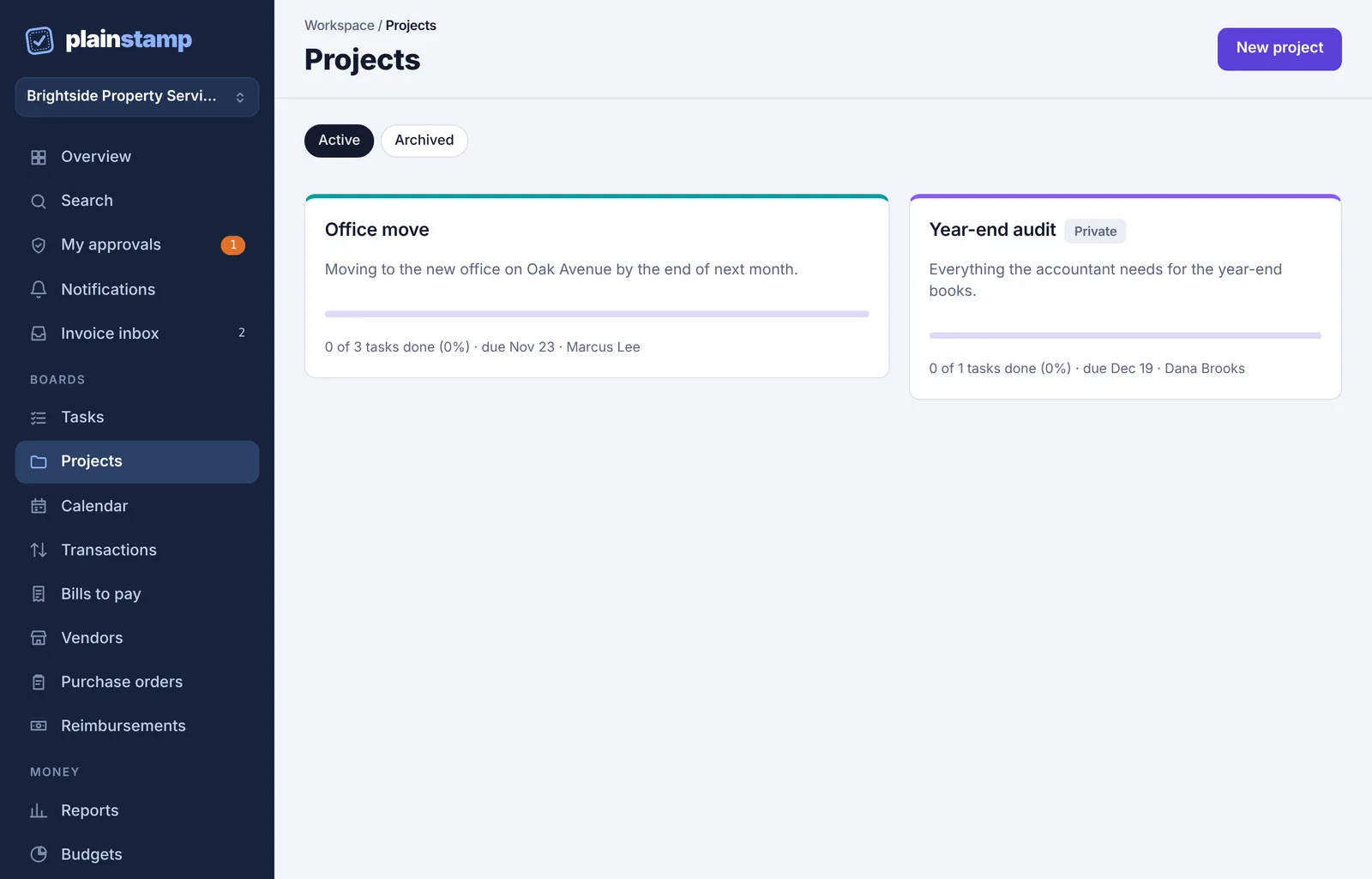
In the menu, click Projects. Each card shows the project's progress bar, how many tasks are done, how many are overdue, its finish-by date and its owner. Click Archived at the top to see archived projects.
Create a project#
Click New project.
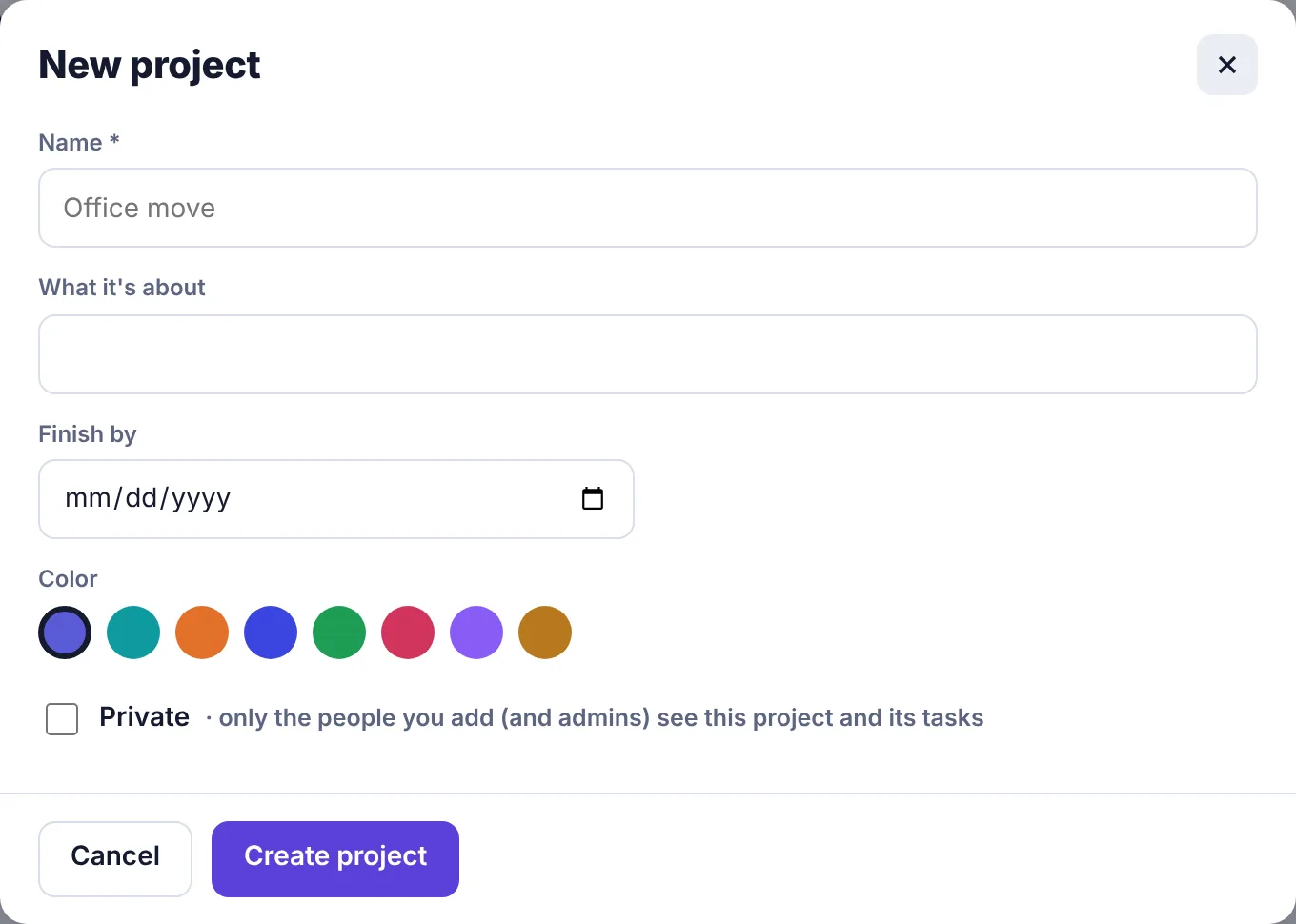
Type a Name, and optionally What it's about.
Set Finish by if it has a deadline.
Pick a Color. It shows on the project's card and progress bar.
Tick Private if only certain people should see it (see below).
Click Create project.
You're taken to the new project's page. You're its owner.
Add tasks to a project#
On the project's page, click Add a task. The form opens with the project picked.
Or, when adding or editing any task, pick the project in Project.
To see a project's tasks on the Tasks board, click Open in Tasks on the project page, or pick the project in the All projects filter.
The project page#
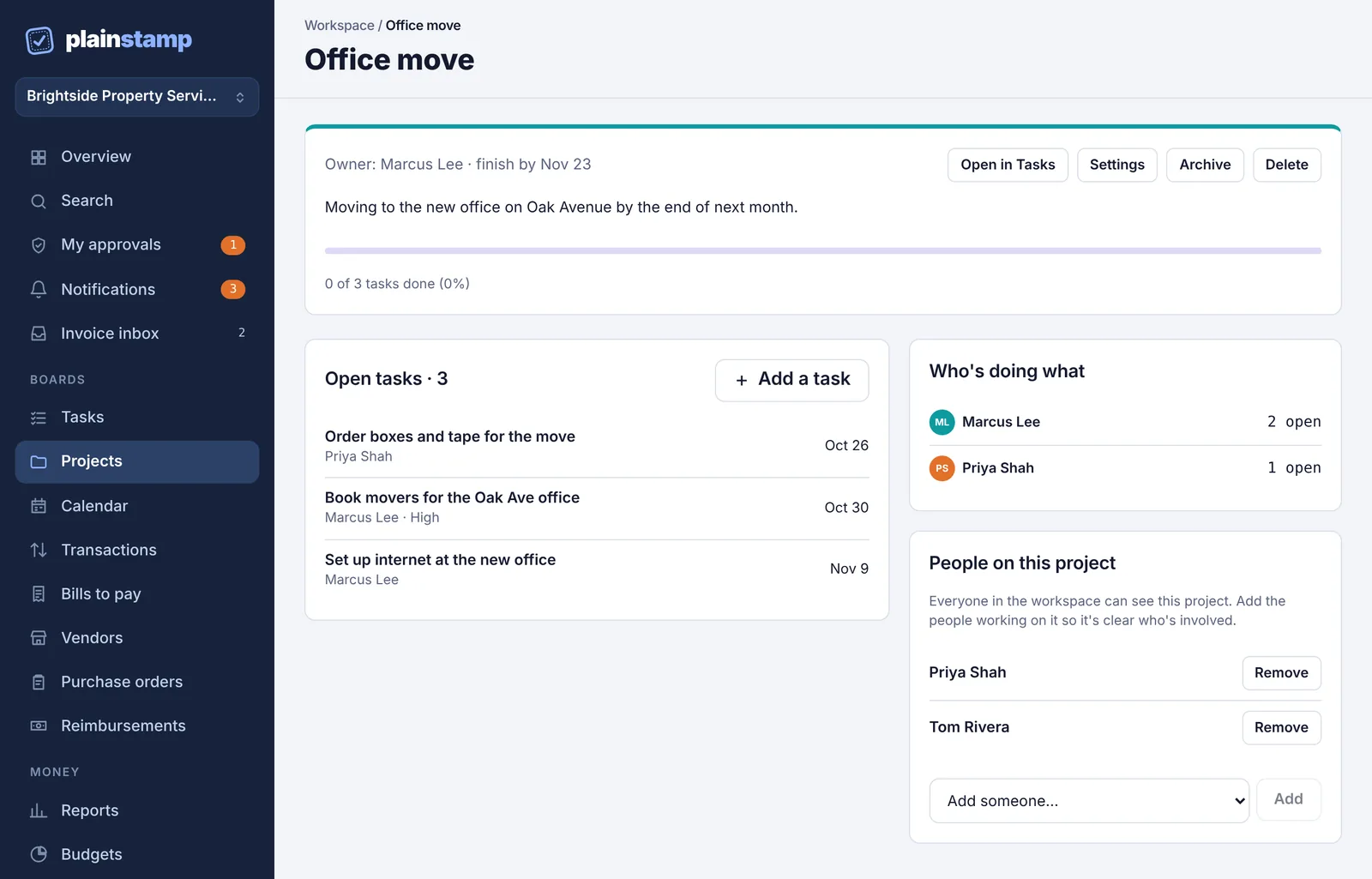
The top shows the owner, finish-by date, description and progress ("0 of 3 tasks done (0%)", plus how many are overdue).
Open tasks lists what's left, with who it's for and when it's due. Click one to open it on the Tasks page.
Done lists finished tasks with who finished them.
Who's doing what counts open tasks per person, including Unassigned.
People on this project lists the people working on it. Admins and the project's owner always see this box, so they can add people to any project, private or not.
Private projects#
A private project, and all its tasks, can only be seen by:
the project's owner,
people added under People on this project,
owners and admins,
and anyone a task in it is assigned to or was added by.
To add someone, choose them in Add someone… and click Add. To take them off, click Remove.
On a project that isn't private, you can add people too. Everyone in the workspace can still see it; listing people just makes it clear who's involved.
Change a project's settings#
Click Settings on the project page to change its name, description, finish-by date, color, privacy or Owner. The owner must be an owner, admin or employee.
Archive a project#
When a project is finished, click Archive. It moves to the Archived list and no longer shows in the project menus for new tasks. Its tasks stay where they are. Click Unarchive to bring it back.
Delete a project#
Click Delete on the project page.
Confirm.
The project is removed, but its tasks stay on the Tasks board without a project.
Workers and projects#
Workers don't pick projects when they add a task, and they only see projects that their own tasks belong to.