Repeating tasks
Make a task come back every day, week, month or year, and what happens when you finish one.
Jobs like "Lock up and set the alarm" or "Change the HVAC filters" come round again and again. Make them repeating tasks and Plainstamp puts the next one on the board each time you finish one.
Make a task repeat#
Add a task, or open one and click Edit.
Set a Due date. The next one is counted from this date.
In Repeats, pick how often.
Click Add to Tasks (or Save changes).
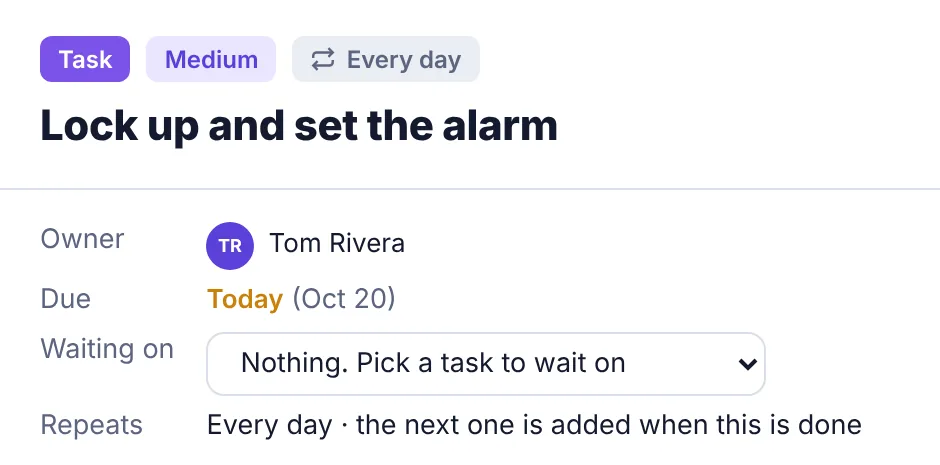
Repeating tasks have a repeat icon in the list and on the board. Inside the task you'll see, for example, Repeats: Every day · the next one is added when this is done.
How often a task can repeat#
| Choice | Next due date |
|---|---|
| Doesn't repeat | No next one (the default) |
| Every day | 1 day after the due date |
| Every week | 7 days after |
| Every 2 weeks | 14 days after |
| Every month | Same day next month |
| Every 3 months | Same day three months later |
| Every year | Same date next year |
A task keeps the day of the month it started on. If a month is shorter (say the task is due on the 31st), that month's one lands on its last day, and the one after goes back to the 31st: Jan 31, Feb 28, Mar 31, Apr 30, May 31. A yearly task on Feb 29 is due Feb 28 in other years and Feb 29 again in leap years.
If you change a repeating task's Due date by hand, it repeats on the new date's day from then on.
What happens when you finish one#
When you tick off a repeating task:
That task moves to Completed as usual.
A new copy is added with the next due date. The message tells you when: "Moved to Completed. The next one is due …".
The new copy keeps the same name, details, person, priority, tags, custom fields, project, department and photo setting. Its checklist comes over too, with every step unticked. Files and comments stay with the finished task.
Same task for different people#
You can give several people their own copy of the same repeating task, such as "Lock up and set the alarm" for each building manager. Add one task per person with the same name. Each one repeats on its own, and finishing one doesn't affect the others.
If you undo or reopen#
If you undo or reopen a finished repeating task, the next one that was already added stays on the board. Ticking the first one off again won't add a second copy. If you don't want the extra one, delete it.
Stop a task repeating#
Edit the task and set Repeats to Doesn't repeat. To stop it completely, delete the open copy. Finished copies stay on the Completed page.
Who can do this#
Owners, admins and employees can set or change how a task repeats.
Workers can finish their repeating tasks and the next one is added for them, but they can't change the repeat.
If the person the task is for has been turned off, the next one can't be added. The message says so; ask an admin to add it.