Get an end-of-day report on your team
Owners and admins can get one email each day, at an hour they choose, showing what each person finished and what's still not done.
The end-of-day report is one email at the end of each day about the people you look after. For each person it shows what they finished today, what's still not done (due today or overdue), and how many things they sent for approval. You choose who it covers and what time it arrives.
Turn on your end-of-day report#
Click Settings in the menu on the left, then the Notifications tab.
Scroll to the bottom, to End-of-day report. There's a box for every owner and admin, with yours first (marked "you").
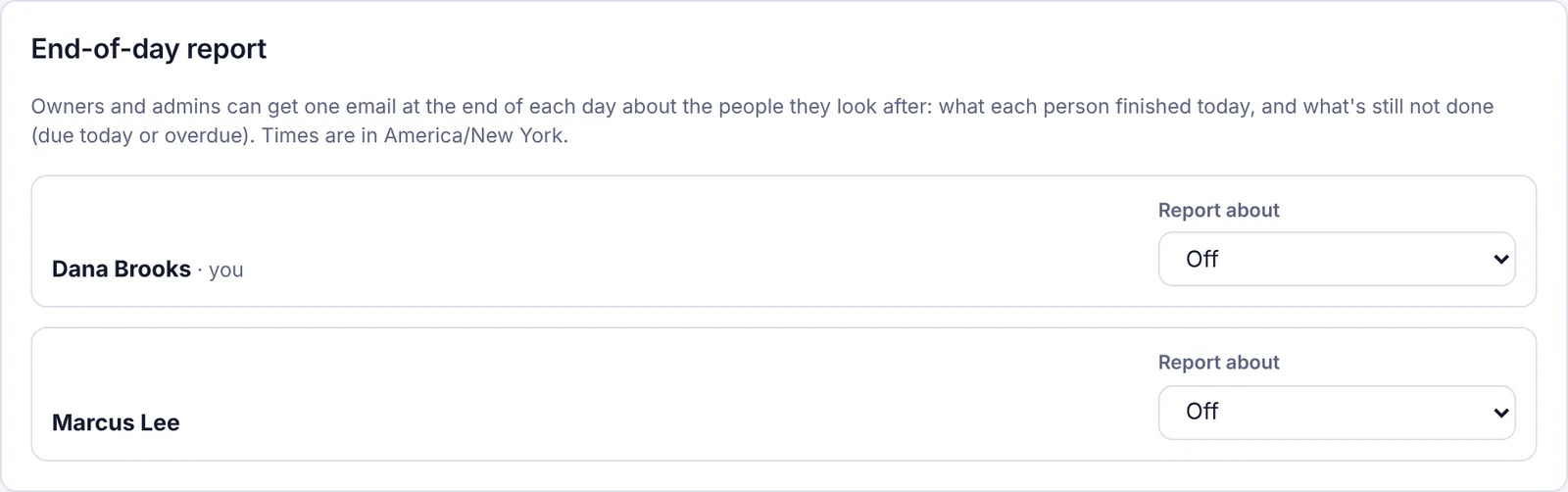
The End-of-day report section, with a box for each owner and admin In your box, open Report about and pick who the report covers:
Choice Who's in your report Off No report (this is the default). All employees and workers Everyone with the Employee or Assigned work only role. Everyone (admins too) Employees, workers, and the other owners and admins. Accountants and view-only people aren't included. Only the people I pick Just the people you tick. Open Send at and pick the hour the email should arrive. It starts at 6:00 pm.
It saves as soon as you pick. You'll see "Saved for name." From then on, the report comes every day at that hour.
You're never in your own report.
Pick the people yourself#
In Report about, choose Only the people I pick.
A list of everyone in the workspace appears. Tick each person you want in the report.

Only the people I pick: tick the people who should be in your report Each tick saves straight away.
Until you tick at least one person, you'll see "Tick at least one person." and nothing is saved. You can pick anyone here, including accountants, view-only people and other admins.
Set it up for another owner or admin#
Every owner and admin has their own box in the same section, so you can set it up for a colleague, for example a manager who's too busy to do it.
Find their box under End-of-day report.
Choose Report about and Send at for them, the same way as for yourself.
You'll see "Saved for their name." The report goes to their email address, not yours. They can change or turn it off themselves at any time.
Turn it off#
In your box (or someone else's), set Report about to Off.
You'll see "Turned off for name."
What's in the email#
The subject reads like "End of day in Brightside Property Services: 5 done, 3 not done". Inside:
Three totals at the top: Done today, Not done (due today or overdue) and Overdue.
A section for each person, headed with their name and counts, for example "Priya Shah · 2 done · 1 not done · 1 sent for approval".
Not done: each of their open tasks that's due today, or overdue (with the date it was due).
Done: each task they finished today.
Up to 8 tasks show per person, with a count of the rest.
People with the most still to do come first.
People with nothing finished and nothing due are listed in one line ("Nothing finished or due today for: …") instead of getting a section.
An Open Tasks button takes you straight to the Tasks board.
"Not done" only lists tasks given to someone. Open tasks with no one assigned aren't in it.
If nobody is left to report on (for example, you picked people who have since been turned off), no email is sent that day.
What time zone is used?#
The Send at hour is in the workspace's time zone. The section says which one, for example "Times are in America/New York." Each workspace has one time zone, shared by everyone in it.
An owner or admin sets it in Settings › General › Time zone. See Change your workspace settings.
Until someone sets it, the workspace uses America/New York (US Eastern time). If it's still not set, the first time an owner or admin saves an end-of-day report setting, it's filled in with the time zone of the computer or phone they're using. After that, saving end-of-day settings never changes it.
The same time zone is used for the 7am morning email and morning phone notification, and for deciding what "today" means. If the "Times are in …" line shows the wrong zone, change it in Settings › General.
Questions#
I turned it on, but no email came.
Check that the hour has passed in the workspace's time zone (see above).
Check your spam folder.
If your plan's emails for the month are used up, reports stop until the 1st. See Why did my emails stop?
Can an employee get a report on their own work?
No. The end-of-day report is only for owners and admins. Everyone can get the Morning email with their own tasks for the day; see Choose which emails and notifications you get.
Will people know they're in my report?
No. Nothing is shown to the people in your report.
Can I get it only on weekdays?
Not yet. It comes every day you have people to report on.