Workers: assigned work only
What the Worker role sees and can do, and when to use it for field staff, crews and part-timers.
The Worker role is for people who just need their jobs: maintenance crews, cleaners, drivers, technicians, part-timers. They see only the tasks given to them and the tasks they add. They never see money, vendors, or anyone else's work. In some places Plainstamp calls this role assigned work only.
What a worker sees#
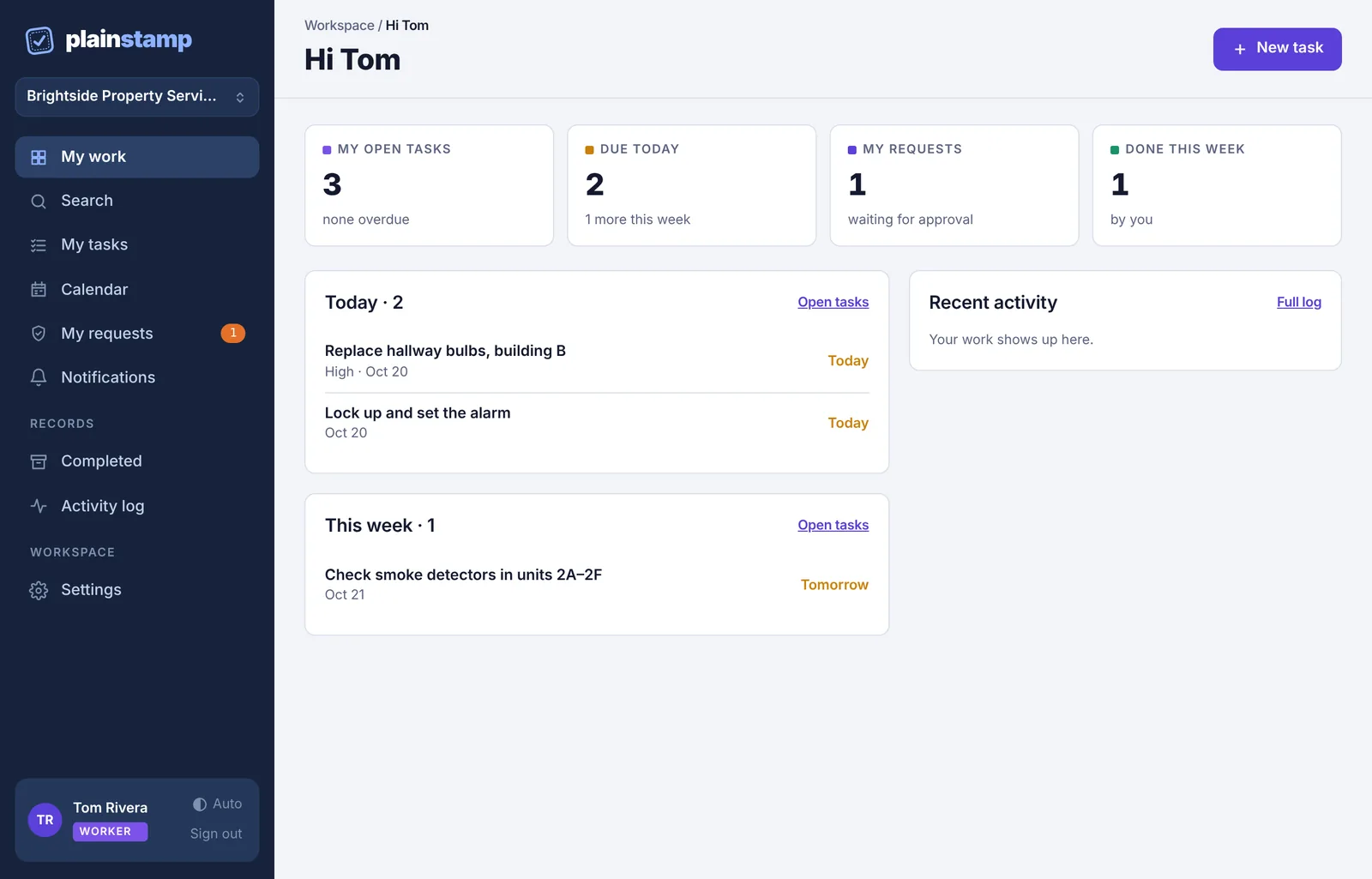
A worker's menu is short:
My work: their home page. Their open tasks grouped into Overdue, Today, This week, Later and No date, plus counts of what's due today, requests waiting for approval, and what they finished this week.
Search: finds their own tasks only.
My tasks: the Tasks board, showing only their tasks, with All open, Mine and Overdue filters.
Calendar: their tasks by date, under the Tasks due filter.
My requests: tasks they asked for, waiting for approval or sent back.
Notifications
Completed and Activity log: only about their own tasks.
Settings: their name, notifications and sign-in.
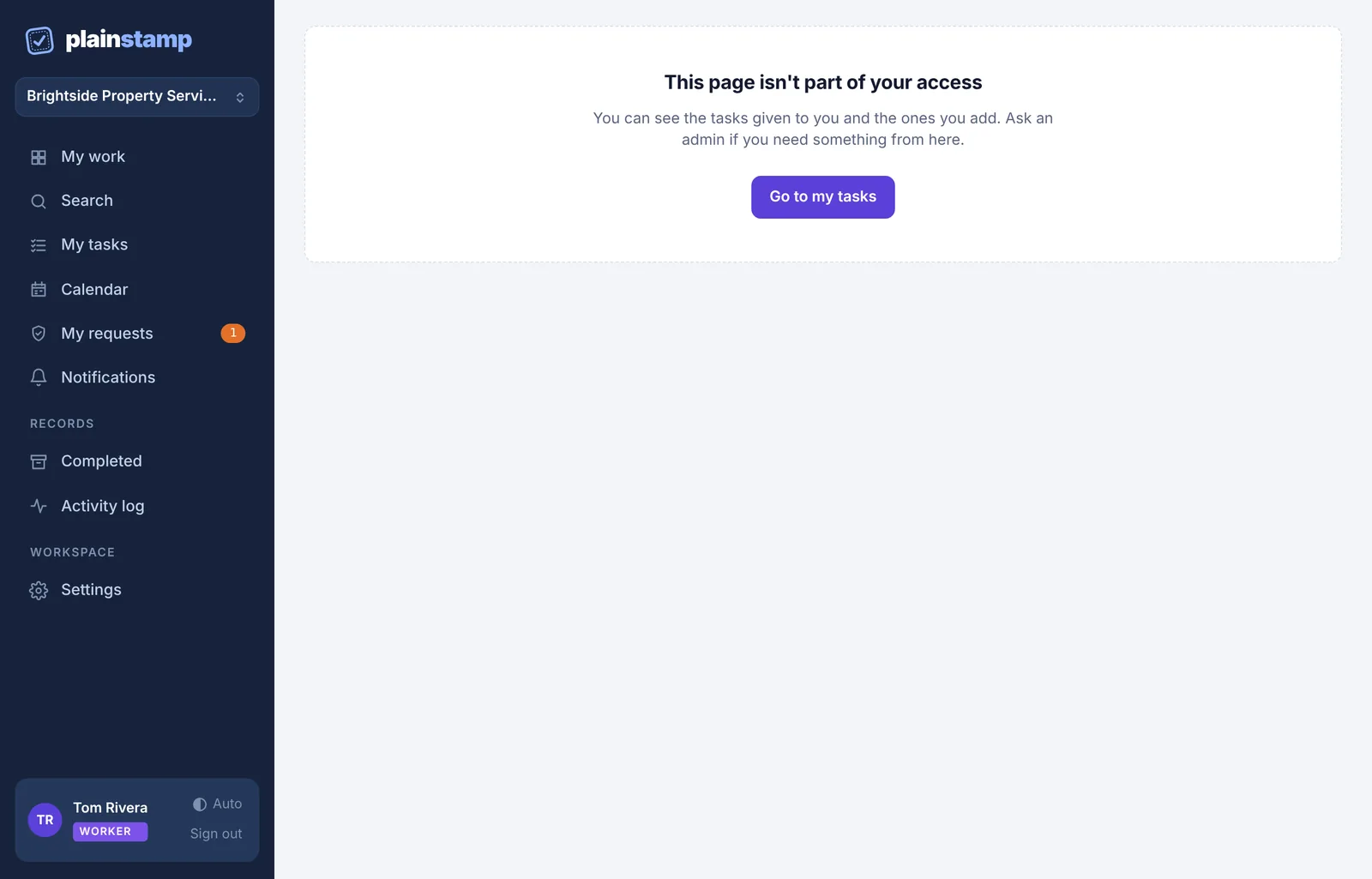
If a worker opens any other page, for example from an old link, they see "This page isn't part of your access" and a Go to my tasks button.
What a worker can do#
Work on tasks given to them: click Start to show it's in progress, tick off checklist items, and Mark done. If a task needs a photo, they take one when finishing it.
Comment and attach photos on their own tasks and requests.
Add a task with New task, for themselves or for someone else. It's always sent to an admin for approval first. Once approved it goes on the board.
Withdraw a task request that's still waiting.
What a worker can't do#
See tasks given to other people, unless they asked for that task themselves.
Change a task's title, details, due date, priority, who it's for, repeat or tags. They see "Ask an admin to change this task. You can work on it, tick it off and comment."
Tick off or start a task that's assigned to someone else (even one they asked for).
Delete tasks.
See or add transactions, bills, vendors, purchase orders, reimbursements, budgets or reports.
See the Team page, invoices inbox, documents or any admin settings. A task's details don't show its Department to a worker either.
Upload receipts (the receipt camera button isn't shown to them).
How work reaches a worker#
An admin adds a task and picks the worker in Assigned to: it shows on the worker's My work right away, and they get a notification.
An employee adds a task for a worker: like everything an employee adds, it goes for approval first, then reaches the worker once approved.
Repeating tasks: when a worker finishes a repeating task, the next one is created for them automatically, exactly the same.
Make someone a worker#
New person: on Team, under Invite someone, pick Worker (own tasks only) as the role. See Invite people.
Someone already in the workspace: on Team, set their role to Worker and click Save. See Change someone's role.
Workers use a seat, like employees.
Worker or employee?#
| Worker | Employee | |
|---|---|---|
| Sees everyone's tasks | No, only their own | Yes |
| Sees bills, transactions, vendors | No | Yes |
| Uploads receipts, adds bills | No | Yes (sent for approval) |
| Edits task details | No | Yes |
| Adds tasks | Yes, sent for approval | Yes, sent for approval |