Invite people to your workspace
Invite someone by email or with a link, pick their role, email an invite again, and cancel invites you no longer need.
To bring someone into your workspace you create an invite on the Team page. If you type their email address, Plainstamp emails the invite to them. When they open the link and sign in, they join with the role you picked.
Create an invite link#
In the menu on the left, click Team.
Under Invite someone, type their email in Their email (optional). You can leave it empty to make a link anyone can use (see below).
Pick a Role: Employee, Worker (own tasks only), Admin, View only or Accountant (free seat). The line under the form explains the role you picked. Not sure? See Roles: who can do what.

The Invite someone form with an email typed in Click Create invite link.
If you typed an email, Plainstamp emails the invite and shows "We emailed the invite to new.hire@example.test. You can also copy the link below and send it yourself." That's it: the person gets an email from Plainstamp. The link also appears under the form, so you can click Copy and send it another way too (a text message or chat) if you like.
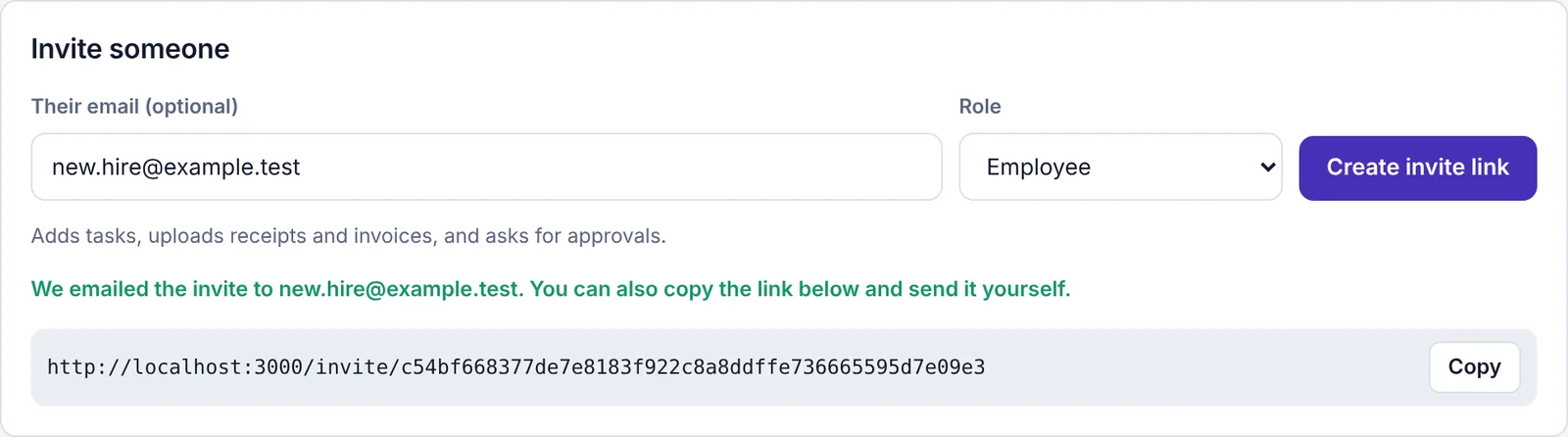
The message after creating an invite with an email: the invite was emailed, and the link is ready to copy If you left the email empty, you see "Invite link created. Copy it and send it to them." Click Copy and paste the link into an email, text message or chat to the person. Plainstamp has no address to send it to, so nothing reaches them until you send it.
What the invite email looks like#
The email comes from Plainstamp with the subject "Your name invited you to workspace name on Plainstamp". It says which role they'll have and has an Accept the invite button that opens the invite link. It also reminds them to sign up or sign in with the same email address, and that the invite works for 14 days.
You can't invite someone as Owner. To make someone the owner, invite them as an admin first, then hand over the workspace.
With an email, or "anyone with the link"?#
With an email (recommended): only someone who signs in with that exact email address can use the link. If it's forwarded to someone else, it won't work for them. Plainstamp also emails the invite for you.
Without an email: the first person who opens the link and signs in joins. It shows on the Team page as Anyone with the link. Plainstamp doesn't email these (it has no address), so you copy the link and send it yourself. Use this only when you send it straight to the right person.
Either way, each link works once and expires after 14 days.
See and copy invites that are waiting#
Invites nobody has used yet are listed under Waiting to join on the Team page, with the email (or "Anyone with the link"), the role and the date it expires. Each one shows its link again with a Copy button.
Send an invite again#
On the Team page, find the invite under Waiting to join.
For an invite with an email, click Email it again. Plainstamp sends the same invite email again and shows "Sent again to …".
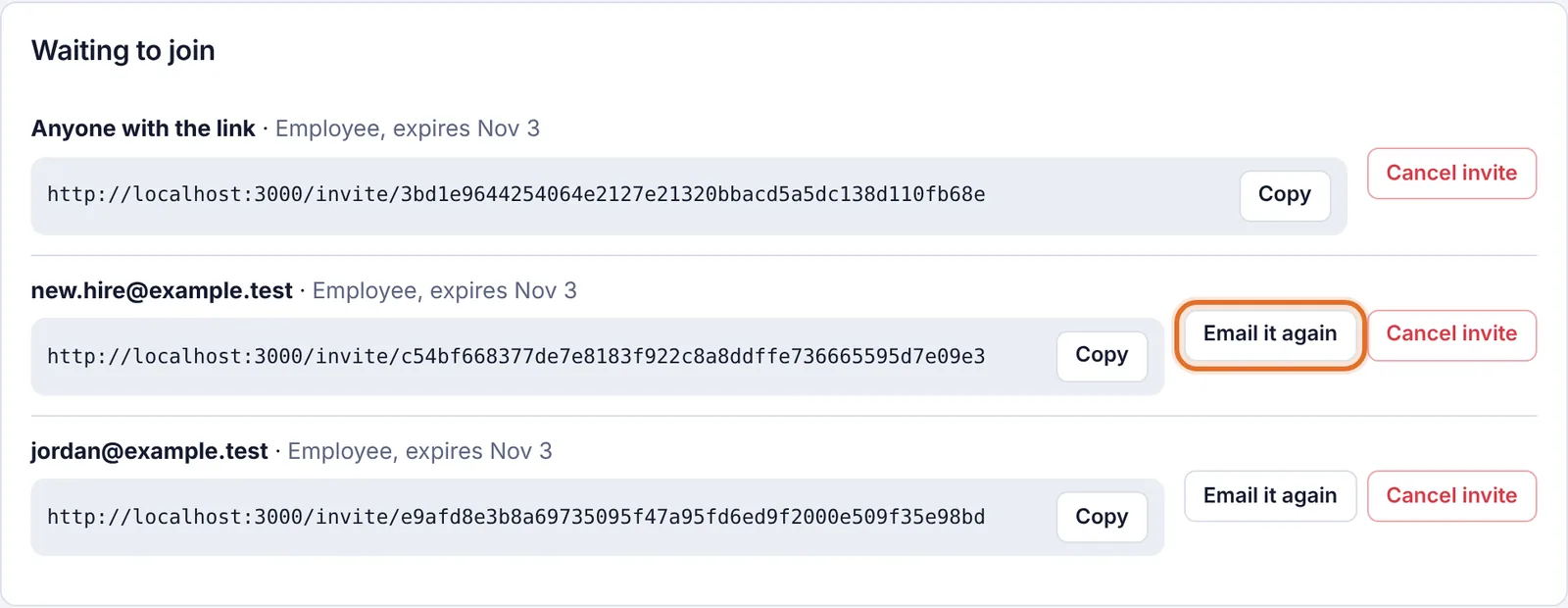
The Waiting to join list, with the Email it again button next to an invite For an Anyone with the link invite there's no email button: click Copy and send the link yourself.
If the invite has expired, Email it again won't send it ("That invite has expired. Cancel it and make a new one."). Click Cancel invite and create a new one.
Cancel an invite#
On the Team page, find the invite under Waiting to join.
Click Cancel invite.
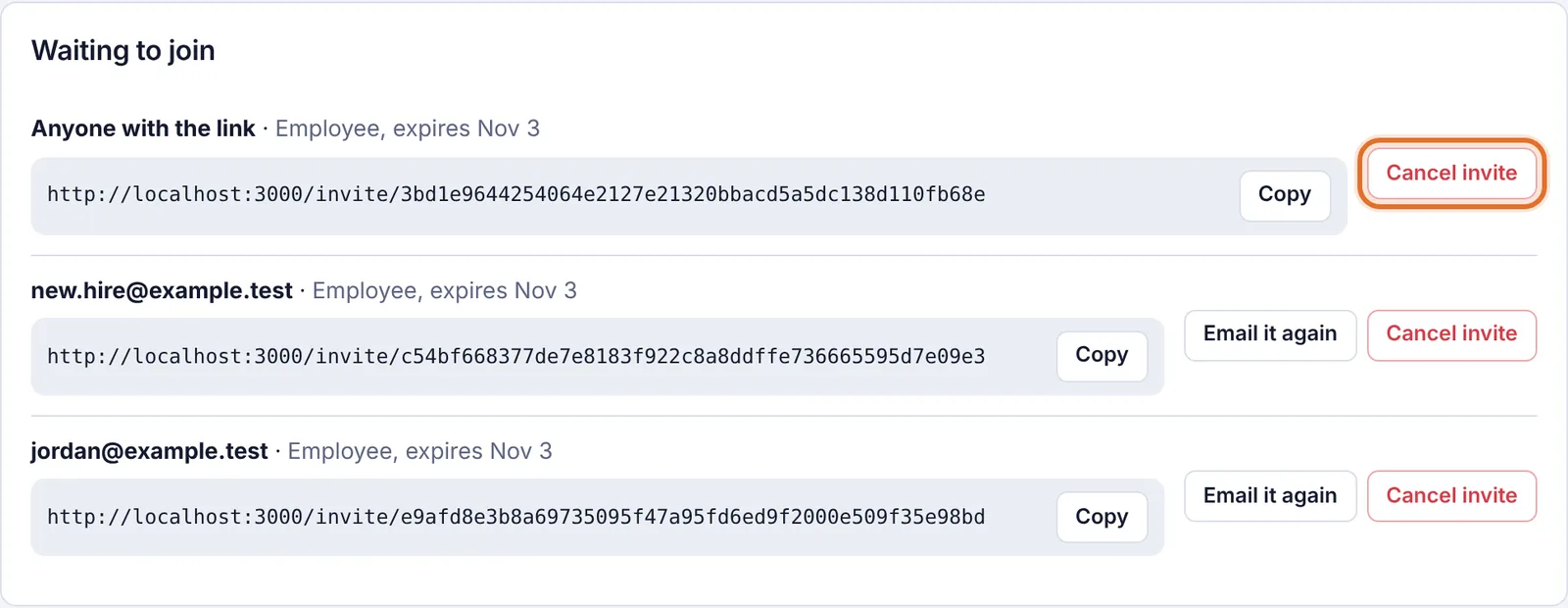
The Waiting to join list, with a Cancel invite button for each invite
The link stops working right away. Cancel invites you won't use: on plans with a people limit, waiting invites hold a seat until they're used, cancelled or expired.
Seats: how many people can you invite?#
Each plan includes a number of people. Waiting invites count too, so you can't send more invites than you have free seats.
| Plan | People included |
|---|---|
| Starter (free) | 3 |
| Small | 6 |
| Team | 20 |
| Business | Unlimited |
On top of that, every workspace gets free accountant seats: 1 on Starter and 2 on Small, Team and Business. The bar under People in … on the Team page shows how many seats you've used, how many are waiting to join, and how many accountant seats are taken.
If you're full, you'll see "Your plan's people limit is reached (pending invites count too)." Cancel an unused invite, turn someone off, or upgrade. More in Seats and plan limits.
What the invited person sees#
When the person opens the link (or clicks Accept the invite in the email):
If they aren't signed in, they see You've been invited to Plainstamp with two buttons: Create an account and I already have an account. They pick one and sign up or sign in. They should use the email address the invite was made for.
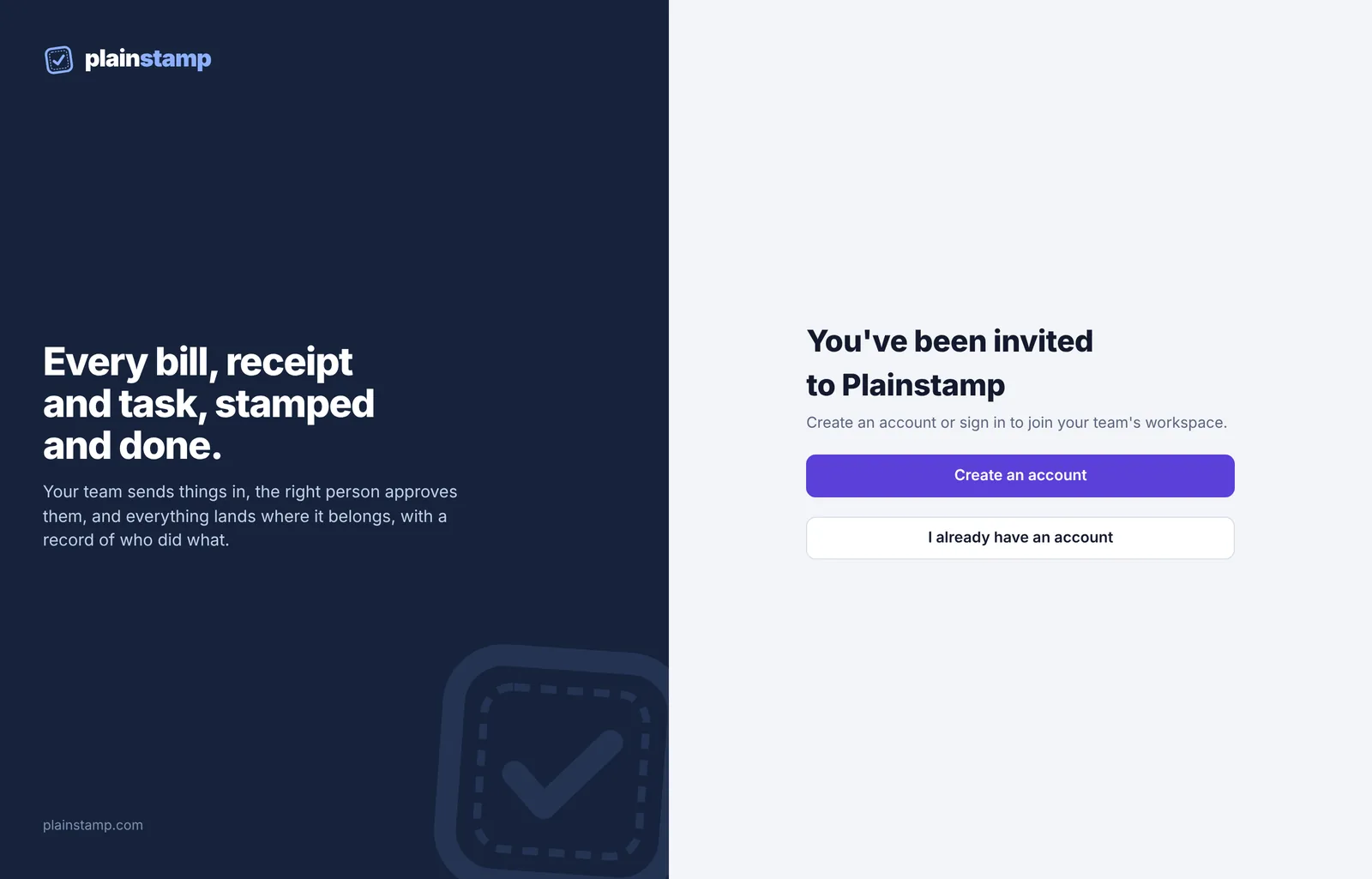
What someone sees when they open an invite link without being signed in Once signed in, they see Join and your workspace name, and which role they'll have ("You'll join as Employee").

The Join workspace screen They click Join workspace and land on your workspace's Overview page (or My work for a worker).
If they already use Plainstamp for another business, they keep that workspace too and can switch between them from the workspace name at the top of the menu.
When an invite link doesn't work#
The person sees Can't join with this link and a reason, or a note on the Join page:
| What they see | What to do |
|---|---|
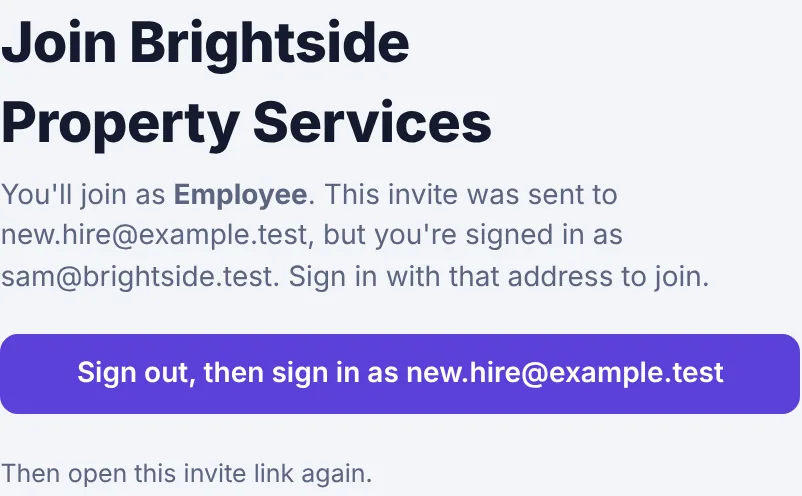
| This invite was sent to … but you're signed in as … | They're signed in with another email. Instead of Join workspace they see Sign out, then sign in as …. They click it, sign in (or sign up) with the address you invited, then open the invite link again. Or you create a new invite for the address they use. |
| This invite has expired | Create a new invite. Links last 14 days. |
| This invite has already been used | Each link works once. Create a new one. |
| This workspace has reached the number of people on its plan | Free up a seat or upgrade, then they can try the same link again. |
| Your account in this workspace has been turned off | They were turned off earlier. An admin can turn them back on from the Team page instead of inviting them. |
| This invite link isn't valid | The invite was cancelled, or the link was copied incompletely. Send a fresh link. |