Check printing settings
Where to set the address, bank name, next check number and alignment Plainstamp uses when it prints checks.
The Checks tab in Settings holds what Plainstamp needs to print checks: your address, the next check number, and how to nudge the printing so it lines up with your paper.
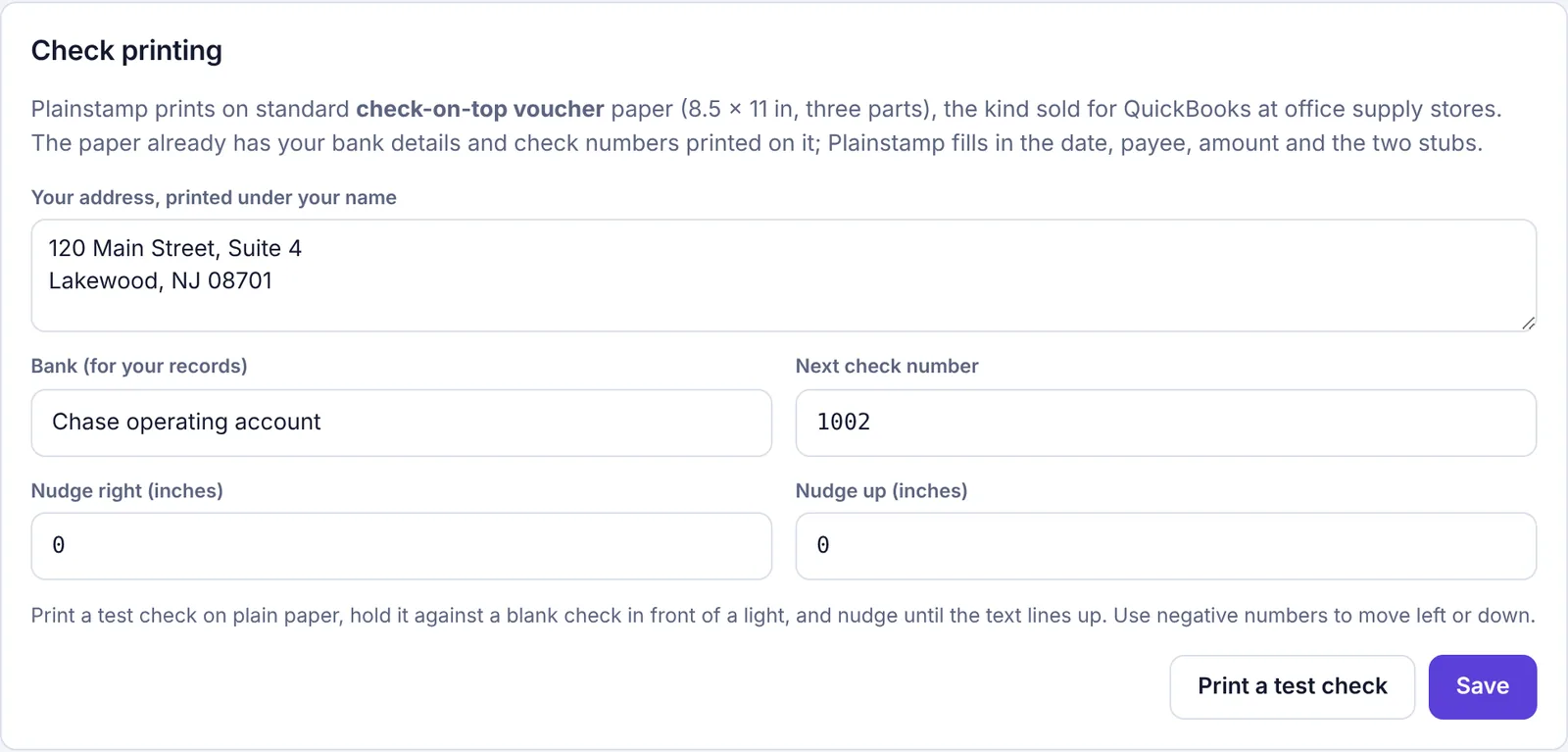
The settings#
Go to Settings and click the Checks tab.
Fill in:
Your address, printed under your name: your business address, as it should appear on the check.
Bank (for your records): a note like "Chase operating account". It isn't printed.
Next check number: the number on the next blank check in your printer. Plainstamp counts up from here.
Nudge right (inches) and Nudge up (inches): leave at
0until you've printed a test. Use negative numbers to move left or down.
Click Save.
Click Print a test check (it uses your saved settings) and check it against a blank check held up to a light. Adjust the nudge, save and test again until it lines up.
Plainstamp prints on standard check-on-top voucher paper (8.5 × 11 in, three parts), the kind sold for QuickBooks at office supply stores.
More about checks#
Set up check printing: the full walk-through, with tips for lining up the paper.
Print checks: printing a check for one bill or every check in a pay run.