Set up check printing
Add your address, set the next check number, and nudge the printing until it lines up with your check paper.
Before you print real checks, tell Plainstamp the address to print under your business name and the number of the first blank check in your printer, then print a test check to make sure everything lines up.
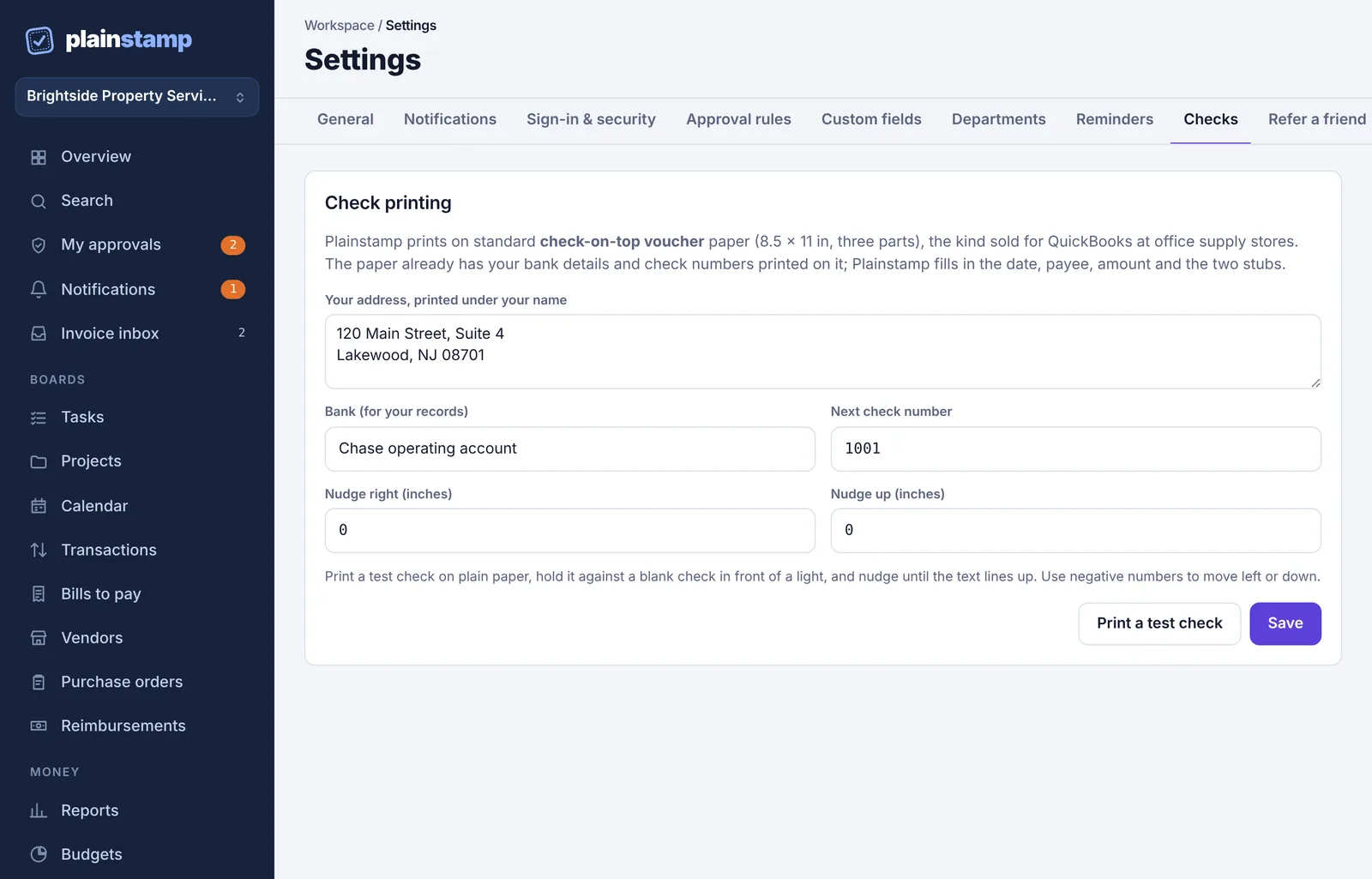
Fill in your check settings#
Click Settings in the menu, then the Checks tab.
Your address, printed under your name: type your business address on two lines (street on the first, city, state and ZIP on the second). Your workspace name is printed above it.
Bank (for your records): a note to yourself, such as "Chase operating account". It isn't printed, because your check paper already has the bank's details.
Next check number: the number printed on the first blank check in your printer. Plainstamp uses this number for the next check and counts up from there.
Leave Nudge right (inches) and Nudge up (inches) at
0for now.Click Save.
Print a test check and line it up#
Click Print a test check. A PDF opens with a sample check to "Sample Vendor LLC" for $1,234.56, marked "TEST CHECK - NOT VALID", using your next check number.
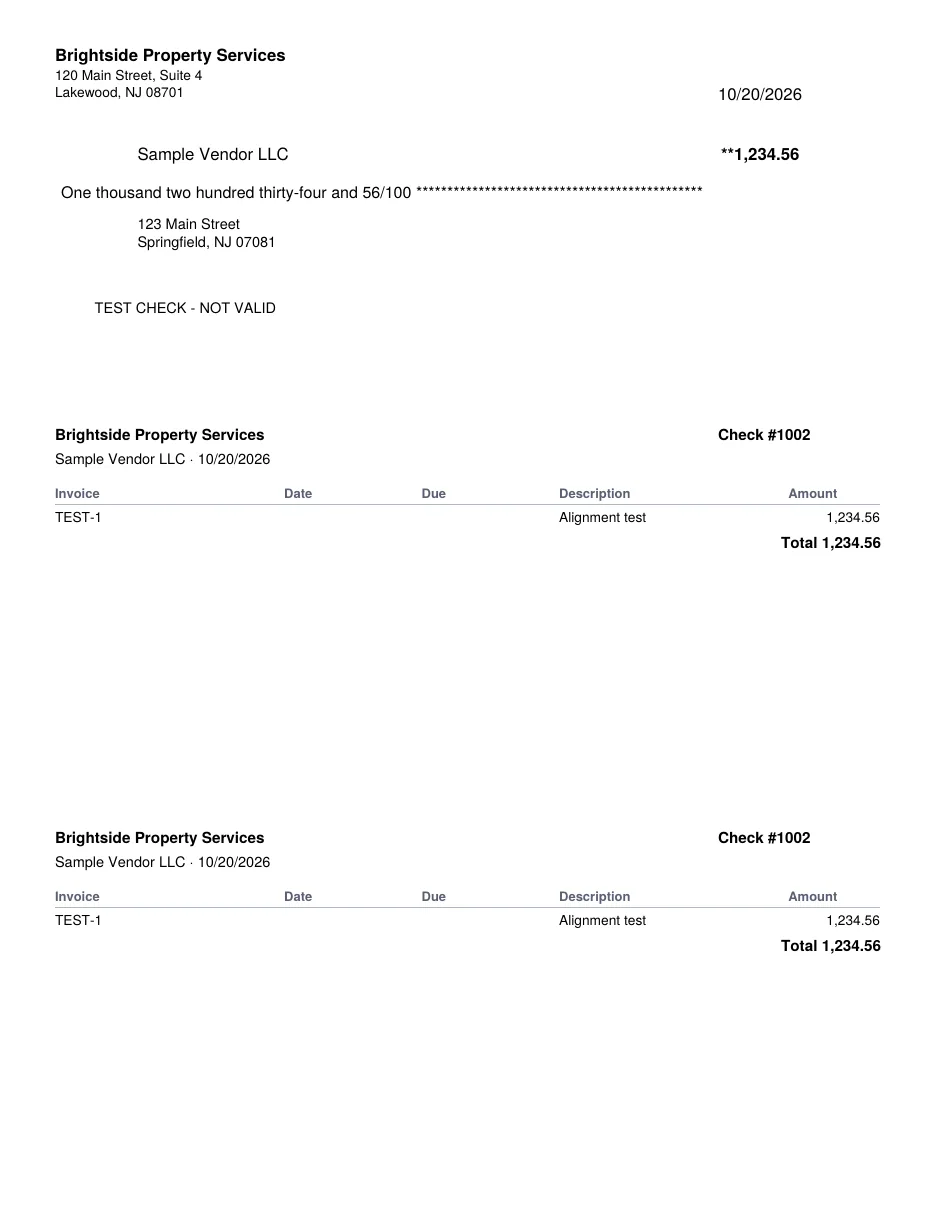
A test check: sample payee, amount and the TEST CHECK memo Print it on plain paper, at actual size (100%).
Hold the printout against a blank check in front of a light (a window works) and see whether the date, payee, amount and words fall in the right spaces.
If they're off, change the nudges:
Nudge right: a positive number moves everything right; a negative number moves it left.
Nudge up: a positive number moves everything up; a negative number moves it down.
Use small steps, like
0.1(a tenth of an inch). Each nudge can be between -1 and 1 inch.
Click Save, then print another test check. Repeat until it lines up.
The nudges move everything on the check part of the page together. The two stubs below stay where they are.
Printing a test check doesn't use up a check number.
When check numbers change#
Every check you print from a pay run or with Next check # uses up a number, even if you don't print it in the end.
If you spoil a check (a paper jam, a mistake), set Next check number to the next good blank check before you print again.
If you write checks by hand from the same checkbook, update Next check number afterwards.
Common questions#
I don't see a Checks tab. Only owners and admins see it.
I see an upgrade note instead of the settings. Check printing needs the Small plan and up.
I get "Nudges are in inches, between -1 and 1." Enter a number between -1 and 1, for example 0.15 or -0.2.
Next: Print checks.