Connect your bank account
Link your bank or credit card through Plaid so its transactions come into Plainstamp on their own.
When you connect a bank or credit card, its transactions come into the Bank feed on their own, and Plainstamp matches them to the receipts and entries you already have. The connection goes through Plaid, a service used by many finance apps. Plainstamp can only read your transactions and balances; it can never move money.
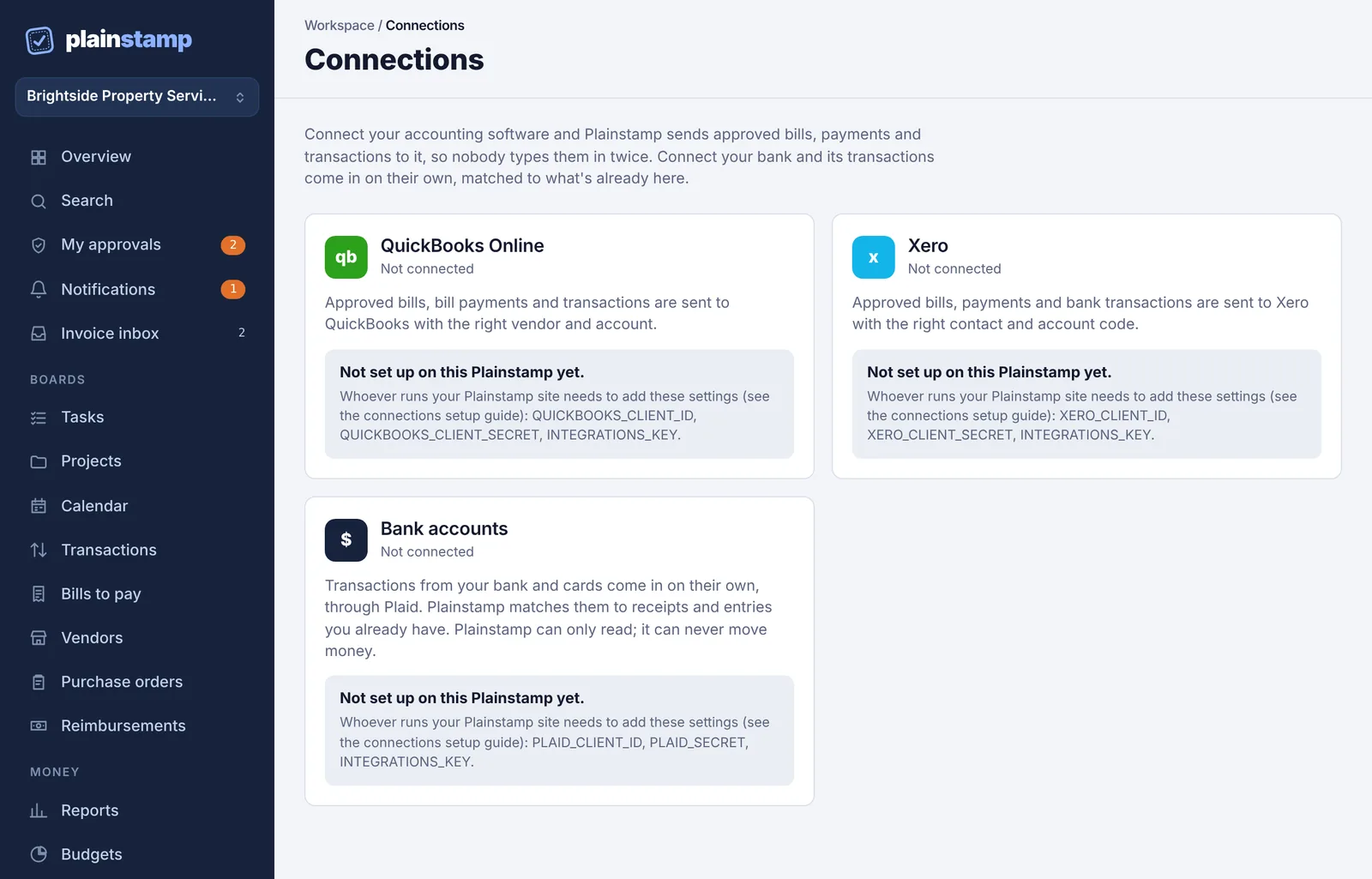
Connect a bank#
In the menu, under Workspace, click Connections. (Or, on the Bank feed page, click Connect a bank.)
On the Bank accounts card, click Connect a bank.
Plaid's window opens. Find your bank, sign in with your online banking details, and pick the accounts to share.
When you finish, you'll see "Connecting your bank… this can take a few seconds."
Then: "(Your bank) connected." and how many transactions came in, or "Transactions will appear within a few minutes."
The first time, Plainstamp brings in up to the last 90 days of transactions. Plaid supports banks in the United States.
Once connected, the card lists each account with its last 4 digits, type and current balance, and when it was last updated.
How new transactions come in#
Your bank tells Plainstamp (through Plaid) when there are new transactions, and Plainstamp picks them up.
Plainstamp also checks every few hours.
To check right now, click Get new transactions on the bank's card. You'll see how many new lines came in and how many were matched automatically.
Transactions that are still pending at the bank wait until they post. New lines are matched automatically where Plainstamp is sure; the rest wait for you on the Bank feed. See Match bank lines in the bank feed.
Connect more than one bank#
Click Connect another bank and repeat the steps. Each bank gets its own section on the card. Click Open the bank feed to see all their transactions together.
Reconnect a bank#
Banks sometimes ask you to sign in again (for example, after you change your password). When that happens, the bank's section shows Needs attention and a message like "The bank needs you to sign in again. Use Reconnect on the Connections page."
Open Connections.
On the bank's section, click Reconnect.
Sign in to your bank again in the Plaid window.
You'll see "Reconnected." New transactions start coming in again.
Remove a bank#
On the bank's section, click Remove.
Plainstamp asks "Stop bringing in this bank? Lines already here stay." Click Remove to confirm.
Transactions already in the bank feed, and anything you added from them, stay where they are.
The bank feed and your cash forecast#
A connected bank also gives the cash forecast its starting balance: the current balances of your checking and savings accounts, kept up to date automatically.
Common questions#
I see "Not set up on this Plainstamp yet." The bank connection hasn't been switched on for the Plainstamp site you use. Contact whoever runs it (or Plainstamp support).
The Bank accounts card isn't there; I see an upgrade note instead. The bank feed needs the Team plan and up.
I don't see Connections in the menu. Only owners and admins have it.