Pay several bills at once with a pay run
Pick the bills that are due, pay them all in one go, and print every check with numbers in order.
A pay run lets you pay a group of bills together, say every Friday, instead of one by one. You tick the bills, pick the date and method, and click once. Plainstamp marks every bill paid, can record each payment in Transactions as a reconciled transaction, and, if you pay by check, numbers the checks in order so you can print them all at once.
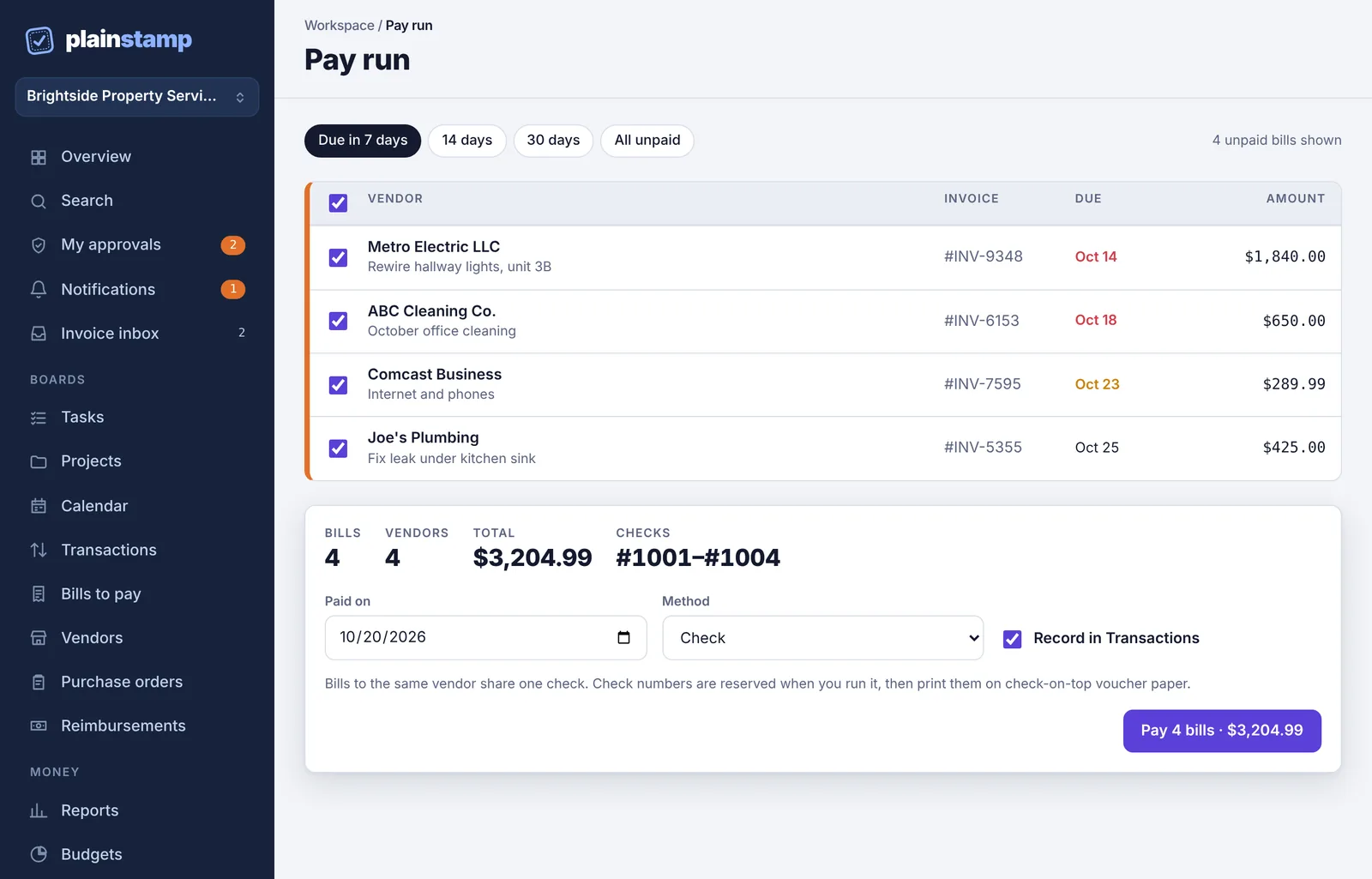
Run a pay run#
In the menu, under Money, click Pay run.
Choose which bills to show:
Due in 7 days (the default, and it includes anything overdue),
14 days, 30 days or All unpaid,
Scheduled to pay, if any bills have a Pay on date in the next week.
Tick the bills to pay. Bills due in the next 7 days (or scheduled for the next 7 days) are ticked for you. Use the box at the top of the list to tick or untick everything shown.
Check the summary box: Bills, Vendors, Total and, when paying by check, the Checks numbers that will be used.
Set Paid on (today by default) and the Method (Check by default).
Leave Record in Transactions ticked to add each payment as a money-out transaction. These transactions are marked reconciled straight away (by you, at the time of the run), so they go to Completed rather than waiting on the Transactions board. Untick it if the payments are already recorded there some other way.
Click Pay (the button shows how many bills and the total, for example "Pay 4 bills · $3,204.99").
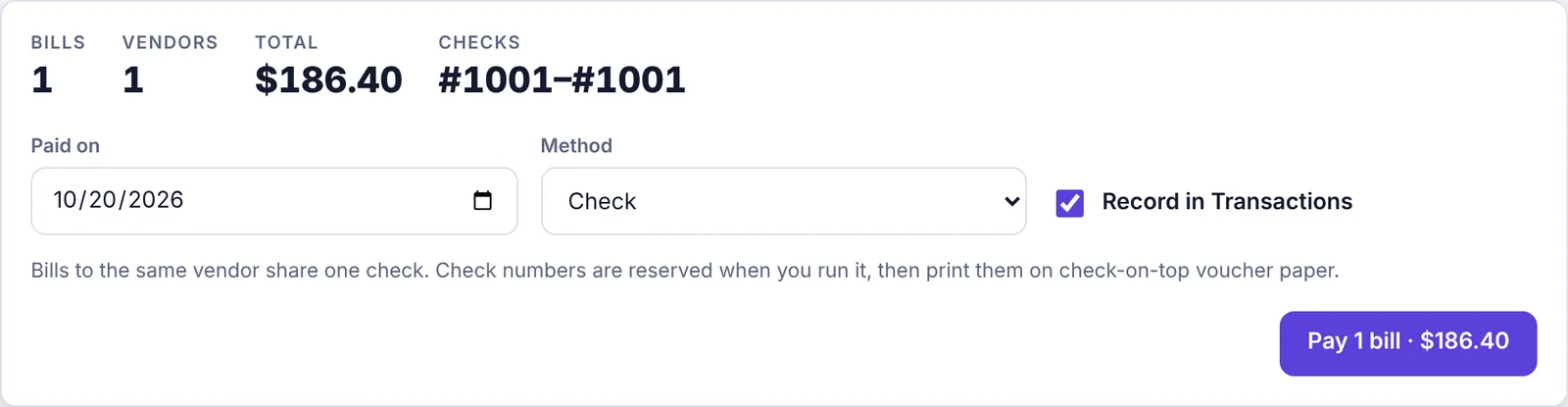
The pay run summary for one bill: Bills, Vendors, Total, Checks, Paid on and Method
When it's done, a green message says what was paid: "Paid the bill." for one bill, "Paid all 4 bills." when every bill went through, or "Paid 3 of 4 bills." if some didn't. For checks it adds which check numbers are ready to print, for example "Check #1002 is ready to print."

Paying by check#
One check per vendor. If you're paying three bills from the same vendor, they share one check, and its stub lists all three.
Numbers are reserved when you run it, starting from the Next check number in your check settings. They're saved on each bill as its check number.
Click Print checks to open the checks as a PDF, ready to print on check paper. See Print checks.
Checks print in your workspace's main currency only. If a bill you picked is in another currency, Plainstamp stops and asks you to pay it another way (like a wire) and run the rest by check.
Paying another way#
Pick a different Method: ACH / wire, Credit card, Zelle, Cash or Other. Each bill is marked paid with that method. Then click Download payment list to get a spreadsheet you can use to enter the payments at your bank. It lists each bill's vendor, legal name, address, email, invoice number and dates, the bill amount, what this run paid, the currency, paid date, method, check number or reference, and description.
Part-paid bills and monthly bills#
If part of a bill was already paid, the pay run pays only what's left.
If a bill is set to Repeats every month, paying it creates next month's bill, just like paying it on its own.
Recent pay runs#
Your last 12 pay runs are listed under Recent pay runs, with the date, number of bills, total, method, check numbers and who ran it. From there you can Print checks again or download the Payment list.

Common questions#
Does a pay run need approval? No. Only owners and admins can run one, so running it counts as the approval. The pay run is listed in the Activity log.
I see "Nothing due in this window". No unpaid bills are due in that time. Click All unpaid to see everything.
Can I pay a single bill? Yes, open it on Bills to pay and click Pay. You can still print its check. See Print checks. A single payment's transaction stays open on Transactions until you reconcile it against your bank statement.
Where are the pay run's transactions? On Completed, marked reconciled. If one needs another look, open it and click Reopen to move it back to Transactions.
The message says "Paid 3 of 4 bills." One bill couldn't be marked paid (for example, someone else paid it at the same moment). Check it on Bills to pay.