Print checks
Print a check for one bill or every check in a pay run, on standard check-on-top voucher paper.
Plainstamp prints checks for bills you pay by check, either one at a time or all the checks from a pay run. The checks open as a PDF that you print on blank check paper.
What paper to use#
Plainstamp prints on standard check-on-top voucher paper: 8.5 × 11 inch sheets in three parts, with the check at the top and two stubs below. It's the kind sold for QuickBooks at office supply stores.
The paper must already have your bank details and check numbers printed on it (the bank's name, your account and routing numbers along the bottom, and the check number). Plainstamp doesn't print those. It fills in:
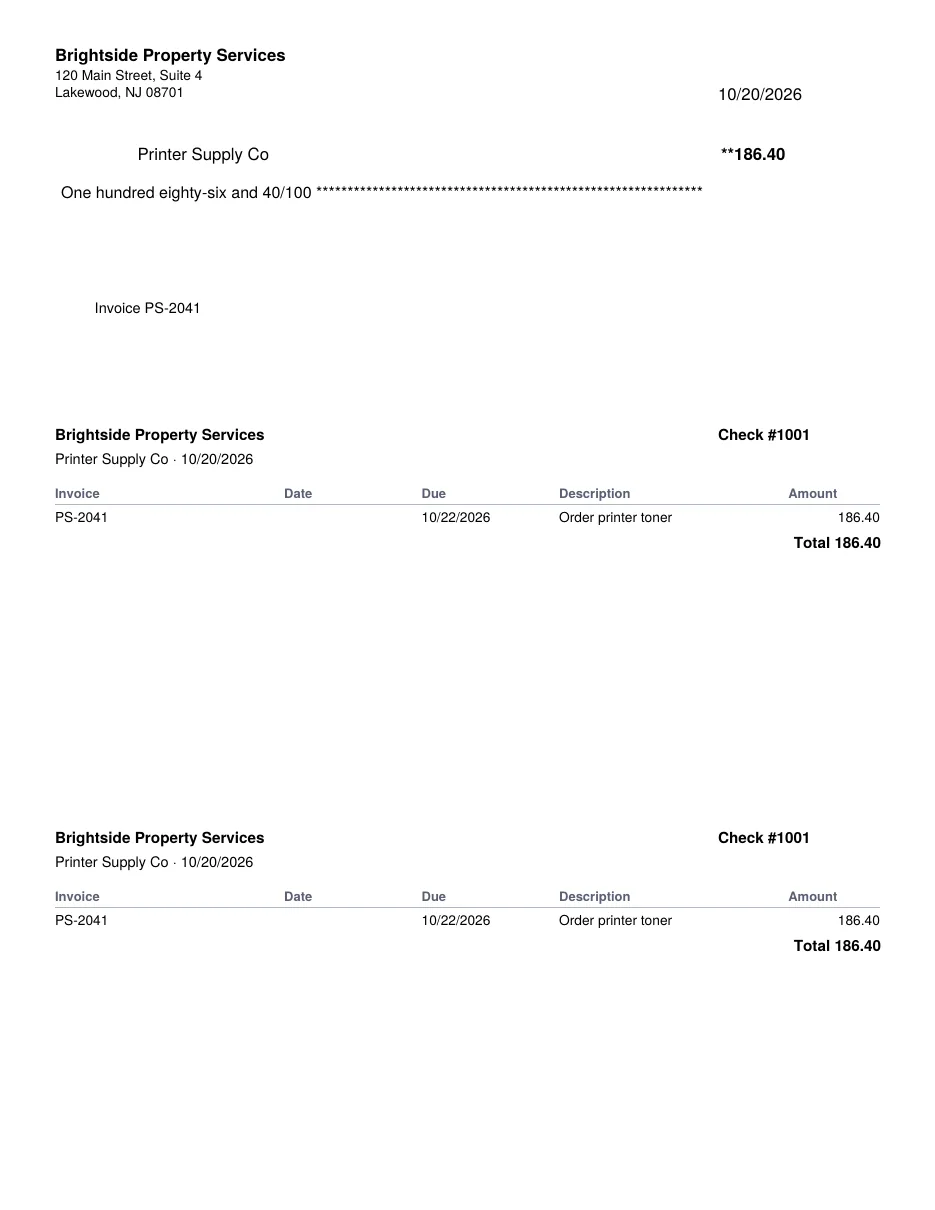
on the check: your business name and address, the date, who it's to ("Pay to"), the amount in numbers and in words, the payee's address and a memo with the invoice numbers;
on both stubs: your business name, the check number, the payee and date, and a line for each bill paid (invoice number, invoice date, due date, description and amount), with the total. One stub is for the vendor and one is for your records.
Plainstamp doesn't print a signature, so sign each check by hand.
Print checks for a pay run#
Run a pay run with the method Check. See Pay several bills at once with a pay run.
In the green message that appears, click Print checks. The checks open in a new tab as a PDF, one check per page, in check number order.
Load your check paper in the printer, with the first blank check matching the first check number.
Print at actual size (100%), not "fit to page", so the text lands in the right places.
To print them again later, click Print checks next to the run under Recent pay runs.
Print a check for one bill#
Open the bill on Bills to pay and click Pay.
Set Method to Check.
Click Next check #. Plainstamp reserves the next number and fills it in. You'll see "After you save, the check opens ready to print."
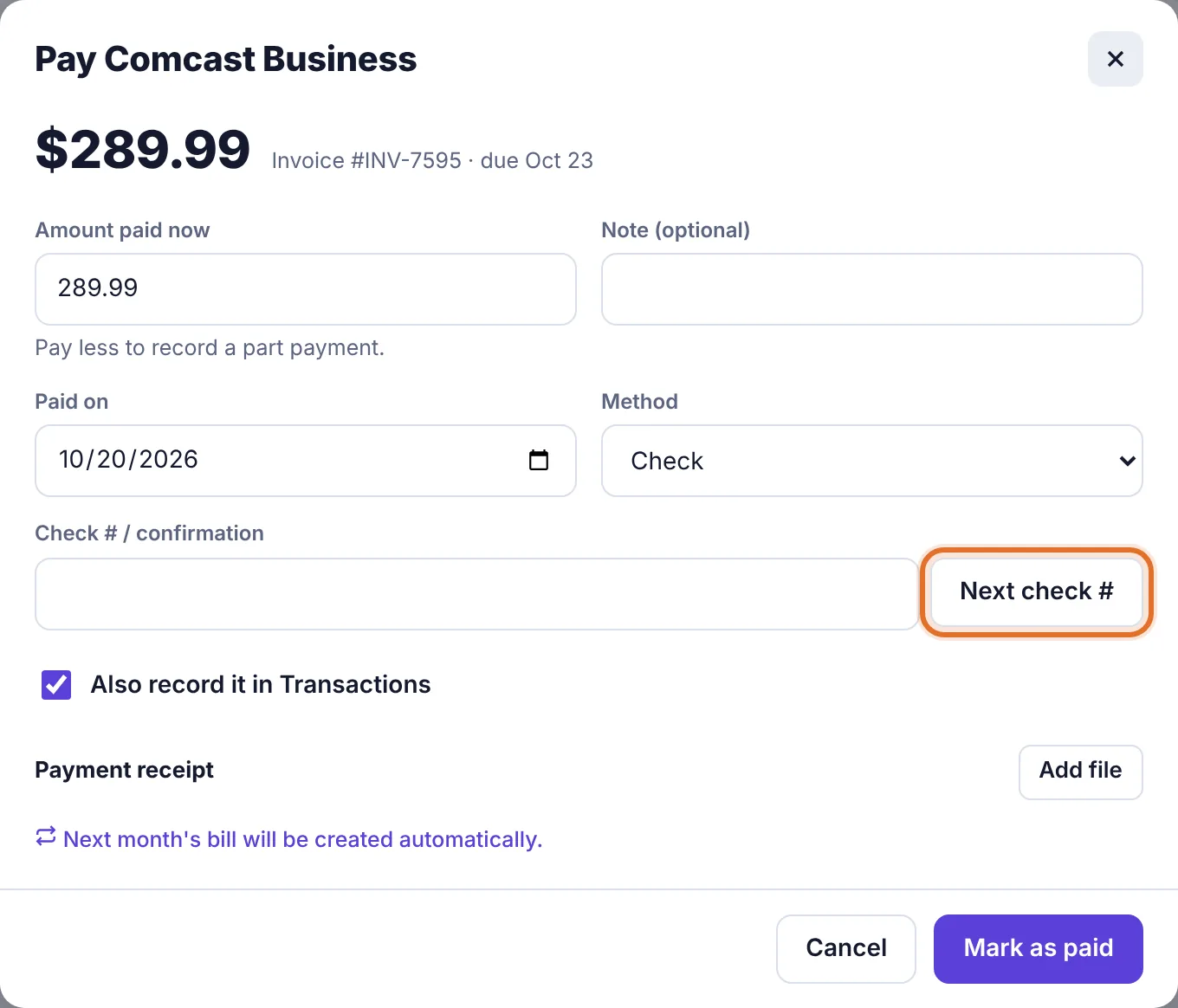
The Pay window with the Next check # button Fill in the rest (amount, date) and click Mark as paid (or Record part payment for part of the bill).
The check opens in a new tab. Print it.
A part payment prints a check for just the part you paid.
Reprint a check#
Open the paid bill. If it was paid by check with a check number, click Print check at the bottom of its panel. If that check came from a pay run and covered several bills from the same vendor, the whole check is reprinted with all of them.
What's printed where#
Payee name: the vendor's legal name if you've filled it in on the vendor (useful for contractors), otherwise the vendor name.
Payee address: the vendor's Address. Put a comma or a new line between the street and the city to split it over two lines.
Memo: "Invoice" and up to four invoice numbers. If the bills have no invoice numbers, the bill's description is used.
Stub lines: up to nine bills per check, then "and (number) more".
Common questions#
I get "No check payments found." The bill wasn't recorded as paid with the method Check and a check number. Open it and record the payment with both.
I get "Checks print in USD only." Checks print in your workspace's main currency. Pay bills in other currencies another way.
The text doesn't line up with the boxes on my checks. Use the nudge settings and a test check. See Set up check printing.
Special characters in a name are missing. Checks use a standard printer font, which covers Western European letters. Other characters are left out.