Read your reports
What each tab on the Reports page shows, and how to change the dates, tag and department.
The Reports page shows where your money goes, who you pay most, how each month compares and which bills are getting old. It builds itself from the transactions and bills already on your boards, so there's nothing to set up.
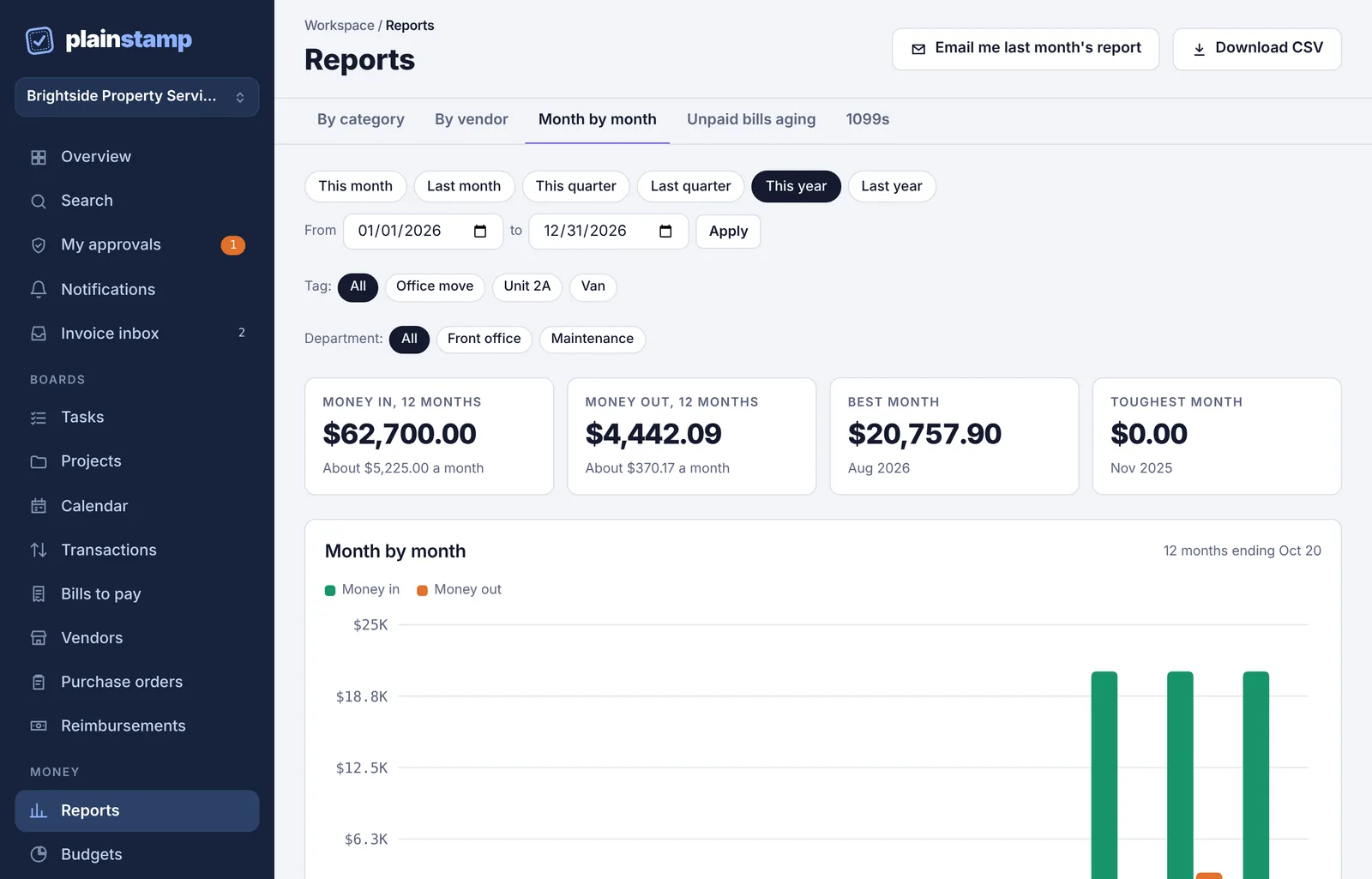
Open your reports#
In the menu on the left, under Money, click Reports.
Pick a tab across the top: By category, By vendor, Month by month, Unpaid bills aging or 1099s.
If you haven't added any transactions or bills yet, the page says Reports fill in as you work and offers a Go to Transactions button.
What each tab shows#
| Tab | What it answers |
|---|---|
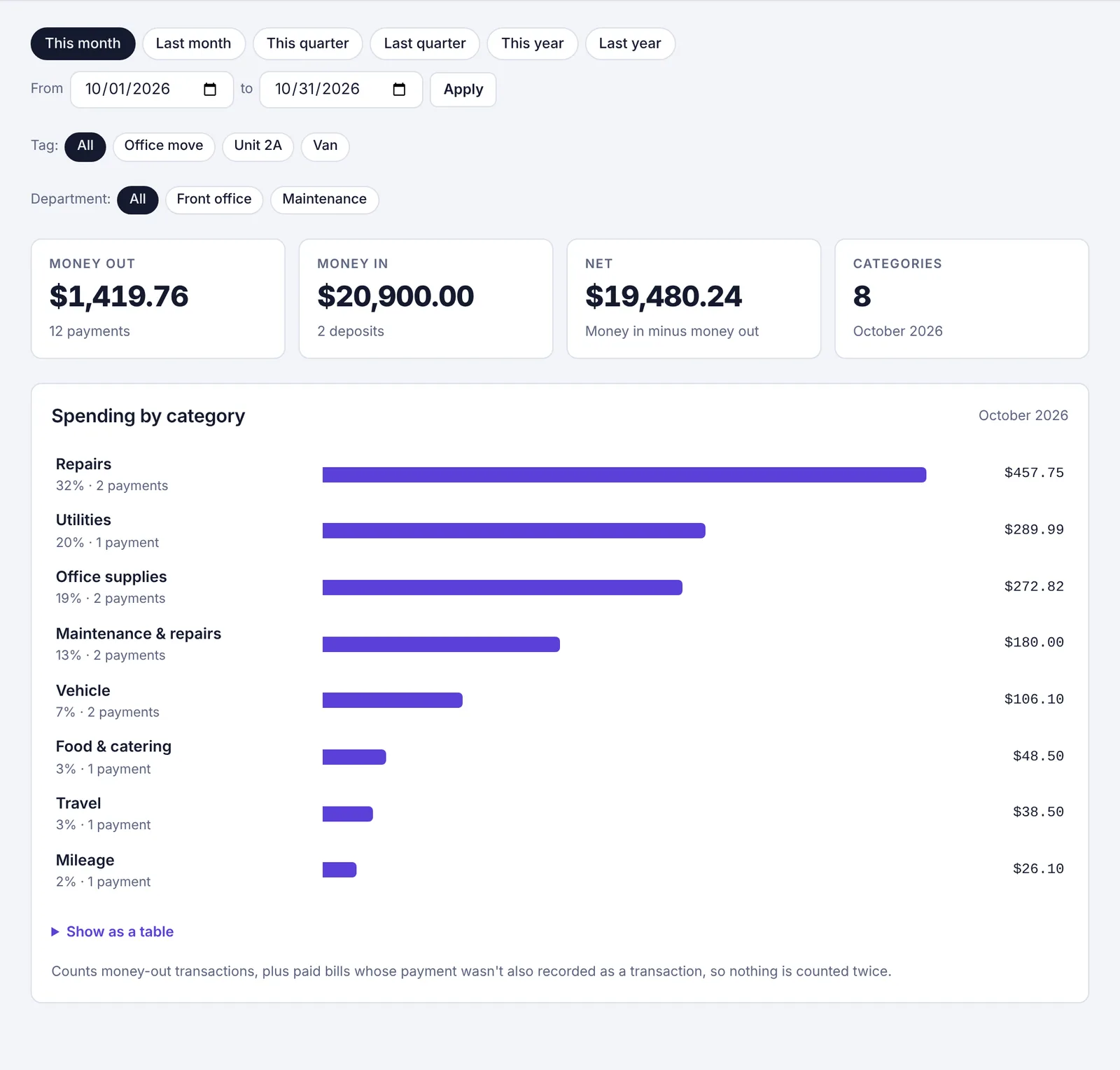
| By category | Which categories you spent the most on in the dates you picked, with each one's share of the total and how many payments it took. |
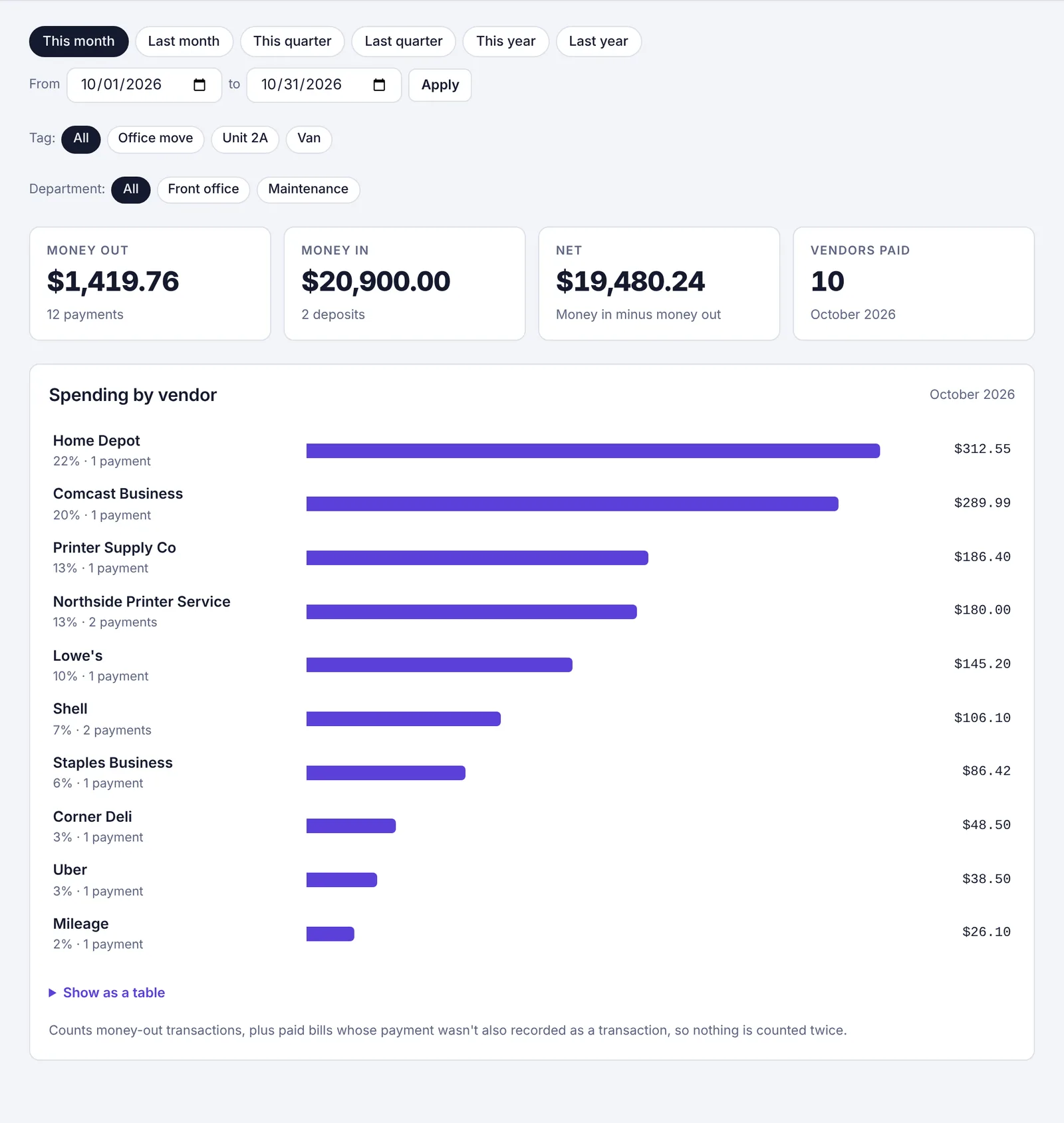
| By vendor | Who you paid the most. The top 20 vendors are listed; everyone else is grouped into one All other vendors row. |
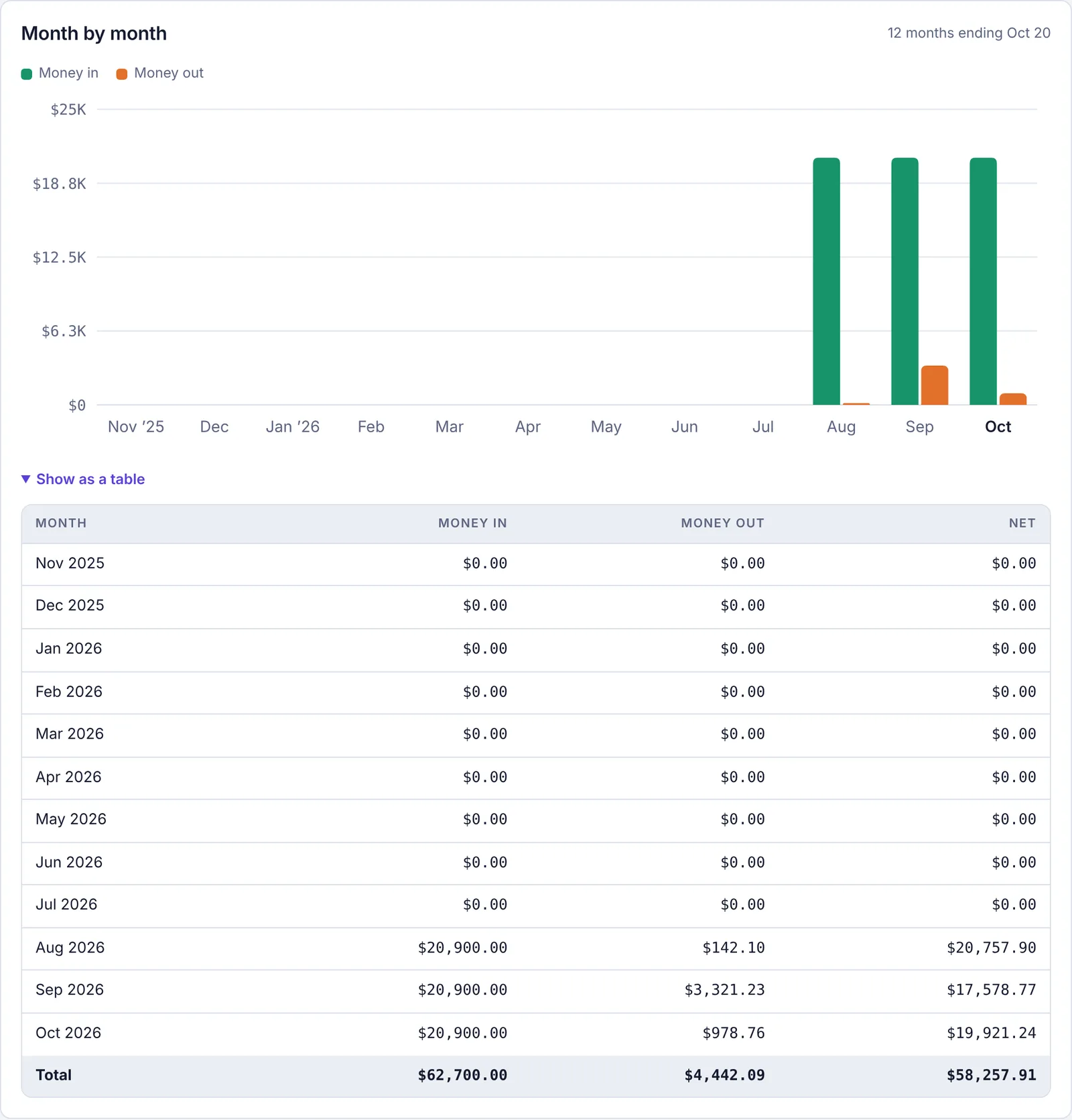
| Month by month | Money in, money out and the difference (net) for each of the last 12 months, as a chart. |
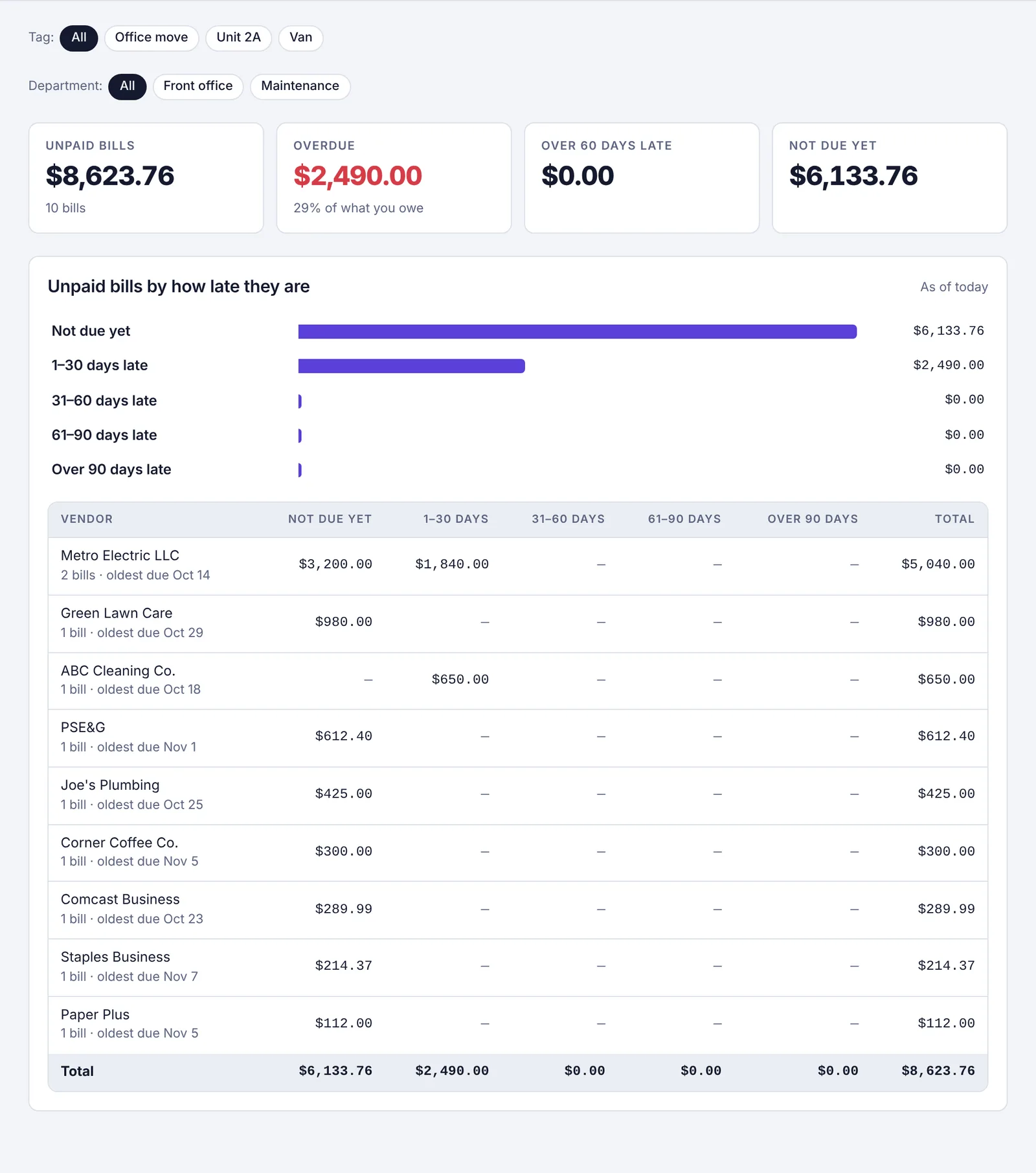
| Unpaid bills aging | Every unpaid bill, grouped by how late it is. See See which unpaid bills are getting old. |
| 1099s | Which contractors need a 1099 for a tax year. See Track 1099 contractors and W-9s. |
The By category and By vendor tabs also show four boxes at the top: Money out, Money in, Net (money in minus money out) and the number of Categories or Vendors paid. Below them, a bar for each category or vendor shows how much went there, its share of the total and how many payments it took.
The Unpaid bills aging tab shows what you owe, split by how late it is:
The Month by month tab shows Money in, 12 months, Money out, 12 months, your Best month and your Toughest month (the month with the lowest net).
Change the dates#
Click one of the date buttons: This month, Last month, This quarter, Last quarter, This year or Last year.
For any other dates, type them in the From and to boxes and click Apply.
The date buttons show on By category, By vendor and Month by month. On Month by month, the chart always covers 12 months ending on the last day you picked (or today, if that day is still in the future).
Unpaid bills aging is always "as of today", and 1099s uses a tax year instead, so those tabs don't show the date buttons.
Look at one tag or one department#
If your entries have tags (for example a property, a job or a vehicle), a Tag: row appears under the dates. Click a tag to see only entries with that tag, or All to go back.
On the Business plan, if you use departments, a Department: row appears too. Click a department to see only its entries.
The tag and department you pick stay on as you switch between tabs, and they're used when you download the report. The 1099s tab ignores them on purpose, because a 1099 has to count everything you paid a contractor.
How the totals are counted#
Money out counts money-out transactions plus paid bills. If a bill's payment was also recorded as a transaction, it's only counted once, so nothing is counted twice.
A paid bill counts on the day it was paid, not the day it arrived.
Money in counts money-in transactions.
Unpaid bills aren't spending yet. They show on Unpaid bills aging instead.
Everything is shown in your workspace's main currency. Entries in other currencies are converted at the rate saved with each entry.
Common questions#
Why is a category called "Uncategorized"? Those entries were saved without a category. Open them on Transactions or Bills to pay and pick one, and the report updates.
Why don't I see a Tag row? It only shows once at least one transaction or bill has a tag.
Can I save a report? Click Download CSV at the top of the page. See Download a report as a spreadsheet.