Export your data
Download every transaction or bill as a spreadsheet, or download everything in your workspace in one zip file.
Everything your office puts in Plainstamp belongs to you. You can download your transactions and bills as spreadsheets, any report (see Download a report as a spreadsheet), or the whole workspace in one zip file.
Export transactions or bills#
Open Transactions (or Bills to pay).
Click Export at the top right.

The Export button at the top of the Transactions page A CSV file downloads. Open it in Excel, Numbers or Google Sheets.
The file has every transaction (or every bill) in the workspace, newest first, not just what's on screen.
Transactions file columns: Date, Type (Money in or Money out), Payee / payer, Description, Category, Method, Check # / reference, Amount, Currency, Amount in your main currency, Status (Reconciled or Open), Receipt attached, Added by, Approved by, Reconciled by. Money out is shown as a negative number.
Bills file columns: Vendor, Invoice #, Invoice date, Due, Amount, Currency, Amount in your main currency, Paid so far, Category, Description, Status (Paid or Unpaid), Paid on, Paid by method, Check # / reference, Repeats monthly, Invoice attached, Added by, Approved by, Paid by.
Download everything#
Click Settings in the menu (the General tab).
Scroll to Your data.
Click Download everything for spreadsheets plus every attached file, or Spreadsheets only (faster) to leave the files out.
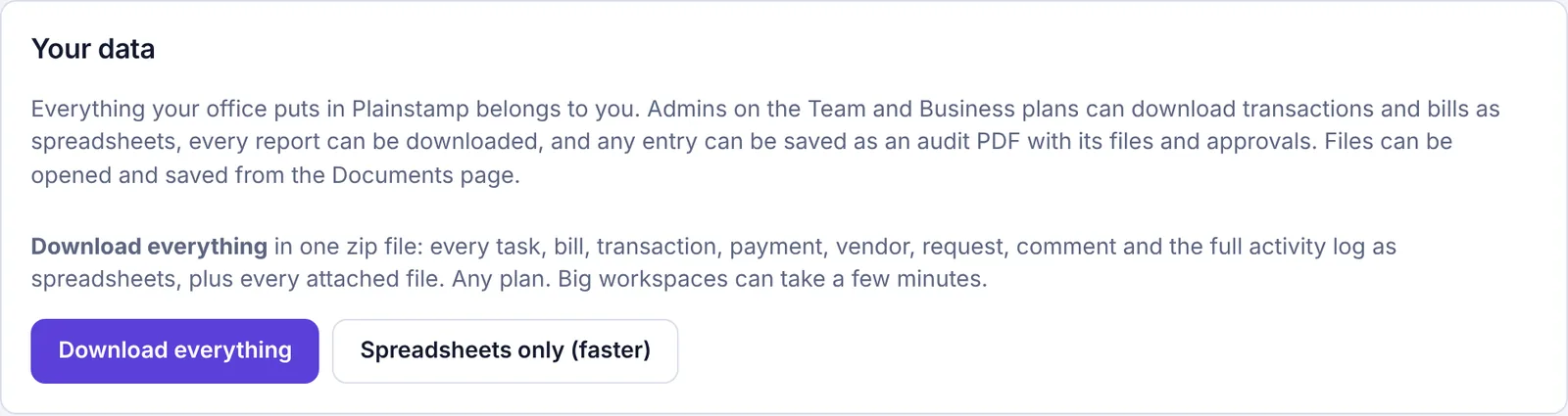
The Your data box in Settings with Download everything and Spreadsheets only A zip file downloads. Big workspaces can take a few minutes, so leave the tab open until it finishes.
What's in the zip#
README.txt, explaining the files.
people.csv: everyone in the workspace, with role and when they joined.
transactions.csv, bills.csv and bill-payments.csv.
vendors.csv, purchase-orders.csv, budgets.csv and departments.csv.
tasks.csv, checklists.csv and projects.csv.
requests.csv (approvals), comments.csv and activity-log.csv (the full history).
custom-fields.csv and attachments.csv (a list of every file and which entry it belongs to).
A files folder with every attached file, in a folder per entry (unless you chose Spreadsheets only).
People are named in people.csv; the other files refer to them by an id.
Other ways to get your data out#
One entry with its files and approvals: save it as an audit PDF from the entry.
One pay run's payments: Download payment list on the Pay run page.
Your books: connect QuickBooks or Xero and entries are sent there automatically. See Connect QuickBooks or Xero.
Common questions#
I don't see Download everything. Only the owner sees those buttons. Ask the owner, or ask for the spreadsheet you need from the Export buttons.
Why does a cell start with an apostrophe? Text that starts with =, +, - or @ gets an apostrophe in front so spreadsheets don't run it as a formula.