Track 1099 contractors and W-9s
Mark the contractors you pay, keep their W-9s on file, and see each January who needs a 1099 and what's missing.
Plainstamp adds up what you pay each contractor during the year and shows, on the 1099s tab of Reports, who needs a 1099, who is missing a W-9, legal name or tax ID, and which vendors you might have forgotten to mark.
Plainstamp doesn't file 1099s for you. It gives you (or your accountant) a ready list to file from.
Step 1: Mark your contractors#
Do this once for each person or business you pay for services who isn't a corporation (freelancers, handymen, cleaners, many LLCs).
Open Vendors and click the vendor. For a new vendor, click New vendor.
In the vendor's panel, click Edit. For a new vendor, just fill in the form.
Tick Gets a 1099 (a contractor, not a company).
Two more boxes appear. Fill in Legal name (as on their W-9) and Last 4 of tax ID.
Save.
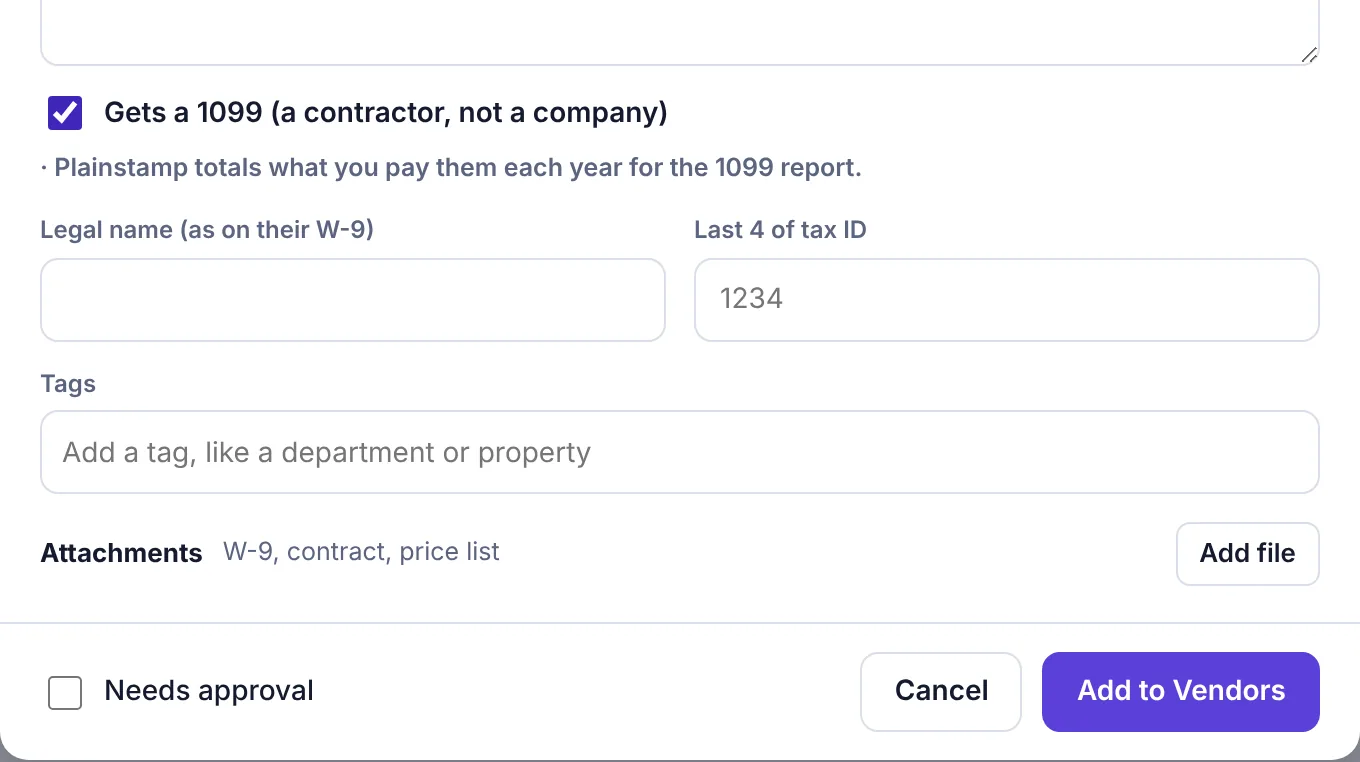
The vendor form with Gets a 1099 ticked and the legal name and tax ID boxes showing
Plainstamp only keeps the last 4 digits of the tax ID, so the full number never sits in your workspace.
Step 2: Keep the W-9 on file#
On Vendors, click the vendor to open it.
Under Documents, leave the kind set to W-9 and click Upload.
Pick the W-9 (a PDF or a photo).
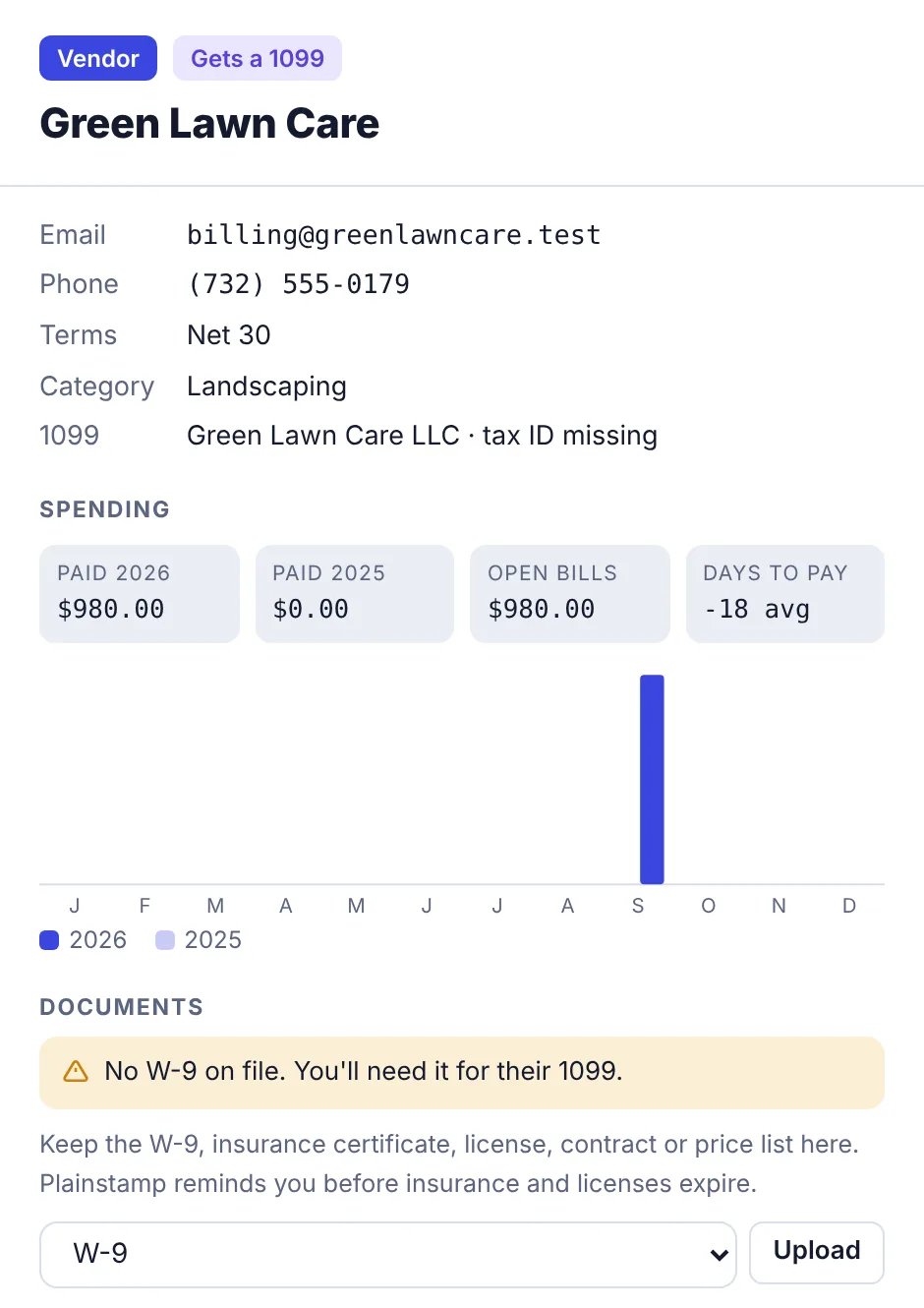
A vendor marked Gets a 1099, with the "No W-9 on file" warning and the W-9 upload
Until a W-9 is uploaded, the vendor shows No W-9 on file in yellow. Already uploaded it as a different kind of file? Change the kind next to the file to W-9.
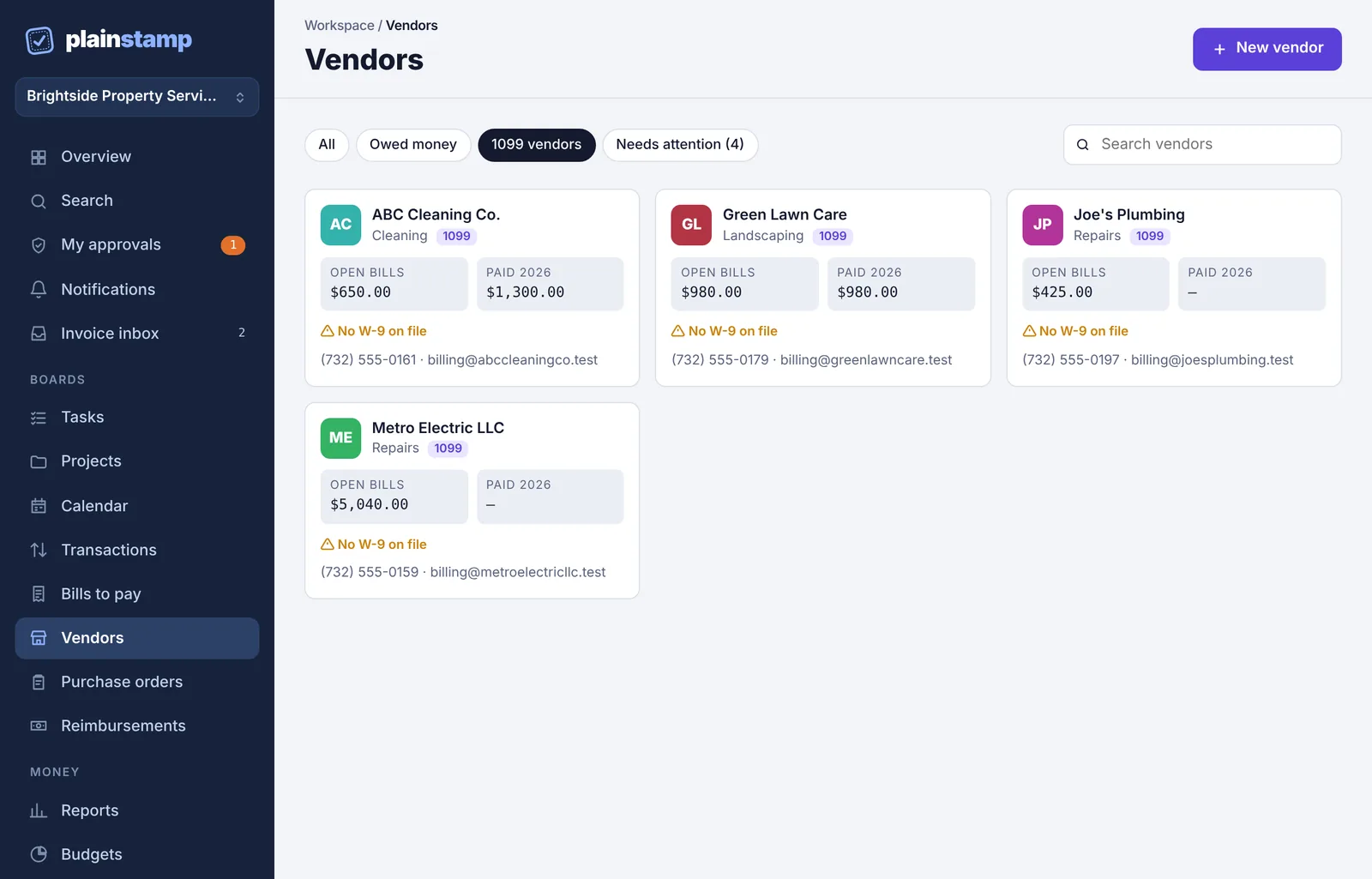
To see every contractor at once, click the 1099 vendors filter on the Vendors page. Needs attention shows the ones missing a W-9 (and any documents about to expire).
Step 3: Check the 1099 report#
Open Reports and click the 1099s tab.
Pick the tax year at the top. You'll see this year and the three before it. In January and February the page opens on last year, since that's the one you're filing.
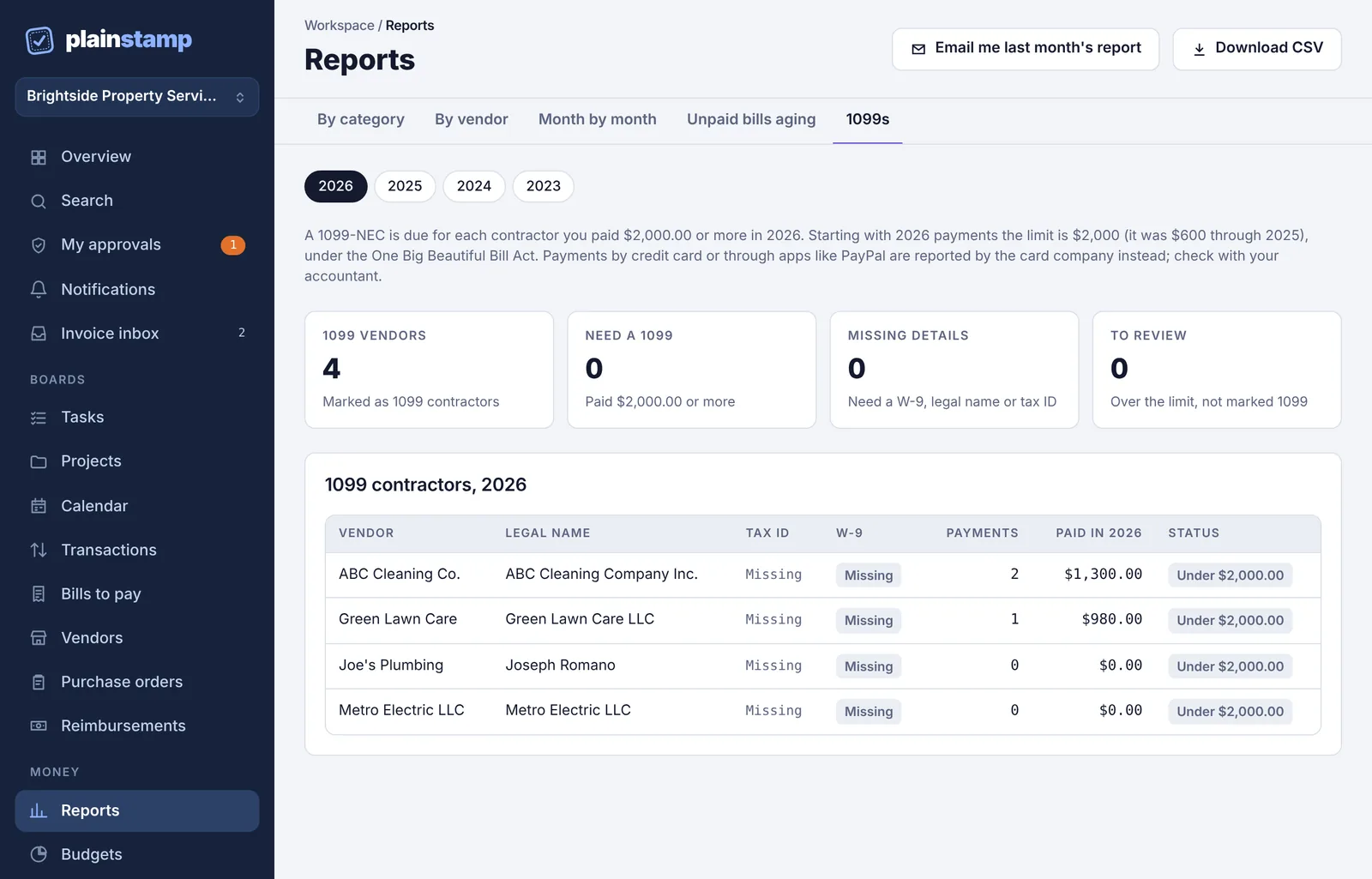
The 1099s report for 2026 with four contractors and their status
The boxes at the top show:
1099 vendors: how many vendors are marked.
Need a 1099: marked vendors you paid the limit or more.
Missing details: of those, how many still need a W-9, legal name or tax ID.
To review: vendors you paid the limit or more who aren't marked.
In the 1099 contractors table, the Status column says one of:
Ready for a 1099: paid over the limit and nothing missing.
Needs W-9, legal name, tax ID (whichever are missing): fix these before you file.
Under $2,000.00 (or the year's limit): you paid them less than the limit, so no 1099 is needed for that year.
The dollar limit#
The page states the rule for the year you picked:
For payments in 2026 and later, a 1099-NEC is due for each contractor you paid $2,000 or more in the year.
For payments through 2025, the limit was $600.
Payments made by credit card or through apps like PayPal are reported by the card or app company instead, so check with your accountant about those.
What counts as paid#
Plainstamp adds up, for the calendar year, the money-out transactions linked to that vendor plus the bills to that vendor that were paid in that year. A bill paid with a recorded transaction is counted once, not twice. Unpaid bills don't count.
Tag and department filters don't apply on this tab, because a 1099 must include everything you paid.
Check these vendors#
If anyone you paid over the limit isn't marked, a Check these vendors list appears at the bottom. Corporations usually don't need a 1099; people and LLCs you pay for services usually do. Mark the ones that do (Step 1), and they move into the main table.
Send it to your accountant#
Click Download CSV. The file lists every marked vendor and every vendor to review, with legal name, last 4 of the tax ID, whether a W-9 is on file, payments, total paid, whether they're over the limit, and what's missing. See Download a report as a spreadsheet.
Common questions#
A vendor shows $0.00 but I paid them. The payment may have been saved with a vendor name typed slightly differently, so it isn't linked to this vendor. Open the payment and pick the vendor from the list.
I don't see the 1099s tab's numbers, just an upgrade note. 1099 tracking needs the Small plan and up.