Change your workspace settings
Rename the workspace, set its time zone, set the main currency and mileage rate, and turn the monthly summary email on or off.
The General tab of Settings holds your own name and, for owners and admins, the workspace name and money settings.

Which Settings tabs each person sees#
| Tab | Who sees it |
|---|---|
| General | Everyone |
| Notifications | Everyone |
| Sign-in & security | Everyone |
| Approval rules, Custom fields, Departments, Reminders, Checks | Owners and admins |
| Refer a friend | Everyone except workers |
Rename the workspace#
Go to Settings. You're on the General tab.
Under Workspace, change Office or organization name (2 to 80 characters).
Click Save.
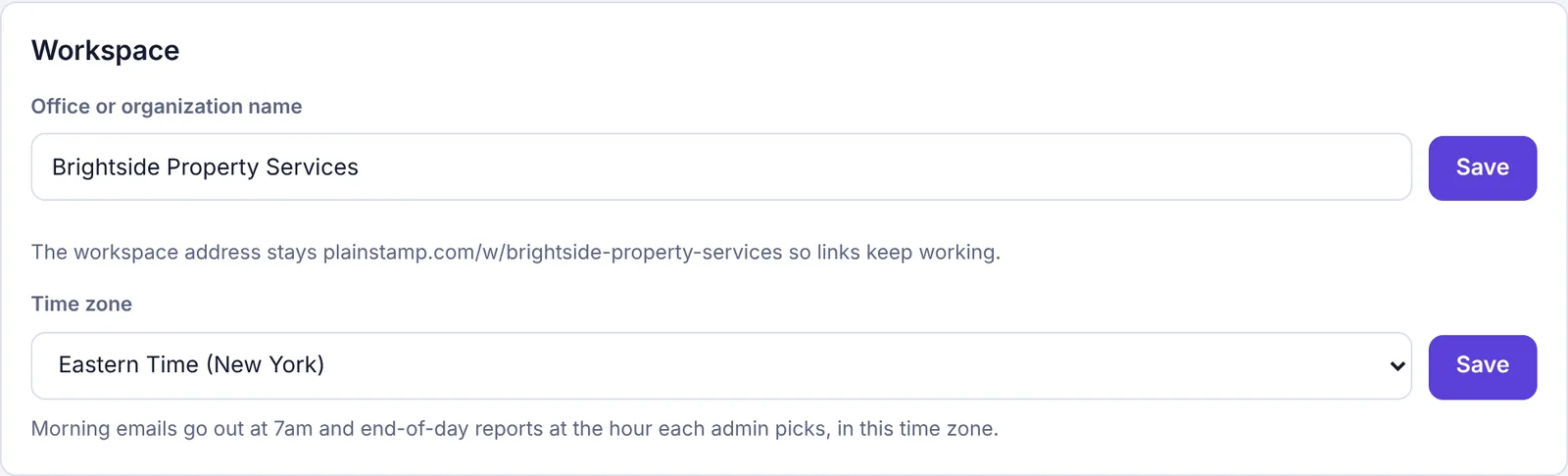
The Workspace panel with the organization name
The new name shows in the menu, on emails and on audit PDFs. The web address of your workspace doesn't change, so links people saved keep working.
Time zone#
The workspace's time zone decides when the 7am morning email and morning phone notification go out, when each admin's end-of-day report is sent, and what "today" means for those emails. There's one time zone for the whole workspace, shared by everyone in it.
Go to Settings. You're on the General tab.
Under Workspace, pick your office's zone in Time zone. The common US, Canada, UK, Europe, Israel and Australia zones are at the top (for example Eastern Time (New York) or Pacific Time (Los Angeles)), and every other zone is listed under All time zones.
Click Save next to it. You'll see "Saved. Morning emails and end-of-day reports now go by …" with the zone you picked.
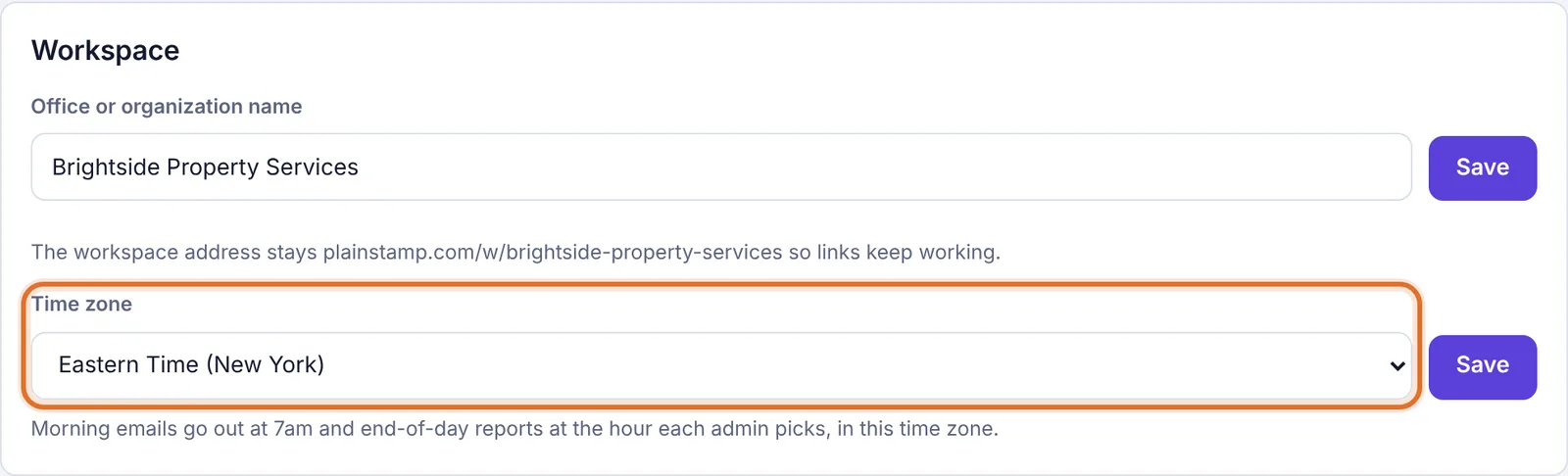
The Time zone setting in the Workspace panel
Until someone picks one, the workspace uses Eastern Time (New York), and the setting says "Not set yet; using Eastern Time."
The note under it says "Morning emails go out at 7am and end-of-day reports at the hour each admin picks, in this time zone."
Daylight saving time is handled for you: 7am stays 7am all year.
The time zone only changes when an owner or admin changes it here, so an admin who's travelling won't move everyone's emails.
Money settings#
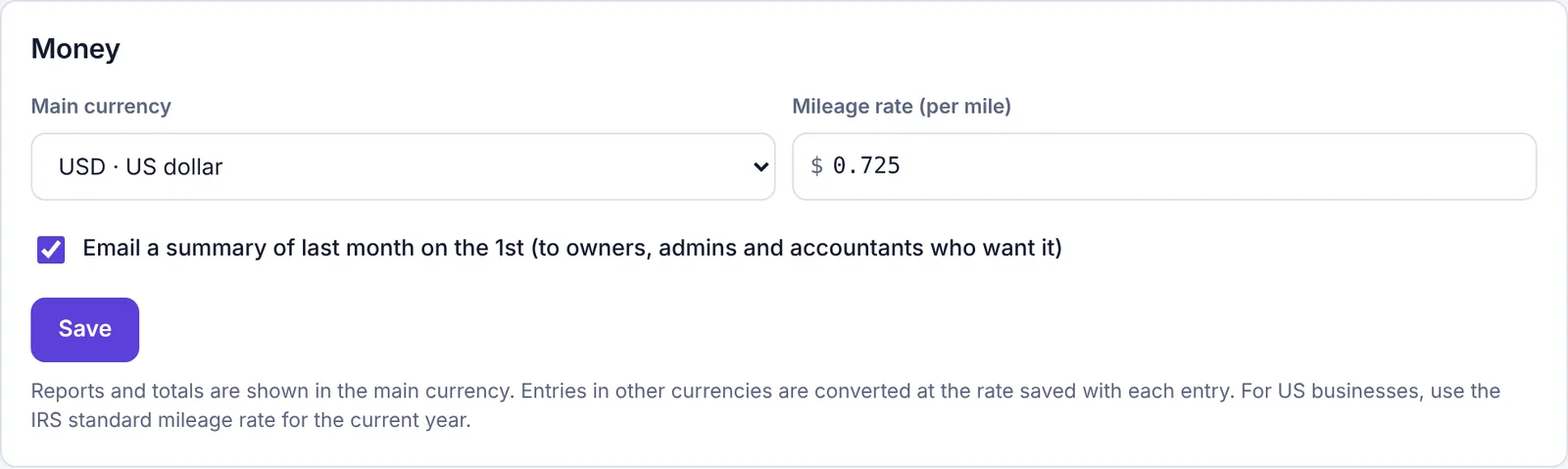
The Money panel has three settings. Change any of them, then click Save under the panel (when you change the main currency, the button names the change instead, as described below).
Main currency#
Reports, budgets and totals are shown in the Main currency. Pick it from the list.
On the Starter plan the main currency can't be changed. Changing it, and recording entries in other currencies, come with the Small plan and up.
Entries in another currency are converted at the exchange rate saved with each entry. It's best to set the main currency once, when you start, before you record anything.
When you pick a different currency, a yellow box opens: "You're changing the main currency from USD to EUR." (with your currencies). Choose one option:
Convert existing amounts to EUR: type the rate in 1 USD = ? EUR (or click Today's rate), then click Change to EUR and convert. Bills, transactions, payments, purchase orders, budgets, spending limits, approval rule amounts, waiting requests, pay run totals, the cash forecast balance and the mileage rate are all converted at that rate in one go. Entries in other currencies keep their own amount and get an updated rate.
Just change the currency, don't convert: click Change to EUR without converting. Amounts stay as they are and are read as the new currency. Use this if you picked the wrong currency when you set up.
A conversion can't be undone in one step. See My totals look wrong after I changed the main currency for what each choice does.
Mileage rate (per mile)#
This is the rate Plainstamp uses when someone records a mileage trip for reimbursement: miles times this rate. It starts at the IRS business rate for 2026, 72.5 cents a mile (enter it in dollars, like 0.725). The note at the bottom of the panel says "For US businesses, use the IRS standard mileage rate for the current year." Update it when the rate changes. Trips already recorded keep the rate they were saved with. The Mileage form shows the rate with three decimals, for example "120 miles × $0.725 a mile".
Monthly summary email#
Tick Email a summary of last month on the 1st to send a summary of last month (money in and out, top spending and anything overdue) on the 1st of each month.
It goes to owners, admins and accountants. Each of them can still turn it off for themselves under Settings › Notifications with Monthly summary.
Plan: The monthly report email comes with the Small plan and up. On Starter the box is greyed out and reads "… · comes with the Small plan and up".
Your own name#
Everyone can change the name their team sees:
On Settings › General, under Your profile, change Your name, as your team sees it.
Click Save.
The panel also shows the email you're signed in with and your role in this workspace.
Your data#
The Your data panel explains how to get your information out. On the Team and Business plans, owners, admins and accountants can download transactions and bills as spreadsheets with the Export button on those pages (other roles don't see that button). Every report can be downloaded too. The owner also sees Download everything (a zip of every record and file) and Spreadsheets only (faster), on any plan.
Leave the workspace#
Everyone except the owner sees Leave this workspace at the bottom. See Turn someone off or remove them.