My totals look wrong after I changed the main currency
When you change the main currency, Plainstamp asks whether to convert what you already have. Here's what each choice does, and how to fix totals if amounts weren't converted.
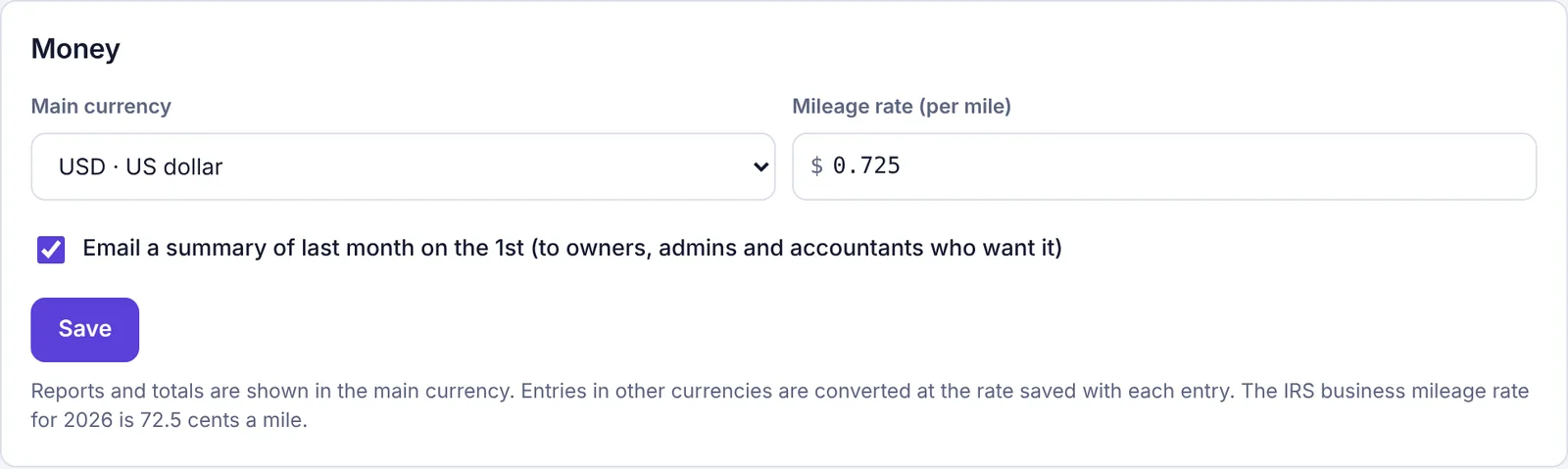
Your workspace's Main currency (in Settings › General, under Money) is the currency that totals, reports, budgets, spending limits, approval rules and the Overview are shown in. Entries in another currency are converted using the exchange rate saved with each entry.
What happens when you change it#
When you pick a different currency from the Main currency list, a yellow box opens under the settings: "You're changing the main currency from USD to EUR." (with your currencies). It explains that every total, report, budget, spending limit and approval rule amount is read in the main currency, and asks you to choose one of two options before you can save.
Convert existing amounts to EUR
Pick this when your business really moved to a new currency. Type the rate in the 1 USD = ? EUR box, or click Today's rate to fill it in. Under the box, Plainstamp shows an example, like "$1,000.00 becomes €920.00". Then click Change to EUR and convert.
Everything that was in your old main currency is converted at that rate, all at once:
bills, transactions, bill payments and purchase orders,
budgets, spending limits (and what's already been spent against them this month) and approval rule amounts,
requests still waiting for approval, invoice inbox amounts and pay run totals,
the bank balance you entered on Cash forecast, and the Mileage rate (per mile).
Entries in a third currency (for example a bill in pounds) keep their own amount; only their exchange rate is updated so they still add up correctly in the new main currency. Entries already in the new currency get a rate of 1. A bill that was fully paid stays fully paid.
When it's done you'll see "Saved. The main currency is now EUR and 42 entries were converted, along with budgets, limits and rules." The change is listed in the Activity log with the rate you used.
Just change the currency, don't convert
Pick this if you chose the wrong currency when you set up, or you haven't recorded anything yet. Then click Change to EUR without converting. Nothing is converted: entries that were in the old main currency keep their amount and their own currency, with a rate of 1, so they're added into totals as if they were already in the new currency. For example, a $1,000 bill still shows as $1,000 on its own, but counts as €1,000 in the Overview, reports and budgets. You'll see "Saved. The main currency is now EUR. Existing amounts weren't converted."
How to fix it#
If you changed it by mistake and didn't convert: change the Main currency back, choose Just change the currency, don't convert and click the Change to … without converting button. Everything adds up as before.
If you really did move to a new currency, but changed it without converting:
Change the Main currency back to the old one and choose Just change the currency, don't convert. Click Change to … without converting.
Change it to the new currency again, this time choosing Convert existing amounts to …. Enter the rate (or click Today's rate) and click Change to … and convert.
Entries you recorded in the new currency in the meantime aren't affected: they're already in that currency and get a rate of 1.
To fix just a few entries by hand:
Open an older entry (a bill or transaction) and click Edit (employees see Request a change).
Because its currency is different from the main currency, the form shows Currency and 1 USD = ? EUR (with your currencies).
Type the rate, or click Today's rate to fill it in. The form shows what it comes to in the main currency.
Click Save changes. Employees click Send change for approval instead.