Plainstamp asks me to set up an office, but my team already uses it
Why you see "Set up your office" or "Page not found" instead of your team's workspace, and how to get in.
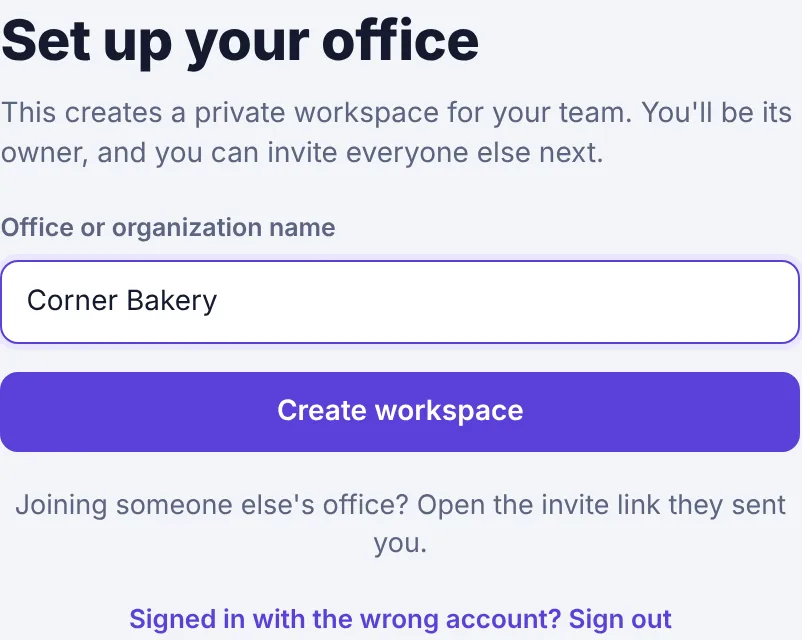
If you signed in and Plainstamp shows Set up your office, it means your account isn't an active member of any workspace yet. Don't create a new workspace: it would be a separate, empty office that your team can't see.
Here's why it happens and what to do.
You haven't joined yet#
Creating an account doesn't put you in your team's workspace by itself. You need to open your invite (the Accept the invite button in the invite email, or a link an admin sent you), then click Join workspace.
Look for an email from Plainstamp with the subject "Name invited you to workspace on Plainstamp" (check spam too), or a link an admin sent you by text or chat. Open it while signed in.
No invite? Ask an owner or admin to invite you from the Team page. If they already did, they can click Email it again, or copy the link and send it to you.
You signed in with a different email#
If you have two email addresses (say, a personal Gmail and a work address), you may have made an account with the other one. At the bottom of the Set up your office page, click Signed in with the wrong account? Sign out. Then sign in with the address your team invited, or with Sign in with Google / Sign in with Microsoft if that's how you joined.
Your account in the workspace was turned off or removed#
An admin can turn off someone's access (for example when they leave) or remove them. You then can't open that workspace. If you think that's a mistake, ask an admin to click Turn back on next to your name under Team › Turned off, or to invite you again.
The workspace needs two-step sign-in#
If the workspace requires two-step sign-in and you haven't finished it, Plainstamp sends you to set it up first. Follow the steps on screen. See My two-step sign-in code doesn't work.
"Page not found" when opening a link#
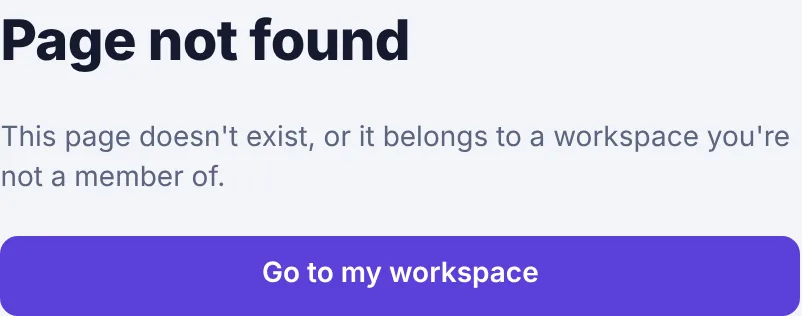
You'll see this when a link points to a workspace you're not an active member of, to something that was deleted, or to a page your role can't open. Click Go to my workspace and look for it from the menu or Search. See I can't see a page or button.