Use Plainstamp on iPhone or iPad
Add Plainstamp to your Home Screen so it opens like an app, and turn on notifications.
There's no App Store download for Plainstamp. Instead, you add it to your Home Screen from Safari. It then gets its own icon, opens full screen like an app, and can show notifications.
Add Plainstamp to your Home Screen#
Open Safari and go to app.plainstamp.com.
Sign in.
Tap the Share button (the square with an arrow pointing up).
Scroll down and tap Add to Home Screen.
Leave the name as Plainstamp and tap Add.
The Plainstamp icon is now on your Home Screen. From now on, open Plainstamp by tapping that icon.
Turn on notifications#
Open Plainstamp from the new Home Screen icon. Sign in again if asked.
In the menu across the top, swipe to Settings and tap it, then tap the Notifications tab.
Under Phone and desktop notifications, tap Turn on for this device.
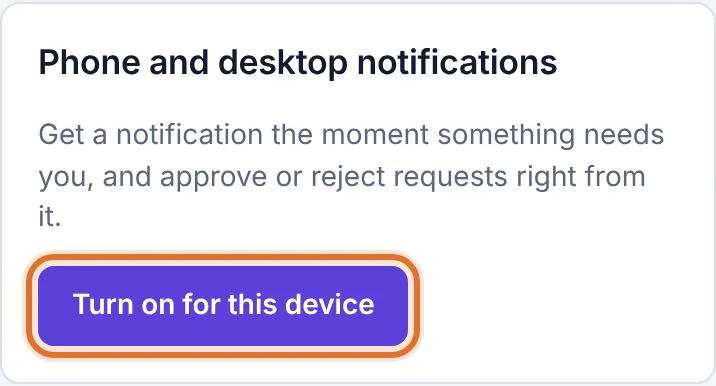
Settings > Notifications on an iPhone, with the Turn on for this device button When asked if Plainstamp may send notifications, tap Allow.
Seeing "Add to Home Screen" instead of the button?#
If you open the Notifications settings in a normal Safari tab, you see this message instead of the button:
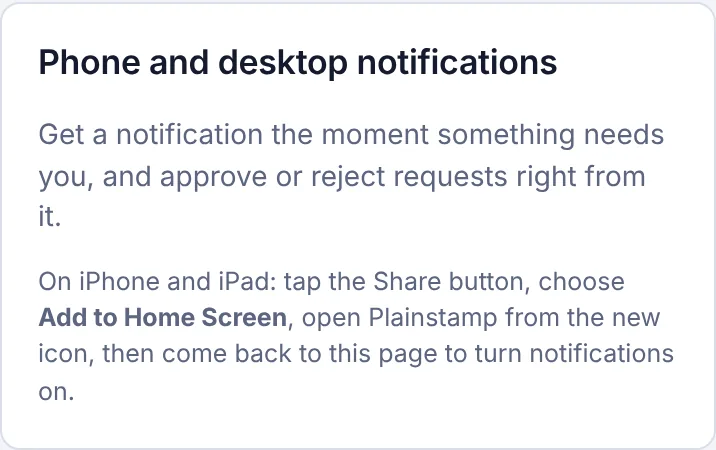
Follow the steps above to add Plainstamp to your Home Screen, open it from the new icon, then come back to this page.
Approving from a notification#
When a request is waiting for you, tap the notification to open it in Plainstamp, then approve or reject it there. See Turn on phone and desktop notifications.