Sign out, or sign out on every device
Sign out on the device you're using, or sign your account out everywhere at once after losing a phone or using a shared computer.
Sign out on this device#
At the bottom of the menu on the left, under your name, click Sign out.
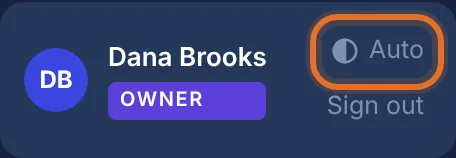
On a phone, the menu is the bar across the top of the screen. Sign out is at its right-hand end.
Signing out also stops phone and desktop notifications on that device. Your other devices aren't affected.
Sign out on every device#
Use this if you lost a phone, signed in on a shared or public computer, or think someone else is using your account.
In the menu on the left, click Settings, then the Sign-in & security tab.
Under Signed-in devices, click Sign out of all devices.
Click Yes, sign out everywhere.

Signed-in devices, asking you to confirm
Your account is signed out on every phone, computer and app, including the one you're using. Phone and desktop notifications are turned off on all your devices too.
To get back in, sign in with your password (and your two-step code, if you use one). Then turn notifications back on for each device you want. See Turn on phone and desktop notifications.
Leave a workspace#
Signing out keeps you in your workspaces. To leave one for good:
Open the workspace you want to leave and click Settings.
At the bottom of the General tab, click Leave this workspace.
Read the warning ("You'll lose access to this workspace until someone invites you again.") and click Leave workspace.

The Leave workspace panel
The owner can't leave their own workspace. They first make another admin the owner. See Hand over the workspace.