Snap a receipt and let Plainstamp fill in the form
Take a photo of a receipt or drop in an invoice PDF, and Plainstamp reads the vendor, amount and dates into the form for you.
You don't have to type receipts and invoices in. Give Plainstamp a photo or a PDF and its invoice reader fills in the form: date, amount, vendor, invoice number, due date, description and payment method when it can find them. You check the fields and save. The file is attached for you.
From your phone#
On a phone, a round purple camera button sits at the bottom right of every page in your workspace.
Tap the camera button.
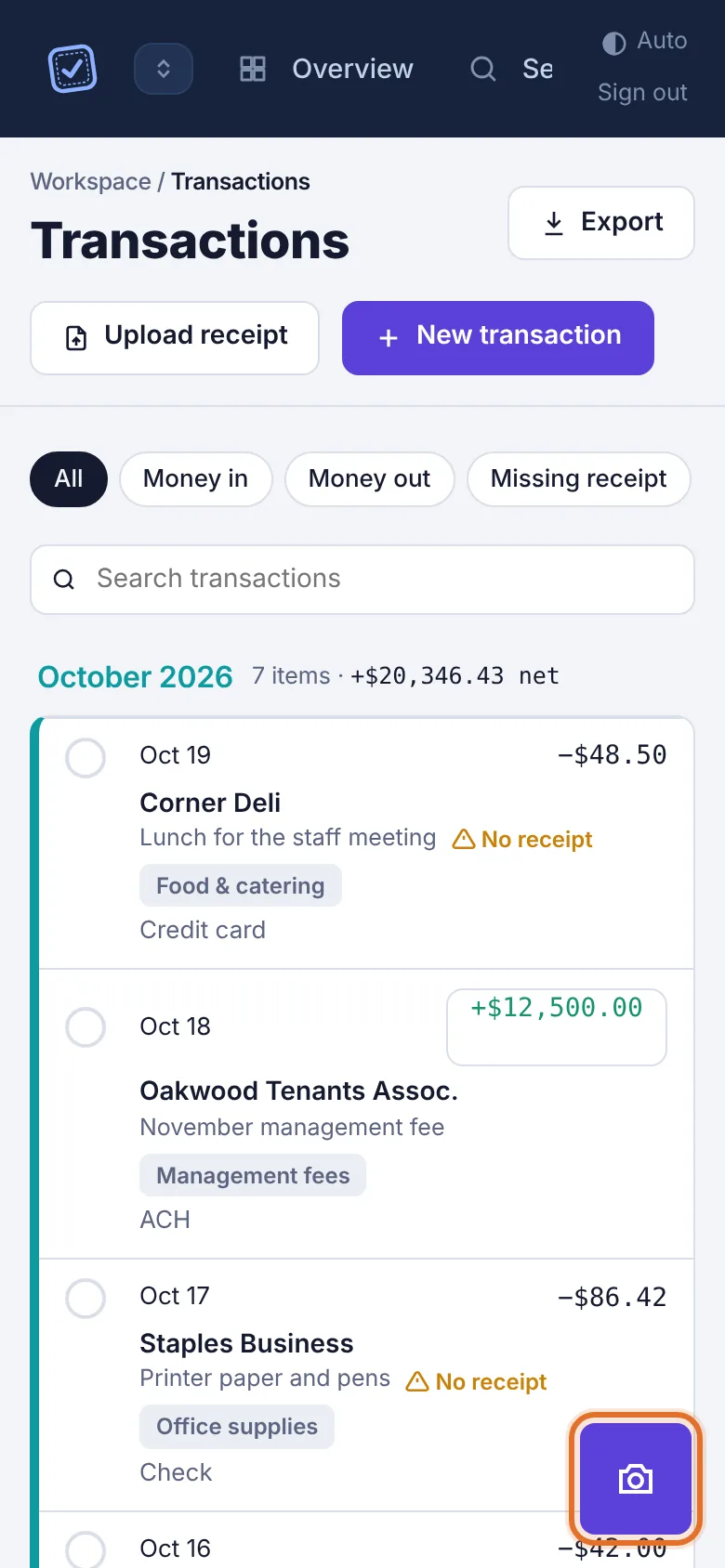
On a phone, the round camera button at the bottom right Your phone's camera opens straight away. Take a clear photo of the receipt, flat and in good light, and tap Use photo (the wording depends on your phone). Some phones first ask whether to take a photo or choose one from your library.
The New entry form opens as a transaction and Plainstamp reads the photo. A bar shows its progress (Reading the document).
Check the filled-in fields, add anything missing, and tap Add to Transactions (or Submit for approval if your role needs it).
If you cancel the camera, nothing is added and no form opens.
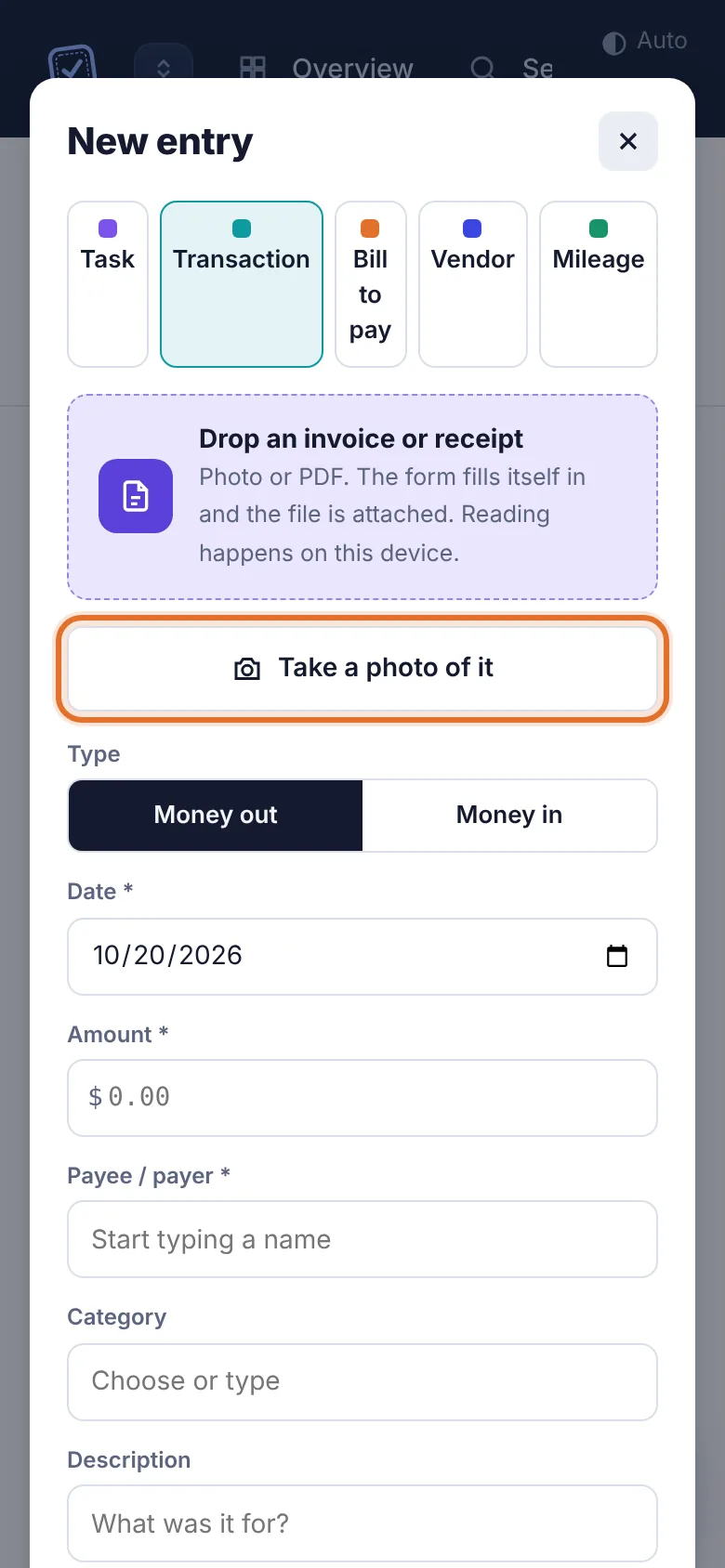
You can also open any New entry form on the phone and tap Take a photo of it, just under the purple drop box.
From a computer#
Go to Transactions and click Upload receipt, or go to Bills to pay and click Upload invoice. A file picker opens.
Pick the receipt or invoice (a photo or a PDF). The New entry form opens with the file attached.
Wait a moment while Plainstamp reads it.
Check the fields. Each one Plainstamp filled in is shaded and labelled FROM DOCUMENT, so you can see what came from the file.
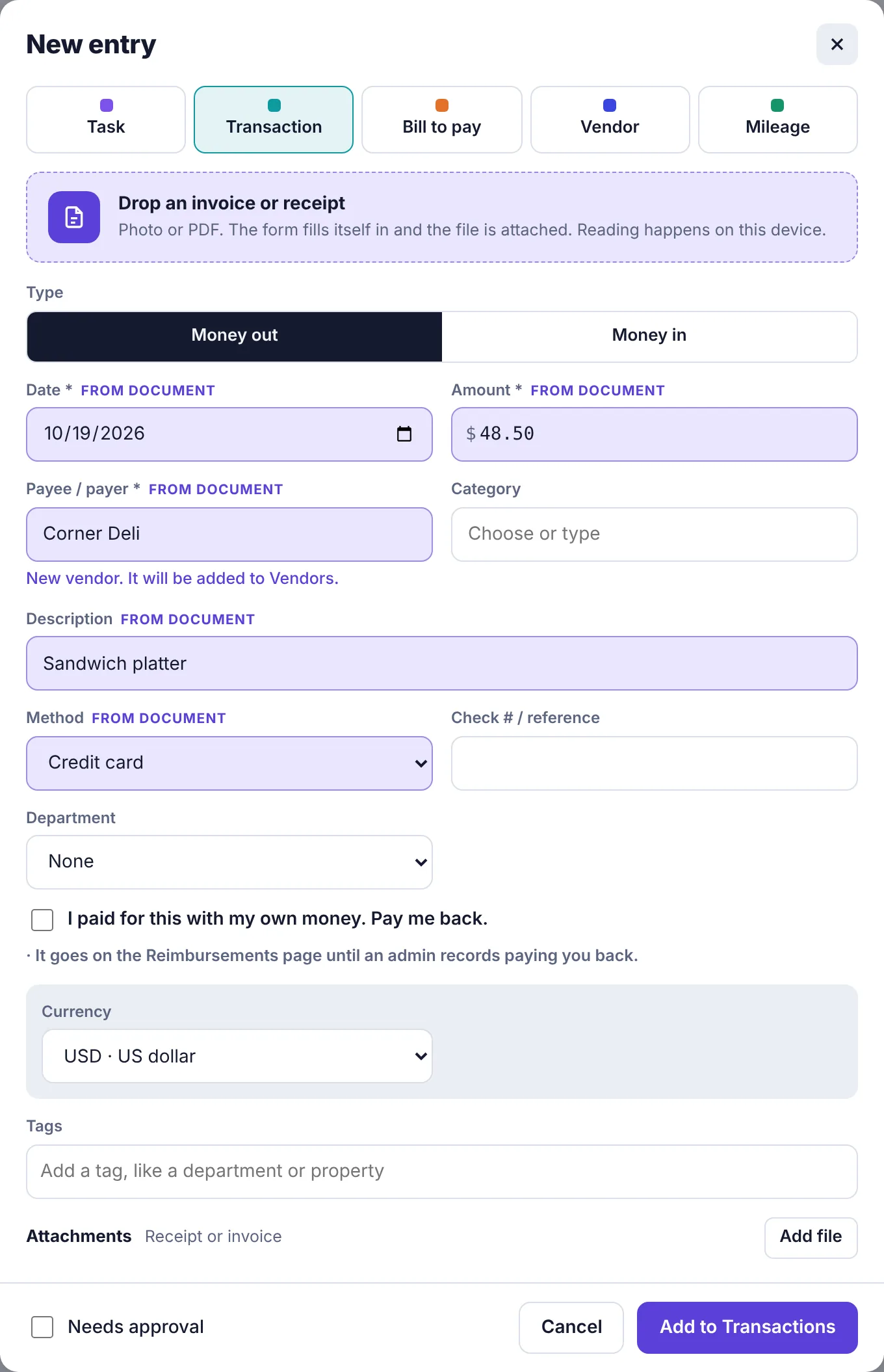
A transaction form filled in from a receipt, with FROM DOCUMENT next to each filled field Fix anything that's wrong, fill in what's missing, and save.
You can also drag a file onto the purple Drop an invoice or receipt box at the top of any New entry form, or click that box to pick a file.
Receipt or bill? Plainstamp decides for you#
If the file looks like a receipt (it says receipt, paid, thank you for your purchase and so on, and has no amount due), the form switches to a Transaction. If it looks like an invoice with an amount or date due, it switches to a Bill to pay and fills in the invoice number, invoice date and due date.
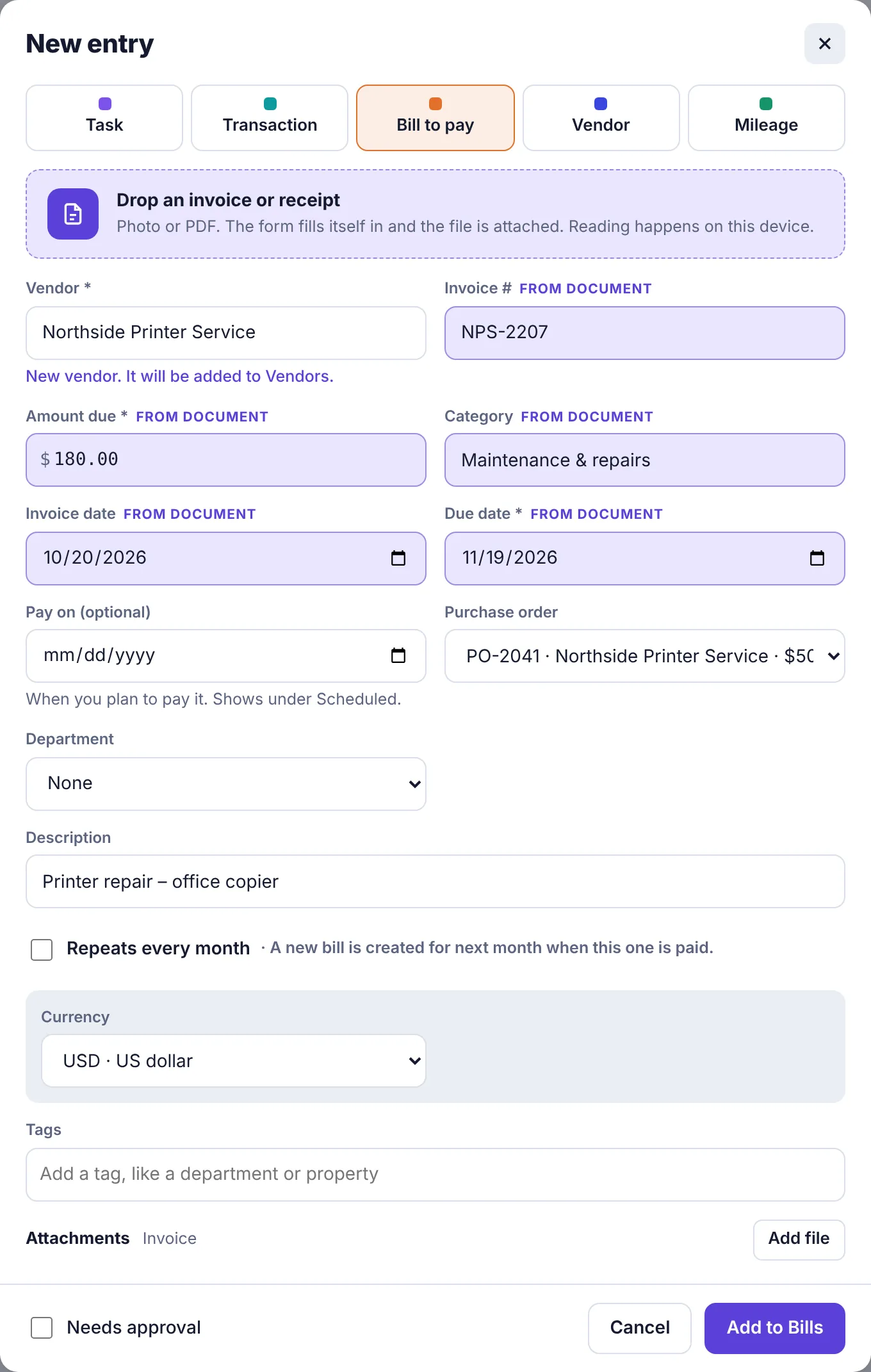
If the invoice has no due date, it's worked out from the invoice date and the vendor's payment terms (for example 30 days after the invoice date for Net 30). If the vendor isn't in Plainstamp yet, it's set 30 days after the invoice date. Either way, you can change it.
How the vendor is found#
The reader looks for the vendor's name in this order:
A vendor you already have, printed at the top of the invoice. Capitals, punctuation and endings like Inc, Co. or LLC don't matter: METRO SUPPLIES on the invoice fills in your vendor Metro Supplies Co. LLC.
A labelled name, like From:, Bill from, Vendor:, Remit to: or Make checks payable to, on the same line or the line under it. In an emailed invoice, a person's name on the From: line is skipped in favour of the company.
The company name at the top of the page, preferring a line that reads like a business (Inc, LLC, Services, Plumbing and so on). Your own name and address under Bill to or Ship to is never used, and a word like Invoice after the name is dropped.
When the name matches a vendor you already have, the form uses that vendor, with its payment terms and category.
Good to know#
Reading happens on your device. The text is read in your browser, not sent off to another company.
Only photos and PDFs can be read. Other files (Word, Excel) are attached but you type the details yourself.
Fields you've already typed are kept. The reader only fills empty fields (and the date, if it's still today's date).
Monthly limit. Each plan includes a number of automatic reads a month: 20 on Starter, 100 on Small, 300 on Team and 1,500 on Business. When they run out, the file is still attached and you fill in the fields by hand. Owners and admins can see how many are left, and upgrade, on the Plan & billing page.
Nothing found? You'll see Couldn't find invoice details in that file. It's attached; fill in the fields by hand. Blurry or angled photos are the usual cause. Try again in better light.
Snap a pile of receipts at once#
On the Invoice inbox page, Snap receipts lets you photograph or pick several receipts in one go. They wait in the inbox until you file them. See Use the invoice inbox.