Use the invoice inbox
Get an email address for your office, have vendors send invoices to it, and turn each one into a bill or transaction in a click.
The Invoice inbox collects invoices and receipts that arrive from outside: emails sent to your office's own invoice address, uploads from the vendor portal, and receipts you snap in bulk. Each one waits here until someone turns it into a bill or a transaction, or dismisses it.
Get your invoice email address#
In the menu, click Invoice inbox.
At the top, under Your invoice email address, click Copy.
Give that address to your vendors, or forward invoices you receive to it.
Each workspace has its own address. If it starts getting spam, click New address. The old address stops working straight away, so tell your vendors the new one.
What happens to each email#
Each attachment becomes its own item. An email with three PDF invoices shows up as three items, marked (1 of 3), (2 of 3) and so on. PDFs and photos are kept; other kinds of attachments are skipped.
An email with no attachment still shows up, so you can read the message.
The sender is matched to a vendor when their email address (or their company's email domain) matches a vendor in Plainstamp. If the sender's mail server can't vouch for who sent it, the item says (sender not verified): be careful with those.
Owners and admins get a notification that a new invoice email arrived.
The same email sent twice is only added once.
Files over 20 MB, or arriving when your plan's file space is full, aren't saved; the item explains why.
Turn an item into a bill#
On the To file tab, find the item.
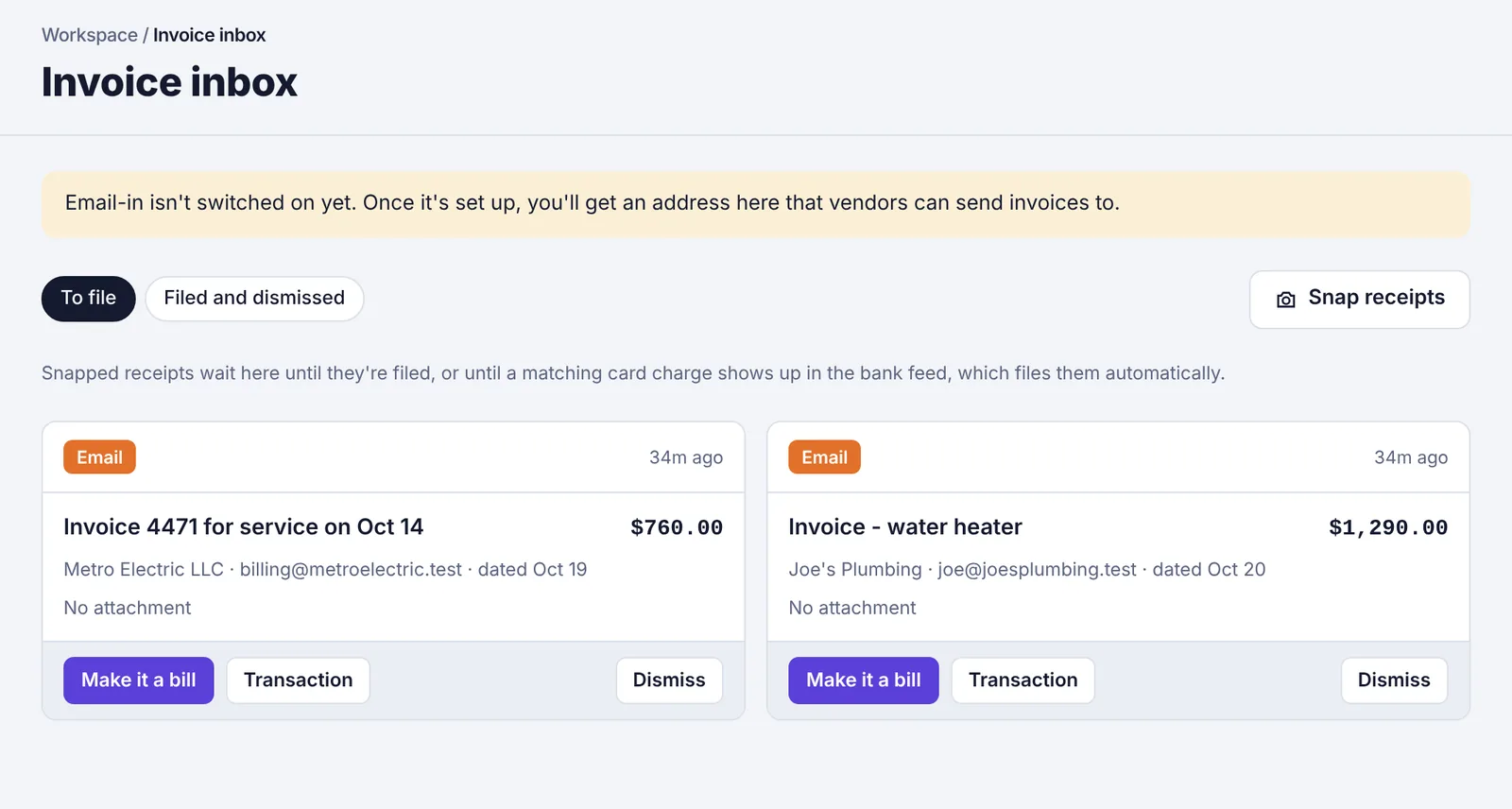
The Invoice inbox with two emailed invoices, each with Make it a bill, Transaction and Dismiss buttons Click Make it a bill. The New entry form opens with the vendor, amount, invoice date and invoice number filled in where Plainstamp found them, and the file already attached. If the item had no amount yet, Plainstamp reads the attachment to fill in the form. The Due date comes from the invoice if it prints one; otherwise it's worked out from the vendor's Payment terms and the invoice date (for example 30 days later for Net 30).
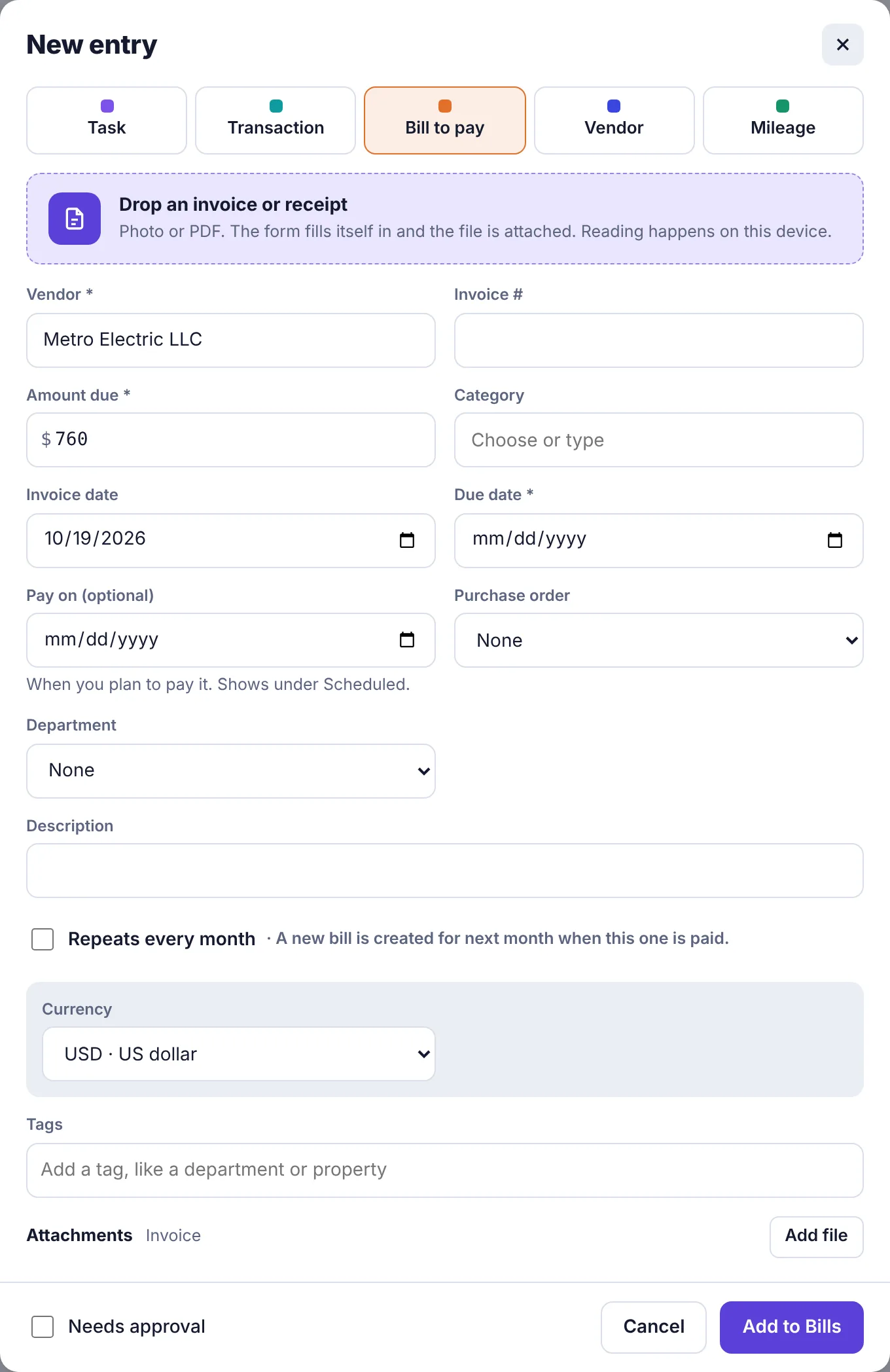
A bill form opened from an inbox email, with the vendor, amount and invoice date filled in Check the Due date and fill in anything that's missing. If you change the vendor or the invoice date, the due date is worked out again, unless you've typed one yourself.
Click Add to Bills (or Submit for approval).
The item moves to Filed and dismissed with a Filed label, and its files move onto the new bill.
Was it really a receipt for something already paid? Click Transaction instead to file it as a transaction.
Dismiss an item#
Spam, a duplicate, or a statement you don't need? Click Dismiss. It moves to Filed and dismissed with a Dismissed label. To bring it back, open that tab and click Move back to inbox.
Snap receipts in bulk#
Back from a trip with a stack of receipts?
On the Invoice inbox page, click Snap receipts.
Take photos (on a phone) or pick several image files.
Plainstamp reads each one (Reading 2 of 5…) and saves them to the inbox as Snapped items with the amount and date it found.
Snapped receipts wait in the inbox until you file them with Make it a transaction (or Bill). On plans with the bank feed, a snapped receipt is filed automatically when a matching card charge shows up.