Pay a bill (in full or in parts)
Record a bill's payment with the date, method and check number, pay part of it now and the rest later, and print the check.
When you pay a vendor, record it in Plainstamp. The bill moves to Completed, the payment shows on the vendor's statement, and (if you like) a matching transaction is added for you.
Pay a bill in full#
Go to Bills to pay.
Click the round circle at the left of the bill. (Or open the bill and click Pay.)

The circle at the left of a bill row opens the payment form The Pay form opens with the full amount still owed in Amount paid now. Leave it as it is.
Check Paid on (today by default).
Pick the Method: Check, ACH / wire, Credit card, Zelle, Cash or Other.
In Check # / confirmation, type the check number or the payment's confirmation code.
Leave Also record it in Transactions ticked if you want a money-out transaction added for this payment (most people do; untick it if the payment will come in through the bank feed instead).
Optional: add a Note and, under Payment receipt, click Add file to attach a confirmation.
Click Mark as paid.
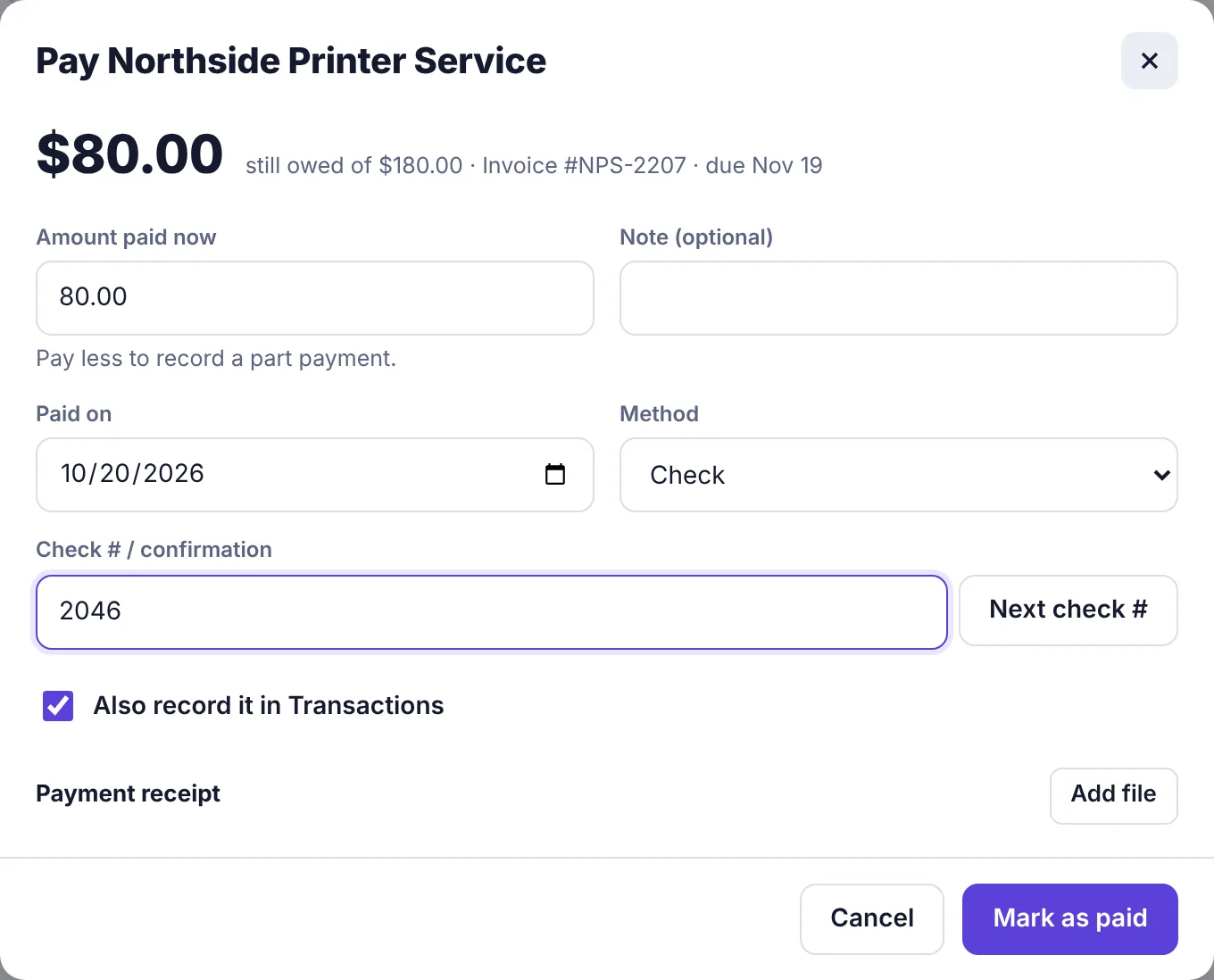
The Pay form for the last $80 of a bill, paid by check #2046
The bill moves to Completed and the message says Paid · moved to Completed. If it was a monthly bill, next month's is already on the board.
Pay part of a bill#
Paying in installments, or holding back part until the work is finished? Record just what you paid now.
Open the payment form as above.
In Amount paid now, type the amount you're paying today (it must be more than zero and no more than what's owed).
Fill in the date, method and check number.
The button changes to Record part payment. Click it.
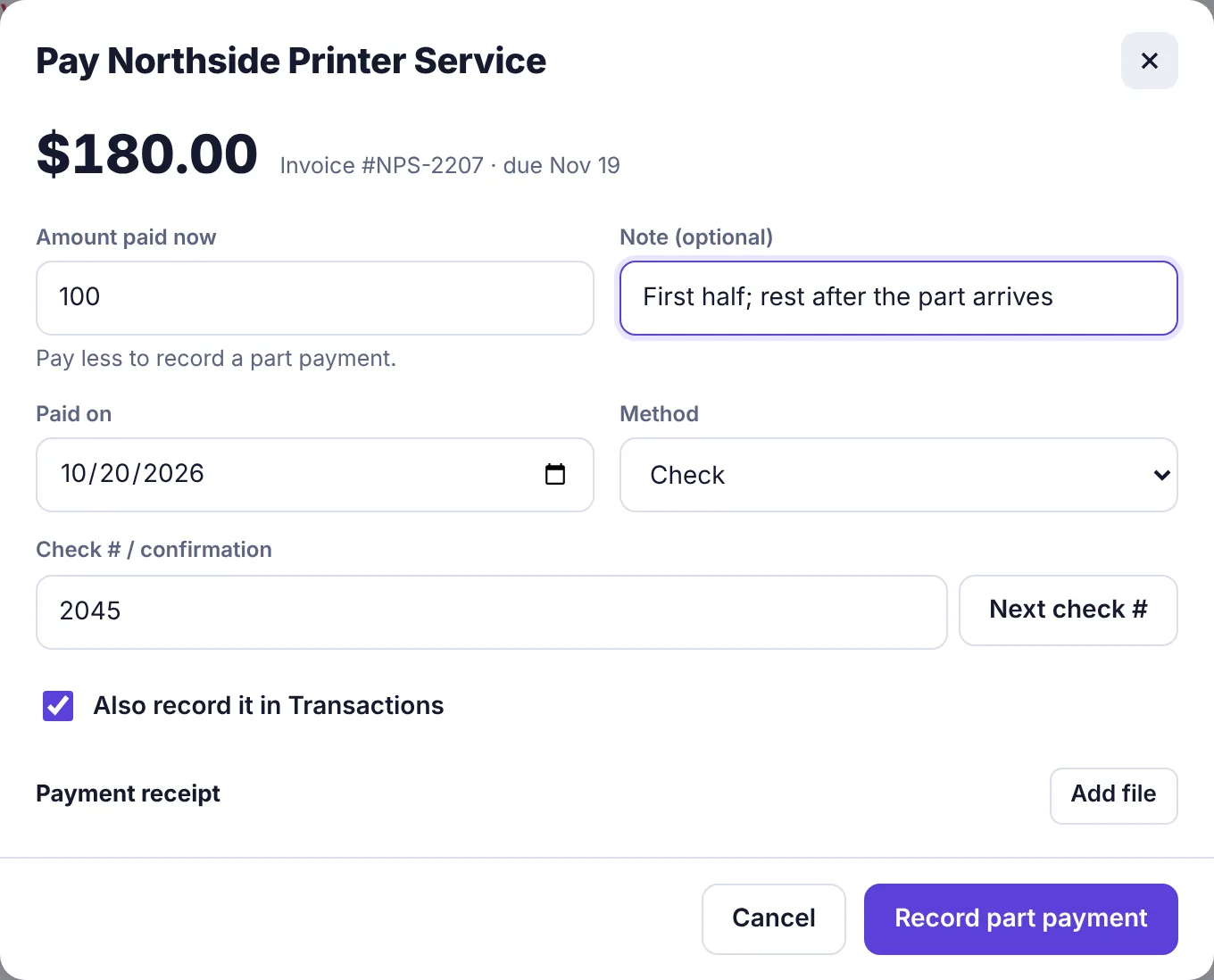
Recording a $100 part payment on a $180 bill
Plainstamp tells you how much is still owed, and the bill stays on the board with a Part paid label and only the balance in the amount column. A Part paid filter appears at the top of the board.

To pay the rest, open the bill and click Record a payment. When the payments add up to the full amount, the bill is marked paid.
What "Also record it in Transactions" does#
With it ticked, every payment adds a money-out transaction: same vendor, category, date, method and check number, described as Payment of invoice #… (paid in one go), Part payment of invoice #… (part of the bill) or Final payment of invoice #… (the payment that finishes off a part-paid bill). You'll find it on the Transactions board to reconcile against your bank statement.

Print the check#
On the Small plan and up, owners and admins can print checks from Plainstamp.
While paying: with Check as the method, click Next check #. Plainstamp takes the next number from your checkbook and fills it in. After you save, the check opens ready to print.
After paying: open the paid bill (from Completed > Paid bills) and click Print check. This button shows when the bill was paid by check and has a check number.
Setting up your bank details and starting check number is covered in Set up check printing and Print checks.
Pay many bills at once#
Owners and admins on the Small plan and up see Pay several at once above the bills. It pays a batch in one go, with check numbers in order. When it's done you'll see, for example, Paid all 4 bills. (or Paid 3 of 4 bills. if some couldn't be paid). See Pay several bills at once.
If you're an employee#
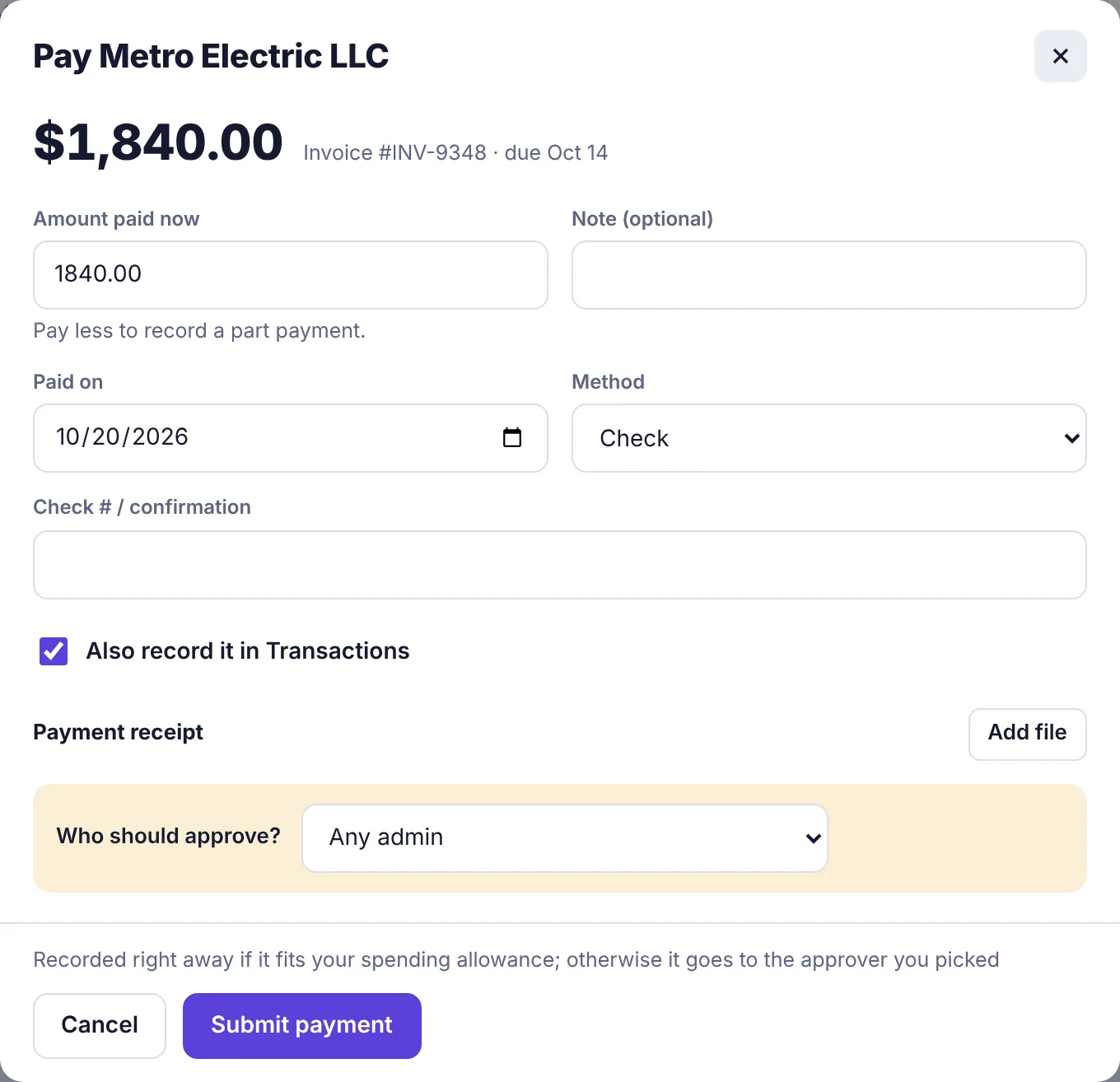
Your form has a Who should approve? box. Pick a person or leave Any admin.
If you have a monthly spending allowance, the button says Submit payment and the note beside it says Recorded right away if it fits your spending allowance; otherwise it goes to the approver you picked.
If you don't, the button says Submit for approval and the payment always waits for the person you picked.
Only one payment request per bill can wait at a time.