Use purchase orders
Approve spending up front with a PO number and amount, link each bill to it, and see when bills take it over budget.
A purchase order (PO) approves spending before the invoice arrives: "We'll spend up to $500 with Northside Printer Service on copier repairs." Give it a number and an amount, then pick it on each bill that comes in. Plainstamp keeps a running total of what's been billed against it and warns you when a bill would take it over.
Create a purchase order#
In the menu, click Purchase orders.
Click New purchase order.
Fill in:
PO number (required), like PO-1001. Each number can only be used once.
Vendor: pick one, or leave it empty for a PO any vendor's bills can use.
Approved amount (required).
Currency, if your plan includes other currencies.
What it's for.
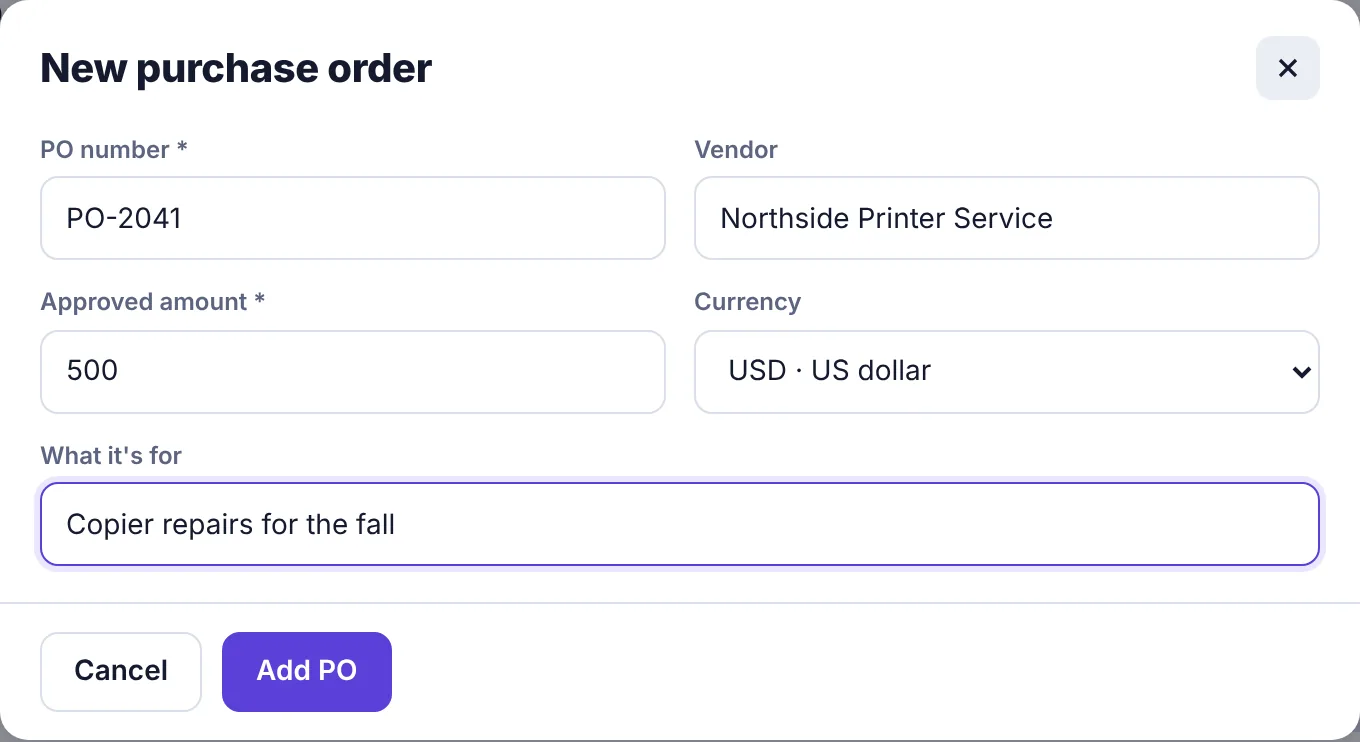
The New purchase order form Click Add PO.
Link a bill to a PO#
Add a bill as usual (see Add a bill to pay), or open an existing one and click Edit.
In Purchase order, pick the PO. The list shows open POs for that bill's vendor, and POs with no vendor.
Save the bill.
If the bill would take the PO past its approved amount, a warning appears in the form: This takes PO PO-2041 over its approved $500.00 by $40.00. You can still save; the warning is there so someone can decide whether the extra spend is OK.
The PO number shows as a label on the bill's row and in its details.
Follow a PO's spending#
Each PO on the Purchase orders page shows how much has been billed out of the approved amount, with a bar that turns orange when it's over 85% used and red when it's over (with an Over by label). Click Show bills to list the linked bills and whether each is paid.
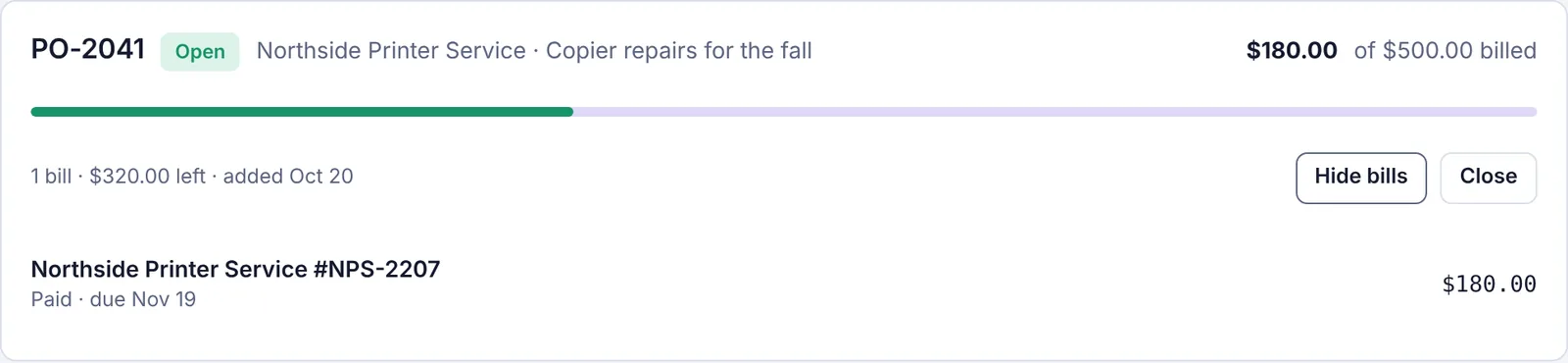
Use Open, Closed and All at the top, and Search POs, to find one.
Close a PO#
When the work is done, click Close on the PO. It moves to the Closed list and can no longer be picked on new bills. Bills already linked stay linked. Changed your mind? Open the Closed list and click Reopen.

Remove a PO#
A PO with no bills linked to it has a Remove button. Once a bill is linked, you can't remove it; close it instead.